
My Preferences lets you customize the LogPoint UI and update your account settings. It helps you personalize various UI components like result limits, notification positions, and help-boxes to improve usability.
You can access it from User >> My Preferences in the navigation bar.
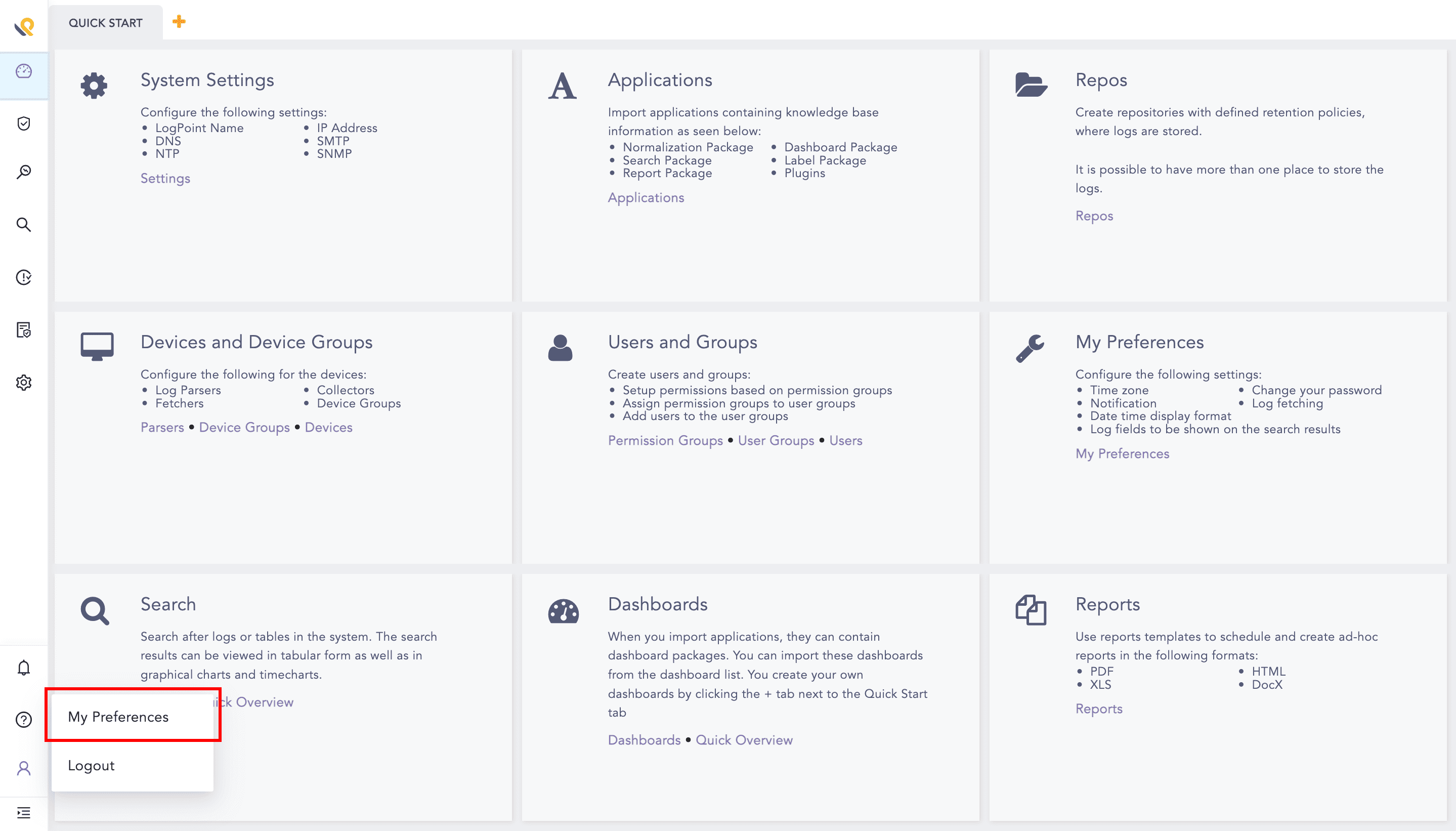
My Preferences
My Preferences is grouped into:
Account: Update personal details, password, preferred date and time format, and API Access Key.
User Interface: Configure the page limits and search fields, notification positions, help-boxes, and whether to pre-compute dashboard data.
You can view and edit your Username and Email Address in User Details.
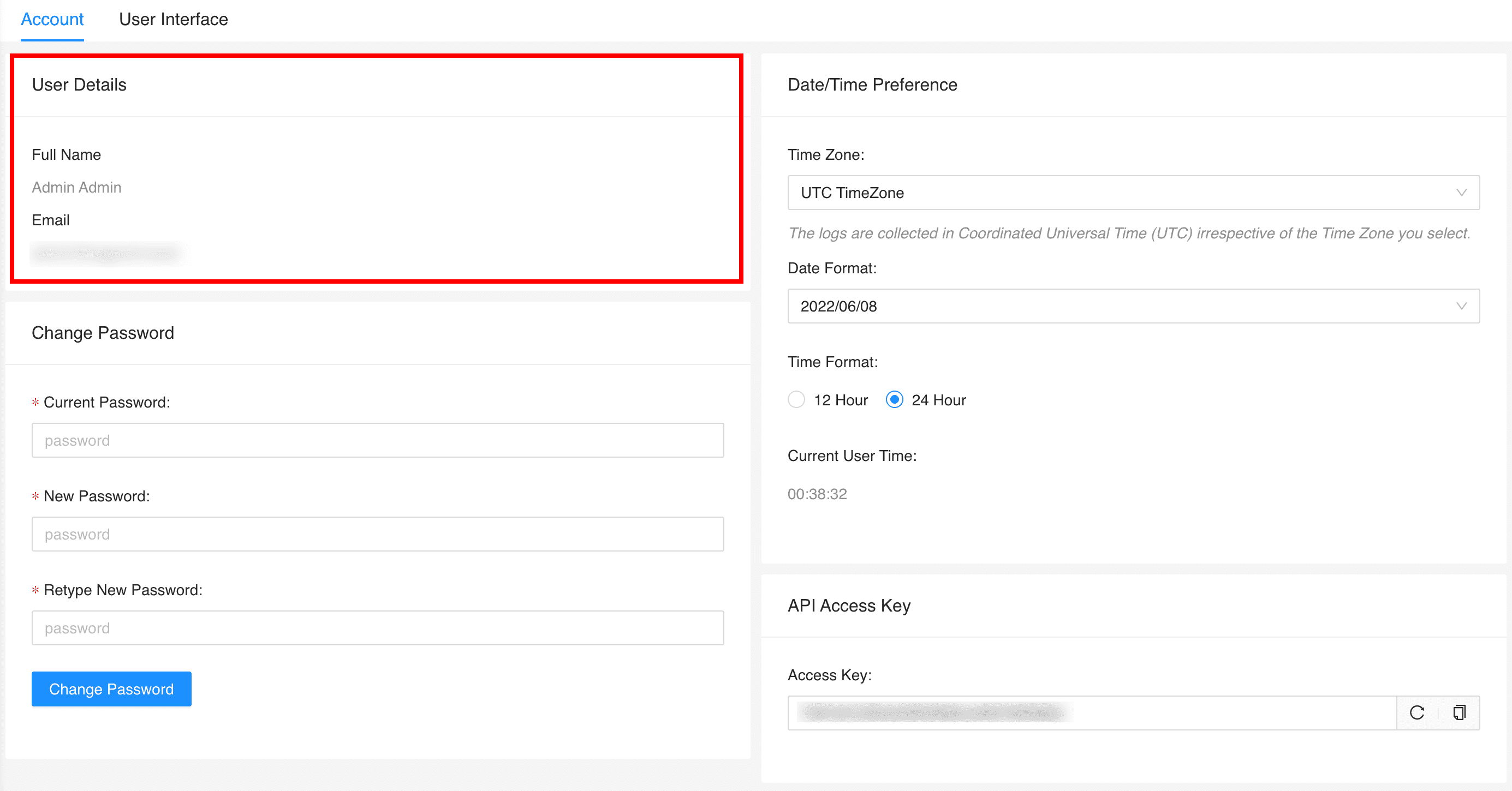
Change Password
You can change your password in Change Password.
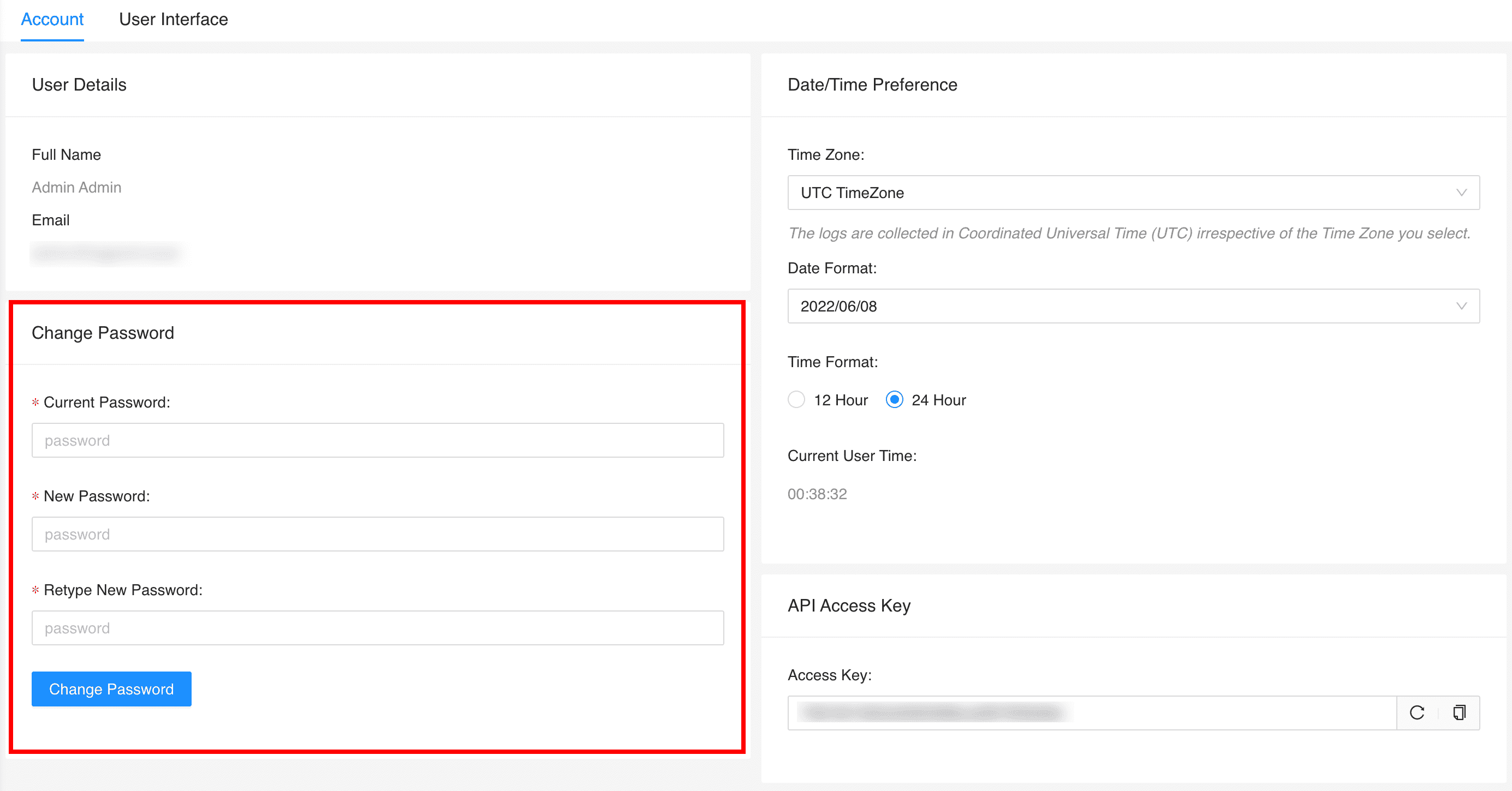
Change Password
Note
Change Password is only visible to the users authenticated with LogPoint’s basic authentication.
In Date/Time Preferences, you can view and edit:
Time Zone
Date Format
Hour Display Format
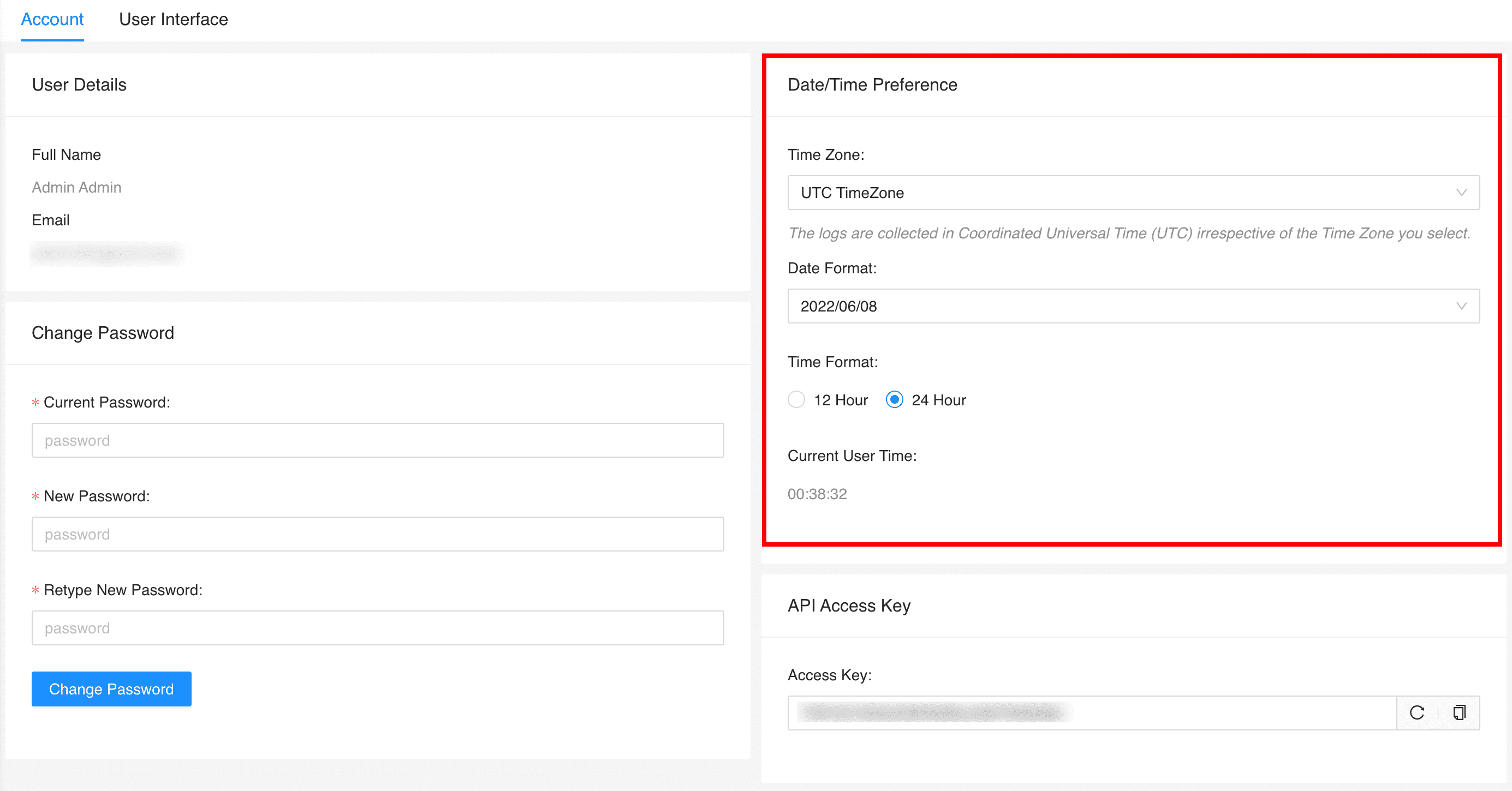
Date/Time Preferences
Note
The logs are collected in Coordinated Universal Time (UTC) irrespective of the Time Zone you select.
The API Access Key is a unique identification for each user. You can use it to access API endpoints exposed by LogPoint.
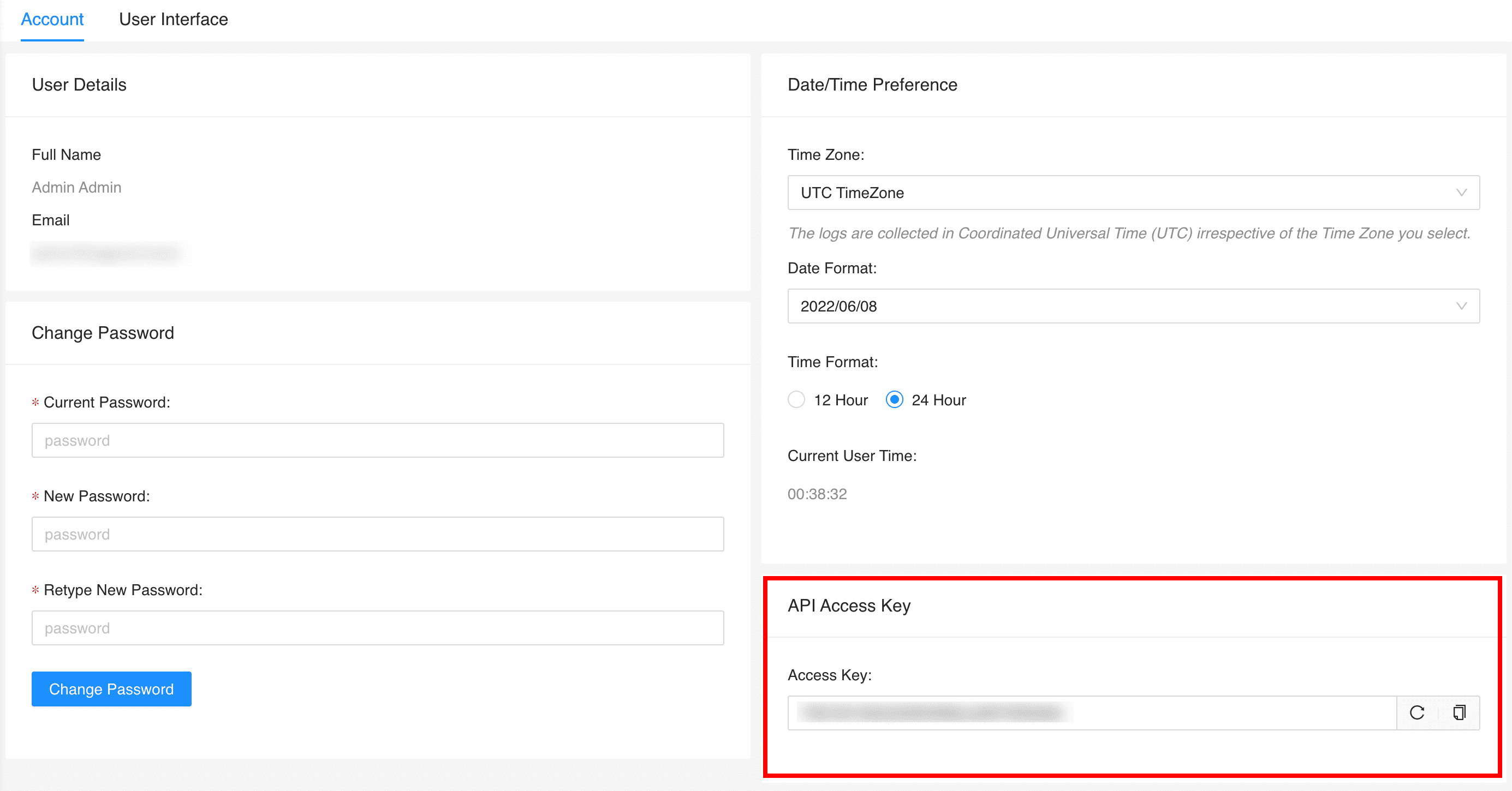
API Access Key
Click Re-generate Key ( ) to generate a new access key and Copy to Clipboard (
 ) to copy your access key to the clipboard.
Note
Once you generate a new access key, the previous key becomes invalid and you cannot use it anymore.
Configure the Result Limit per page on the Settings and Reports pages.
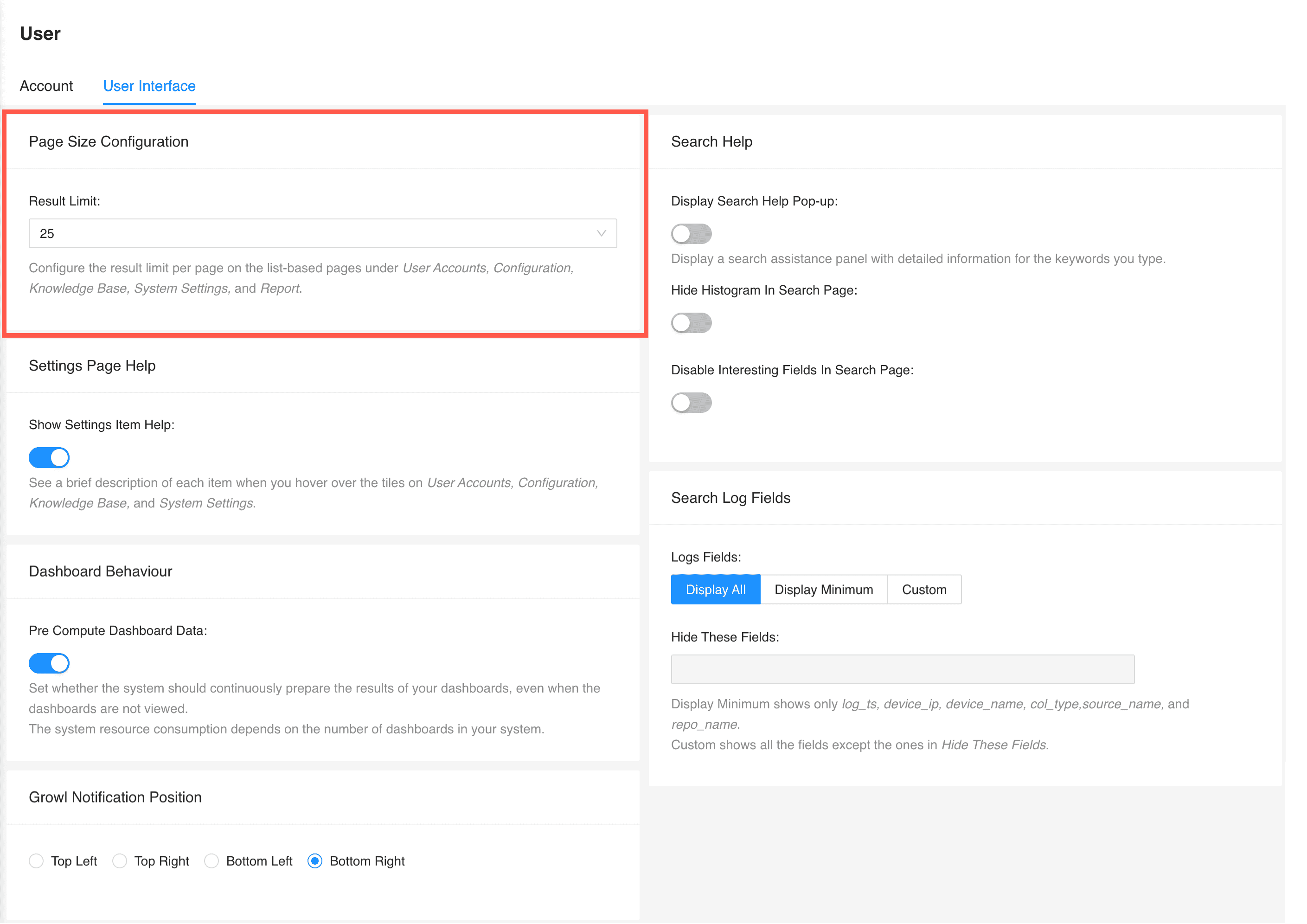
Page Size Configuration
If you select Show Settings Item Help, LogPoint provides a brief description of each Setting when you hover your mouse over the tiles on User Accounts, Configuration, Knowledge Base, and System Settings.
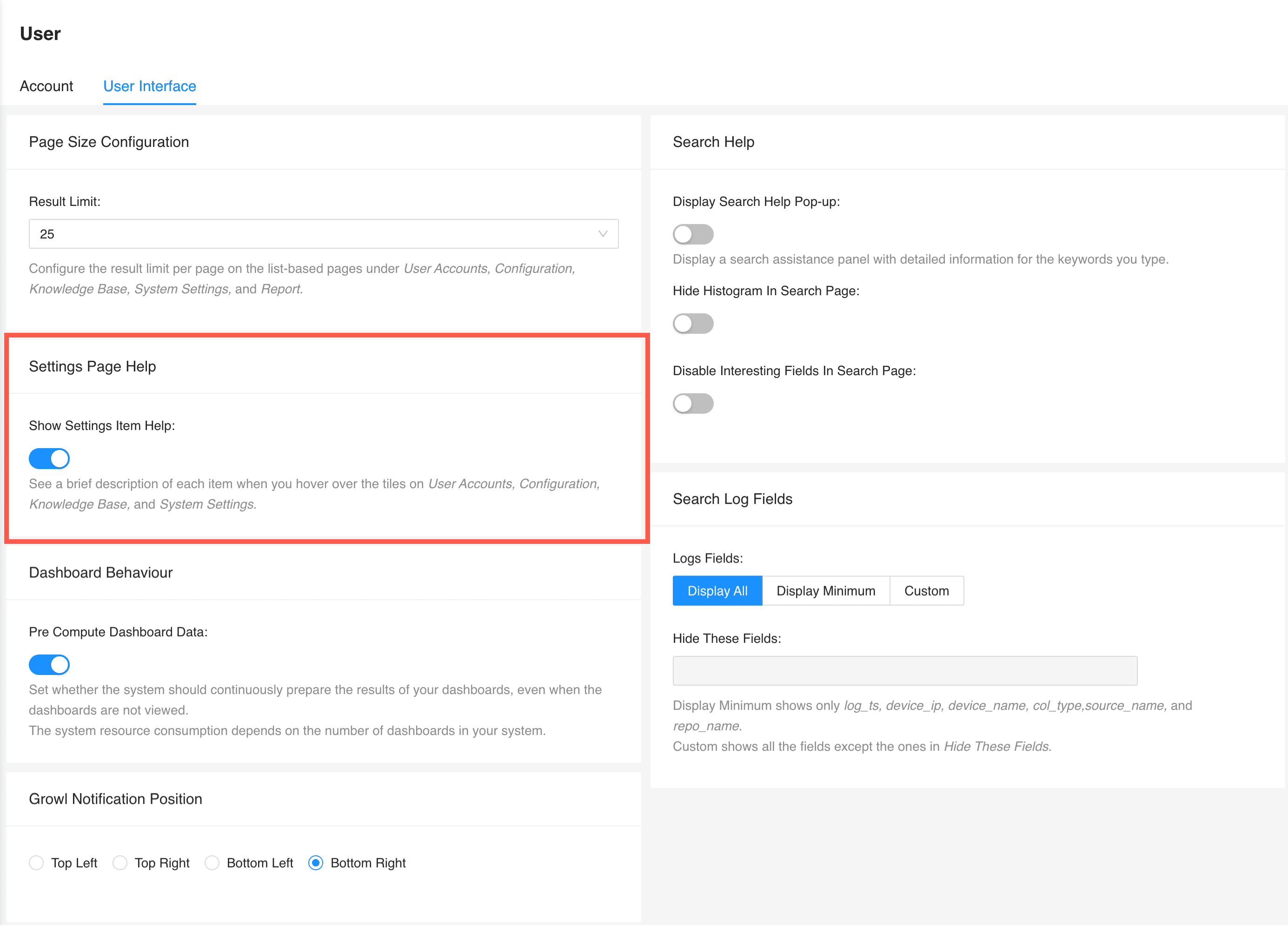
Settings Page Help
Set whether the system should continuously prepare the results of your dashboards, even when the dashboards are not viewed.
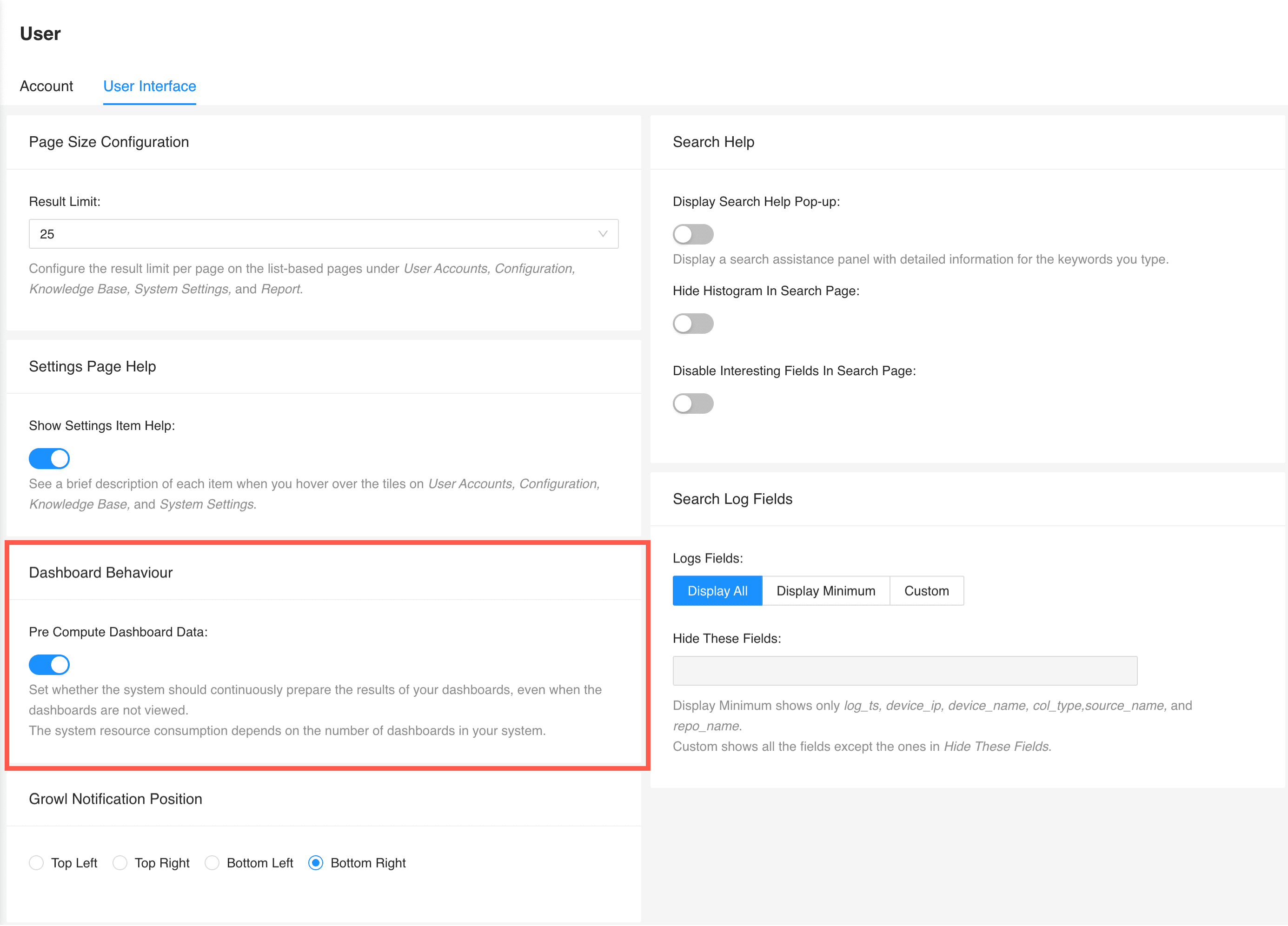
Dashboard Behavior
Choose the position where the notifications appear.
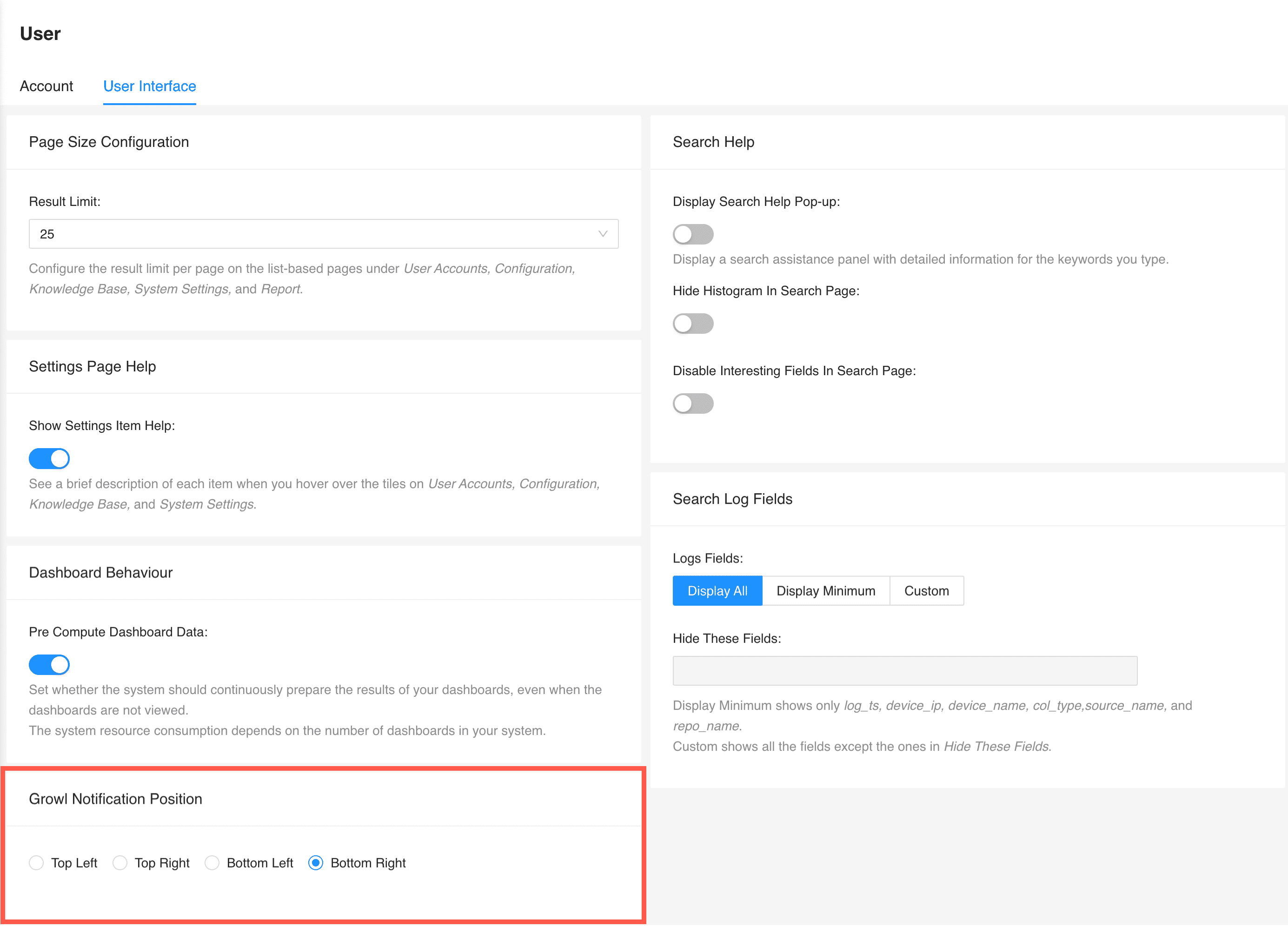
Growl Notification Position
From the Search Help section, you can configure the following:
Enable Search Help Pop-up to display a search assistance panel with detailed information for the keywords you type.
Display or hide the histogram on the Search page.
Display or hide the Interesting Fields panel on the Search page.
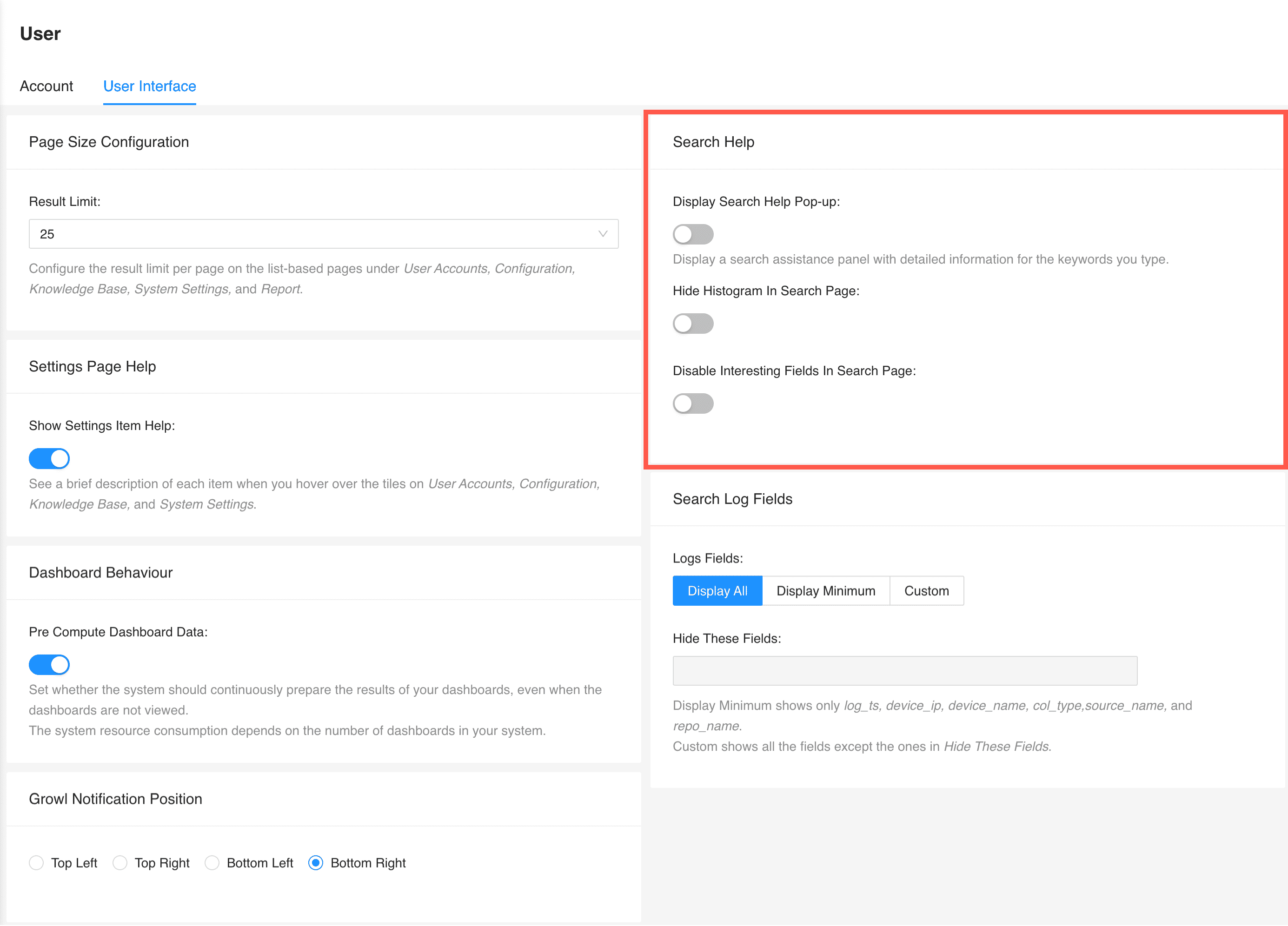
Search Help
Choose the fields to be displayed in the search results.
Display All shows all the fields present in the log.
Display Minimum shows log_ts, device_ip, device_name, col_type, source_name, and repo_name for each log.
Custom shows all the fields present in the log except the ones you provide in Hide These Fields.
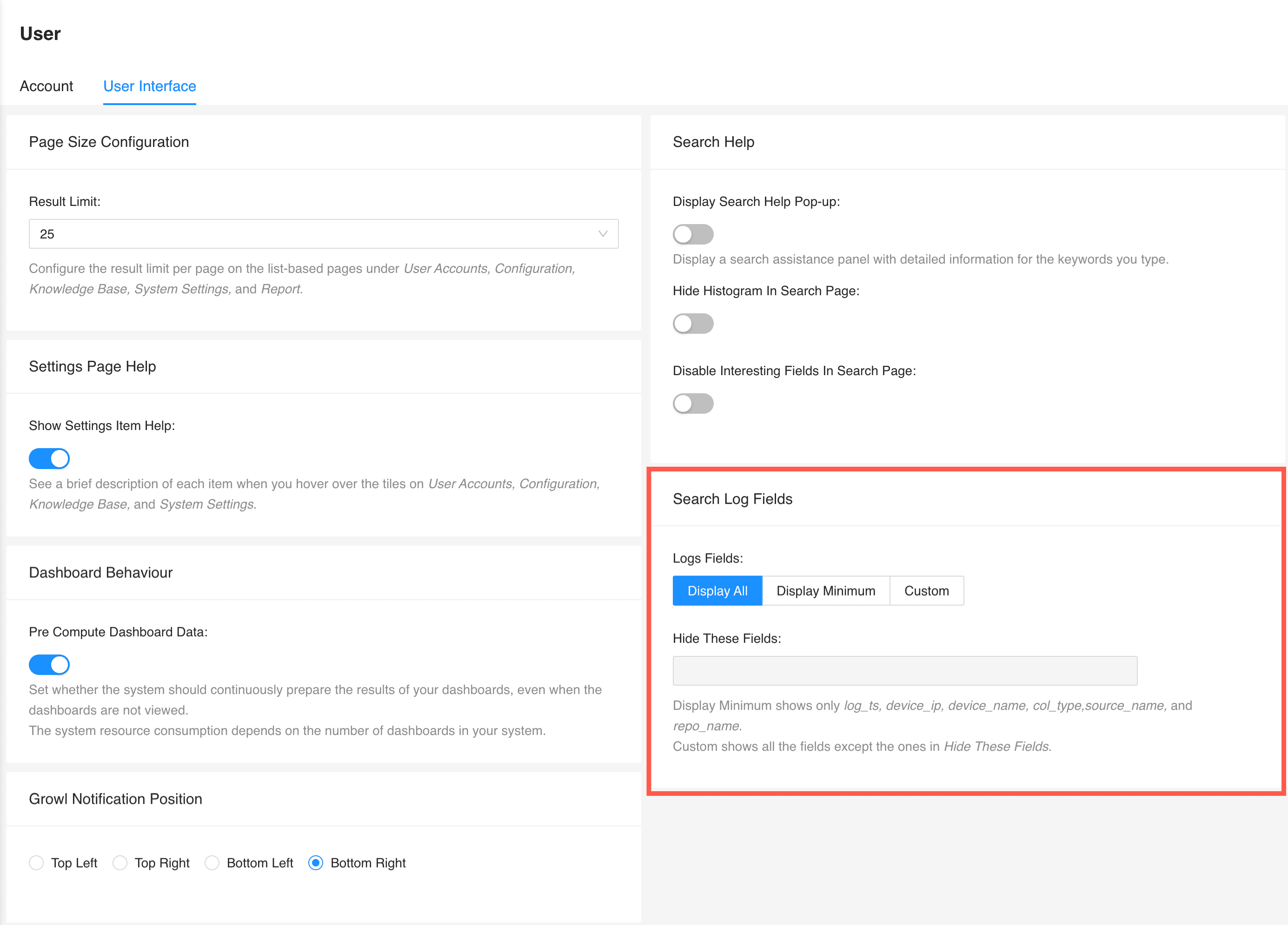
Search Log Fields