
The Disk Notification notifies you of the total disk usage by the LogPoint file systems. You can see the new notifications from the navigation bar. Click the Notification icon to open the Notification Center.
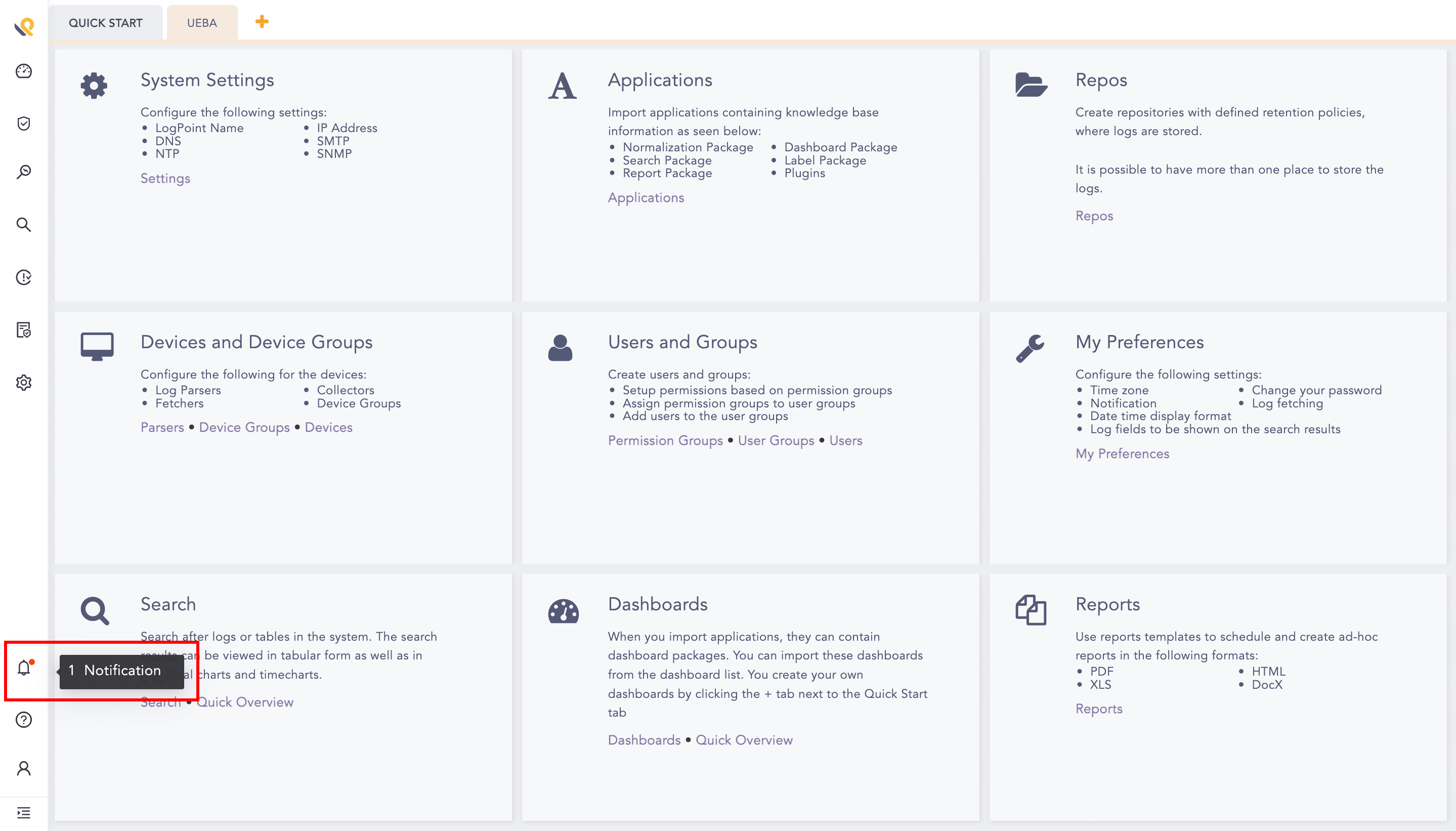
Notifications in the sidebar
LogPoint generates two levels of notification by default:
Notification with critical severity when the disk usage reaches 80% of its allocated space.
Notification with alert severity when the disk usage reaches 90% of its allocated space.
However, a LogPoint administrator can configure these values.
Note
If you have configured the disk notification before upgrading to LogPoint v6.8.0, LogPoint adds the above two disk notifications in the system and generates notifications. However, the pre-existing notifications and the notifications generated from the configurations added before LogPoint v6.8.0 do not include severity. Similarly, manually configured notifications also do not include severity.
Go to Settings >> System Settings from the navigation bar and click Plugins.
Search for Disk Notification.

Disk Notification
Click Manage for the Disk Notification plugin.
A Disk Alert notification is configured in the system by default. This can be de-activated or deleted by the administrator.
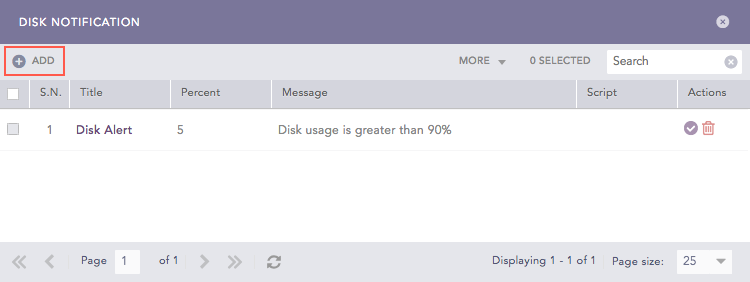
Disk Notification Panel
Click Add to open the Disk Notification panel.
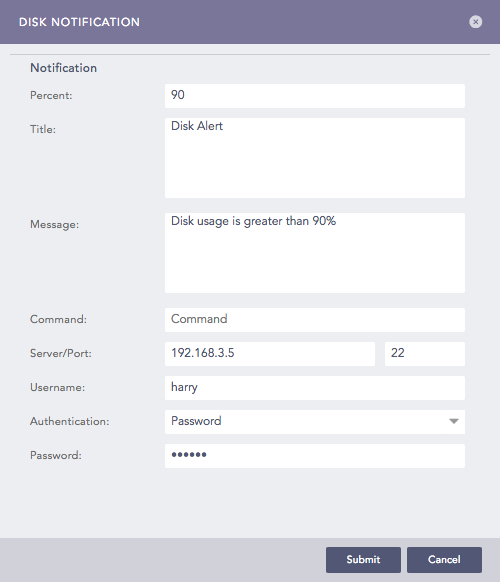
Adding a Disk Notification
Provide the threshold Percent. Once the threshold is reached, a notification is triggered.
Provide the Title and Message of the disk notification.
Specify a system Command that needs to be initiated when the threshold is reached. Make sure that the command is a valid bash command and is executable. Providing a Command is optional.
Provide the address of the remote Server and the Port number.
Select a mode of Authentication.
If you choose Password, provide a Password.
If you choose SSH Certificate, an SSH Certificate is automatically generated.
The password or the SSH certificate key are required for user validation while accessing the remote server. Make sure you note them.
Click Submit.
You can configure the CPU usage notification with this option.
Go to Settings >> System Settings from the navigation bar and click Plugins.
Search for CPU Notification.
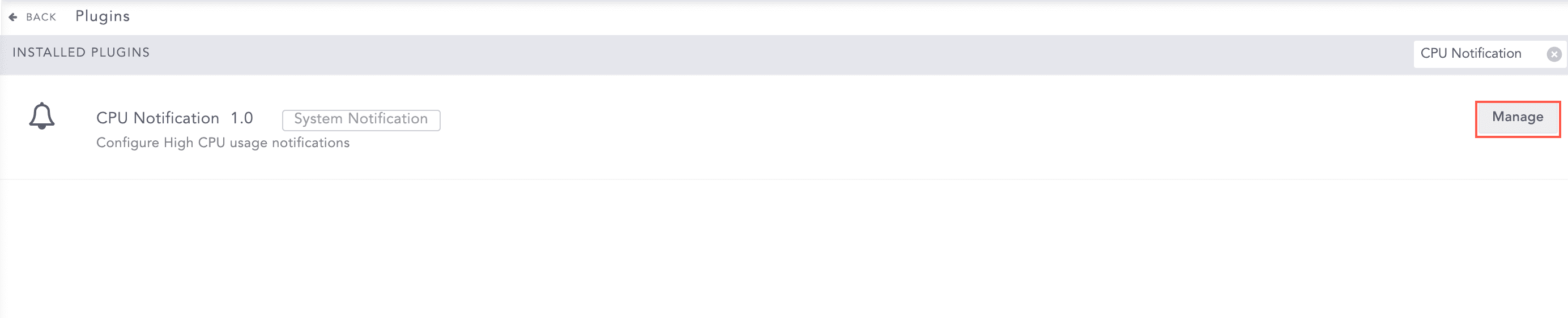
CPU Notification
Click Manage for the CPU Notification plugin.
Click Add to open the CPU Notification panel.
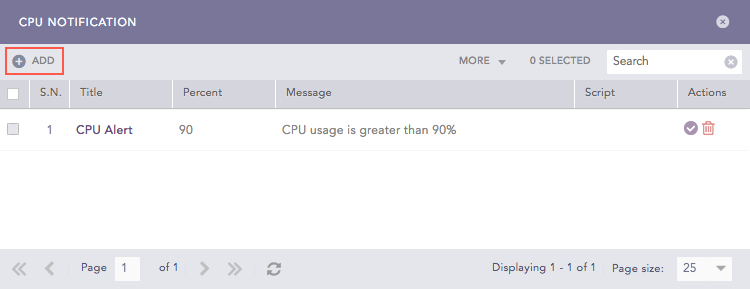
CPU Notification Panel
Provide the threshold Percent for the CPU usage. Once the threshold is reached, a notification is triggered.
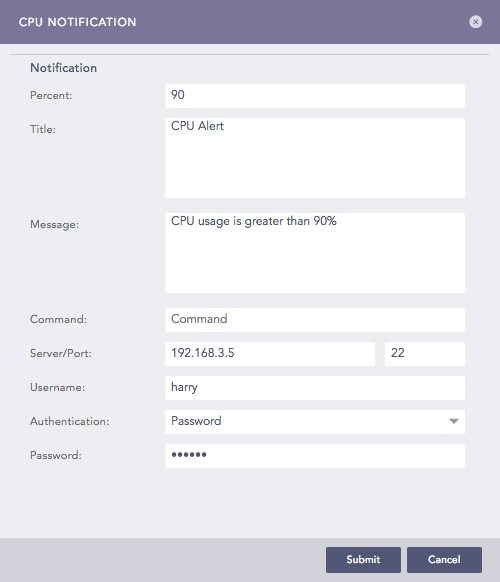
Adding a CPU Notification
Provide the Title and Message of the CPU notification.
Specify a system Command that needs to be initiated when the threshold is reached. Make sure that the command is a valid bash command and is executable. Providing a Command is optional.
Provide the address of the remote Server and the Port number.
Select a mode of Authentication.
If you choose Password, provide a Password.
If you choose SSH Certificate, an SSH Certificate is automatically generated.
Please note the password or the SSH certificate key as they are required for user validation while accessing the remote server.
Click Submit.
You can configure the Memory usage notification with this option.
Go to Settings >> System Settings from the navigation bar and click Plugins.
Search for Memory Notification.
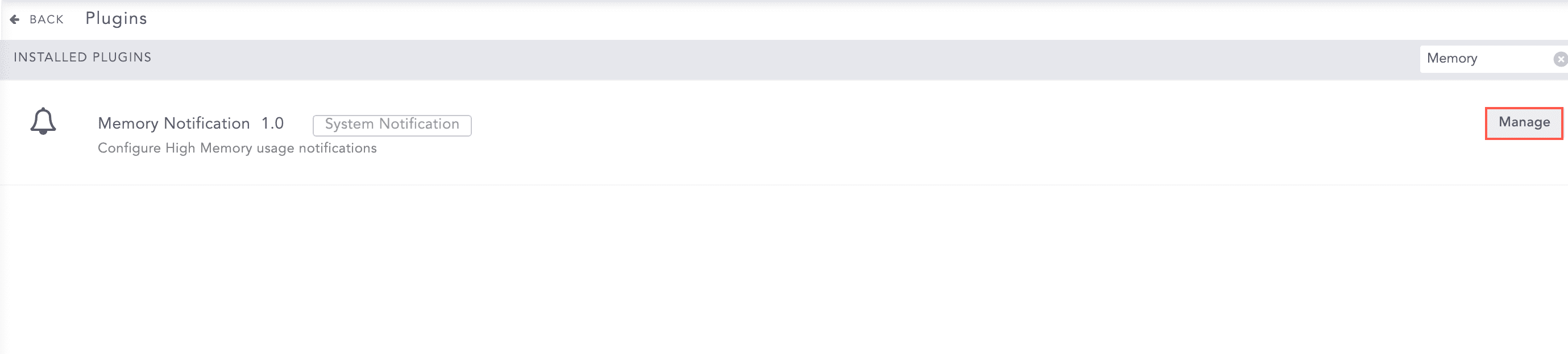
Memory Notification
Click Manage for the Memory Notification plugin.
Click Add to open the Memory Notification panel.
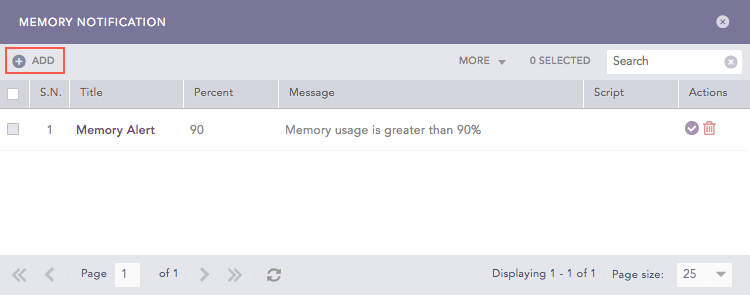
Memory Notification
Provide the threshold Percent for the memory usage. Once the threshold is reached, a notification is triggered.
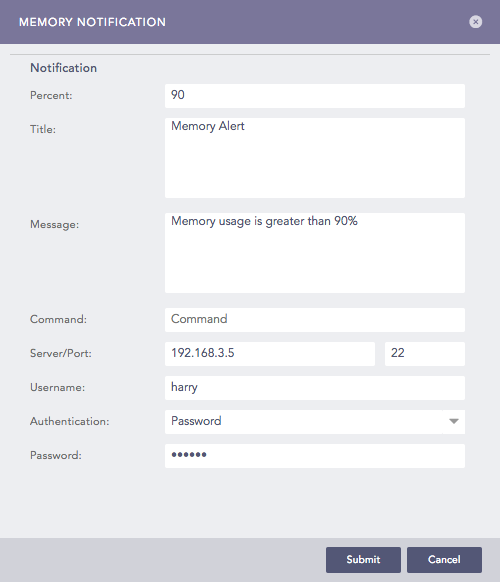
Memory Notification
Provide the Title and Message of the Memory notification.
Specify a system Command that needs to be initiated when the threshold is reached. Make sure that the command is a valid bash command and is executable. Providing a Command is optional.
Provide the address of the remote Server and the Port number.
Select a mode of Authentication.
If you choose Password, provide a Password.
If you choose SSH Certificate, an SSH Certificate is automatically generated.
Please note the password or the SSH certificate key as they are required for user validation while accessing the remote server.
Click Submit.
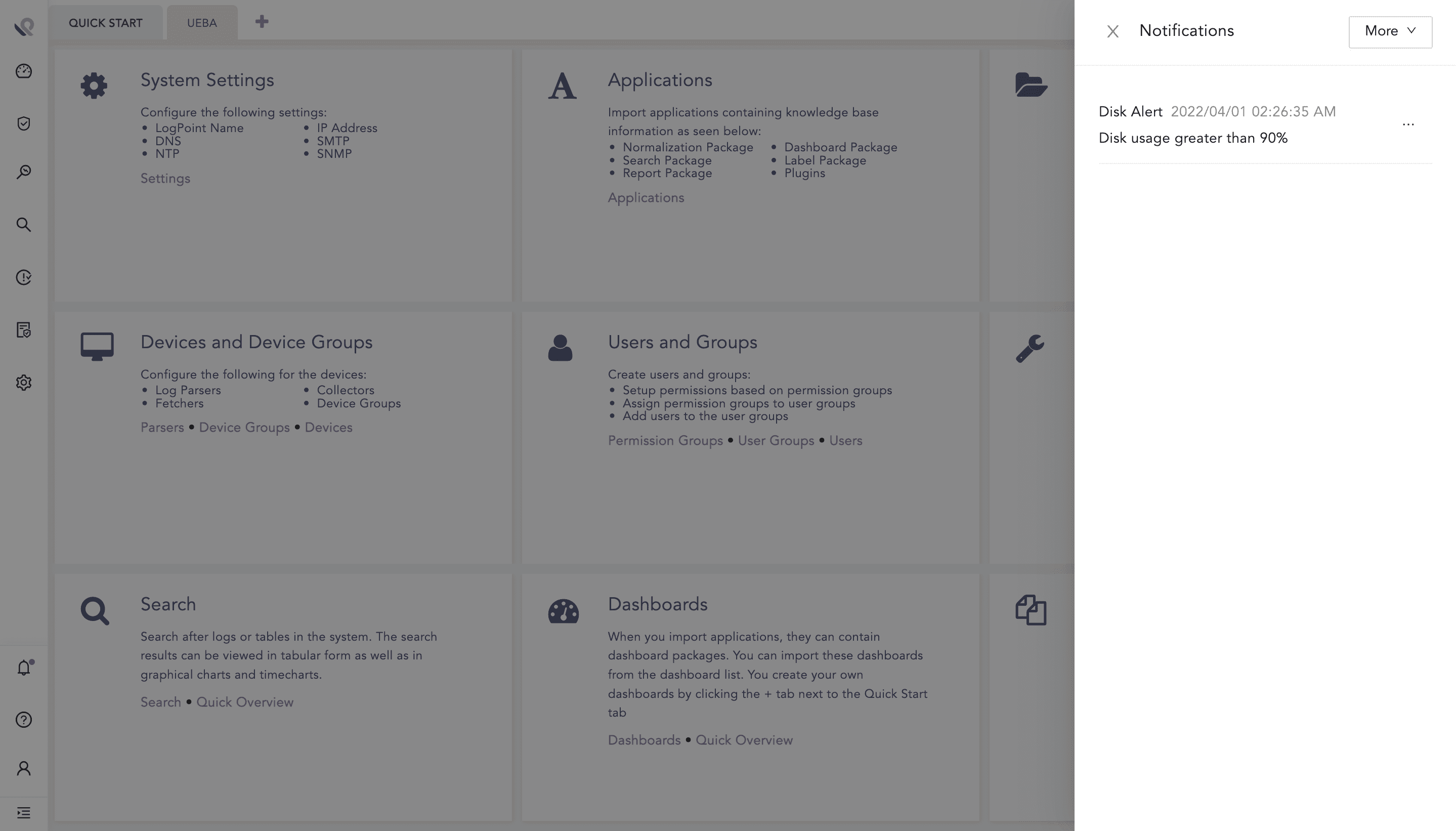
Notification Center
Note
The Disk, CPU and Memory Notifications use a common SSH Certificate.