
System Notification notifies you of Disk, CPU, and Memory usage of Logpoint. When there is a new notification, the navigation bar displays an alert. Click the Notification icon to open Notification Center.
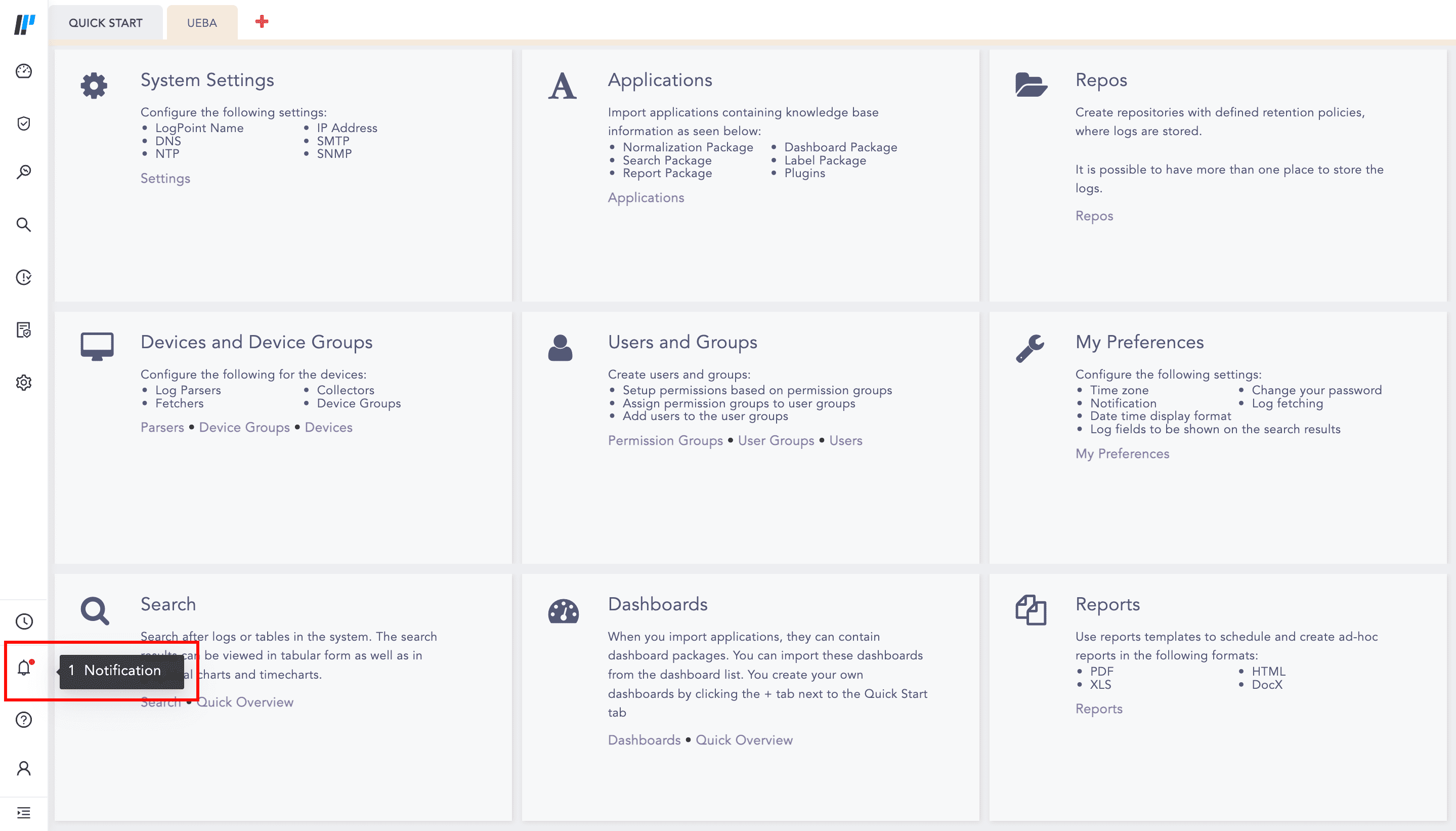
Notification
These notifications are configured from Settings >> System Settings >> System Monitor >> Dashboard.
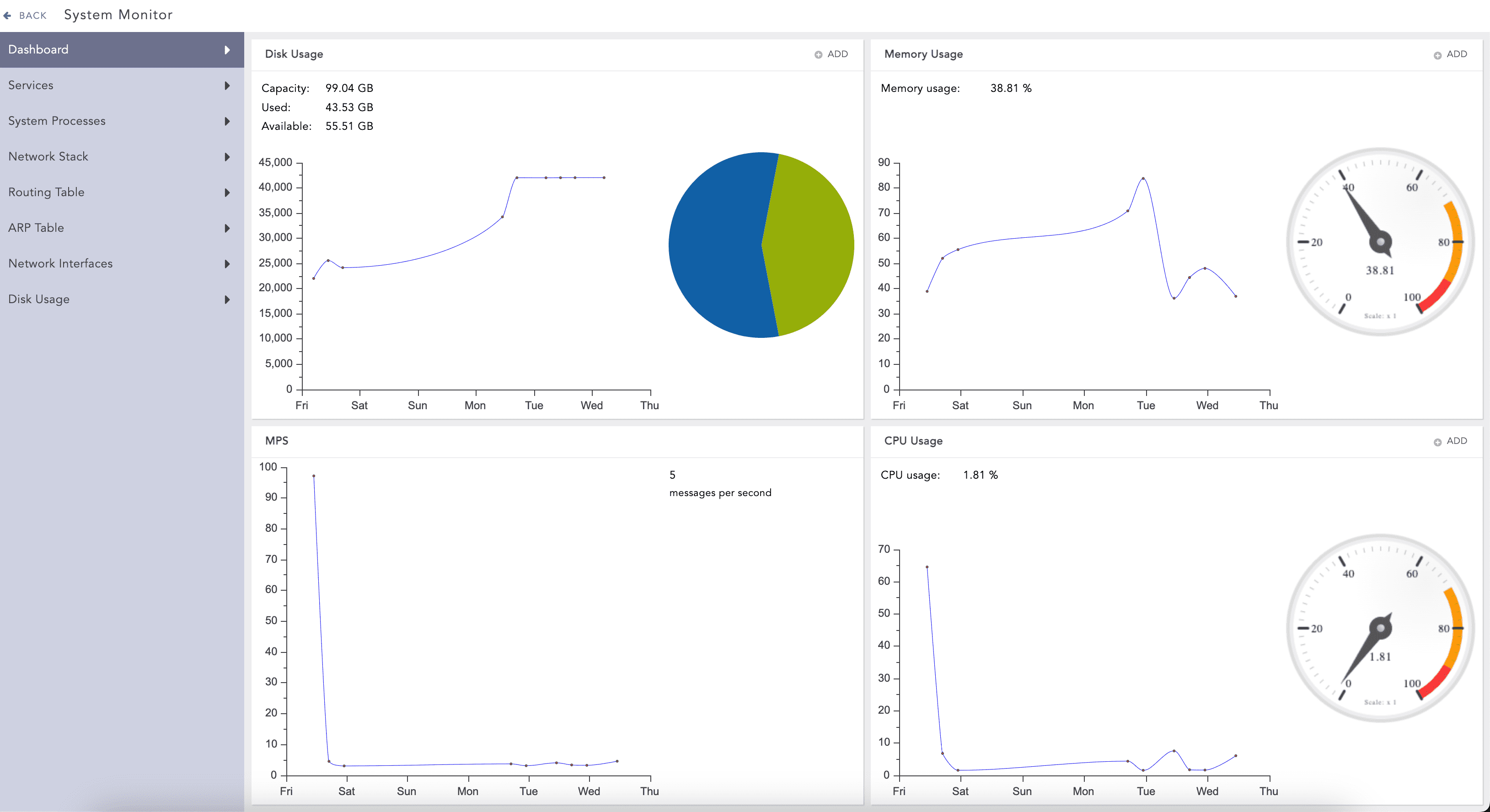
System Monitoring Dashboard
Two notifications are setup and activated in Logpoint out-of-the-box. You are notified when the total disk usage reaches 80% and 90%. The values can be configured to trigger the notification at any threshold. To create more disk usage notifications, go to Configure Custom Disk Usage Notification.
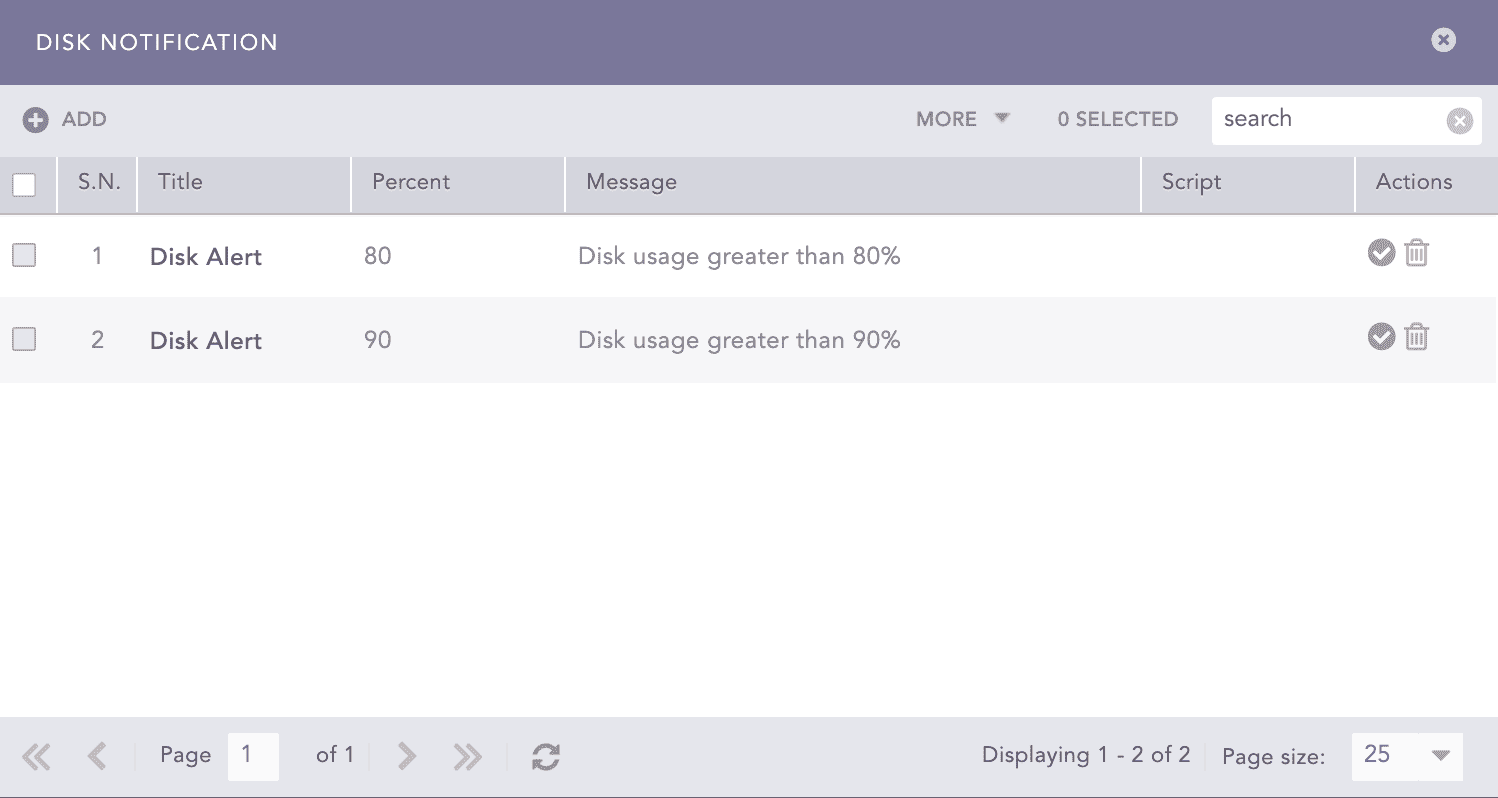
Default Disk Notifications
You also get a pop-up notification when your disk usage is greater than 80%. This pop-up is displayed even when there are no disk notifications configured.
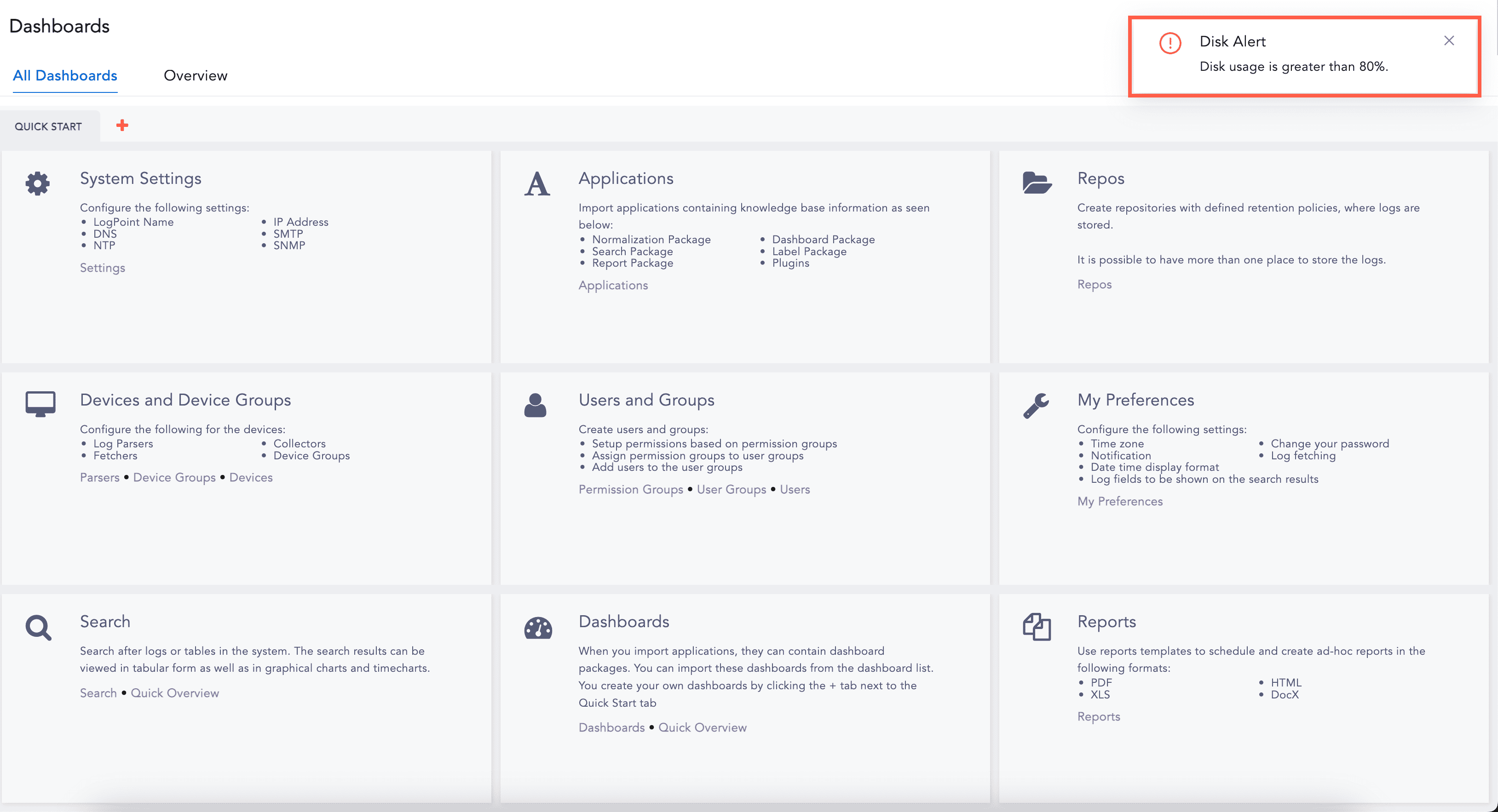
Disk Alert
Note
If you configured disk notification before upgrading to Logpoint v6.8.0, Logpoint adds and generates the default two severity level notifications. Pre-existing notifications and notifications configured prior to Logpoint v6.8.0 do not include severity level.
The Disk, CPU, and Memory Notifications use a common SSH Certificate.
Go to Settings >> System Settings from the navigation bar and click System Monitor.
Select Dashboard.
In Disk Usage, Click Add.
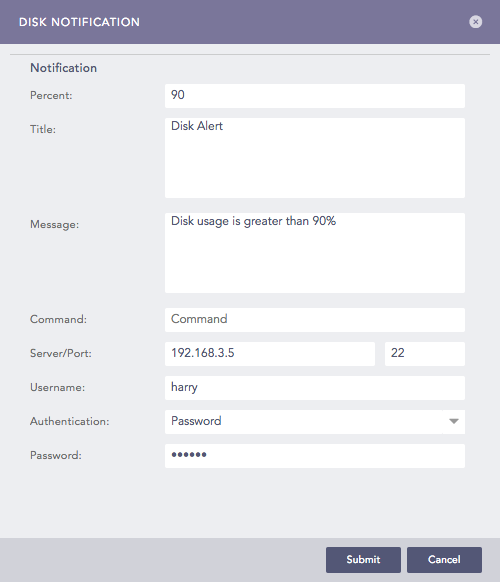
Adding a Disk Notification
Enter the Percent of total disk space used that triggers a notification, or at what threshold you want to be notified.
Enter the Title and Message you want the notification to have.
If you want to initiate a command at the same time the notification is sent, specify a system Command. The command should be an executable bash command. Providing a Command is optional.
For Example: The following Bash command checks for free disk space at /dev/sda and also cleans up cached packages at that location:
df - Th/dev/sda

sudo apt-get clean
Enter the address of the remote Server and the Port number.
Select the Authentication type of the remote Server.
If you choose Password, enter a Password.
If you choose SSH Certificate, an SSH Certificate is automatically generated.
The password or the SSH certificate key are required for user validation while accessing the remote server. Make sure you are able to remember them.
Click Submit.
When the notification is triggered, the notification is displayed in the notification center.
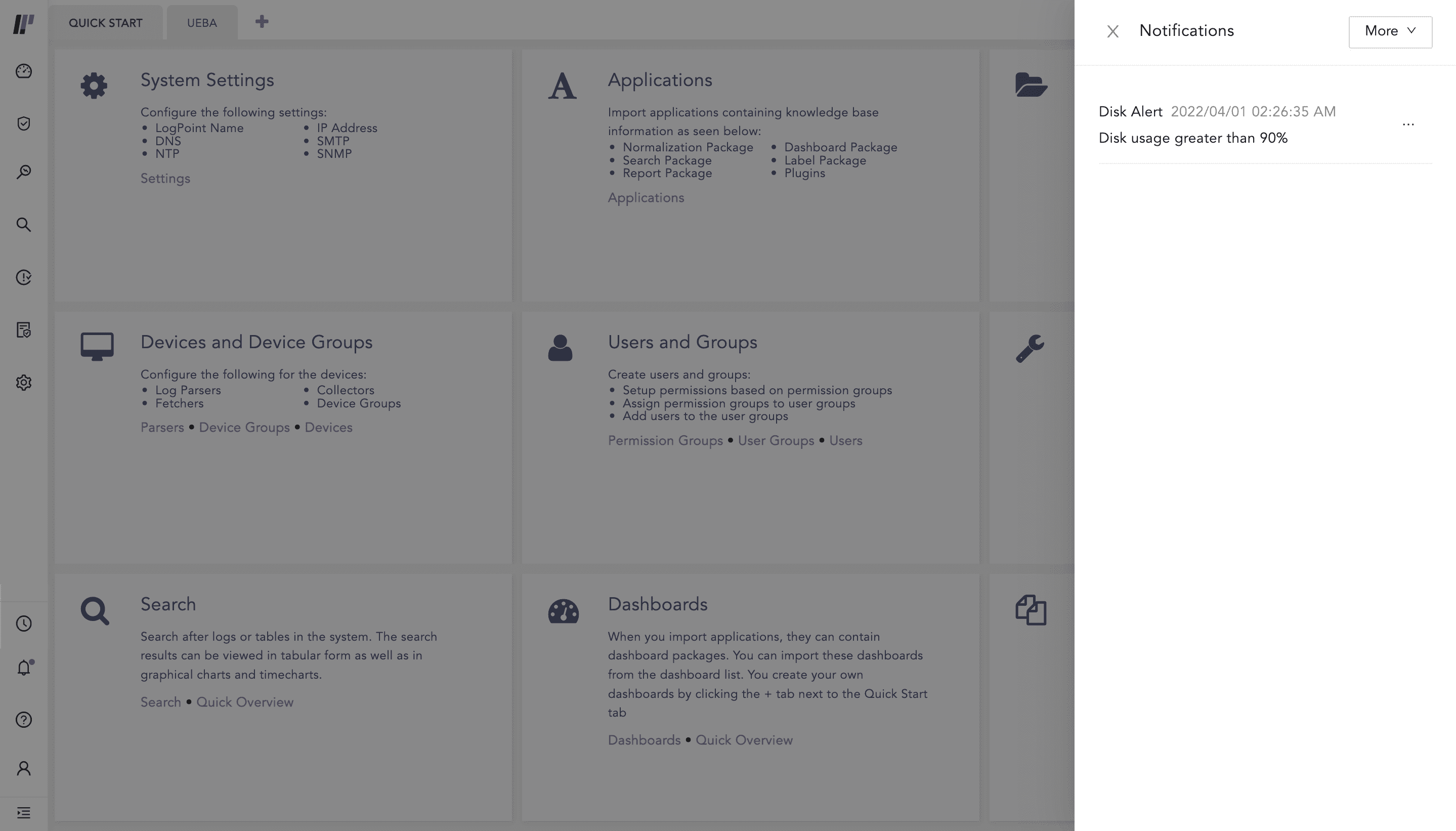
Notification Center
There are no CPU usage notification setup and activated in Logpoint out-of-the-box. To configure CPU usage notification:
Go to Settings >> System Settings from the navigation bar and click System Monitor.
Select Dashboard.
In CPU Usage, click Add.
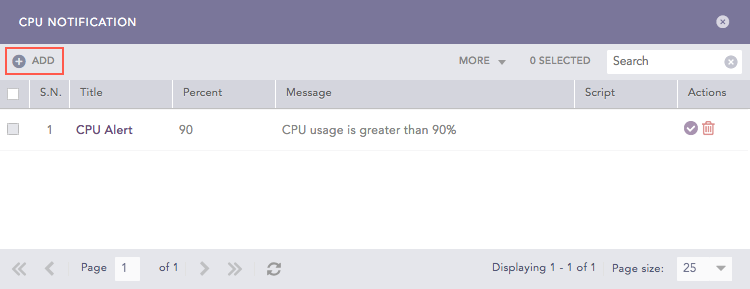
CPU Notification
Enter the Percent of total disk space used that triggers a notification, or at what threshold you want to be notified.
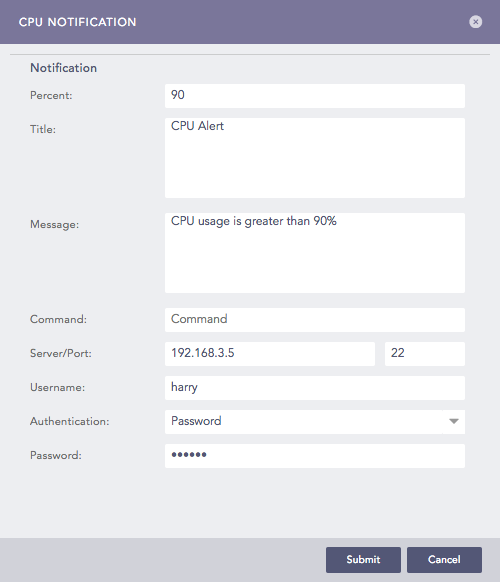
Adding a CPU Notification
Enter the Title and Message you want the notification to have.
If you want to initiate a command at the same time the notification is sent, specify a system Command. The command should be an executable bash command. Providing a Command is optional.
For Example: The following command checks for any files greater than 50MB and lists them in the terminal:
sudo find / -type f -size +50M -exec ls -lh {} \;
Enter the address of the remote Server and the Port number.
Select the Authentication type of the remote Server.
If you choose Password, enter a Password.
If you choose SSH Certificate, an SSH Certificate is automatically generated.
The password or the SSH certificate key are required for user validation while accessing the remote server. Make sure you are able to remember them.
Click Submit.
There are no Memory usage notification setup and activated in Logpoint out-of-the-box. To configure Memory usage notification:
Go to Settings >> System Settings from the navigation bar and click System Monitor.
Select Dashboard.
In Memory Usage, Click Add.
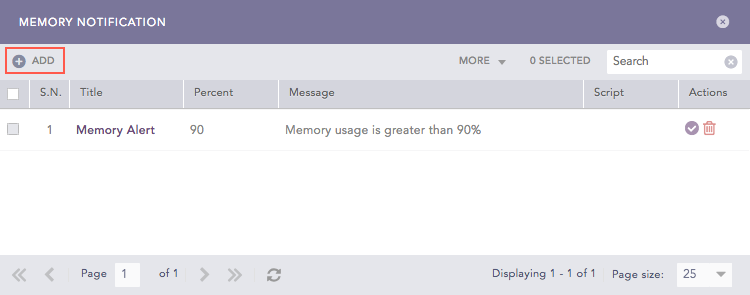
Memory Notification
Enter the Percent of total disk space used that triggers a notification, or at what threshold you want to be notified.
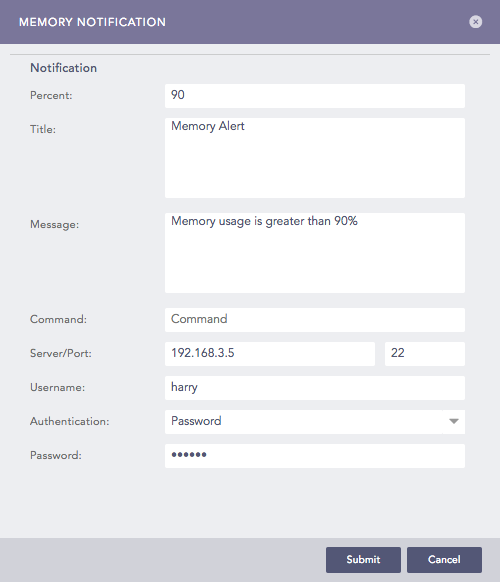
Memory Notification
Enter the Title and Message you want the notification to have.
If you want to initiate a command at the same time the notification is sent, specify a system Command. The command should be an executable bash command. Providing a Command is optional.
For Example: The following command clears all the PageCaches in the RAM:
# sync; echo 1 > /proc/sys/vm/drop_caches
Enter the address of the remote Server and the Port number.
Select the Authentication type of the remote Server.
If you choose Password, enter a Password.
If you choose SSH Certificate, an SSH Certificate is automatically generated.
The password or the SSH certificate key are required for user validation while accessing the remote server. Make sure you are able to remember them.
Click Submit.