
An Enrichment Policy is a set of enrichment specifications. Each log from a device configured for a particular enrichment policy goes through all the enrichment specifications in ascending order. You can configure multiple enrichment policies in Logpoint. However, a single device can only have one enrichment policy. In addition, you cannot add more than 5 enrichment rules to an enrichment specification.
An enrichment specification consists of a set of enrichment criteria and enrichment rules. Enrichment criteria are the conditions that must match the key-value pairs of the normalized event logs. Once the criteria meet, Logpoint uses the enrichment rules to enrich the logs.
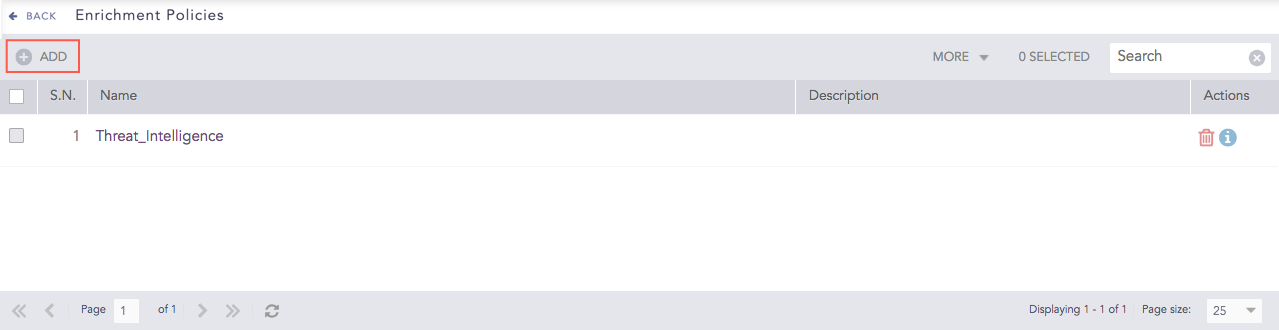
Go to Settings >> Configuration from the navigation bar and click Enrichment Policies.
Enrichment Policies
Click Add.
Adding an Enrichment Policy
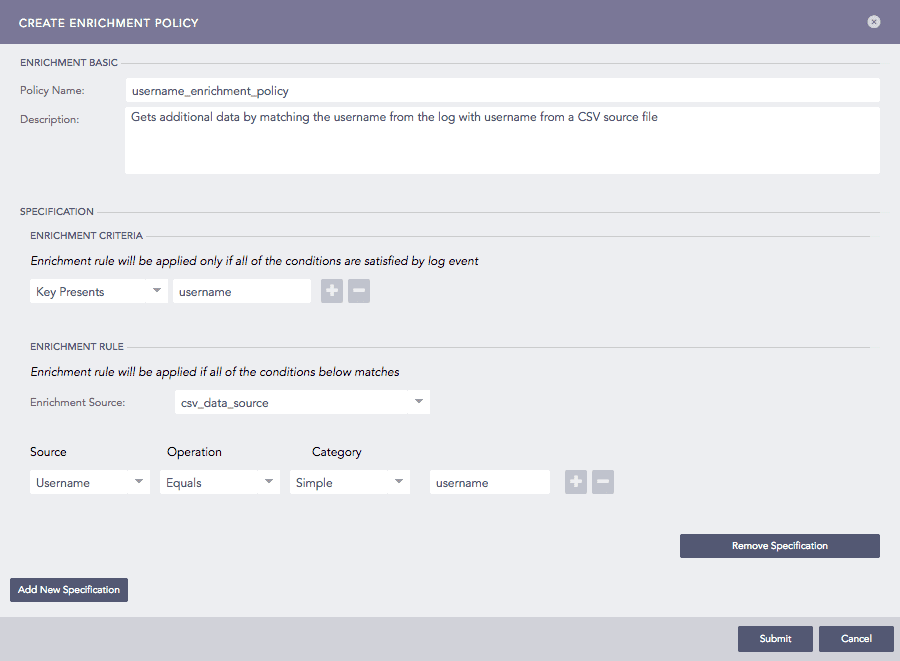
Enter a Policy Name and Description.
In Specification, enter Enrichment Criteria.
If you select Key Presents, enter the name of the key. In this case, the policy checks if the specified key is present in the log.
If you select Value Matches, enter the name of the key and the value (or a Regular Expression). In this case, the policy checks if the specified key is present in the log, and the value of the key matches the specified value.
Click the plus ( ) icon to add a new criterion and the minus (
 ) icon to remove a criterion.
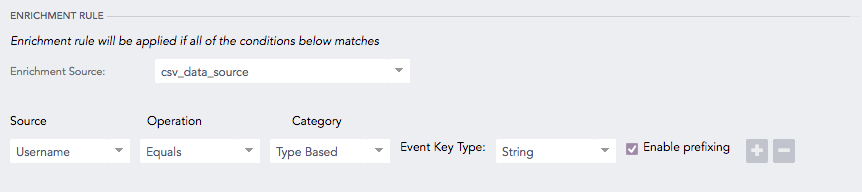
In Enrichment Rule, select an Enrichment Source from the dropdown. Click the plus () icon to add a new rule and the minus () icon to remove a rule.
Enrichment Rule
Choose a Source from the dropdown.
Choose a type of Operation. It is set to Equals by default.
Choose a Category from the dropdown.
If you select the Simple category, enter the Event Key suitable for the source.
If you select the Type Based category, choose an Event Key Type from the dropdown. In this case, all the fields of the selected type are eligible to be taken into consideration.
In Logpoint, the value associated with a key is either string or number. The value of the IP type is considered a distinct case of the string type and is compared using simple string comparison.
Select Enable prefixing if you want to prefix the results with the event key. In this case, Logpoint presents the results in alphabetical order of the event key.
Click Submit.
Note
In a Distributed Logpoints setup, you cannot view or use the enrichment policies of remote Logpoints from the Search Head.
Warning
You cannot use an enriched field as a criterion for the type-based enrichment category. For example, if source_address is an enriched field, then you cannot use that field as an enrichment criteria value.
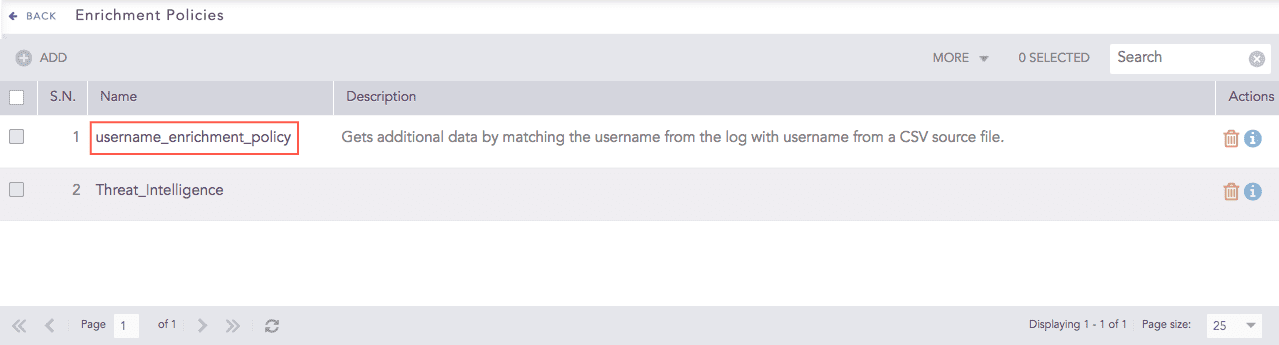
Go to Settings >> Configuration from the navigation bar and click Enrichment Policies. To view the details of each enrichment policy, click Details icon under Actions.
Select the required enrichment policy and update the information.
Enrichment Policies
Click Submit.
Before deleting an enrichment policy, make sure it is not in use.
Go to Settings >> Configuration from the navigation bar and click Enrichment Policies.
Click the Delete icon under Actions.
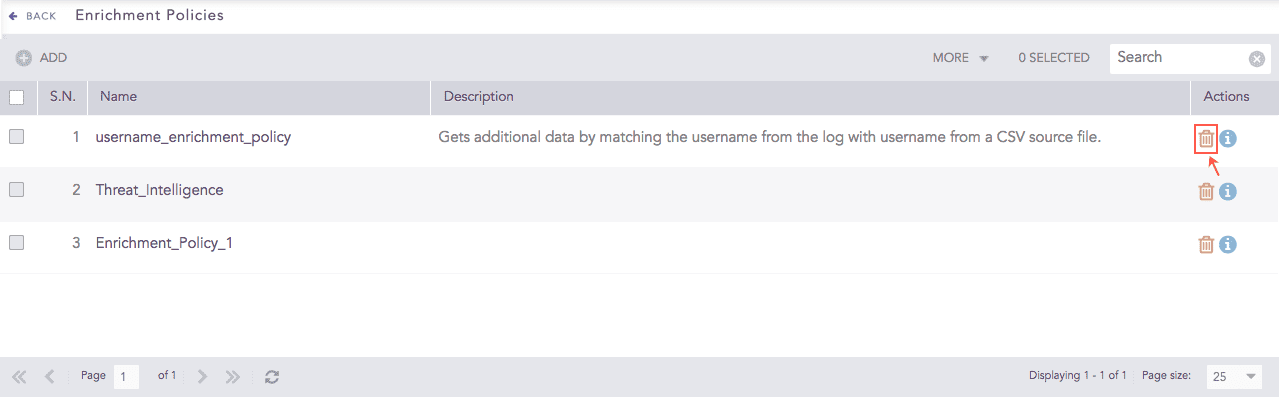
Enrichment Policies
To delete multiple enrichment policies, select the groups, click More and choose Delete Selected.
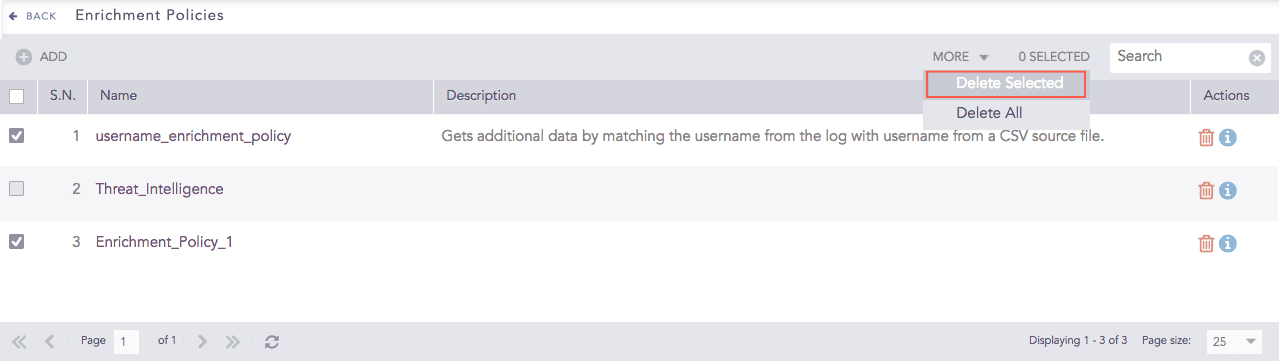
Enrichment Policies
To delete all the enrichment policies, click More and choose Delete All.
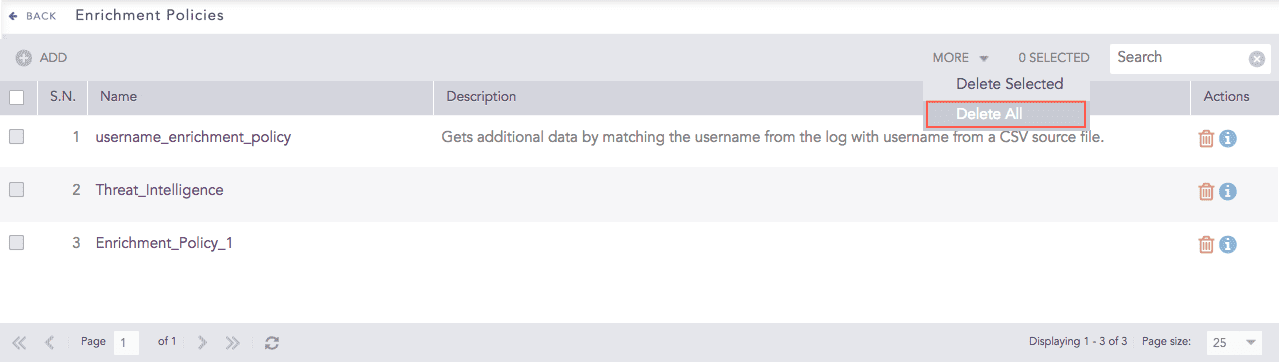
Enrichment Policies
Click Yes to confirm deletion.