
Logpoint Director allows you to establish a private tunnel between Logpoint and Director to work in a Fabric-enabled mode for central management of multiple Logpoints. You must have a valid Director license, but it is configured without a Logpoint license.
The network connection between the Fabric Server and Logpoint must be stable and reliable. In case of a network failure, logs are collected; however, users are unable to use Logpoint SIEM.
Warning
To connect Logpoint to Director, you must configure Logpoint Director in the following order:
Fabric Network: establishes a private tunnel between Logpoint and Director through the Fabric Servers, enabling encrypted communication.
Fabric Storage: is a distributed storage service that stores centralized configuration data and metadata, ensuring synchronization and restoration across Logpoints.
Fabric Connect: builds on the Fabric Network to establish a link between Logpoint and Director, allowing centralized configuration.
Logpoint Director must be configured in all Logpoints to connect them to the Director setup.
Fabric Network provides a private tunnel to enable fabric connect.
Go to Settings >> System Settings from the navigation bar and click Logpoint Director.
Enter the Fabric Server IP(s). For a standalone Fabric Server, enter a single public IP. For cluster Fabric Servers, enter at least two up and running public IPs to ensure the Director setup functions properly.
Enter the Maximum Transmission Unit (MTU in bytes) between 1250 to 65535.
Click Save Changes.
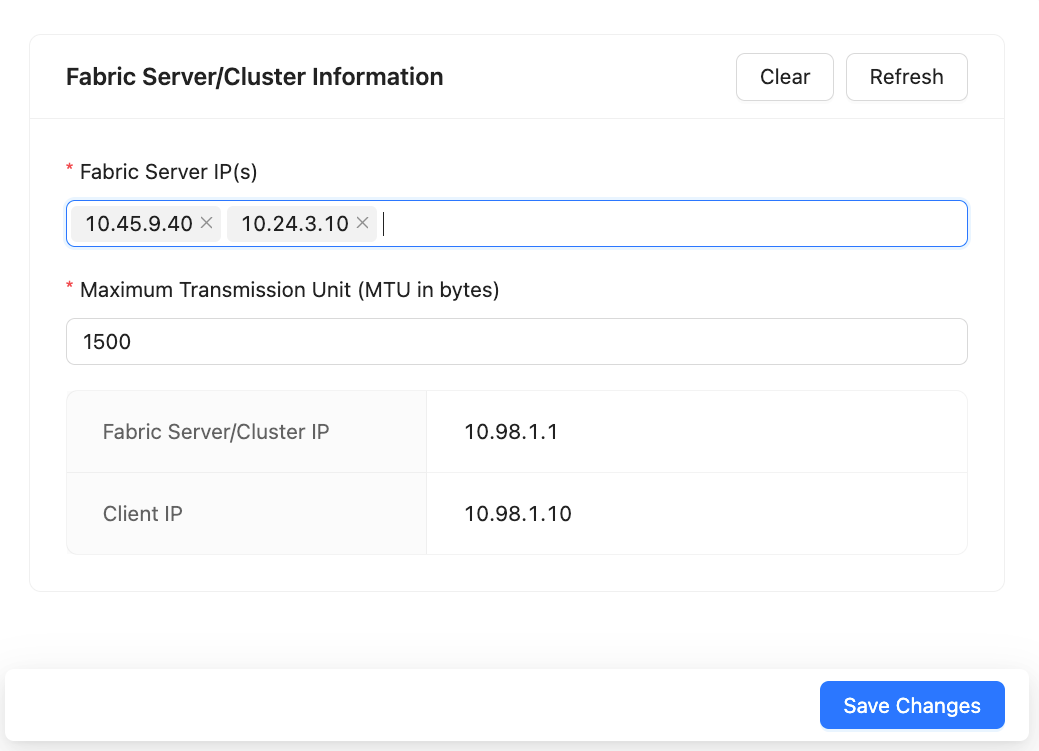
Fabric Server Cluster
After you configure the Fabric Network in Logpoint, a secure communication pathway is established between the Fabric-enabled Logpoint, Fabric Servers, and Logpoint Search Master. Logpoint fetches the Server IPs and Client IPs from the Fabric Servers. If the IPs are not updated, click Refresh to fetch the latest configuration status.
Click Clear to stop and delete all the services running for the currently configured Fabric Network.
Warning
If Fabric Connect is enabled, you must disable it before you clear or update the Fabric Network settings.
Fabric Storage is a distributed storage service of Director.
Go to Settings >> System Settings from the navigation bar and click Logpoint Director.
Click Fabric Storage.
Fabric Storage is automatically configured after configuring the Fabric Network. Click Reconfigure when the status displays Reconfiguration required.
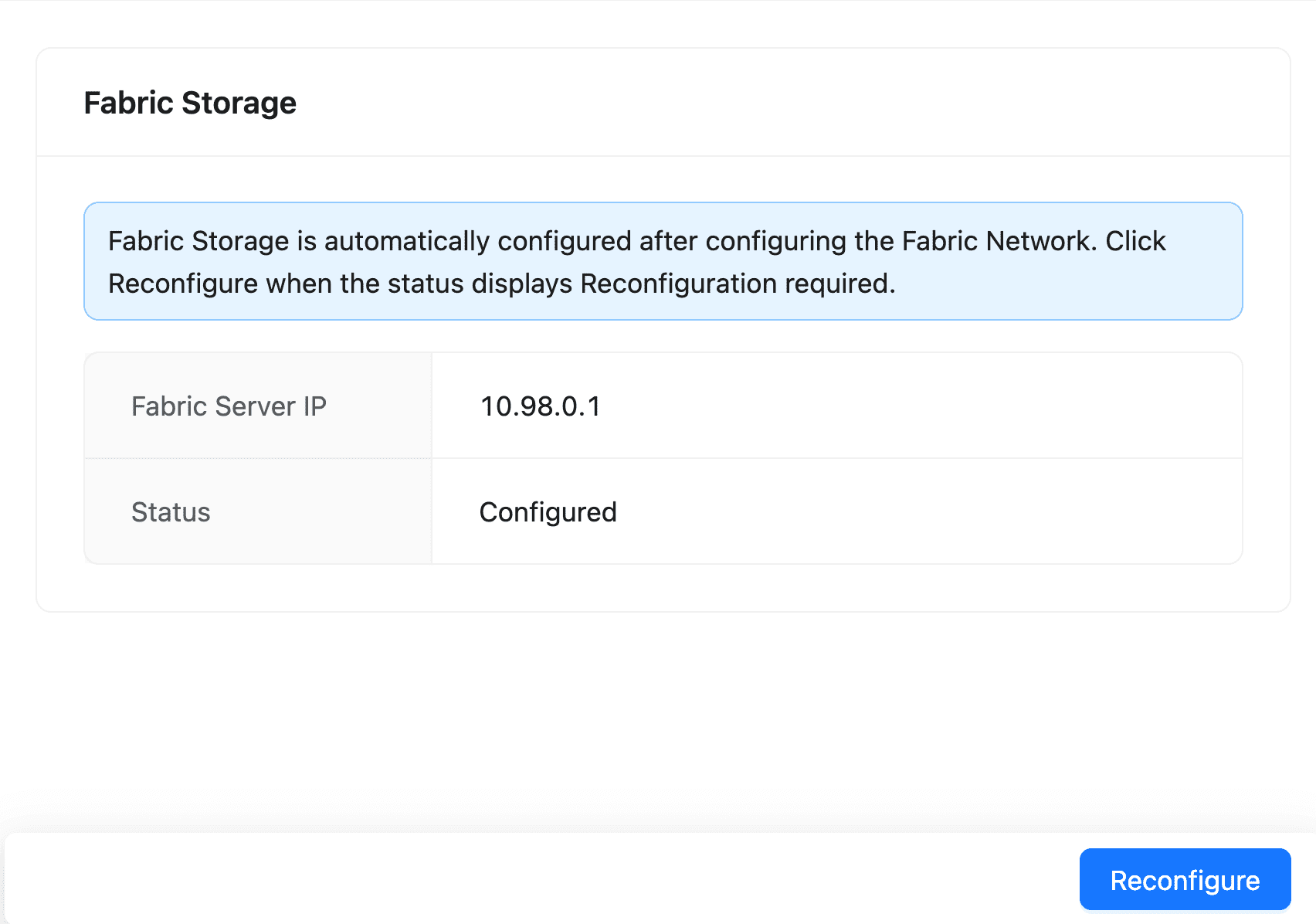
Fabric Storage
Fabric Connect allows you to configure Fabric enabled Logpoint to centrally manage Logpoint configuration from Director.
Go to Settings >> System Settings from the navigation bar and click Logpoint Director.
Select Fabric Connect.
Select Enable Fabric Connect.
Select Co-managed Mode in Modes of Operation only if the configurations are managed from Logpoint.
Enter the Pool UUID and Password in the Pool Configuration. A pool is a group of Fabric-enabled Logpoint instances that are centrally managed through the Logpoint Director, which is identified by a unique, auto-generated Universal Unique Identifier (UUID). Go to Creating a Logpoint Pool for information on the pool UUID and password.
Click Test Connection to ensure Logpoint is connected to the intended pool. Logpoint generates the corresponding Status and pool name based on the entered pool UUID.
Pool Information displays the IP address of the Fabric Servers, the hostname of the Fabric Storage, and the Fabric Authenticator to which the Pool is connected.
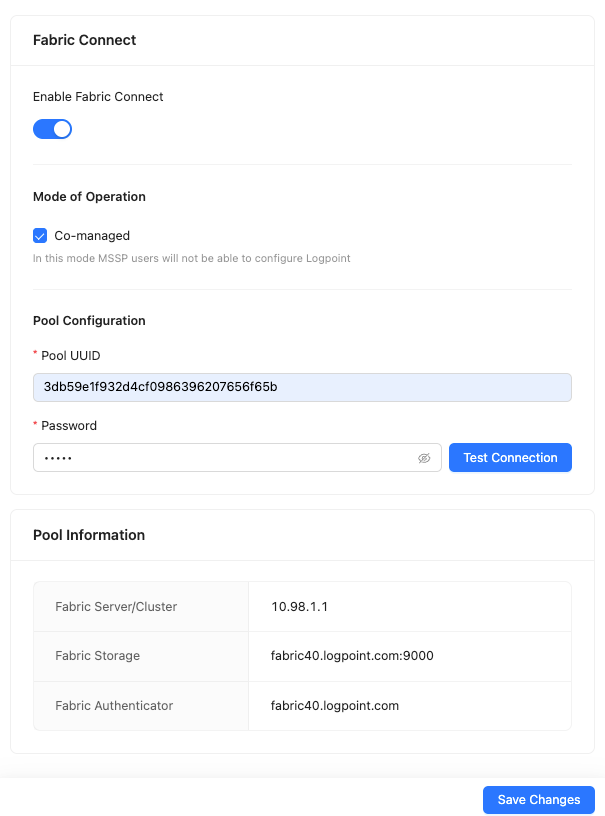
Fabric Connect
Click Save Changes.
Enter the admin user’s password and click Ok.
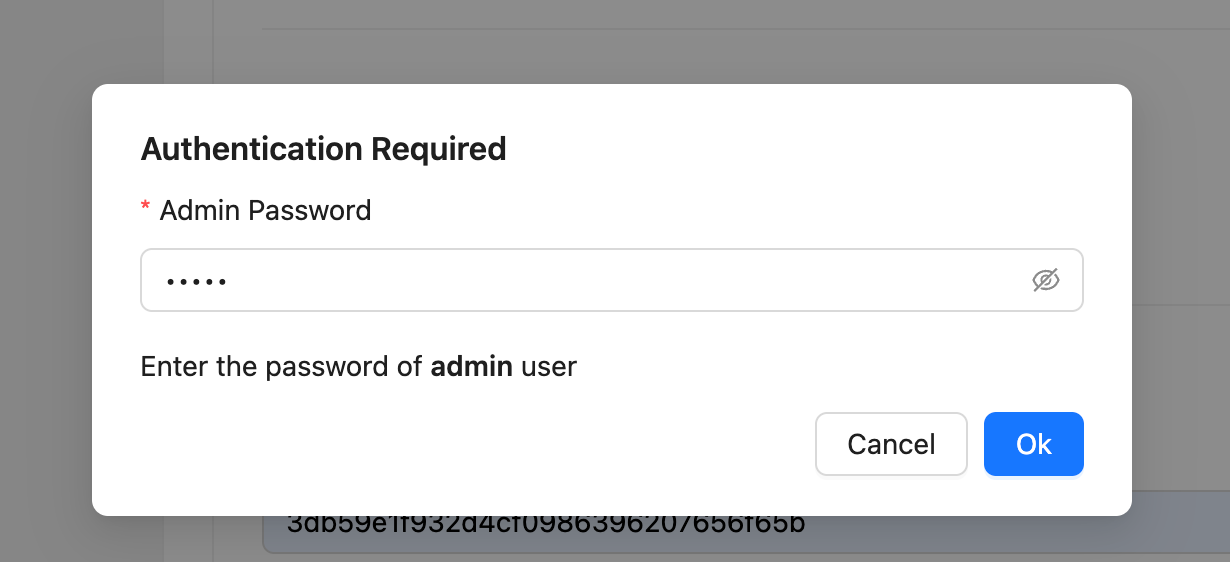
Authentication
In Director, certain configurations must be performed using the API or Director Console as they are restricted from Logpoint. However, co-managed mode allows you to make changes using the Logpoint UI, but the settings are disabled from the Director. A valid Logpoint license is required to use this mode.
Go to Settings >> System Settings from the navigation bar and click Logpoint Director.
Select Fabric Connect.
Select the Co-Managed mode.
Warning
If Logpoint is already fabric-enabled, you must turn off and turn on the Fabric Connect to change the mode of operation.
Logpoint data is regularly updated in Director after configuring Logpoint Director. Use sync to restore the data in case a fabric server was down or unavailable.
Go to Settings >> System Settings from the navigation bar and click Logpoint Director.
Click Sync.
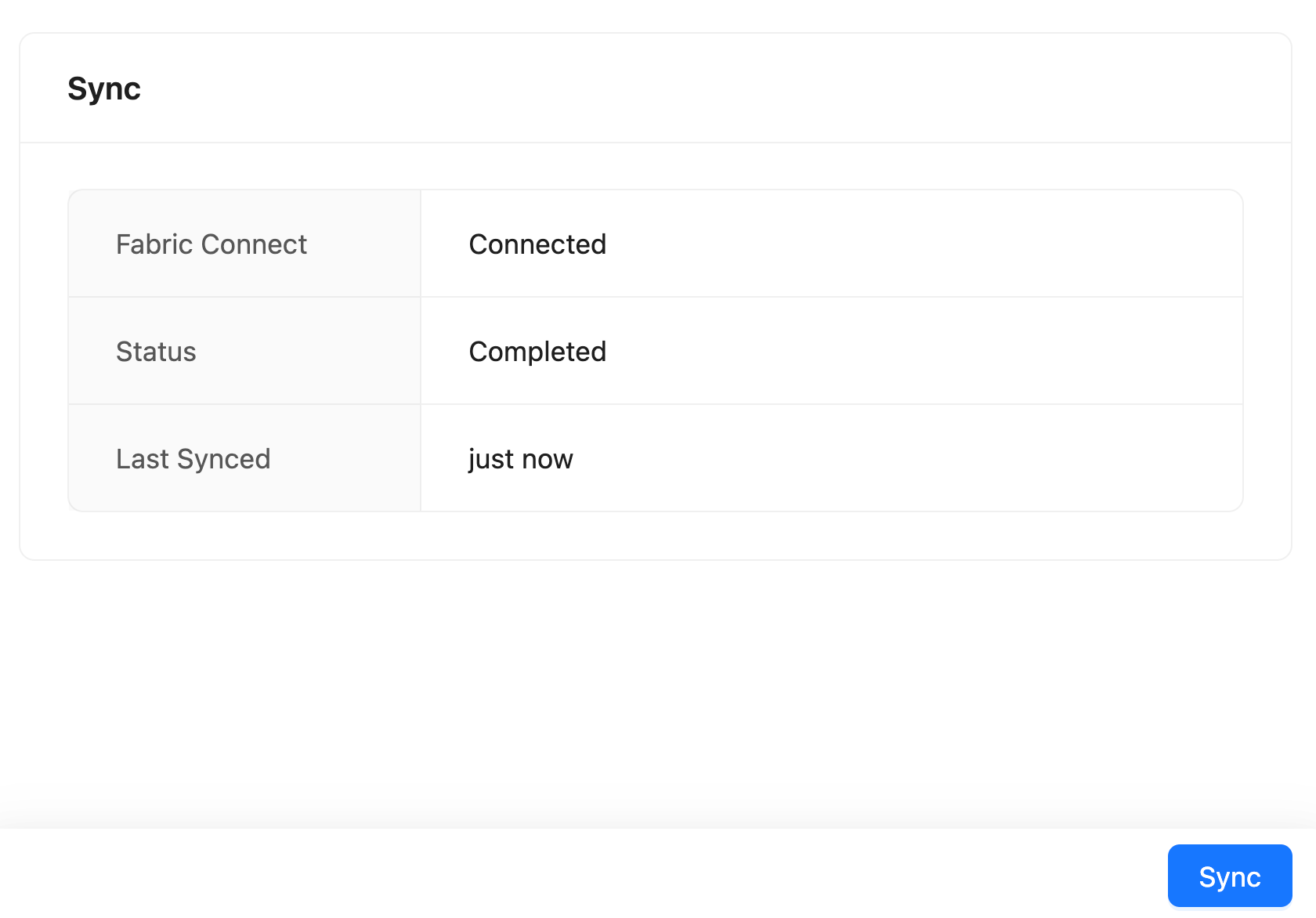
Sync
SSH enables remote access using the Secure Shell (SSH) protocol. It allows you to access Shell from Director Console to manage the configurations of Fabric-enabled Logpoints using a command line. SSH setting is not available when a Logpoint is in the co-managed mode, and you must enable Fabric Connect before using SSH settings.
To configure the SSH settings:
Go to Settings >> System Settings from the navigation bar and click Logpoint Director.
Click SSH Settings.
Enable SSH Connection.
Enable SSH Connection Forever or enter the SSH connection enable duration in Days, Hours, and Minutes.
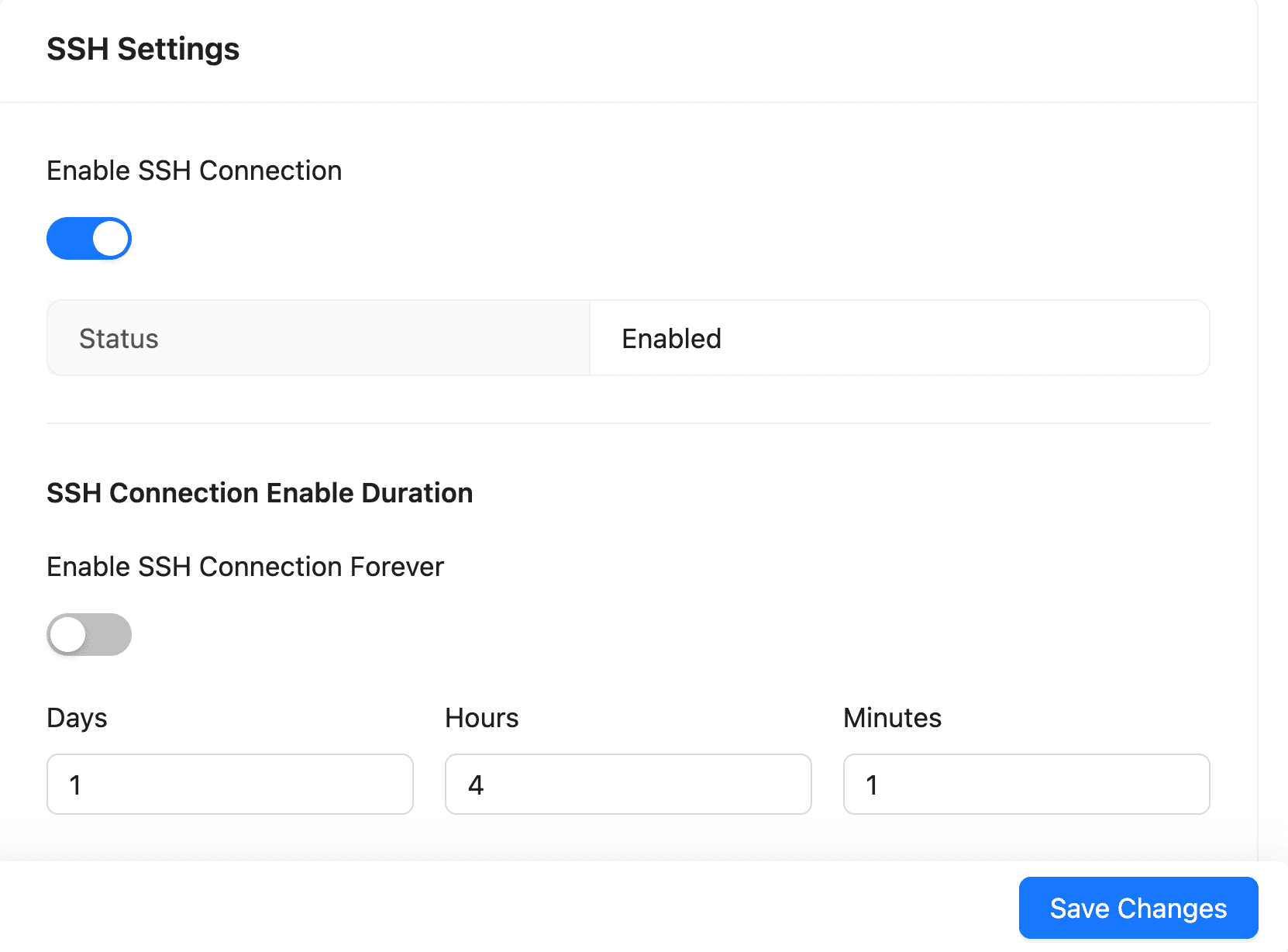
SSH Settings
Click Save.