
When a regular LogPoint becomes Fabric-enabled, there are two modes of operation to choose from. The Mode of Operation field in a LogPoint allows you to choose a mode of operation when being connected to the Director setup. You can choose to enable or disable the Co-Managed mode from the Mode of Operation field.
A Fabric-enabled LogPoint works in the normal mode when Co-Managed mode is not enabled. When a LogPoint becomes Fabric-enabled in normal mode, certain features and functionalities are disabled from its user interface. The Director Console API exposes the APIs of those functionalities to allow you to manage the configuration settings on behalf the Fabric-enabled LogPoints. The configuration settings can also be carried out via the User Interface of the Director Console UI.
For example, when a LogPoint is not connected to the Director setup, the Device Groups section allows a LogPoint user to add new device groups, read the available device groups, update the device groups and delete device groups.
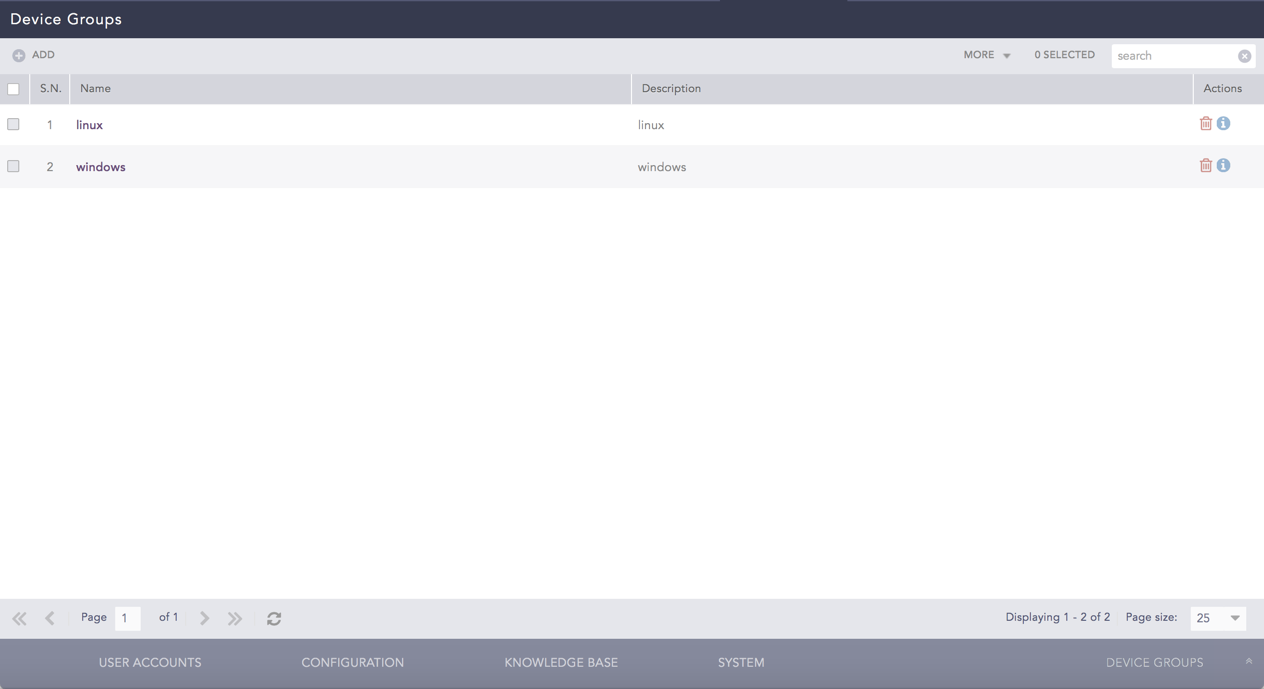
Device Groups on a LogPoint
However, when a LogPoint becomes Fabric-enabled in normal mode, the create, edit and delete operations are hidden from the user interface, and a LogPoint user can only view the available device groups.
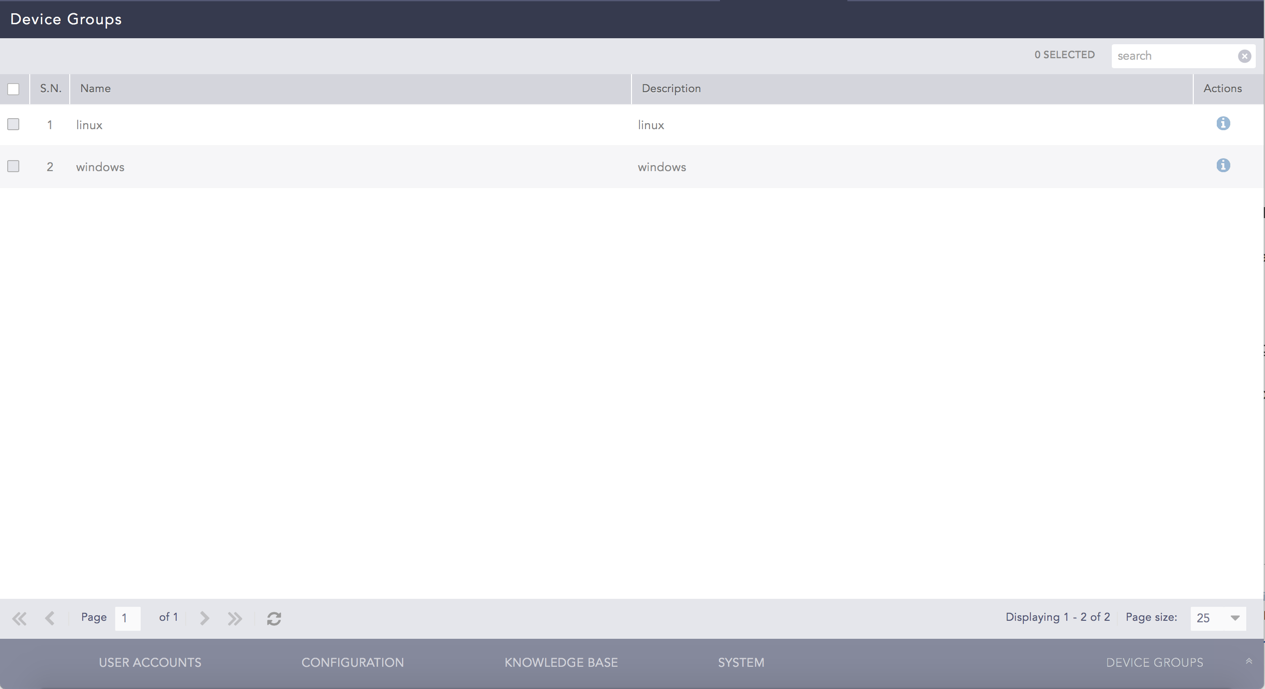
Device Groups on a Fabric-enabled LogPoint in normal mode
Hence, in this case, only a Director user can carry out create, delete, and edit operations on behalf of the Fabric-enabled LogPoint user. For creating a device group on behalf of a Fabric-enabled LogPoint, you need to use the DeviceGroups - Create API. You can also do the same from the Configure >> Create >> Device Groups section in the Director Console UI.
Hence, the operations of certain functionalities of a Fabric-enabled LogPoint need to be carried out via their corresponding API exposed applications, or the Director Console UI.
The Co-Managed Mode allows LogPoint users to have complete control over their system despite being connected to the Director setup. This means that when the Fabric-enabled LogPoint is in Co-Managed Mode:
The functionalities of its User Interface are not restricted.
The functionality of LPSM remains unchanged.
The functionality of the Director Console APIs and the Director Console UI is restricted.
For example, the Settings >> Configuration >> Device Groups section, allows you to add new device groups, read the available device groups, update device groups, and delete device groups, on a regular LogPoint.
However, when the LogPoint becomes Fabric-enabled without enabling the Co-Managed Mode, you can only view the available device groups.
Device Groups on a Fabric-enabled LogPoint in normal mode
When the Fabric-enabled LogPoint is configured in Co-Managed Mode, then the User Interface functionalities are not limited.
Device Groups on Fabric-enabled LogPoint with Co-Managed Mode
As a result, all User Interface related tasks can still be carried out via LogPoint in the Co-Managed Mode. The APIs and the Director Console UI is restricted from the Director setup in this case.
For information on the configuration of Co-Managed Mode, refer to the Mode of Operation section.