
You can use the HTTPS settings to upload HTTPS certificates in the Fabric-enabled LogPoints. HTTPS certificates help you establish a secure connection between your browser and your LogPoint server.
Go to Configure >> Settings >> System >> HTTPS Settings.
Select the LogPoint instances where you want to configure the HTTPS settings.
Click Next.
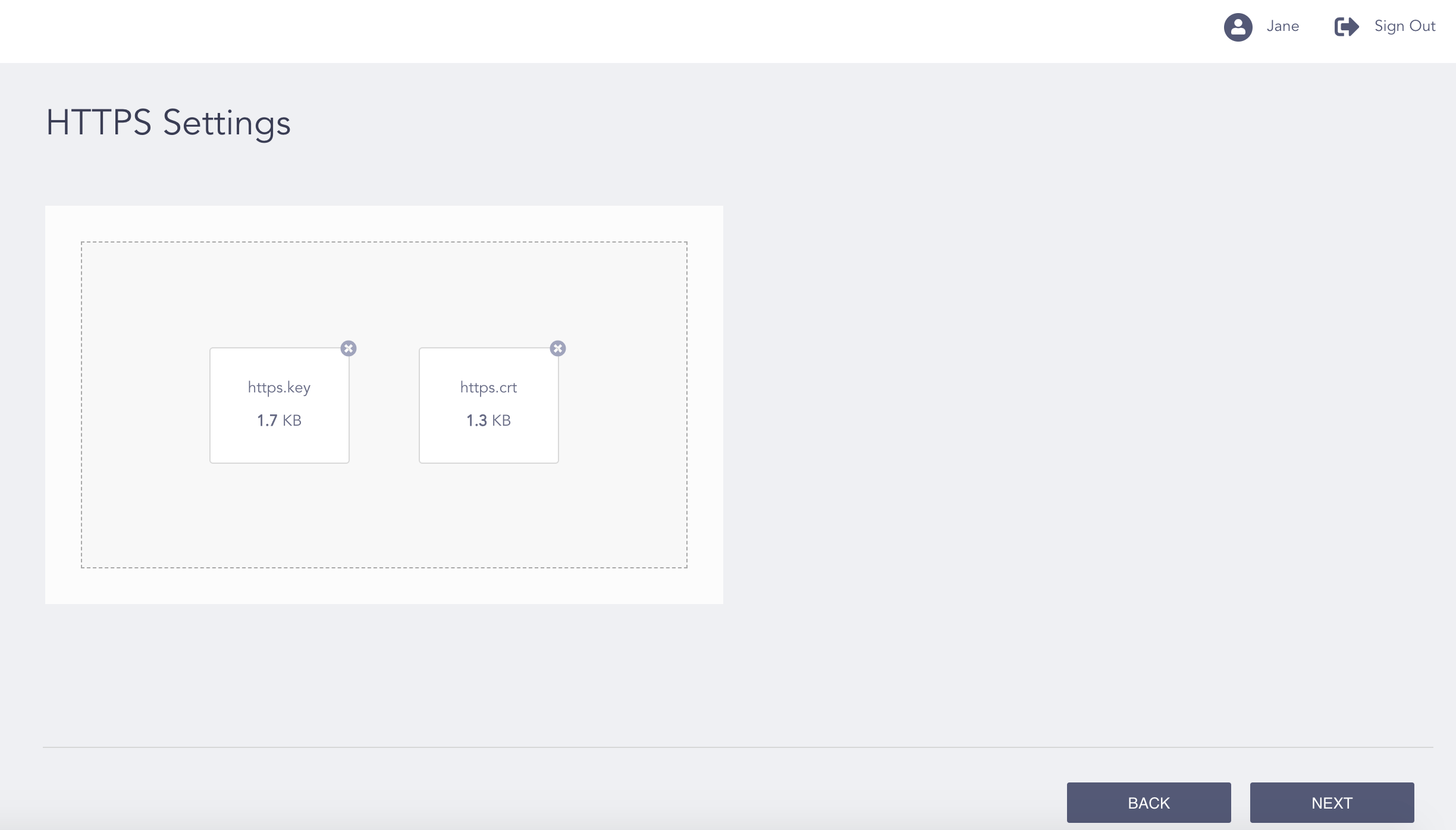
Configuring the HTTPS Settings
Click the upload area to browse the certificates or drag and drop the certificate files. You can obtain the files using the OpenSSL commands.
Click Next.
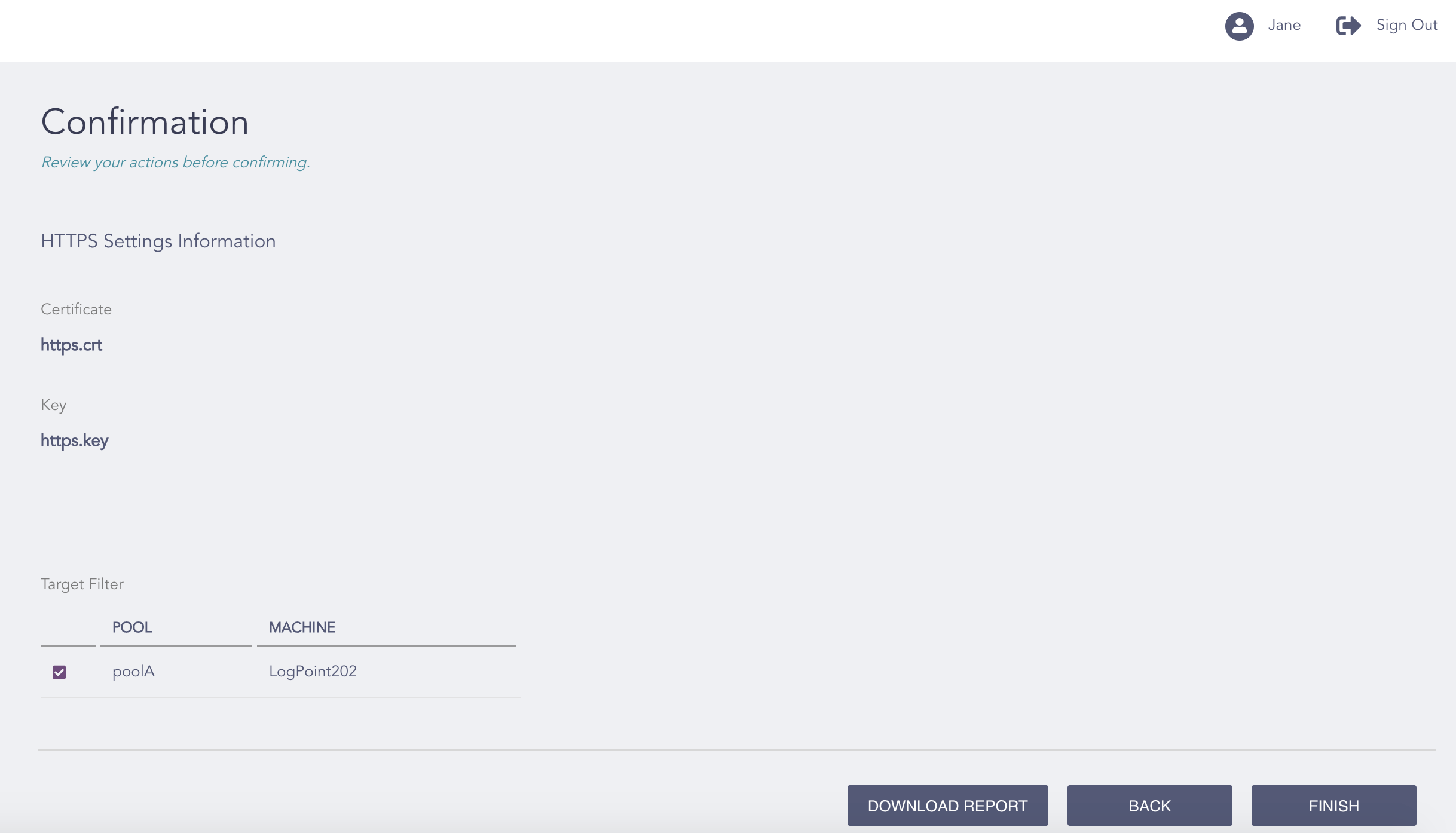
Confirming the Changes
Review your changes. You can go Back to make any changes if necessary.
Note
Click Download Report to save the summary of the task in PDF.
Click Finish.
Click OK.