
You can export and restore SOAR configuration in another Logpoint or use export to help protect your Logpoint from any errors during a software upgrade or hardware failure. During export, you will need to set a password. This password is needed when importing the configuration.
To export SOAR configuration:
Go to Settings >> SOAR Settings from the navigation bar and click System Export/Import.
Click Export to export your configurations.
Enter a password. This is the password you will need to enter when importing the configuration.
Note
Exporting takes a few minutes. Do not navigate away until it is generated or the export will stop.
A .zip file is created. Go to your downloads folder to access it.
You can import SOAR configurations from other Logpoints or import a backup of your configuration of the same Logpoint.
To import SOAR configuration:
Go to Settings >> SOAR Settings from the navigation bar and click System Export/Import.
Click Import to upload the file.
Browse to the file.
Enter the password if the configuration is password-protected.
Logpoint will analyze the data within the imported file. Click Continue
Click Import. A confirmation warning will pop-up.
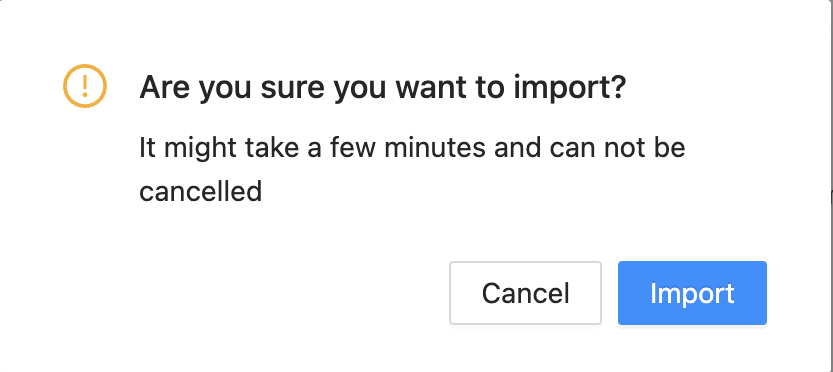
Confirmation Warning
Click Import.
Click Close.