
You can validate your data and configurations before sending data to UEBA. Logpoint validates only the sample logs from the repos you select for the check.
You can use Compatibility Check to confirm:
All mandatory fields for each data source are part of the event logs.
Each field value matches the required format.
Default input configuration in the UEBA PreConfiguration integration is not modified.
During the check, you will receive an error message when: - The UEBA PreConfiguration configurations are changed. - The default enrichment source is not updated.
If invalid data and configurations are found, they are listed in a Compatibility Check Report.
For a list of mandatory fields and their format, go to Data Sources For UEBA.
Compatibility Check in Distributed Logpoint Mode
You can perform the compatibility check on either the Search Head or the Distributed Logpoint.
Before performing a compatibility check, make sure you select the default repo in the Search Head. To select the default repo,
Go to Settings >> Configuration >> UEBA Board >> Compatibility Check.
Click Compatibility Check.
In Select Repos, select the repos containing the logs to validate.
Expand Extra Options.
Enter how many days of logs should be checked in Time Range in Days. You can check between 1 - 30 days. If you don’t apply a time range, Logpoint automatically applies 30 days.
Select the relevant Data Source.
Click Start Check.
Compatibility Check Error
If there are detected errors during the check, in CONFIGURATION CHECK WARNING
Click Continue
Click Cancel to stop.
If the date range is 30 days, and Logpoint finds a large number of invalid data the check may stop before reaching 30 days and generate a report with the data.
Details invalid data and configurations. The report header tells you when the report was run, and its status. The report also details:
S.N |
Field |
Description |
1 |
Timestamp |
Shows the date and time of the violation. |
2 |
Source Type |
Shows the data source of the violation: Active Directory, web proxy, email, VPN, authentication, resource access, SAP security audit, or Azure AD. |
3 |
Type |
Shows the violation type: whether the mandatory fields are missing or the field value is invalid. |
4 |
Validation Message |
Provides detail of the violation. |
5 |
Actions |
Allows you to search for the violation at a specific timestamp by clicking the Search Log icon. |
The report only shows the details of the latest unique violations.
The 30 days of historical data used to create a UEBA baseline is also validated or checked for compatibility along with real-time logs before Logpoint forwards them to UEBA. Logpoint checks whether historical data and logs have mandatory fields and field values. If they don’t, they are not forwarded to UEBA.
To view the report,
In UEBA Settings, click Overview.
In VALIDATION SUMMARY, click REPORT.
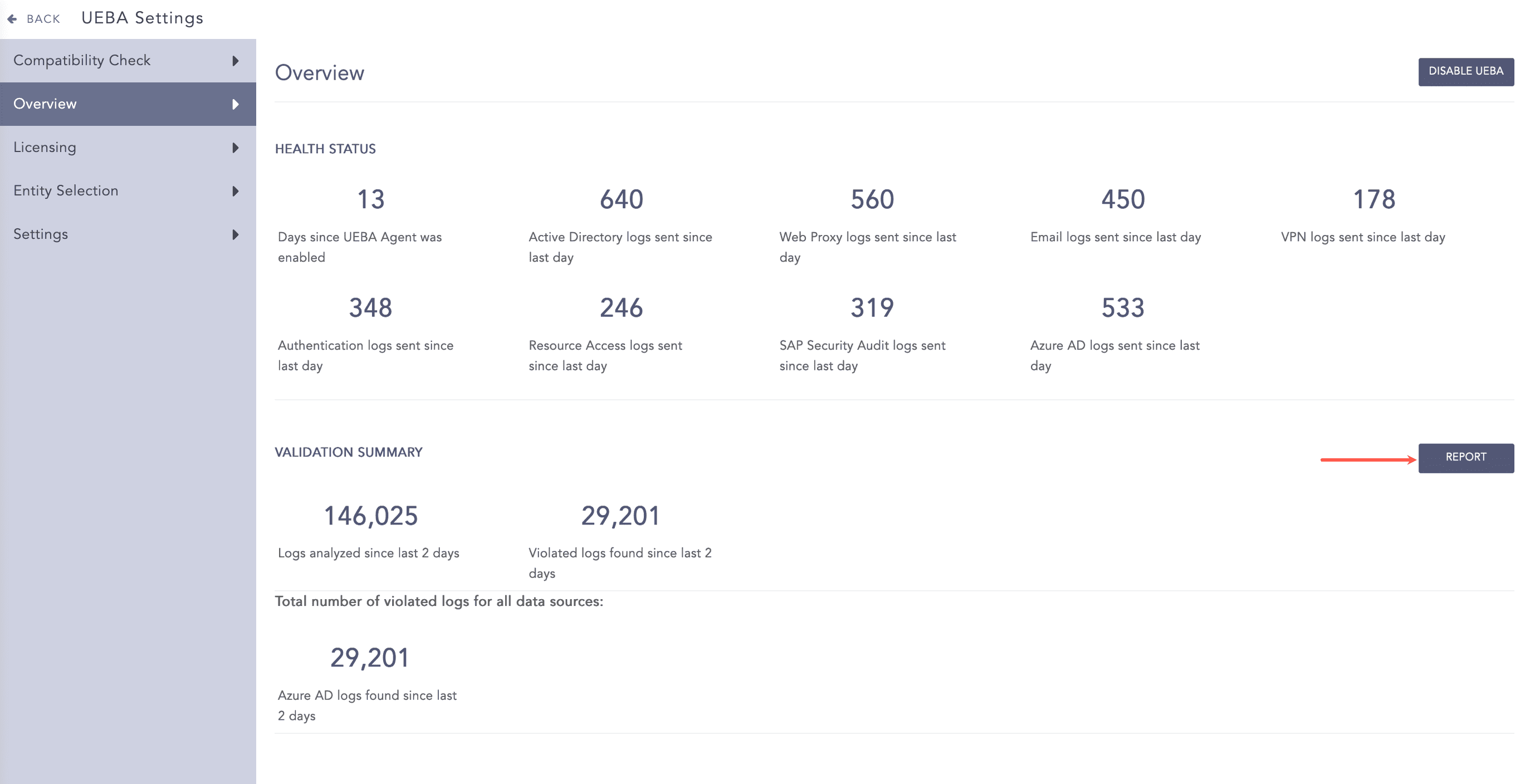
Validation Report