
UEBA setup includes multiple steps that require a few days to complete. For Standalone Logpoint, setup UEBA in that Logpoint and for Distributed Logpoint, setup in the Search Head.
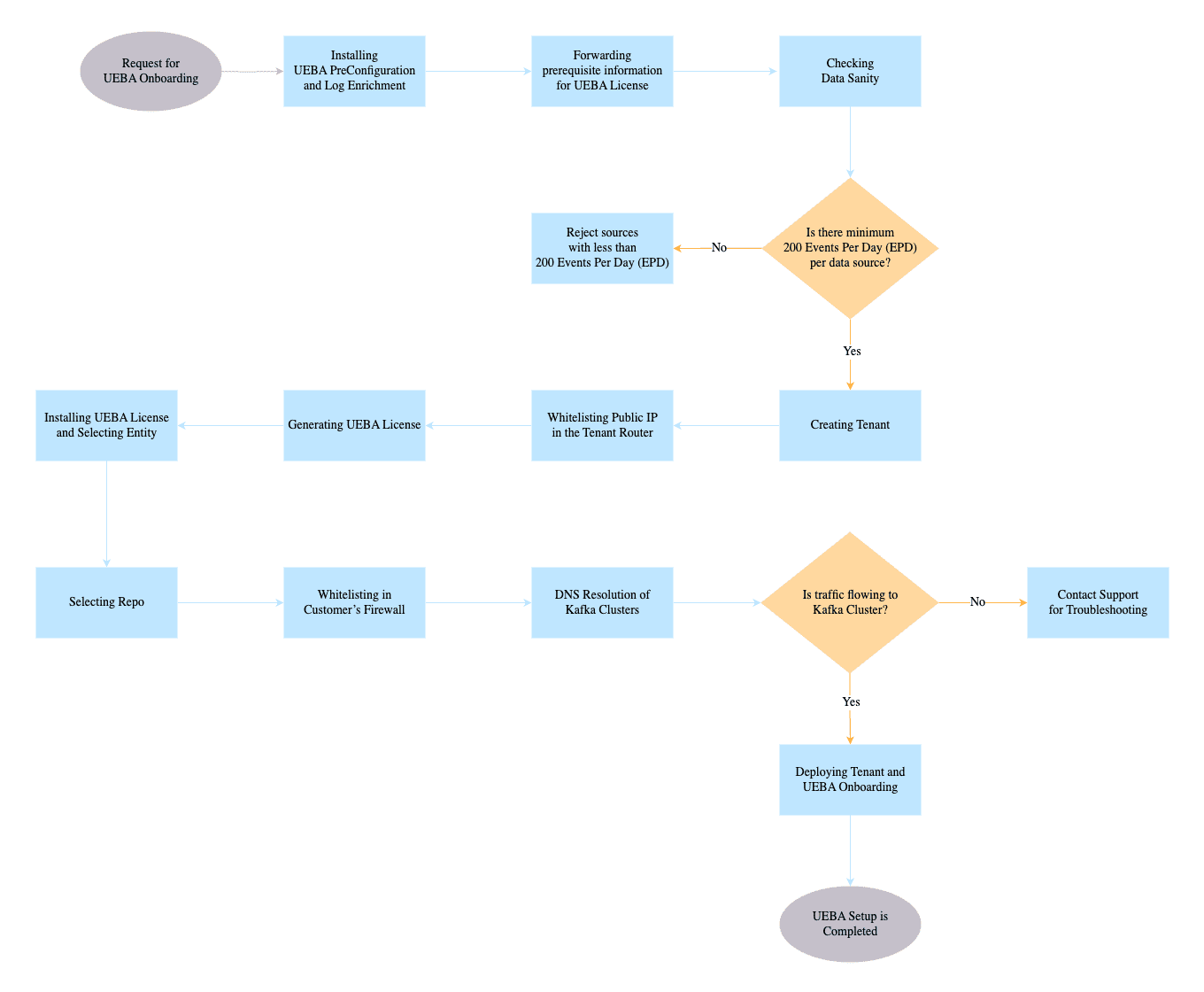
UEBA Setup Process
Estimated Time of Completion:
Steps |
Proof of Concept |
Production Environment |
|---|---|---|
1: Installing UEBA PreConfiguration and Log Enrichment |
Within 1 hour |
Within 1 hour |
2: Forwarding prerequisite information for UEBA License |
Within 1 hour |
Within 1 hour |
3: Checking Data Sanity |
1-2 days |
2-3 days |
4: Creating Tenant |
1-3 days |
2-4 days |
5: Whitelisting Public IP in the Tenant Router |
1-2 days |
2-4 days |
6: Generating UEBA License |
Within 24 hours |
1-2 days |
7, 8, 9, 10 |
3-4 days |
3-4 days |
11: Deploying Tenant |
1-2 days |
Every Wednesday |
Note
The days/hours listed here are working days/hours and may vary according to your environment’s availability in addition to your work schedule or how much time you have to complete a step.
Performed By: Customer
Install UEBA PreConfiguration if it is not installed. To learn how to install, go to Installing UEBA PreConfiguration.
UEBA PreConfiguration adds UEBA_SourceAddrToHostname, UEBA_DestAddrToHostname and UEBA_ActiveDirectoryUsers. It also adds UEBA_ENRICHMENT_POLICY to Logpoint. It enriches logs to make sure they are valid for UEBA analysis. You can view the added enrichment policy from Settings >> Configuration >> Enrichment Policies.
To learn how to add the necessary enrichment sources, go to Adding Enrichment Sources.
If you have set up users from multiple Active Directory domains, you can use LDAP Enrichment to add multiple enrichment sources.
To learn how to add CSV enrichment sources to the enrichment policy, go to CSV Enrichment.
Performed By: Customer
There is some prerequisite information you need to provide Logpoint for setting up UEBA and generating a license. Open a Support Ticket called UEBA Setup and provide the following:
Name of the Customer: The name for the license.
Hardware Key: To monitor a particular data node, provide its specific hardware key. To monitor all data nodes connected to a Search Head, provide the Search Head’s key.
Number of Entities: Provide the total number of users and machines for monitoring.
POC or production environment: State whether you want to use UEBA as a Proof of Concept or on a production environment.
License Expiry date: The expiration date of your UEBA license.
History service enabled or not: Confirm if you have 30 days of normalized and enriched input data. History data improves the UEBA baseline and improves accuracy.
Current MPS: Total message or events your Logpoint processes per second. To find your MPS, go to **Settings >> System Settings >> System monitor >> Dashboard >> MPS**.
Timezone: The timezone of your Logpoint platform.
Public facing IP: The public IP, provided by your internet provider, through which the Logpoint server will communicate with UEBA cloud. UEBA-enabled Search Head must establish a TCP connection with the Kafka Clusters to send logs and receive analytics from UEBA cloud. We cannot use Logpoint’s private IP because private IPs are restricted within LAN. To establish a one-to-one connection with the Kafka Clusters, you should configure public-facing IP in UEBA-enabled Search Head and add the public IP address to the support ticket. It is not necessary to have a public IP for the deployed Logpoint server.
Performed By: Logpoint
A sanity check identifies the volume of valid logs to send to UEBA. Logpoint executes queries specific to particular data sources and checks whether all the mandatory fields are present in the results. Logs from those sources have multiple fields, but only a few required fields are sent to UEBA for analytics purposes. The rest are discarded. In a POC environment, the volume and number of logs are not considered. In a Production Environment, each log source should have at least 200 events per day (EPD). If the mandatory fields are not present in logs due to improper normalization or enrichment, the normalization and enrichment policies need to be changed.
For a list of the data sources Logpoint supports for UEBA, go to Data Sources For UEBA.
Performed By: Logpoint
Once the sanity check is completed, Logpoint creates a tenant in a Kafka Cluster. Tenant creation includes creating a Customer Certificate, Cognito User, Kafka topics, and Customer IP whitelisting in the Kafka Cluster.
Performed By: Logpoint
We whitelist the public-facing IP of your Logpoint in the firewall so that the UEBA Dashboard is populated after analytics are run.
Performed By: Logpoint
After getting all the prerequisite information listed in Step 2 and completing tenant creation, Logpoint creates a license and sends it to you in the support ticket. A UEBA license is based on the number of entities you provided in Step 2.
The license contains details of UEBA service, its validity period, the number of entities you can monitor, and the Client Configuration file necessary for UEBA configuration.
Performed By: Customer
You need to enable UEBA before installing UEBA license. Go to Enabling UEBA to enable UEBA and Adding a License to add the provided license.
To select an Entity, see Entity Selection. Entities can be either users or machines.
If you select a user entity, the user field in the log should exactly match the selected user’s name.
Logpoint creates a CSV file named entities.csv based on the entities you selected. During license validation, the file’s Entity column is compared with the log fields. If they match, the log is sent to UEBA.
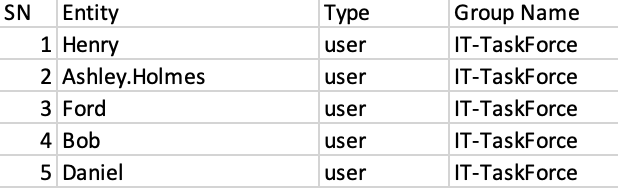
Sample CSV file
Performed By: Customer
To send logs to UEBA, you need to select the repos where the logs of that particular source are stored. For example, when you want to send the AD logs to UEBA, select only those repos in which AD logs are stored.
To select repos for UEBA, go to **Settings >> Configuration >> UEBA Board >> Settings >> Select Repos**. For more details, go to UEBA Board Settings.
Only logs stored in these selected repos are sent to UEBA cloud.
Performed By: Customer
UEBA-enabled Search Head initiates a TCP connection with the Kafka Clusters, but a firewall will block it. To enable the TCP connection, you need to add the outbound rule and allow outbound TCP connection on the IP Address and Ports of the Kafka Cluster.
Important
Adding an outbound rule in the firewall will not expose internal systems to the public nor make them prone to cyber threats. Current stateful firewalls keep track of all outbound connections initiated by an internal system and only allow incoming traffic intended for those internal systems. They are not exposed to outside threats.
You must allow all the outbound requests the Logpoint team provides through the support ticket created in step 2.
Performed By: Customer
To ensure data is forwarded to the right servers, you need to verify whether the domain name resolves to the correct IP address. The UEBA Search Head should be able to resolve the hostnames of the Kafka Cluster. Make sure you add the DNS record to your local DNS server if you do not use a publicly available DNS server. If the UEBA Search Head uses public DNS, they are automatically resolvable. However, if you are using a private DNS server, you must allow all the entries the Logpoint team provides through a support ticket so that the Search Head can resolve the hostname to IP addresses.
The logs should start forwarding to Kafka Cluster once all the above steps are completed. To check whether log forwarding is successful or not, send Customer Success a request through a support ticket created in step 2.
If the logs are not forwarded, you should check all the steps from step 7 to step 10 or request help from support.
Performed By: Logpoint
Logpoint will deploy a tenant and perform the UEBA Onboarding to complete the UEBA setup process. The UEBA dashboard should get populated after completing all the previous steps successfully.
Deploying Tenant is done every Wednesday for a production environment, but POC can be done within 1-2 days. Note that these timeframes are only valid if Logpoint (Search Head) logs are continuously sent to Kafka Cluster without any issue. If the flow of logs to UEBA is stopped due to some issue in Logpoint, the timeframe for populating the dashboard will vary. After verifying the UEBA dashboard is populated, onboarding is completed.