License, Installation and Requirements
License
SOAR is composed of two different licenses:
SOAR Automation: It consists of access to generic playbooks in addition to the ability to create new automated playbooks.
Case Management. It consists of security incident tracking and management.
SOAR is disabled by default. You must enable it which will take 2-4 minutes.
Enabling SOAR
Go to Settings >> System Settings from the navigation bar and click System Settings.
In General, scroll to Enable SOAR in Logpoint and select it.
Click Save.
License, Installation & Requirements
License
SOAR is composed of two different licenses:
SOAR Automation: It consists of access to generic playbooks in addition to the ability to create new automated playbooks.
Case Management. It consists of security incident tracking and management.
SOAR is disabled by default. You must enable it which will take 2-4 minutes
Enabling SOAR
Go to Settings >> System Settings from the navigation bar and click System Settings.
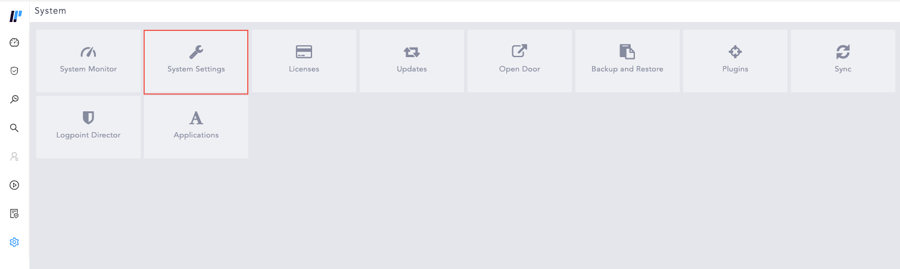
In General, scroll to Enable SOAR in Logpoint and select it.
Click Save.

Upgrade
When a new Logpoint SIEM is released, SOAR is automatically upgraded to its latest version. When a new version of SOAR Automation is released, you need to install it manually. there are manual installation must be done for independent SOAR releases.
SOAR upgrade fails in Logpoint where vCPU does not have AVX support.
System Requirements
The system requirements to run Logpoint SOAR playbooks depend on the deployment environment and the specific version of the Logpoint platform. While the exact requirements can vary, here are general guidelines:
These values are based on average workloads and can vary depending on the complexity of the playbooks, integrations, and the volume of incidents processed.
For running a few hundred playbooks per day:
Additional Memory
10 GB
Additional Disk Space
25 GB
CPUs
2
For running around 1000 playbooks per day:
Additional Memory
16 GB
Additional Disk Space
100 GB
CPUs
5
To extend the disk space, use the zpool or LVM commands based on your file system. For details go to Console Configuration .
Installing SOAR
Download the .pak file from the Help Center.
Go to Settings >> System Settings from the navigation bar and click Applications.
Click Import.
Browse to the downloaded .pak file.
Click Upload.
Last updated
Was this helpful?