
Devices are machines from which you send logs to Logpoint. To start receiving logs from a device, make sure that you configure it in Logpoint, and set up collection configurations and repos to it.
Go to Configure >> Entities >> Devices.

Creating a Device
Note
Click Download CSV File to download the configuration of all devices in CSV. You can also download the configurations of the devices configured to a Logpoint by selecting the Logpoint from Select Configuration Location and clicking Download CSV File.
Select the Logpoint instances where you want to configure the device.
Click Next.
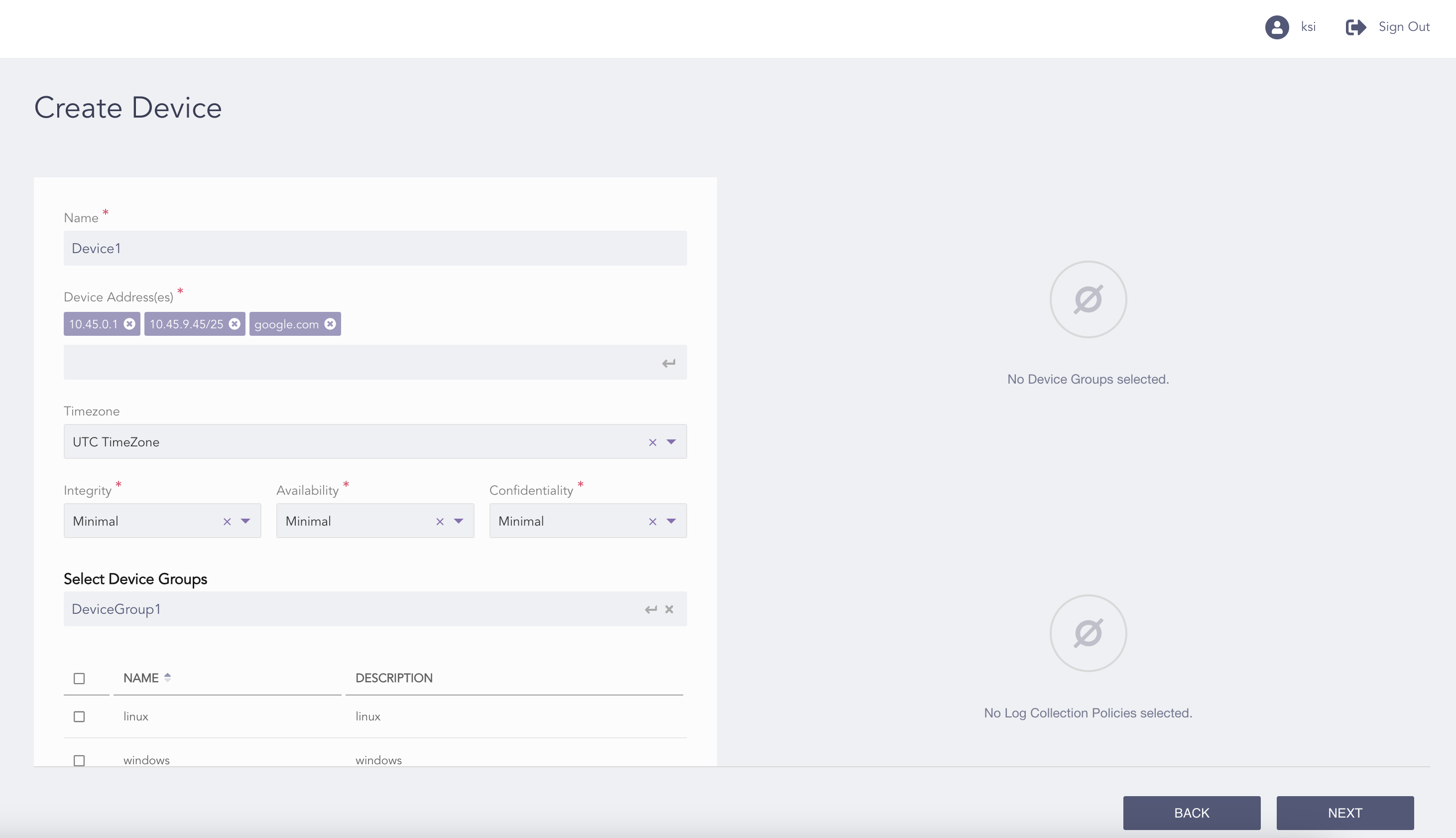
Configuring the Device
Enter a Name.
In Device address(es), enter the IP addresses or hostnames of the device. However, Logpoint currently supports only those hostnames that can be resolved into a single IP address. Press Enter after every addition.
Select the Timezone of the device. The time zone of the device must be the same as that of the log source.
Warning
Make sure that you enter the correct time zone.
If the time zones are different, the extracted log timestamp becomes incorrect, and the logs may not be searchable for the given time-period.
Select the risk values for Integrity, Availability, and Confidentiality.
Select the Device Groups to which you want to add the device and click Add to list.
Note
For multiple Logpoint instances, you can select the device groups common to the selected Logpoint instances only.
Select the Log Collection Policies to which you want to add the device and click Add to list.
Note
For multiple Logpoint instances, you can select the log collection policies used by the selected Logpoint instances only.
Select the Distributed Collectors to which you want to add the device and click Add to List.
Click Next.
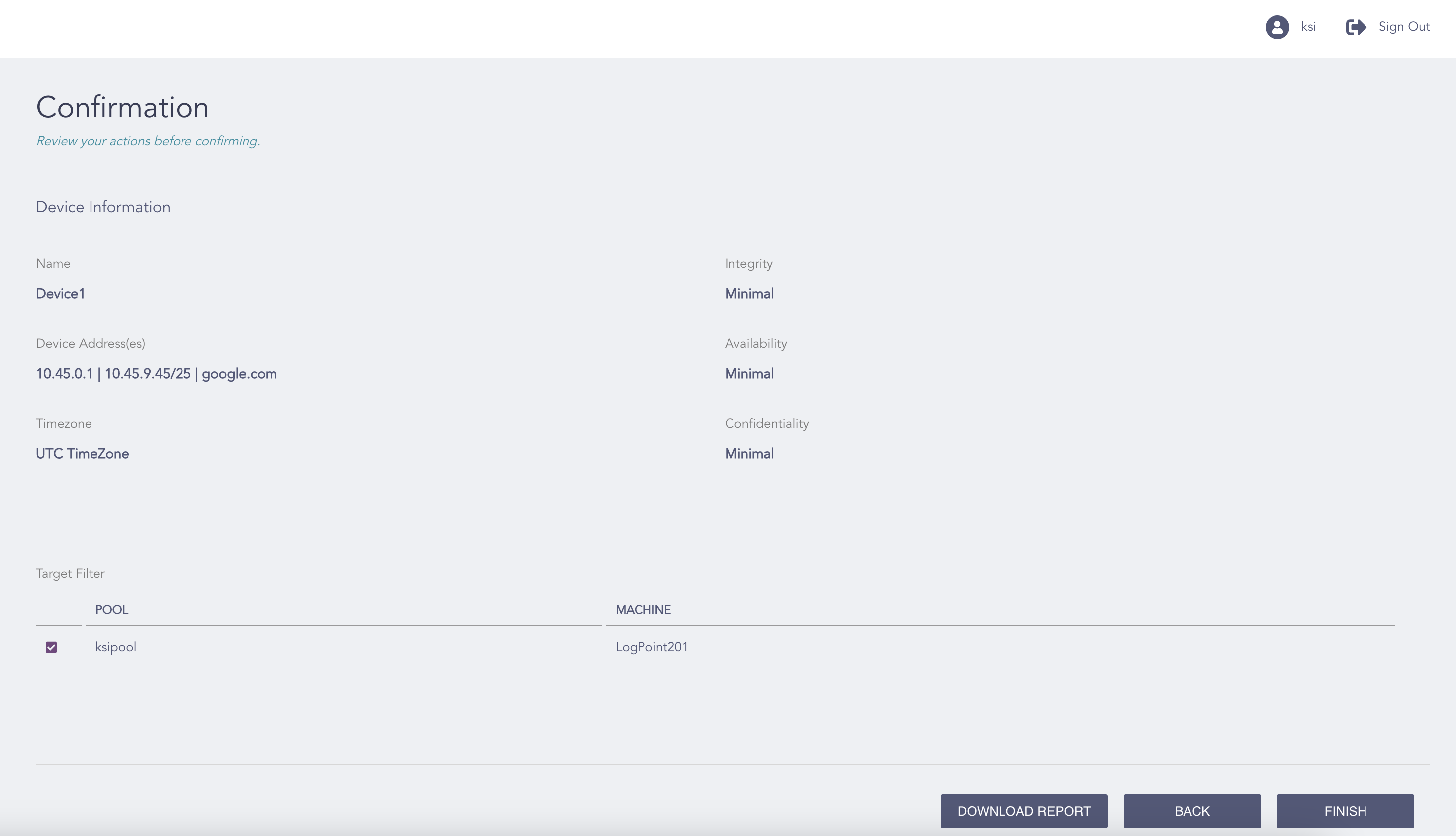
Confirming the Changes
Review your changes. You can go Back to make any changes if necessary.
Note
Click Download Report to save the summary of the task in PDF.
Click Finish.
Click OK.
Using Director Console, you can add multiple devices in a Fabric-enabled Logpoint by importing them via a CSV file.
Note
You can import devices via a CSV file for Fabric-enabled Logpoint v6.7.2 and later.
Go to Configure >> Entities >> Devices.
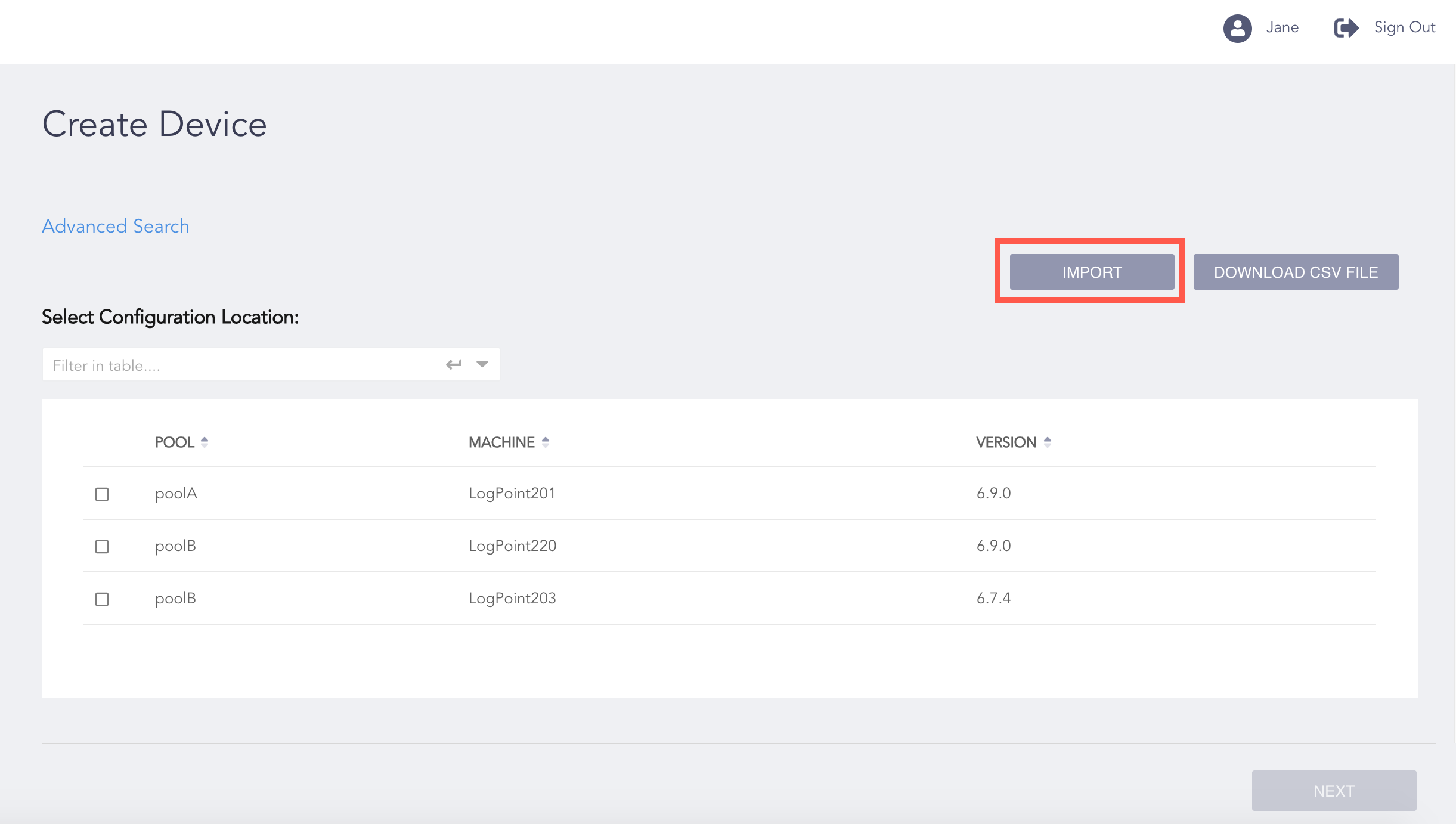
Importing Devices
Click Import.
Upload a CSV file.
The first line of the CSV file must be a header row. You can use device_name, device_ips, device_groups, log_collection_policies, timezone, confidentiality, integrity, availability, distributed_collector, use_as_proxy, uses_proxy, charset, parser, processpolicy, proxy_ip, hostname, and machine_name as the header rows.
The device_name, device_ips, and machine_name are mandatory fields. The machine_name is case-sensitive and must exist in Director Console.
Note
For more details, go to Importing Devices via a CSV File .
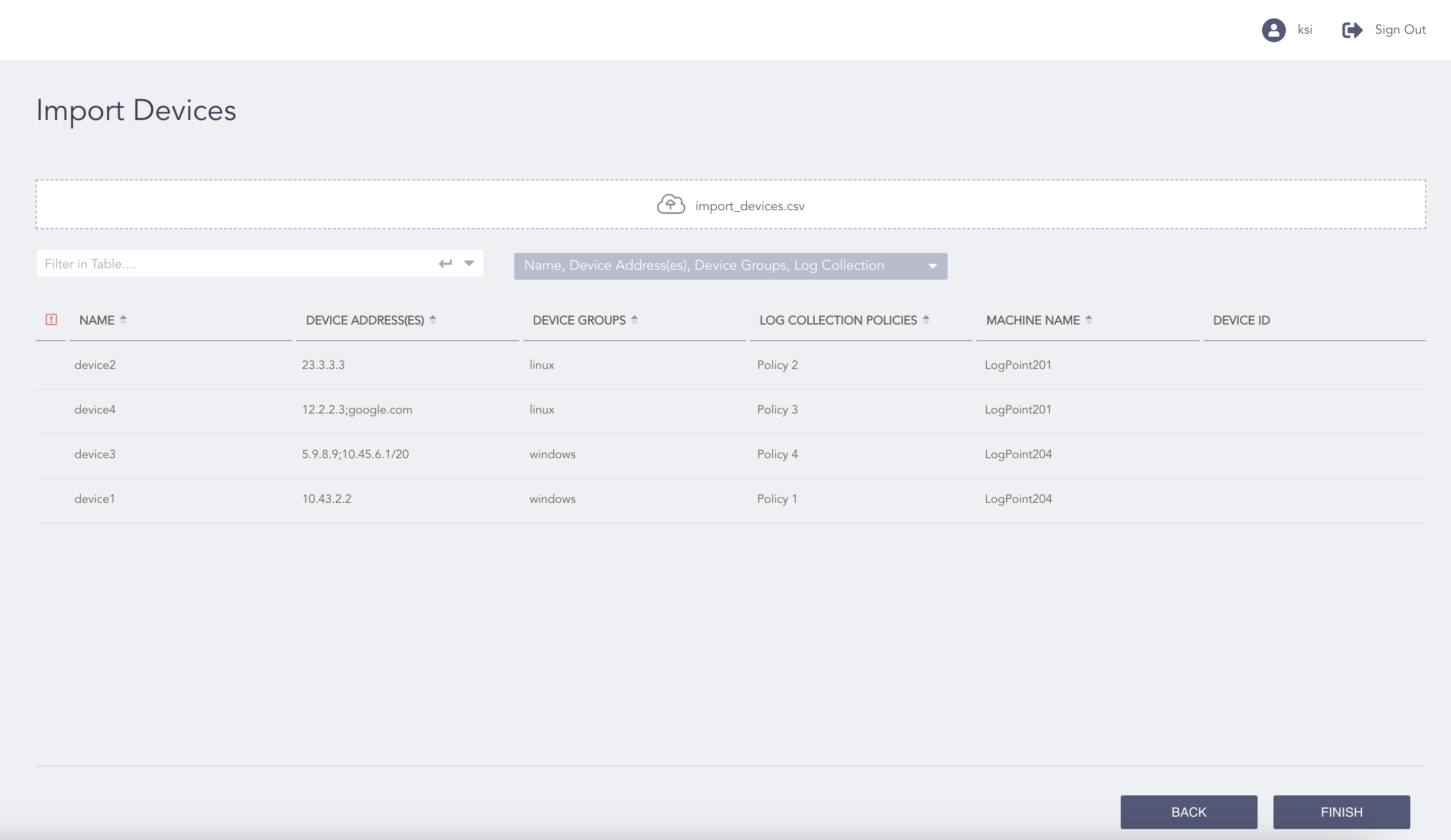
Import Device Page After the CSV file is Imported
Once the import process is complete, you can see all the devices from the CSV file.
Note
You can toggle the error ( ) symbol to view the rows with errors.
You can select the columns you want to view in the UI from the drop-down.
Click Finish.
Click OK.
In Director Console, you can download the CSV file to edit the device information and upload it in Director Console to update the changes. You can download the CSV file from the Create Device page or the Tasks page.
Go to Configure >> Devices.
Click Download CSV File to download all the device configuration.
Note
Select a Logpoint from the Select Configuration Location if you want to download the CSV file for a specific Logpoint and click Download CSV File.
Open the CSV file in any editor of your choice.
You can find a new header called id which lists the ids of the created devices.
Make the necessary changes and import the CSV file again.
Go to the Tasks page.
Click the Download option from the Actions column of the import device operation to download the CSV file for the entire import device operation.
Click the Expand ( ) symbol and click the Download option from the Actions column of a specific Logpoint to download the CSV file for the device operation carried out in the Logpoint.
Open the CSV file in any editor of your choice.
You can find two new headers called id for the devices that have been successfully created and message for the devices that could not be created. The id column lists the ids of the successfully created devices via the CSV file and the message column lists the information about why the device could not be created.
Make the necessary changes and import the CSV file again.
Consider a sample CSV file with the following data:
device_name,device_ips,device_groups,log_collection_policies,distributed_collector,confidentiality,integrity,availability,timezone,use_as_proxy,uses_proxy,charset,parser,processpolicy,proxy_ip,hostname,machine_name
device_2,215.197.233.90;3.110.20.166;87.214.228.170,linux,Policy 2,,Critical,Major,Minimal,Europe/Helsinki,TRUE,,ascii,SyslogParser,default,,,Logpoint201
device_3,79.203.195.25,windows,Policy 4,,Critical,Critical,Major,UTC,,,,,,,,Logpoint204
device_1,128.225.241.240;224.52.180.74;77.252.115.30,windows,Policy 1,,Major,Minimal,Critical,Europe/Helsinki,,,,,,,,Logpoint204
device_4,125.144.198.131,linux,Policy 3,,Minimal,Critical,Minor,Europe/Helsinki,,,,,,,,Logpoint201
device_5,125.212.114.40,Device_Group_II,Policy 2,,Minimal,Minimal,Minimal,UTC,,,,,,,,Logpoint201

Sample CSV File
In this example, Policy 3 has no collectors or fetchers configured, and Policy 4 and Device_Group_II have not been created.
Go to Configure >> Entities >> Devices.
Click Import.
Upload the CSV file.
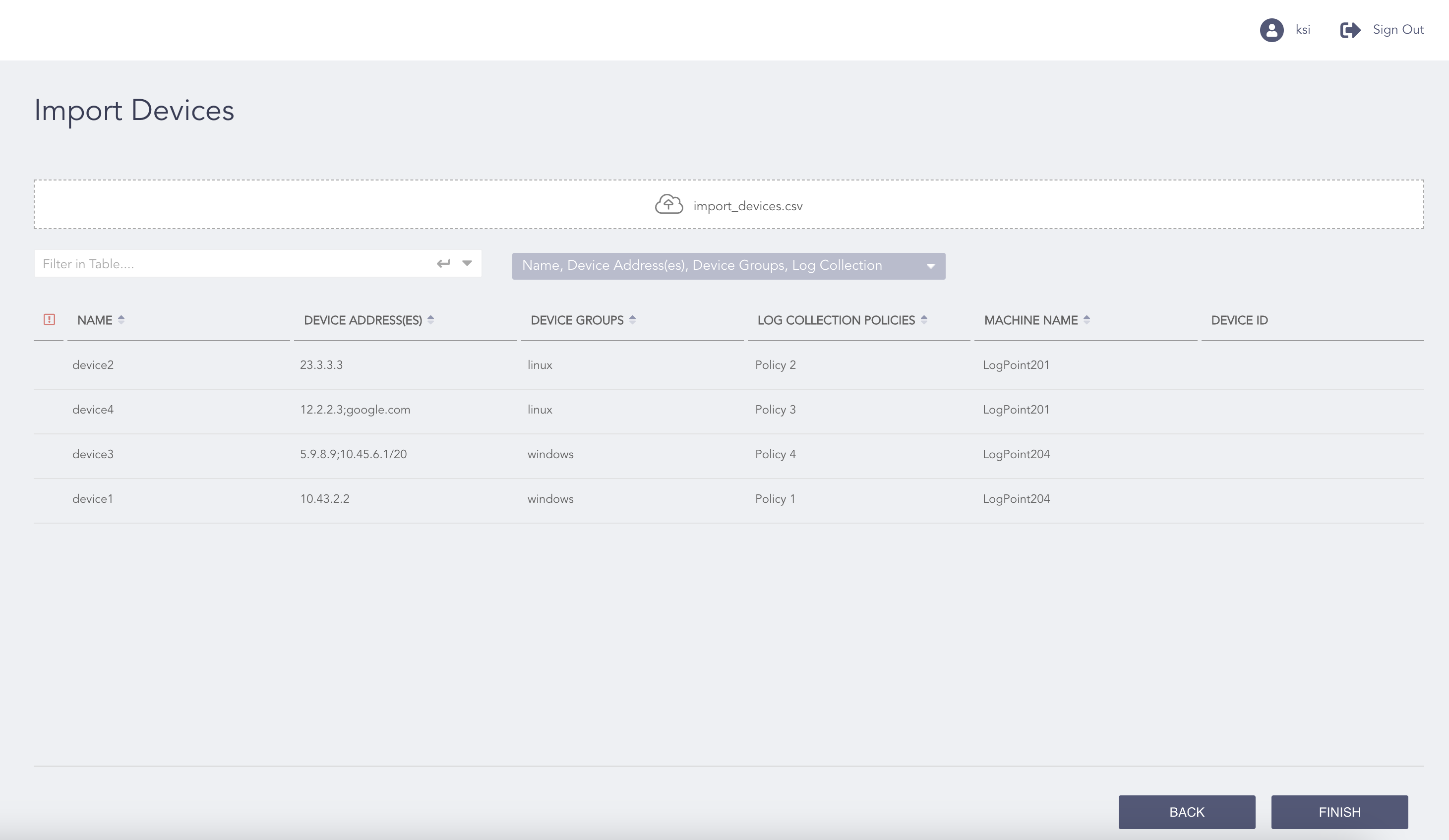
Imported Devices
Click Finish.
Click OK.
Go to the Tasks page.
Click the Expand () symbol. You can see the Status of import device operation for each Logpoint.
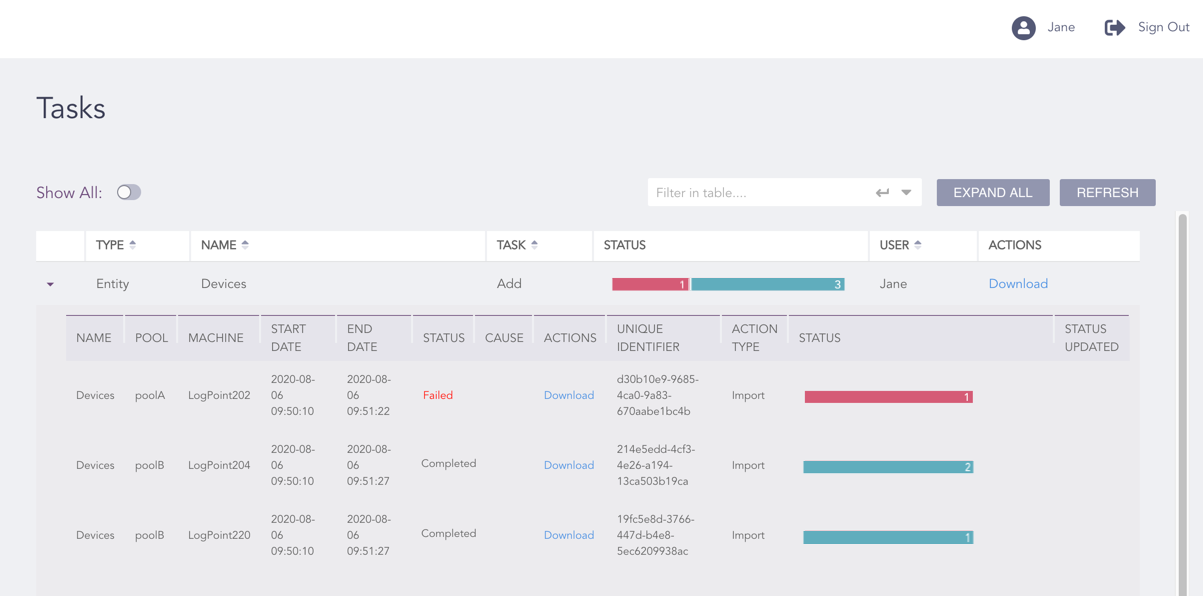
Download CSV File from the Tasks Page
Click Download under ACTIONS of the failed import device task.
Open the CSV file in any editor of your choice.

Downloaded CSV File with New Message Header
Go to the message header row to find out why the operation failed.
Create the log collection policy Policy 4 and configure collectors and fetchers to it.
Create the device group Device_Group_II in Director Console.
Import the CSV file again.
Click Finish.
Click OK.
Go to the Tasks page and check the Status of the import device operation.