Actions and Action Blocks
Individual steps or actions in your SOAR playbooks are setup through Actions. Playbooks always start with a Trigger action and end with an End action. There are different types of Actions which one you use depends on what you want to do.
Trigger & End
Trigger
First playbook block.
There are three trigger types based on what action starts the playbook: SIEM Incident, Parent Playbook, Scheduled
End
Stops the playbook.
End is added to playbook by default. If you can’t immediately see it, zoom out.
Trigger
The trigger is not only the first block of the playbook — it defines which method a playbook is triggered upon and the required parameters. A user can also add default values if needed.
For SIEM incident triggers, default parameters are automatically added. You can change them if you need to.
SIEM Incident Trigger Parameters
When the action is activated using this trigger, the underlying mechanism calls the SIEM Incident API using the incident information. The input parameters must be the same as the API response fields with the exact syntax.
Actions
Playbook
Triggers a different playbook from within the current or parent playbook.
For longer processes that playbooks automate, it can be helpful to break up the processes into parts. This will help you reuse different playbooks in different scenarios.
Annotation
Adds comments to a playbook action.
Let your colleagues know important information about the Action and Playbook.
API
Triggers an API call from within the playbook.
Connects the playbook to products and services from other vendors.
Script
Triggers a script from within the playbook. Currently, Logpoint only supports Python scripts.
Lets you write python scripts to customize playbook functionality.
Case Item
Adds an individual item or event to a case, the investigation’s sequence of steps.
Let’s you and your colleagues track and understand what happened through the course of an automated incident investigation.
UML Types
For Each
Processes multiple queries from the same block.
When you need to loop queries through each item in an array or list.
If‑Then
Processes a conditional statement.
When you need to make a specific response for a predefined event.
Composite If
Processes a complex conditional statement.
When you need to add complex conditions and add OR and AND operators to conditional cases.
Stop
Stops the execution of the playbook.
When you need to terminate the playbook and set the specific status to it.
Interactive
Prompt
Displays a message for manual action on part of user before the playbook runs.
When you want to confirm whether or not the user needs to perform certain manual actions before the rest of the automated playbook continues running.
Action Blocks
Format
Adds a block of parameters in the key‑value format.
When you need to add multiple parameters and associate each with various actions.
Query
Adds a query to get specific fields.
When you need to input a query to generate output parameters based on input parameters.
Filter
Filters results using the input parameters.
When you need to filter out results based on input conditions.
Cases Query
Searches for existing cases using filters.
When you need to search and retrieve existing cases based on a specified filter.
String Utilities
Allows string manipulation on input text.
When you need to perform different string manipulations, including lowercase/uppercase conversion and encoding/decoding to different formats.
Action Parameters – General
Parameters
Usage:
This action is enabled only if the user set Playbook global parameters. This action sets the value of the parameter.
Parameters:
Name
Req
Usage
Values
Action name
Y
Block name
Default – “Parameters”
Description
Y
Description of the block
Input Parameters
Y (at least 1)
Y
The global parameter (selected from a list)
This value can be provided manually, or point to a parameter within the Playbook blocks, for example the trigger query.
Returns:
Name
Description
FilterResult
The filter result
Playbook
The playbook action initiates a sub-playbook that is part of a parent playbook. This kind of playbook is synonymous with a manual playbook.
When a manual playbook functions as a sub-playbook, the End Action returns results to the Parent Playbook.
Name
Req
Usage
Values
Action Name
Y
The name of the block
Default - “Playbook”
Description
Y
Description of the block
Playbook
Y
The Playbook to be run
Select it from the dropdown list that provides all playbooks
Sub-Playbook parameters
The parameters that the Sub-Playbook requires
Their can be values that are pre-populated as default values when creating the Sub-Playbook trigger. Or, this value can be provided manually, or point to a parameter within the Playbook blocks (e.g. the query from the trigger)
API Actions
API actions can send a request to a specific endpoint or URL of the API, along with any necessary parameters and authentication information. The API then processes the request and returns a response, which can include data, status information, or other information.
View Existing SOAR Automation Integrations
In the navigation bar, go to Settings>SOAR Settings.
In SOAR Settings, go to Playbook Integrations.
You can scroll, search or use filters in the Installed Integrations list.
ll the parameters required for the API action configuration can be found in Integration settings. However, LDAP integration type is handled by a different Action block.
API Actions can be used in a variety of ways, including to access data from external sources, to retrieve information from a database, or to interact with other software applications. For example, a mobile app might use an API to retrieve data from a server and display it to the user.
If you want to access Logpoint SIEM-based data through the Logpoint API, go to API Reference for more information.
General Parameters:
Name
Req
Usage
Values
Action Name
Y
The name of the block
Default - “API”
Description
Y
Description of the block
Continue on any status code
Y
When this parameter is disabled, if the HTTP response of the API is not 200 (OK), this actions beyond this block in the branch will stop.
Default – Disabled
Product Type
Y
The classification of the product API. These classification types are associated with the integrations in the Playbook Integration section.
· ANALYTICS
· CASB
· DATABASE
· DECEPTION
· ENDPOINT
· FIREWALL
· FORENSIC
· GENERAL
· MAILGATEWAY
· MONITORING
· NETWORK
· SANDBOX
· SIEM
· SOAR
· THREATINTEL
· VAULT
· WEBGATE
Vendor
Y
The vendor of the integration.
Vendor list depends on the selected Product Type.
Product
Y
The product
Product list depends on the selected Vendor.
Product Instance
Y
The product instance
Product list depends on the selected Product.
Action
Y
The action to be performed
Parameters depend on the selected Product.
Parameters
The parameters that can be set to the action. Some might be required
Parameters depend on the selected Action.
Returns:
rawResponse
The API response
responseStatusCode
httpResponse
The API HTTP response
httpRequest
The API HTTP request
API specific parameters
As defined in the Integration action response parameters
Script
In a Python script, you can use the Python language to perform operations, such as reading and writing files, connecting to a database, making API calls, and performing data manipulation and analysis.
With Python, you can automate repetitive tasks, perform complex operations with a few lines of code, and create powerful scripts that can run on a variety of platforms, including Windows, macOS, and Linux. Whether you're a beginner or an experienced programmer, Python is a flexible and powerful tool that can be used to achieve a wide range of scripting goals.
Scripts
You customize playbook functionality using the Script Action block. Scripts in SOAR settings is where you manage your playbook scripts.
Manage Playbook Scripts
Go to Settings >> SOAR Settings from the navigation bar
Click Scripts to view, add, edit, and delete SOAR_based scripts.
Currently, you can only use Python scripts.
Add a script
Go to Settings >> SOAR Settings from the navigation bar and click Scripts.
Click Add New Script.
Enter the Script Name and Description.
The Script Language is selected by default as Python.
Click Edit Python Script, edit the script, and click Save.
You can test the output of the script by clicking Test.
Enter the Input Parameters and Output Parameters. You can add multiple input and output parameters.
Click Save.
Edit a Script
Go to Settings >> SOAR Settings from the navigation bar and click Scripts.
Click the () icon and click Configure.
Edit the information.
Click Save.
Clone a Script
Go to Settings >> SOAR Settings from the navigation bar and click Scripts.
Click the () icon and click Clone.
Enter the name for the cloned script.
Click Save.
Export a Script
Go to Settings >> SOAR Settings from the navigation bar and click Scripts.
Click the () icon and click Export.
Delete a Script
Go to Settings >> SOAR Settings from the navigation bar and click Scripts.
Click the () icon and click Delete.
Click Delete to confirm.
Case Item
This block is used in order to either create a new case, or add information to an existing case. Note that if this block resides in a sub-playbook, all consequent calls to it will add information to the first case that was created when during playbook execution.
General Parameters
Name
Req
Usage
Values
Action Name
Y
The name of the block
Default - “Case Item”
Description
Y
Description of the block
Case ID (Title)
N
The case Title
· Default – if not filled in, the case title will be name of playbook_creation timestamp. For example “Playbook_101__101_2024-05-06T11_40_28.589”
· Or if the case name sting is set in the trigger ‘Case name template’ it will fill it like that.
· A string – the name will be the string.
· A parameter within the Playbook blocks – the type of this field must be a string.
Type
Y
The type of data that is added to the case. per type relevant parameters are required
· Label – a label is added.
· Query the from a Playbook parameter is added.
· Artifact – an Artifact is added.
· The artifacts from the incident data are parsed and added.
Label Type parameters
Name
Req
Usage
Values
Label Summary
Y
The text displayed in the case ‘Label’ field.
Label Details Format
Y
The format of the label details
· Plain Text - Default
· HTML
· JSON
Label Details
Y
The text appearing in the case ‘Label Details’ field.
The label can include input parameters with syntax ${input_param} For example: Involved user: ${user}
Input Parameters
N
Parameter name
The name of the parameter that will be set in the “Label Details”
Text
Parameter Value
The actual value
Either text or select a Playbook parameter as the input – must be of string type.
Query Results Type parameters
Name
Req
Usage
Values
Name
Usage
Values
Query Result
Y
Adds information to the case
Select a Playbook parameter as the input – must be a QueryResult type.
Artifact Type Parameters
Name
Req
Usage
Values
Artifacts
N
Add specific artifacts
Artifact Type
Select the Artifact type to be added
· Domain
· File
· Generic Text
· Host
· IP address
· MD5
· ProcessName
· SHA256Sum
· URL
· Username
· ProcessID
Artifact Value
The actual value
Either text or select a Playbook parameter as the input.
Description
N
Returns:
Name
Description
resolvedCaseTitle
The title of the case
For Each
Processes multiple queries from the same source block. It iterates through an array or a list and performs a set of operations for each result. The results of the array or list come from or originate from the results of a Query or Filter action. For each actions are often used as part of sub-playbooks. The results of For Each are in the For Each results and not the playbook block results.
The For each block must be connected to either a playbook block, which performs the action, or an API block.
Use For Each Loops and Sub-Playbooks
1. Set up the query. The output parameters of the “for each” action will be the same as the query output parameters.
2. Configure the For Each action and define the query results as an input parameter.
3. Link it to the sub-playbook. The For Each output parameters become the input parameters for the sub-playbook.
Parameters:
Name
Req
Usage
Values
Action Name
Y
The name of the block
Default - “For Each”
Description
Y
Description of the block
Returns:
Name
Description
ForeachResult
The title of the case
You use For-Each to iterate through an array of results that can originate from two sources:
The result of Query Action. When a Query action completes, For-Each iterates query results.
The results of Filter action that can operate as a fan-out on JSON data, converting a JSON string into a set of values
The For-Each action can only be followed by a Playbook Action or an API action
For-Each Output Parameters
The For-Each Action always exposes two output parameters:
Parameter
Description
ForeachResult
The result of the iteratable data that the For
Each Action is processing for example, the results of a Query Action
ForeachResultCount
Number of elements in the ForeachResult
When the For-Each Action is mapped to the output of:
Filter Action, the FilterResult, in the For-Each Action, output parameter. You can ignore it.
Query Action, the output parameters of the Query Action are output parameters of the For-Each Action.
For-Each Empty Results
When the For-Each Action runs on an empty result set, for example, a Query Action that did not return any results, the For-Each Action will fail and displays the message: FAILED attempting to run foreach on no iterable values. To avoid For-Each Action failure, you can check the number of results for the Filter/Query Action with the Condition Action before running the For-Each Action.

When there are no results, the Playbook runtime view looks like this:

The For-Each Action and the following Playbook Action were skipped.
Action Configuration
In order to configure the For-Each Action, make sure that you already configured a Filter or Query Action.
If you don’t configure output parameters in the Query Action, the For-Action will fail to run. You must configure at least one output parameter.
The For-Each Configuration action with the parameter: Query:QueryResult
Parameter is pointing to the data source that the For-Each will iterate on. In the above screenshot, the For-Each data is taken from a Query Action named Query, where we map the QueryResult.
Example - Looping SIEM Query Result
This example outlines how to build a playbook that iterates the results of SIEM Query.
1. Create a new Playbook.
2. Add a Format action.

In the Trigger Action:
Set the Trigger Type to Playbook.
In Input Parameters, enter the parameter username.
Click Save Data.
In Format Action, use the parameter from the Trigger Action
Click Save Data.
Save the playbook with the name Tutorial - For Each Action.
Now you need to configure the main playbook that executes a SIEM query and calls the Tutorial - For Each Action playbook on each and every result of the query.
1. Create a new Playbook.
2. Add Query, For-Each and Playbook actions.
3. Connect the actions in the playbook:

In the Query Action, click the Settings icon. At least one output parameter is necessary in order for the For-Each action to run. This Query will generate a list of users from SIEM log files.
In Data Source, select LogPoint.
In Query Result Data Format, select JSON.
In Query, enter the following query, which generates a list of users from the SIEM log files.
8. Click Save Data.
9. In the For-Each Action, click the Settings icon.
10. Add a name and description.
11. In Parameter, select the Query.QueryResult parameter. This maps the parameter to the QueryResult of the Query action Parameter.
12. Click Save Data.
For the inputs of the playbook, we map the results of the For-Each Action AND NOT the results of the Query Action.
15. Enter an Action Name and Description.
16. Select the playbook name that will map to the For-Each Action. Not the username of the Query Action.
17. Click Save Data.
18. Run the Playbook.
19. On the Query Action, there are 3 results:

20. The results include three usernames: admin , root , and loginspect
The results of the For-Each Action has a summary of the playbook invocations:

22. The For-Each action block iterated three times and there are 3 results. All successful, none failed.
23. The param value summerizes the Query Action results.
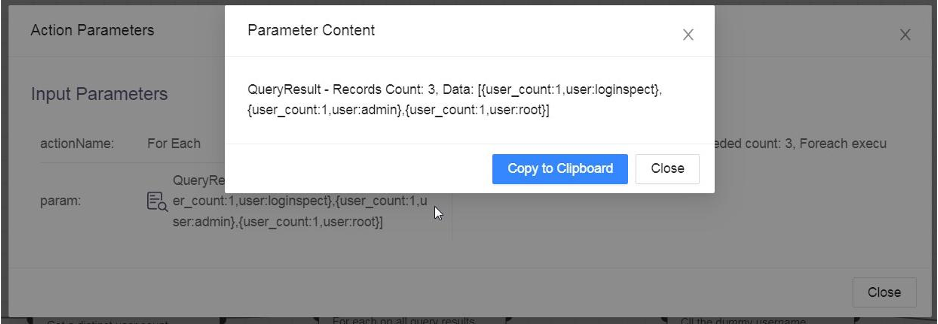
24. The Playbook Action has an aggregated view of all results:
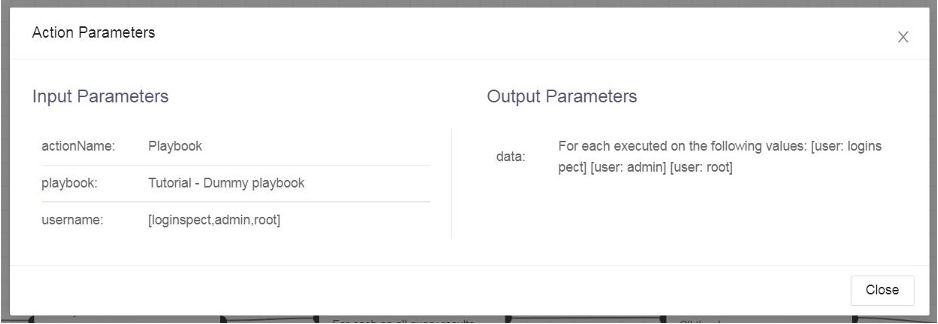
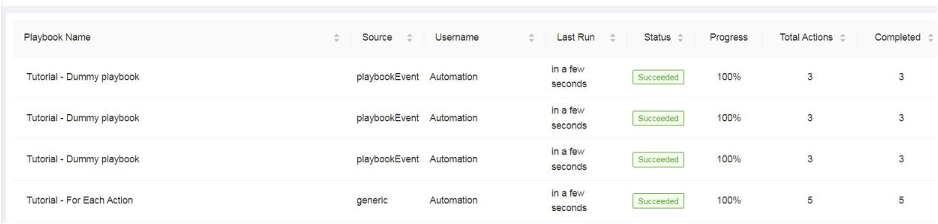
25. Go to Playbook Monitoring. The main playbook Tutorial - For Each Action ran and was followed by three sub playbooks.
Example - Looping on Filter Result
To iterate through an array of items, represented by JSON string, use the Filter Action.
Use the Filter Action even when you want to process all the elements of the array without filtering. The Filter Action also functions as a fan-out action, allowing the For-Each Action.
Scenario: there is an action that produces a list of usernames:["dan","bob","alice", "doris"] We want to iterate through the list and run a playbook on each of the users.
1. Create a playbook with the Trigger, Filter, For-Each, Playbook and End actions

2. In the Filter Action click the Settings icon.
3. The source data is from the playbook Trigger Action Users parameter.
4. Enter the JsonPath Filter Expression

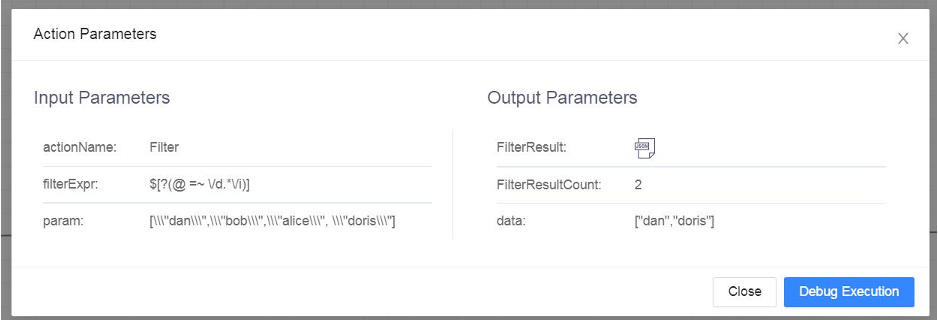
We are using the JSON Path expression $[?(@ =~ /d.*/i)]: it takes all the top-level elements that match the regex /d.*/i . This regex returns all elements starting with the letter ‘d’. For a full explanation on the JSON Path expressions, read the Filter Action documentation
5. In the For-Each Action, the parameter is the data source based on the result of the Filter Action.
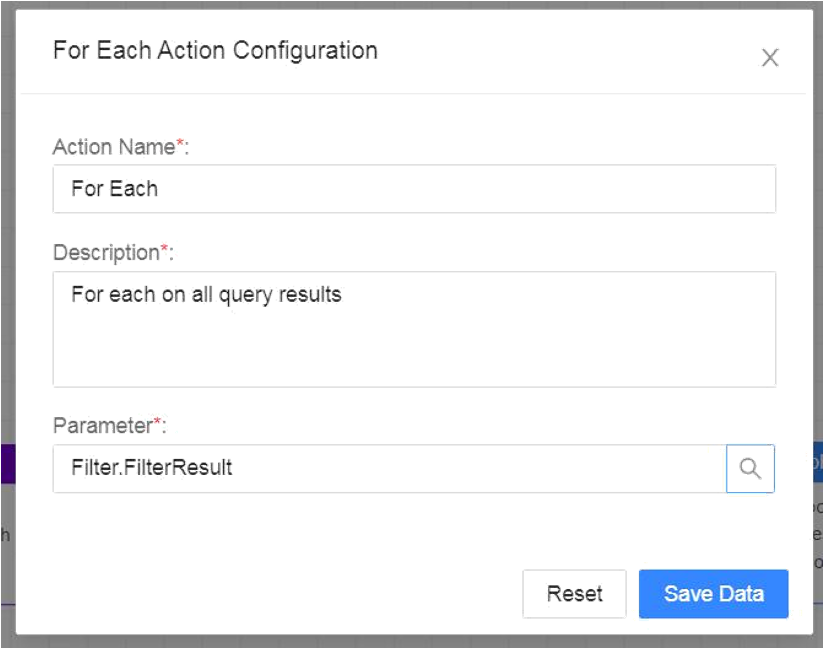
6. Make sure to map the playbook input parameter from the For-Each Action and not from the Filter Action

7. When we run the playbook, we provide a JSON array of names. This array will be filtered and only the names starting with the letter ‘d’ will be processed by the For-Each action.
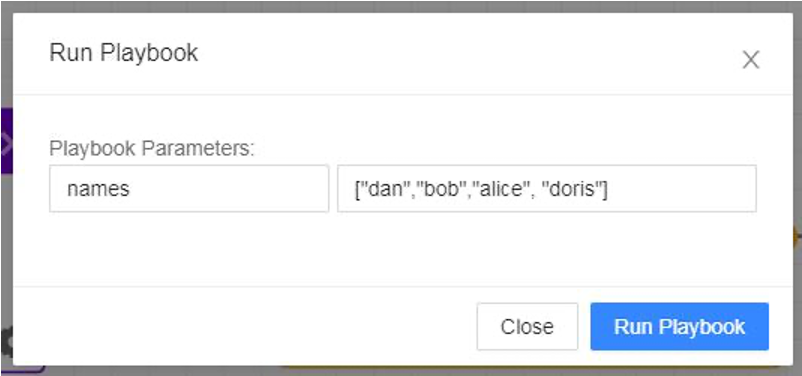
8. After running this playbook, the Filter Action kept only “dan” and “doris”, it filtered out “bob” and “alice”:
9. There were only two invocations of the playbook, one for “dan” and the other for “doris”
If Then
Conditions in SOAR playbooks are defined by using if-else statements, similar to programming languages. The conditions are usually based on the values of variables, or the results of actions taken in previous steps of the playbook.
Conditions are a key aspect of SOAR playbooks, as they allow you to make decisions based on the state of the system or the results of previous actions.
Using if-then statements, you can test one or more conditions and execute different actions based on whether the conditions are true or false. For example, you might test whether a user is authorized to access a particular resource, and take different actions based on the result.
General Parameters:
Name
Req
Usage
Values
Action Name
Y
The name of the block
Default - “If...Then”
Description
Y
Description of the block
Left Operand
Y
This value can be provided manually, or point to a parameter within the Playbook blocks (e.g. the query from the trigger)
Operator
Y
What is the difference between !== and NOT?
What is HAS VALUE and DOESNT HAVE VALUE?
· =
· >
· <
· !==
· IN
· NOT IN
· NOT
· HAS VALUE
· DOESNT HAVE VALUE
Right operand
For types:
· =
· >
· <
· !==
· NOT
Y
This value can be provided manually, or point to a parameter within the Playbook blocks (e.g. the query from the trigger)
A List
For types:
· IN
· NOT IN
Y
Select A list from a dropdown of static lists. The static lists created in SOAR->Configuration->List Management section
Returns:
Name
Description
conditionResult
The result of the operation – ‘true’ or ‘false’
Composite If
Runs complex conditional operations, optionally nesting conditions with different operations.
Conditions in SOAR playbooks are defined by using if-else statements, similar to programming languages. The conditions are usually based on the values of variables, or the results of actions taken in previous steps of the playbook.
Conditions are a key aspect of SOAR playbooks, as they allow you to make decisions based on the state of the system or the results of previous actions.
Using if-then statements, you can test one or more conditions and execute different actions based on whether the conditions are true or false. For example, you might test whether a user is authorized to access a particular resource, and take different actions based on the result.
General Parameters:
Name
Req
Usage
Values
Action Name
Y
The name of the block
Default - “Composite If”
Description
Y
Description of the block
Parameters
Y at least 2
Parameter name
Value
This value can be provided manually, or point to a parameter within the Playbook blocks (e.g. the query from the trigger)
Rules Configuration
Y, one or more
Actual operators
+Rule
Adds a new rule
+Group
Nesting (grouping) of rules
Condition
· AND
· OR
Left Parameter
From input parameters list
Operator
Y
· =
· >
· <
· !==
· HAS VALUE
· DOESNT HAVE VALUE
· BEGINS WITH
· DOESNT BEGIN WITH
· ENDS WITH
· DOESNT END WITH
· CONTAINS
· DOESNT CONTAIN
Right Parameter
From input parameters list
Returns:
Name
Description
rulesResult
The result of the operation – ‘true’ or ‘false’
Stop
Immediately stops Playbook execution.
General Parameters:
Name
Req
Usage
Values
Action Name
Y
The name of the block
Default - “Stop Playbook”
Description
Y
Description of the block
Stopped Playbook Status
Y
· Failed
· Succeeded
Stop Reason
The stop reason
Returns:
Provides the response in the following format: Playbook stopped with status <Stopped Playbook Status>. Stop reason: <Stop Reason> For example: Playbook stopped with status FAILED. Stop reason: Developer decision
Prompt
Stops the execution of a Playback and asks for a user response. The response is a pop-up where they can enter or type any remarks. After that, they need to click Continue for the Playbook to resume or, alternatively, click Stop.
User prompts create a more flexible and adaptable response to security incidents.
Human intervention: In some cases, you may need human intervention to make a decision or provide additional information. For example, you might need a human analyst to confirm whether a security event is a true positive or a false positive, or to provide additional information about the severity of the event.
Overriding automation: You might add a user prompt to allow a human analyst to override an automated response in the playbook. For example, if the playbook is configured to automatically block an IP address in response to a suspected attack, a user prompt could allow the analyst to override this response and take a different action, such as quarantining the IP address instead.
Validation: You might add a user prompt to validate that a proposed action is correct before it is executed. For example, if the playbook is configured to automatically shut down a server in response to a security event, a user prompt could allow the analyst to confirm that this is the correct action to take before it is executed.
General Parameters:
Name
Req
Usage
Values
Action Name
Y
The name of the block
Default - “If...Then”
Description
Y
Description of the block
Case Title
N
The case title
When empty, the automatically generate case title is used.
Prompt Message
Y
The message to be displayed to the user in the prompt
String. input parameters values can be used with ${input_parameter}
Input Parameters:
N
Parameter values to be used.
This value can be provided manually, or point to a parameter within the Playbook blocks (e.g. the query from the trigger)
Returns:
Name
Description
promptRemark
The customer’s remark – only relevant if customer selected ‘continue’
resolvedCaseTitle
The case title - – only relevant if customer selected ‘continue’
Format
Provides the ability to create text with a specific format and embedding it with values.
Parameters:
Name
Req
Usage
Values
Action name
Y
Block name
Default – “Format”
Description
Y
Description of the block
Text
Write the required text, using values from the input parameters as needed (with syntax ${input_param}
The required text
Input Parameters
N
Field key
Input parameter name
Place from which parameter value is taken
This value can be provided manually, or point to a parameter within the Playbook blocks (e.g. the query from the trigger)
Returns:
Name
Description
Message
The formatted text
Query
Performs SIEM-based queries within SOAR. The query is from the incident trigger. The query language is the same as SIEM query language as described here. In order to avoid duplicates and allow SOAR to read the results we aggregate only the fields we need for the playbook and display them in a table form which SOAR is able to process.
Before performing queries in SOAR
Run the query in the SIEM first.
Identify the interesting fields you want to work with in the playbook
Aggregate the fields you want using the chart distinct_count()
Configure the aggregated query in SOAR (if needed you can use the original query from the incident as an input parameter)
Set the input and output parameters
Set the time range for the query
Select the appropriate repos
Parameters:
Name
Req
Usage
Values
Query Name
Y
The name of the query block
Default – “Query”
Description
Y
Description of the block
Data Source
Y
The source of the query
Default and only value is LogPoint. Note that the LogPoint source information must be configured in the “SOAR Settings” “Sources” column.
Query Result Data Format
Y
The format of the query response
· CSV
· JSON
Query
Y
The query statement used to retrieve the information related to events in the system
See below.
Edit LogPoint Query parameters
Y
LogPoint Id
N
The ID to be used
Default is the Incident Id that triggered the playbook. ?
Time Range
Y
The time range of the query – the relevant events will be retrieved from the provided range only
· Incident Time range
· Last 5 minutes
· Last 1 hour
· Last 6 hours
· Today
· Specific interval - Time Zone, Use system TZ (from->to)
· Custom range – free text that MUST be set in the following format where <n> is an integer: “Last <n> hours” “Last <n> minutes”
Limit
N
The maximum number of events to be retrieved
Repositories
The LogPoint repositories from in the events will be searched.
Default – All
Note that to optimize the search, if the repositories of the events are known, they should be set.
Input Parameters
N
Field key
Place from which parameter value is taken
This value can be provided manually, or point to a parameter within the Playbook blocks (e.g. the query from the trigger)
Query Result Fields
N
The parameters that will be provided as the response of the query block. They will be part of the query statement, with syntax ${param_name}
The name of the output parameter
Returns:
Name
Description
QueryResult
The information retrieved by the query
QueryResultCount
?
TotalResultCount
?
The query statement uses search query language.
When creating the Query, you can use input parameters you defined by referring to their name with the following notation: ${param_name}.
For example, if you want to get all the events information associated with an incident that triggered the playbook:
Create an input parameter
alert_queryand associate it with the query output parameter you defined as the incident query statement from the trigger.The query statement should be:
${alert_query}
For the above, if you want to get all event information associated with a specific users action:
Create another input parameter
userand either hard code the value or associate it with a parameter from the playbook.The query statement should be:
${alert_query}| filter action=${user}
You can also create more elaborate queries.
Filter
Filters results using input parameters. It uses the JSONPath syntax as a query language. The block provides the filtered results of the provided query information based on the input filter expressions.
Parameters:
Name
Req
Usage
Values
Action name
Y
Block name
Default – “Filter”
Description
Y
Description of the block
Input Data
Y
The query result from which to filter
Select a Playbook parameter as the input – must be of QueryResult type
Returns:
Name
Description
FilterResult
The filter result
FilterResultCount
The number of items in the result
String Utilities
Allows string manipulation on input text. If you need more than one manipulation, you need to create a chain of string utilities blocks.
General Parameters:
Name
Req
Usage
Values
Action name
Y
Block name
Default – “Sting Utilities”
Description
Y
Description of the block
Input String
Y
The string to be manipulated
This value can be provided manually, or point to a parameter within the Playbook blocks (e.g. the query from the trigger)
Utility Type
Y
The type of manipulation
· Convert Input String to Uppercase
· Convert Input String to Lowercase
· Remove Prefix/Suffix
· Calculate MD5
· Encode text as Base64
· Decode text as Base64
· Encode text as URL
· Decode text as URL
· Escape Text as JSON
· Unescape Text as JSON
· Regular Expression
· Replace a Substring of The Input String
· Remove Whitespaces from Prefix and Suffix
Trim the Input String Before Processing
Relevant to all types except for the following
· Convert Input String to Uppercase
· Convert Input String to Lowercase
· Remove Whitespaces from Prefix and Suffix
Y
?
Default – Enabled
Remove Prefix/Suffix type
Name
Req
Usage
Values
Characters to Remove
Characters to Remove
Remove Characters from Input Prefix
Y
When enabled, if ‘Characters to Remove’ are in the beginning of the string they will be removed
Default – Enabled
Remove Characters from Input Suffix
Y
When enabled, if ‘Characters to Remove’ are in the end of the string, they will be removed
Default - Enabled
Regular Expression type
Name
Req
Usage
Values
Regular Expression (Using Java RegEx Matcher Flavour)
N
This value can be provided manually, or point to a parameter within the Playbook blocks (e.g. the query from the trigger)
Get Only First Match
Y
· Enable: Get only first match – Default
· Disable: All results
Replace a Substring of The Input String type
Name
Req
Usage
Values
String to Search
N
This value can be provided manually, or point to a parameter within the Playbook blocks (e.g. the query from the trigger)
String to Replace
N
This value can be provided manually, or point to a parameter within the Playbook blocks (e.g. the query from the trigger)
Returns:
Name
Description
StringUtilitiesResult
The formatted string
Last updated
Was this helpful?