Configure AAHC
Configure AAHC
AAHC retrieves the medical journal logs via a remote Logpoint server. You have to configure the Logpoint server in AAHC.
Configure Remote Logpoint in AAHC
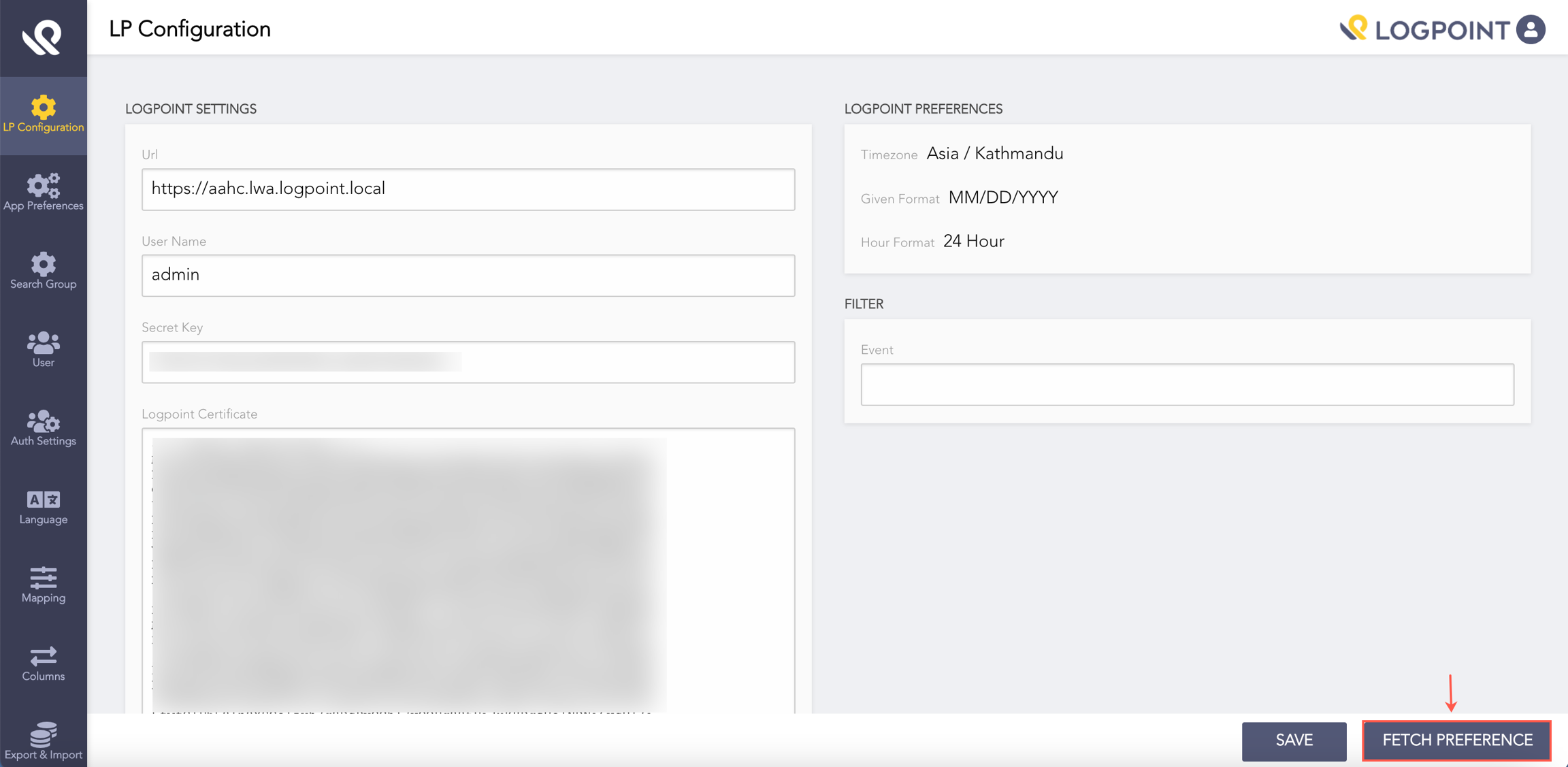
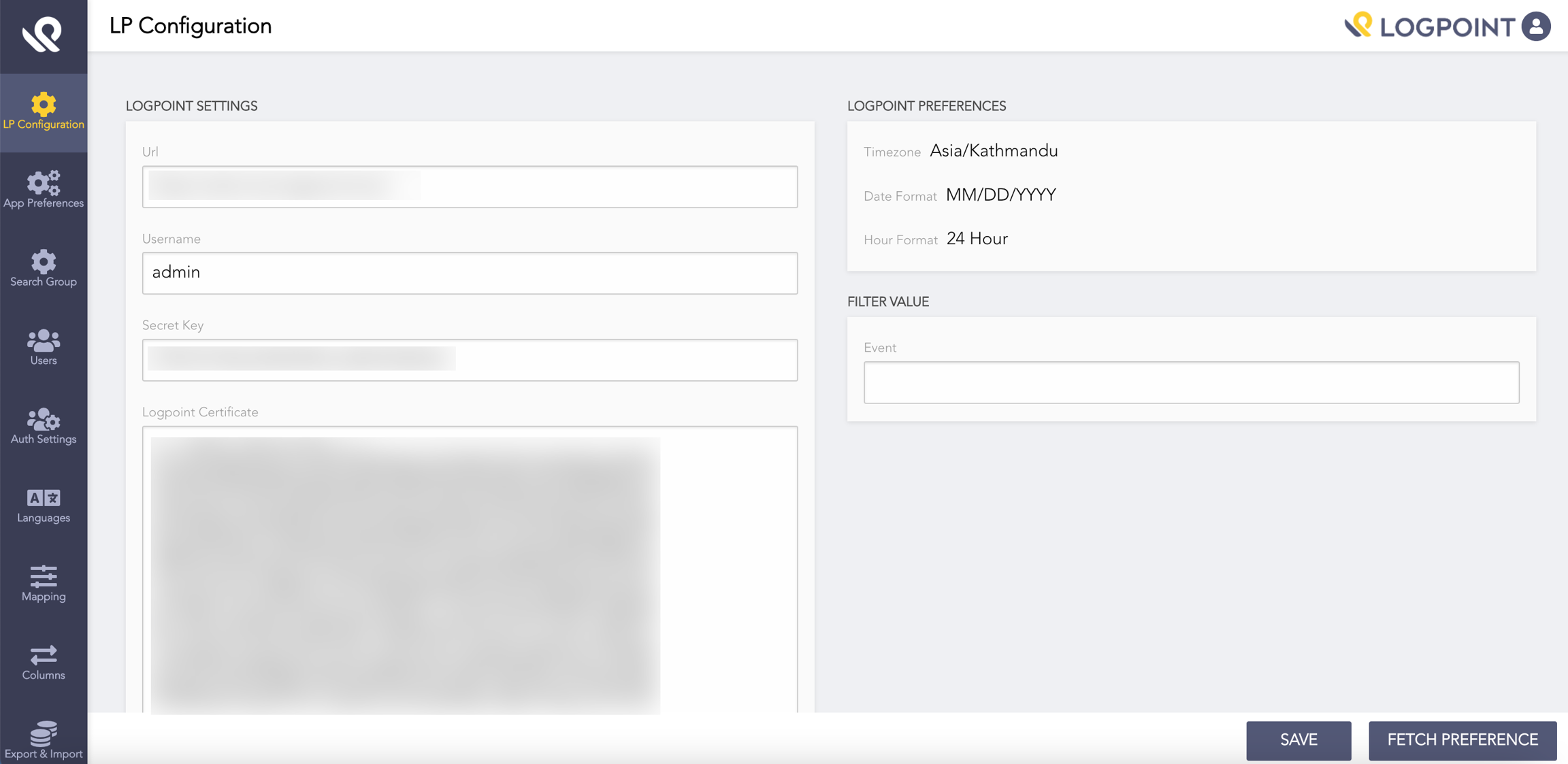
Go to LP Configuration from the left navigation bar.

In Logpoint Settings:
Provide the search URL in the following formats:
https://aahc.lwa.logpoint.local
or
https://<qualified domain name of the remote Logpoint server>Provide a Logpoint Username.
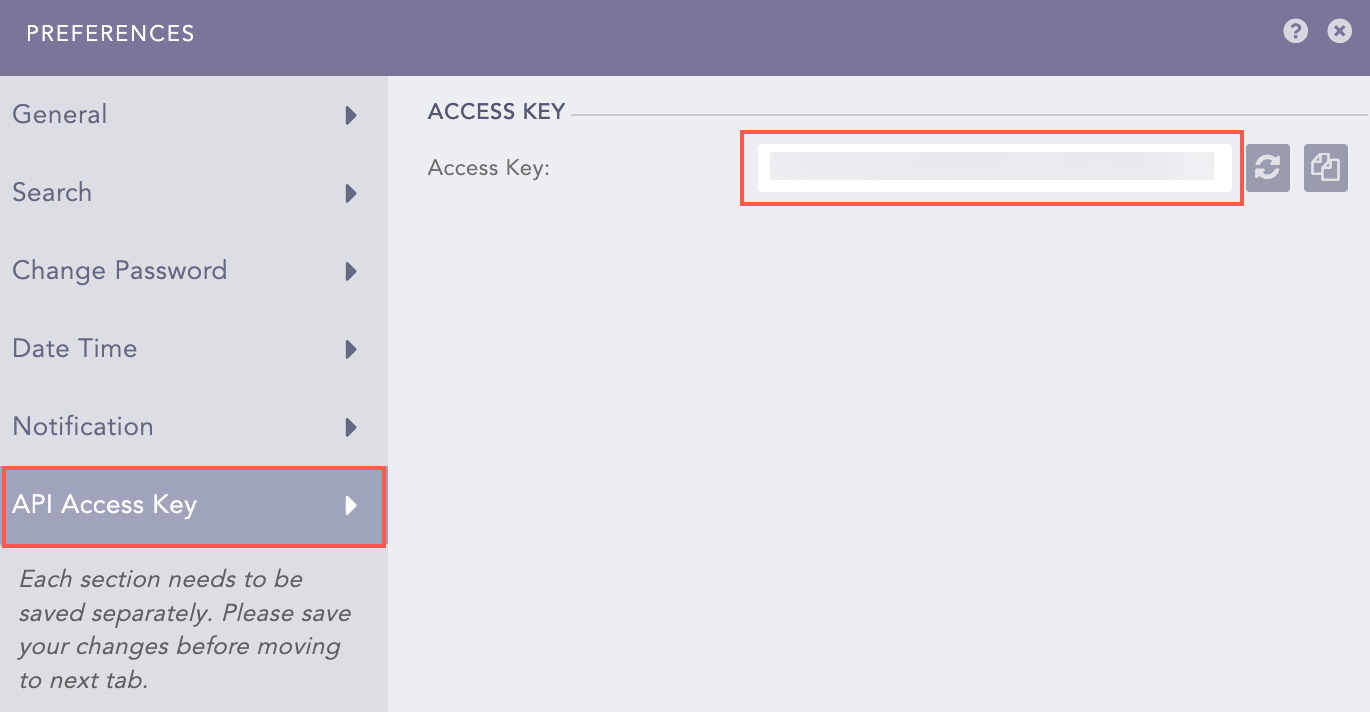
Provide the Secret Key to fetch logs from the Logpoint server. You can get the secret key from the API Access Key tab in the Preferences panel in Logpoint.

Upload the SSL certificate for the Logpoint server in the Logpoint Certificate field. AAHC requires the same certificate as uploaded in the Logpoint's HTTPS system settings (Settings >> System >> System Settings >> HTTPS). See Important Considerations for Installation for details.
Click Fetch Preference to get the timezone, date format, and hour format from the Logpoint server.

Note: You must click Fetch Preference every time you change the Logpoint URL.
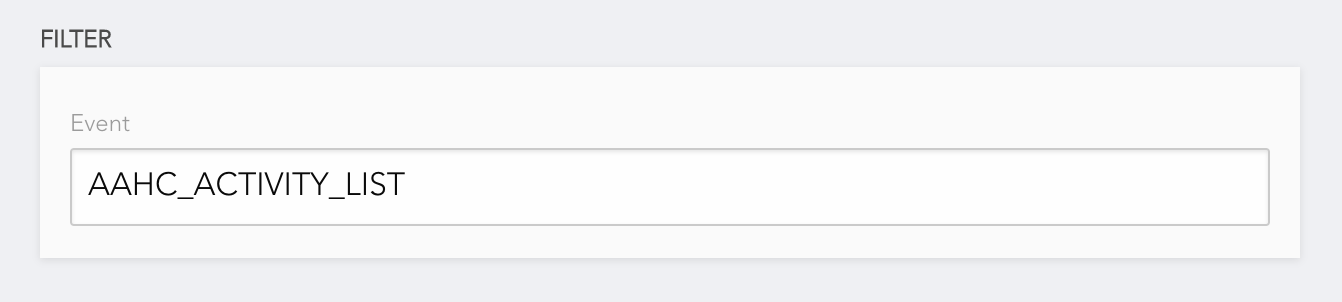
In the Filter Value section, enter the event list configured in the Logpoint. AAHC uses this list to filter the search results. See the Event List for AAHC section to create the required event list.
Click Save.
App Preferences
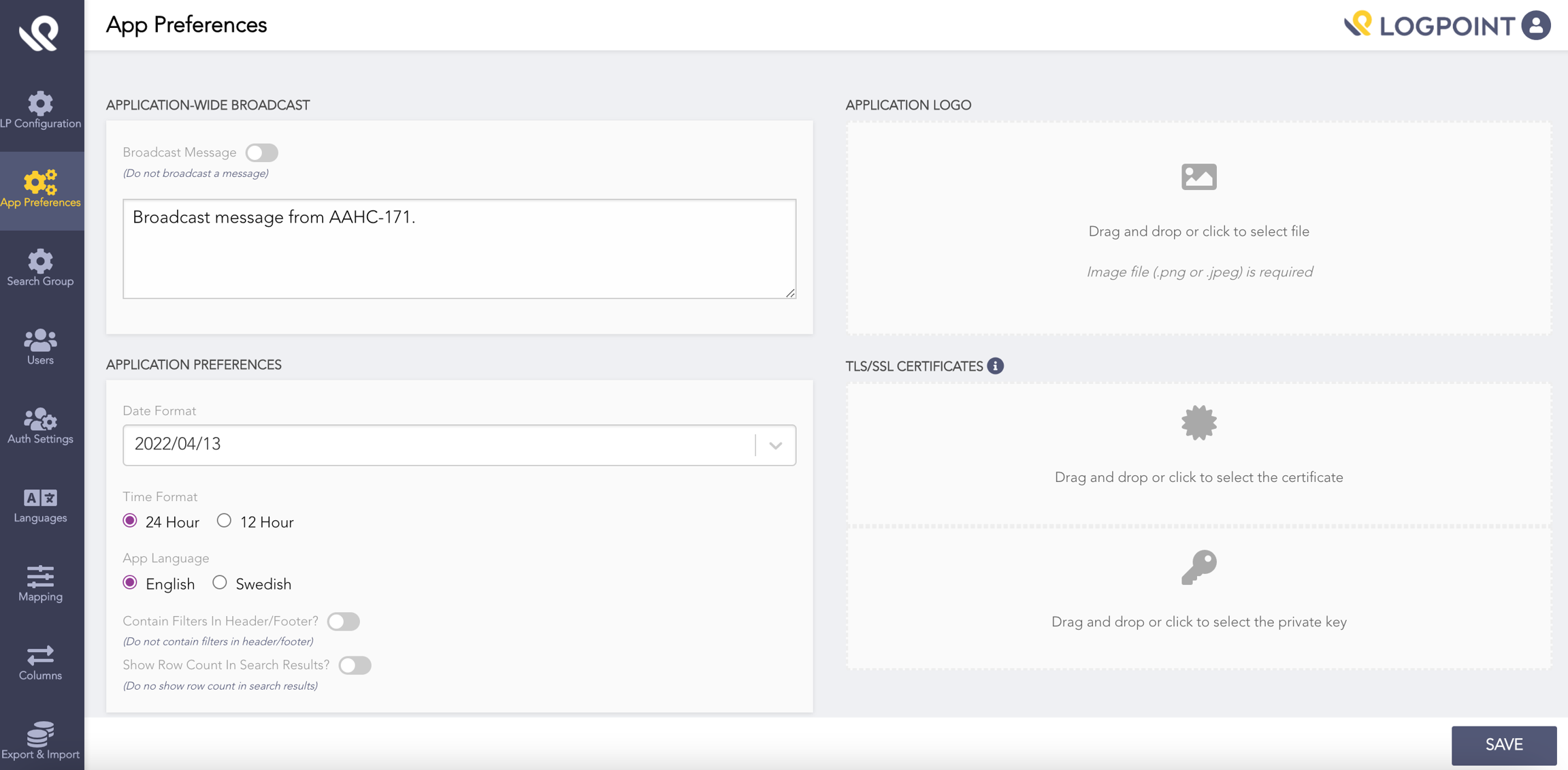
Preferences you can set for AAHC include:
Broadcast messages.
Date format, time format, and language.
Include search filters in downloaded search results' headers and footers.
Include row count in downloaded search results.
Upload organization logo.
Upload TLS/SSL certificates.

Search Permission Groups
Search permission groups define user access to specific repositories and column templates. A user in a search permission group can search only the repos and column templates specified.
Create a Search Permission Group
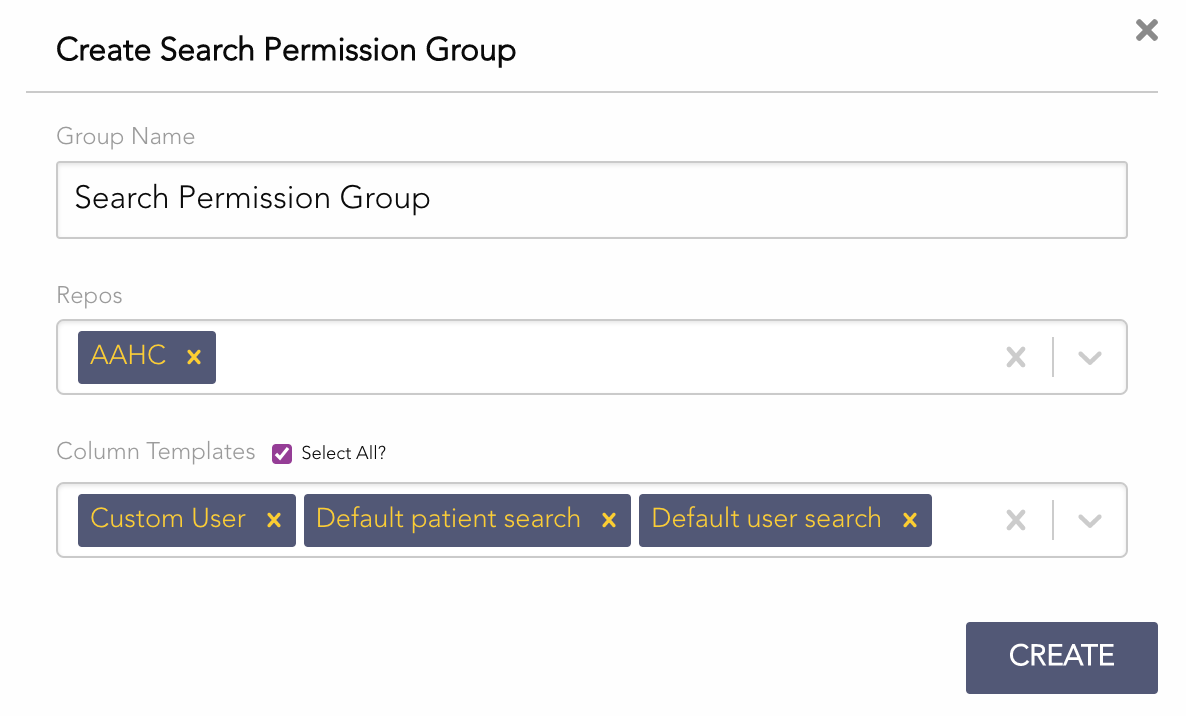
Go to Search Group from the navigation bar.
Click Create Group.

Enter a Group Name.
Select the Repos.
Select the Column Templates (use Select All to select all templates).
Click CREATE.
AAHC includes a default search permission group (admins and super admins can edit it).
Authentication Settings
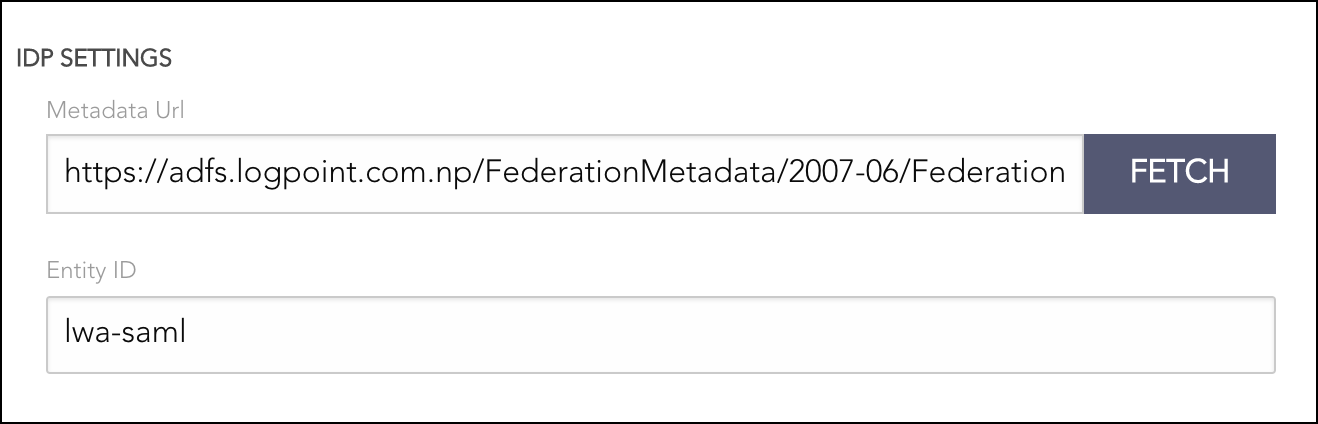
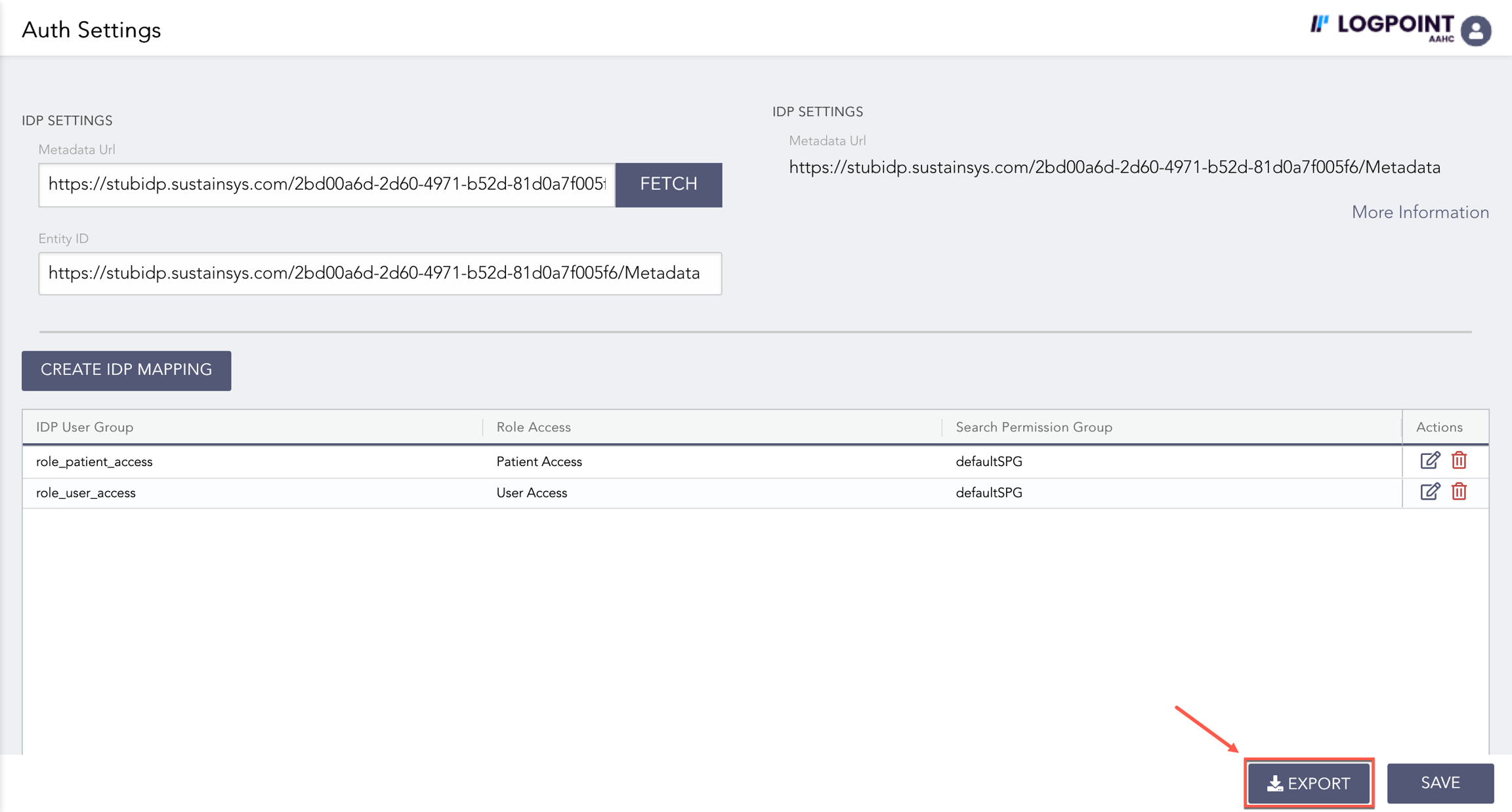
You can configure IdP settings and role mappings from Auth Settings. Admin login is required.
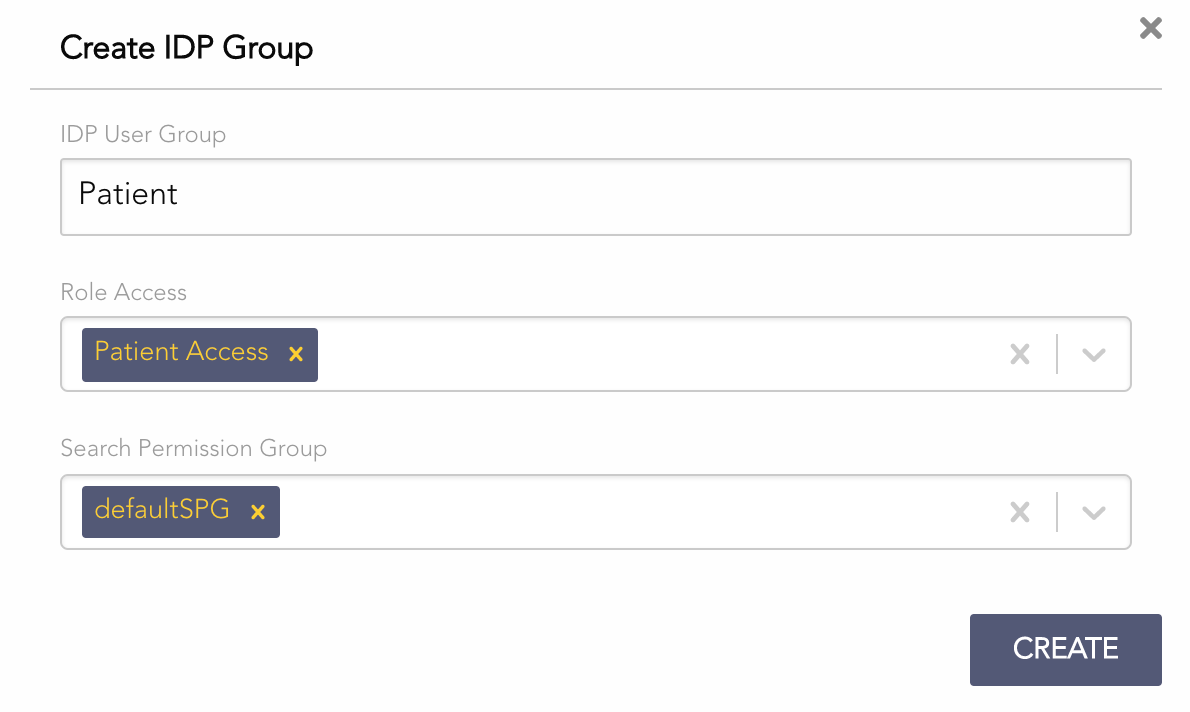
Create IDP Mapping
IDP Mapping links IdP user groups to AAHC roles and permissions (based on attributes in the SAML token).
Click Create IDP Mapping.

Enter the IDP User Group (value of roles attribute in the SAML token).
Select Role Access:
User Access — search by User ID.
Patient Access — search by Patient SSN.
All Access — search by User ID and Patient SSN.
Report Access — view AAHC reports only.
Report Admin — view and delete archived reports.
Super Admin — create predefined search queries and report schedulers.
Select Search Permission Group.
Click Create.
Users
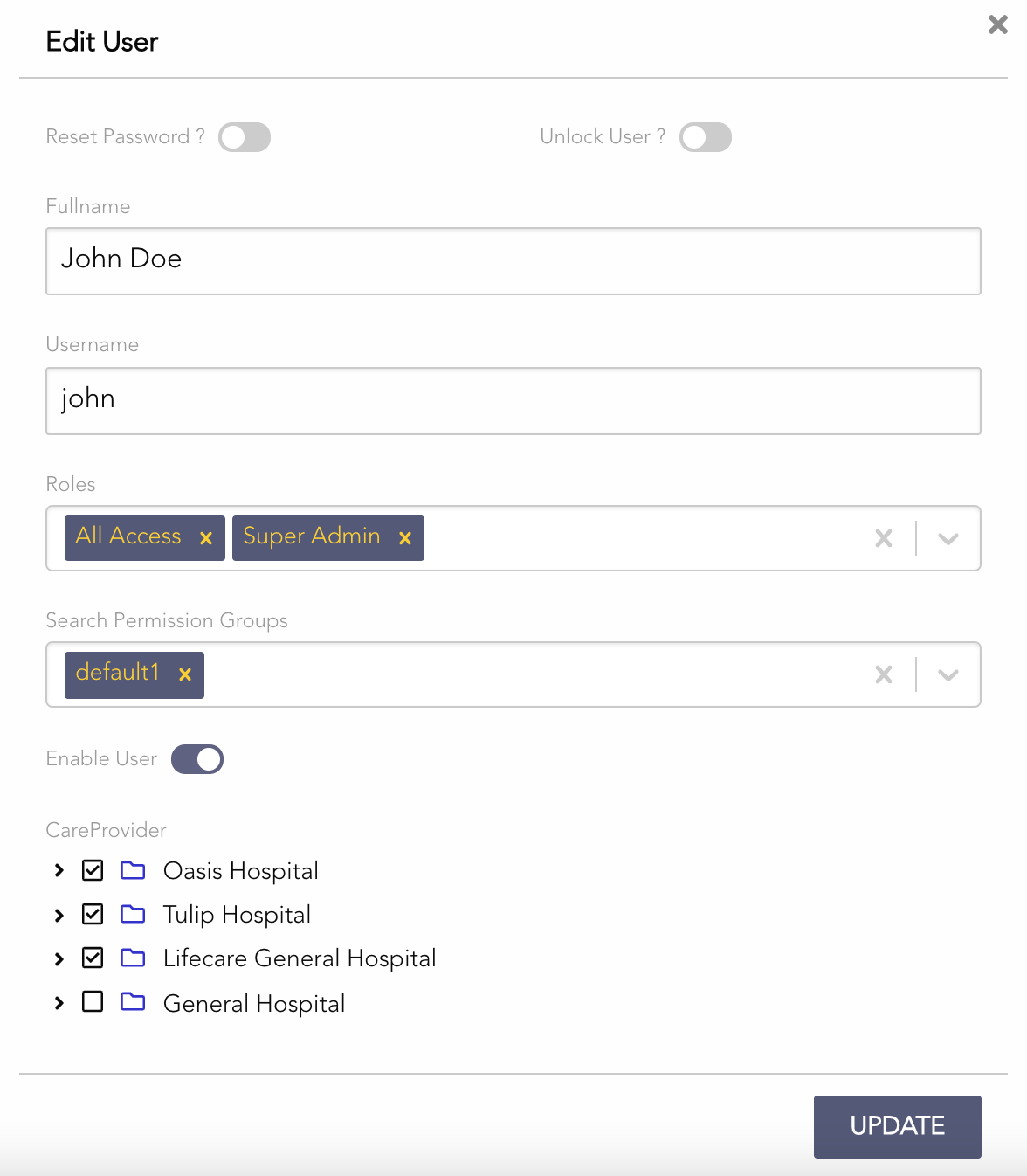
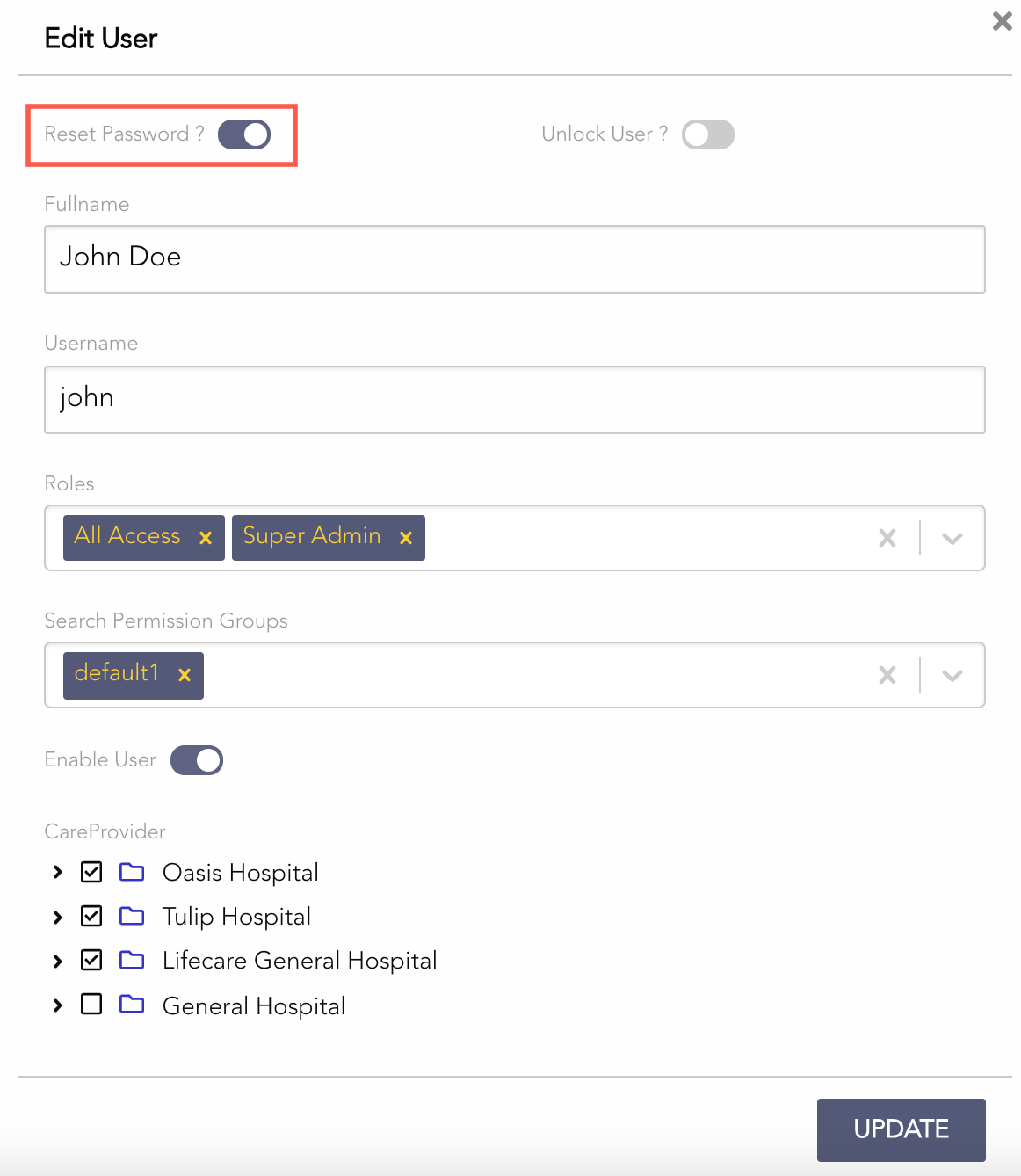
Super admin or admin users can create and manage other users. There is only a single Admin user (Admin role cannot be assigned to other users). See User Roles for role details.
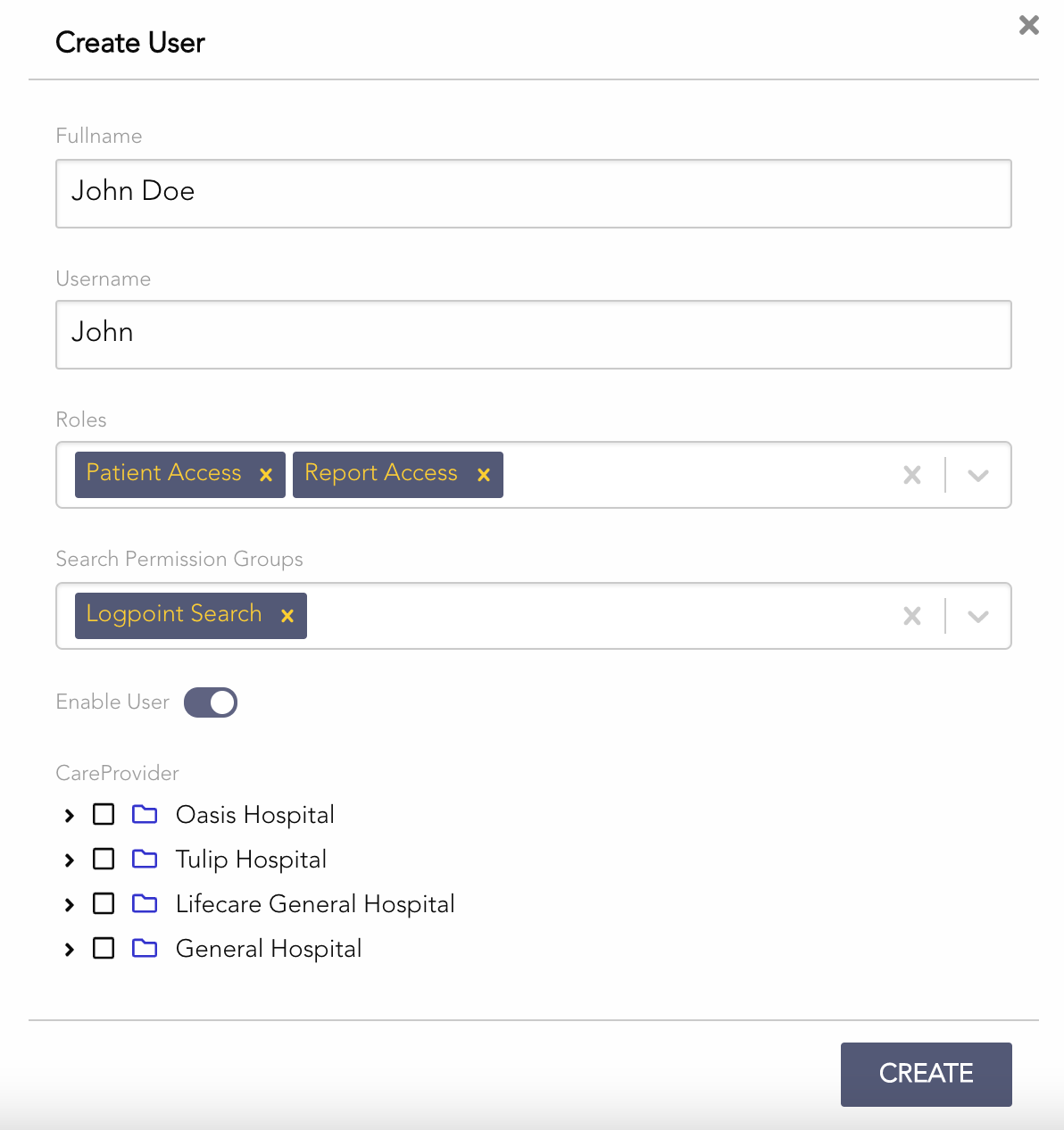
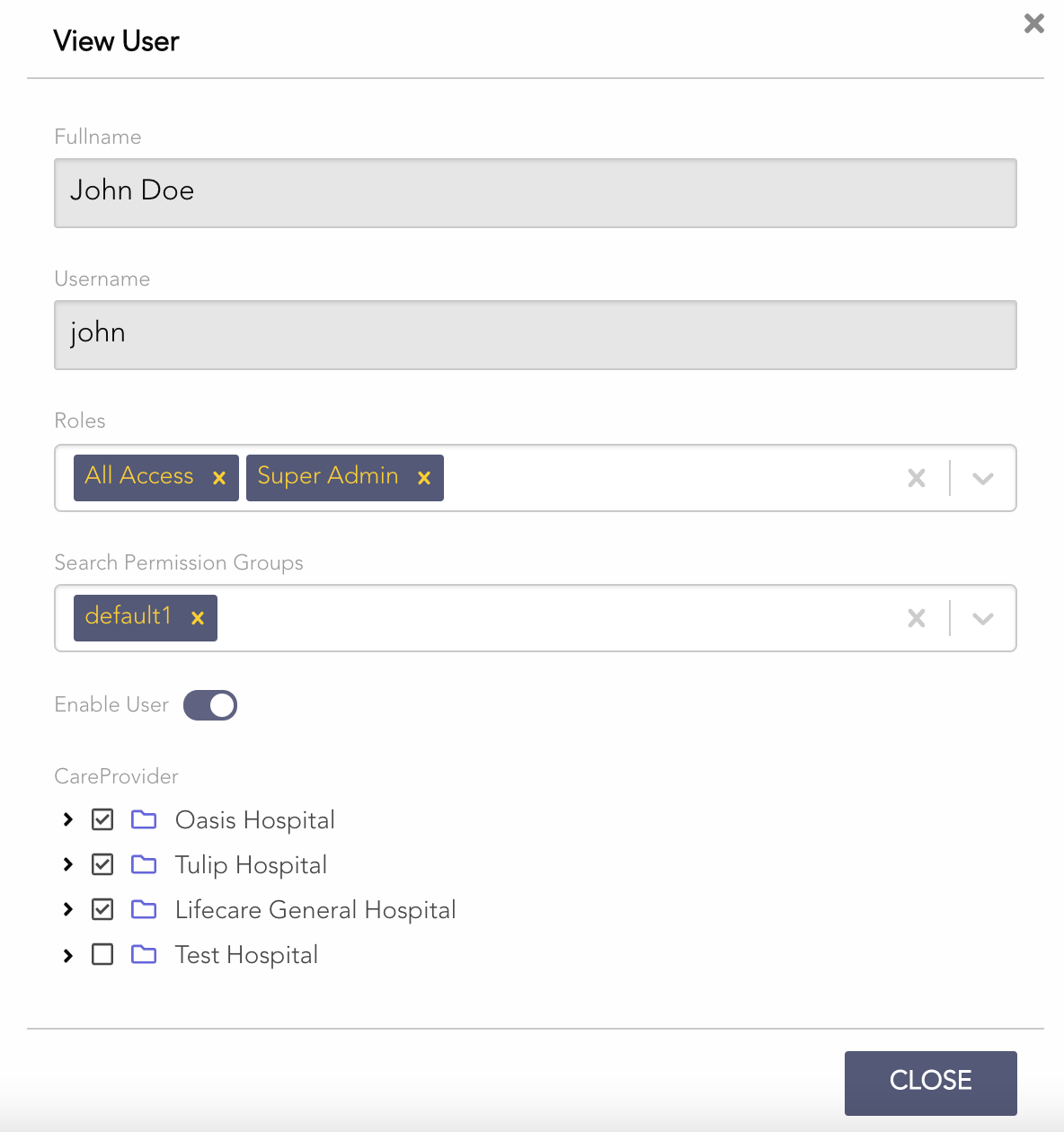
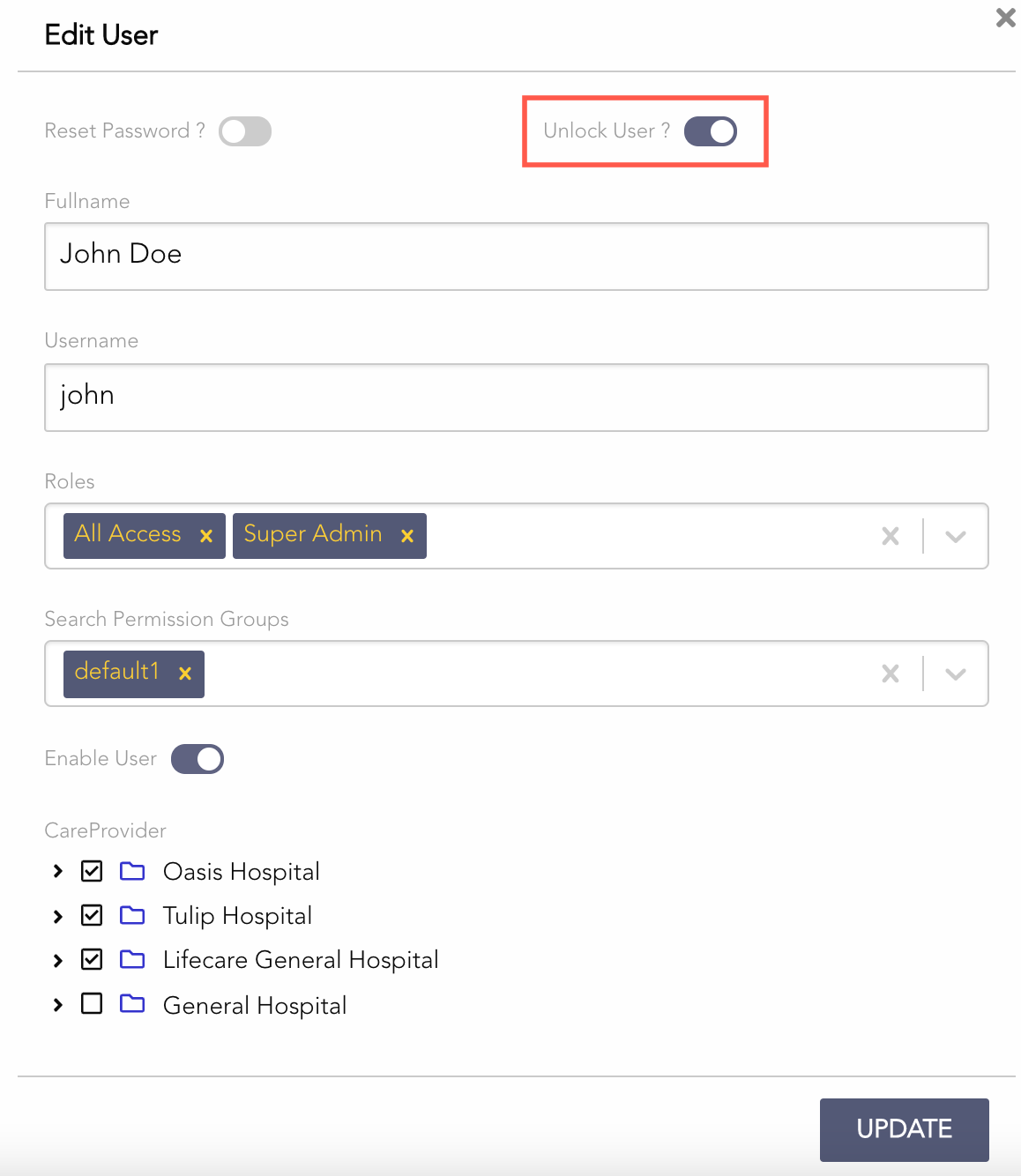
Create a User
Select Users from the left navigation bar.
Click Create User.

Enter Fullname.
Enter Username (used to log into AAHC).
Default password: _1am@aaHc_
Select the user's Roles.
Select the user's Search Permission Groups (a user can belong to multiple groups).
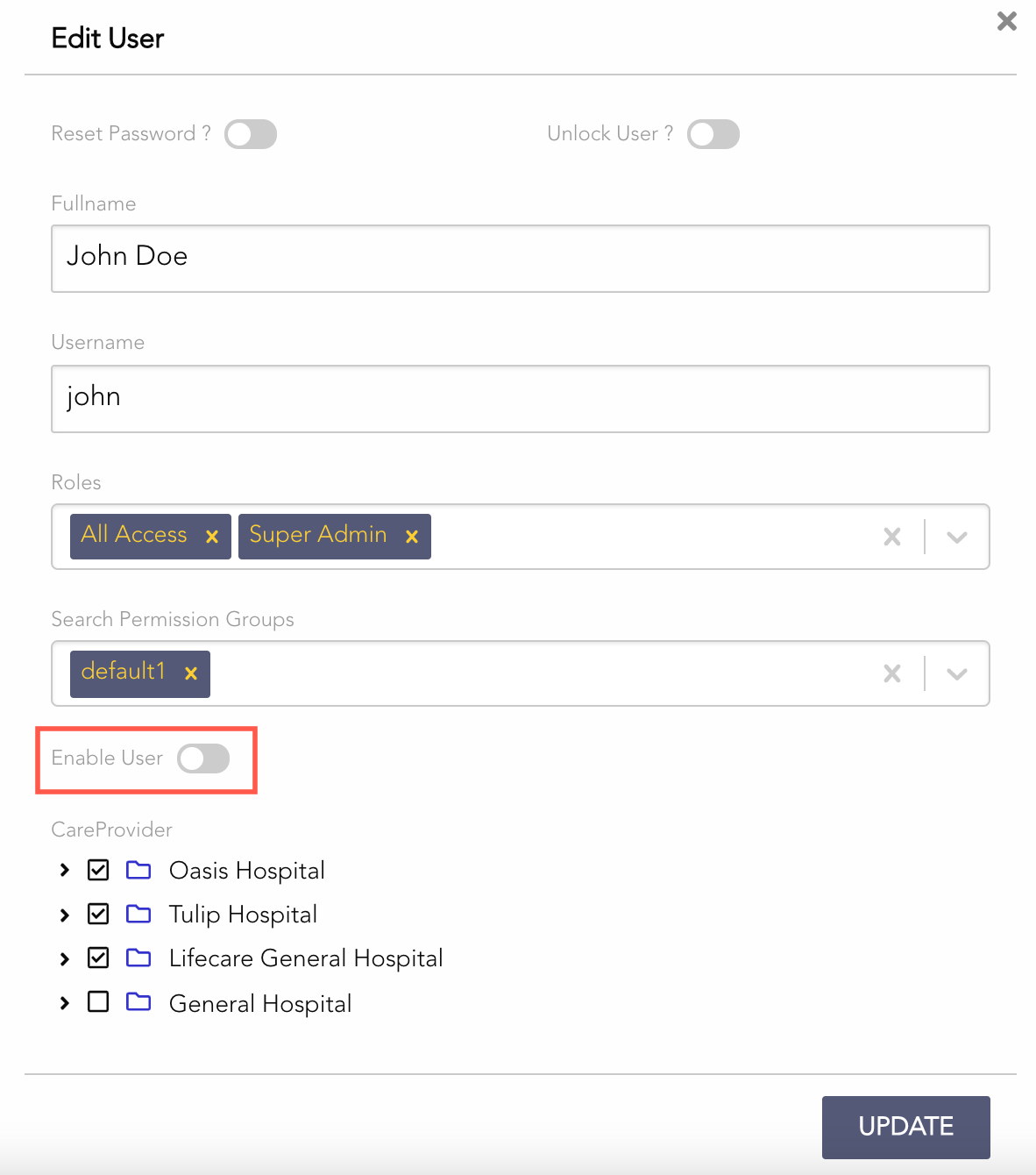
Deselect Enable User if you want the user disabled by default (users are enabled by default).
Select the Care Provider and its care units (user has permissions for selected care units only).
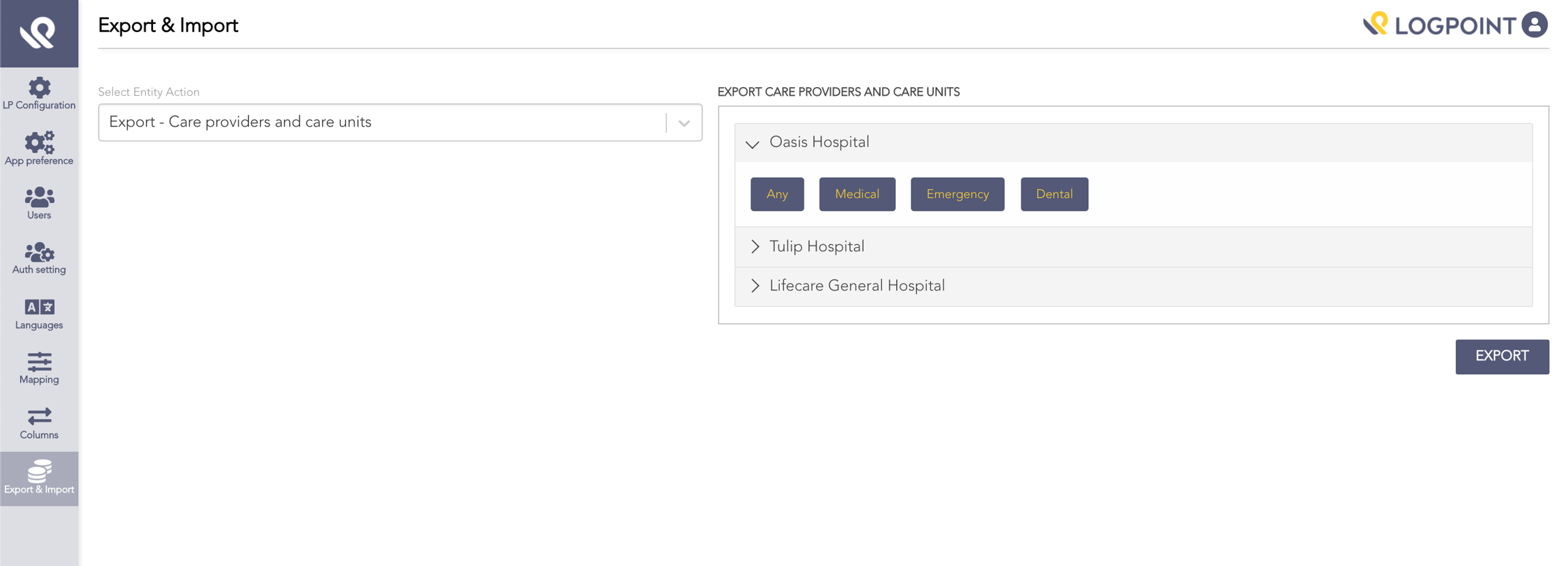
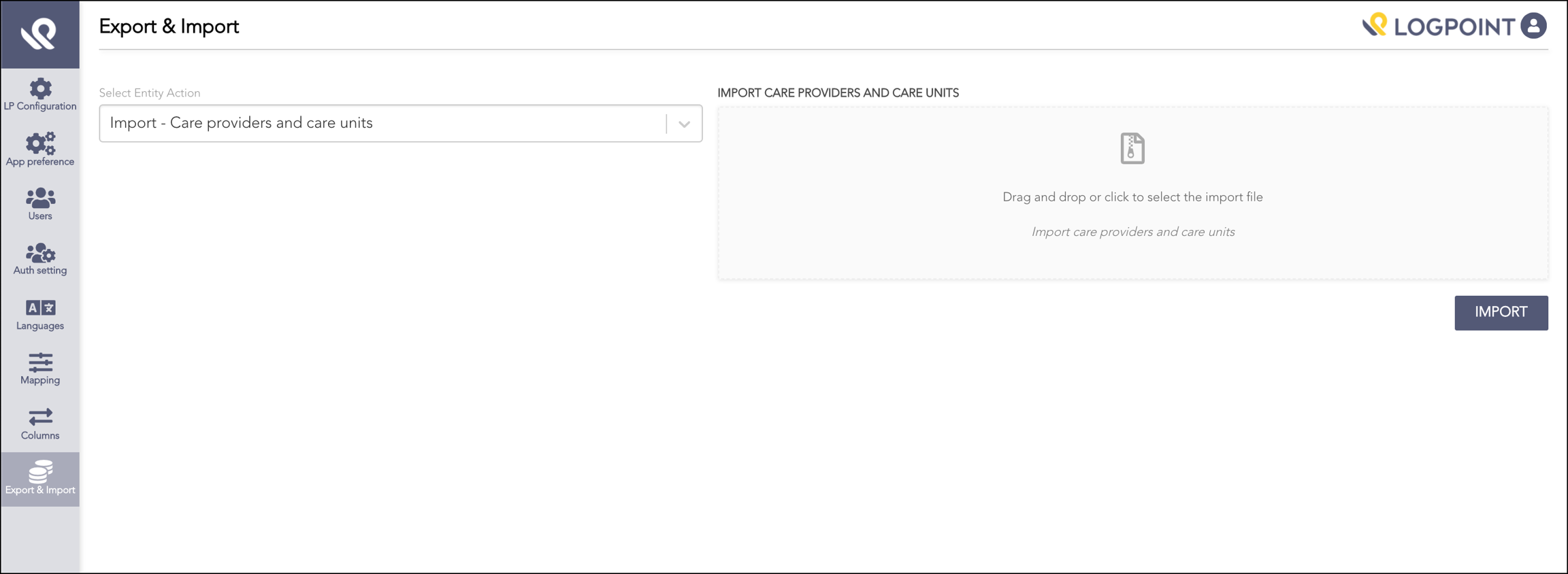
You can import care providers and care units in JSON using Export and Import. If not imported, the Care Provider list is empty.
Upgrading to AAHC v1.8.0 adds existing users to the default search permission group.
Click Create.
Columns
Columns are data fields displayed in search results. Admin and super admin users can create predefined column templates to define included fields and their order.
There are two types of column templates:
User type — for users with User Access role.
Patient type — for users with Patient Access role.
Add a column template
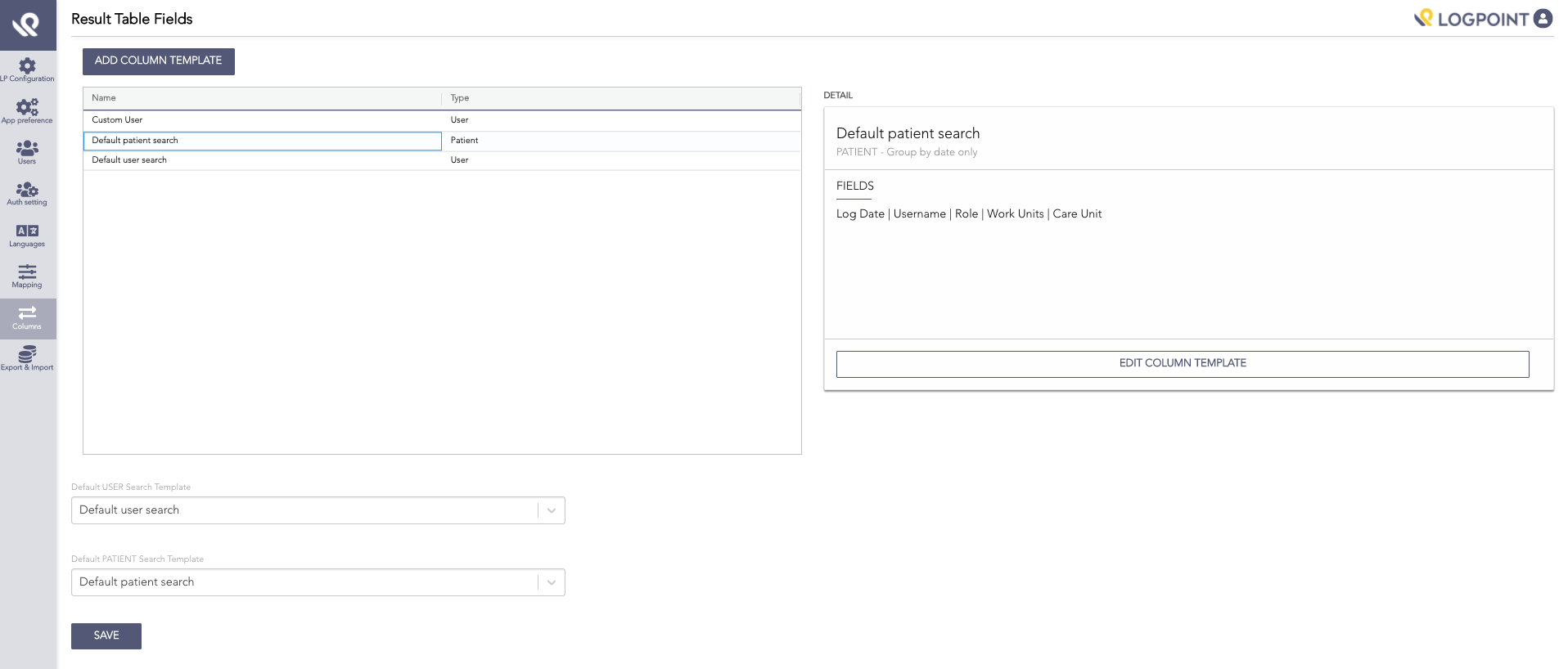
Go to Columns from the left navigation bar.
AAHC provides two default column templates; Log Date is included in both by default:
Default user search — fields from previous AAHC version for User.
Default patient search — fields from previous AAHC version for Patient.

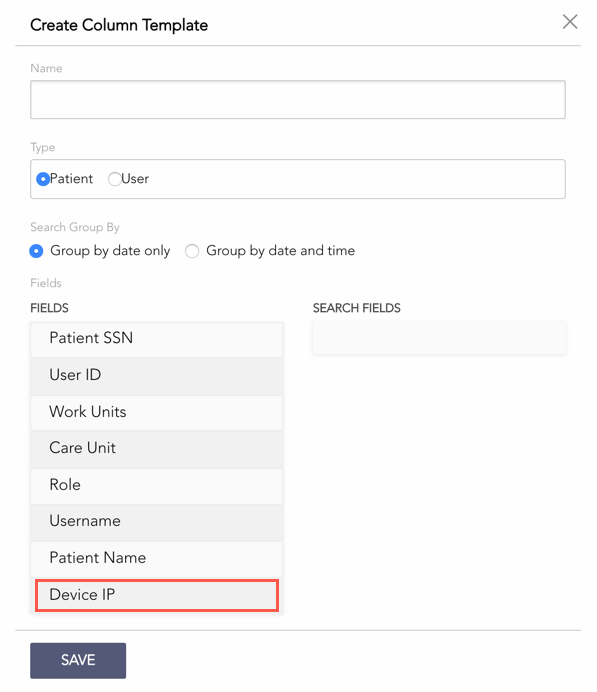
Click Add Column Template.
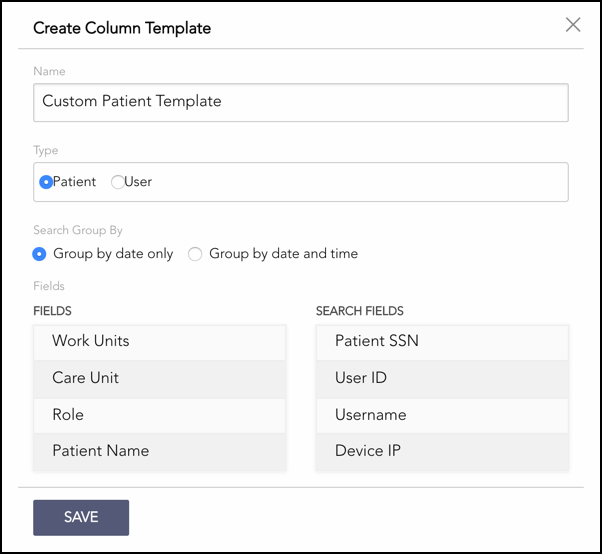
In Create Column Template, provide:
Name for the template.
Type: Patient or User.
Select Date only or Date and time to group search results.
Group by Date — groups by Log Date, single entry for identical events on same day.
Group by Date and time — groups by Log Timestamp (log_ts), single entry for identical events at same timestamp (multiple entries allowed for identical events same day).
Drag fields from the Fields table (left) to Search Fields (right).

Click Save.
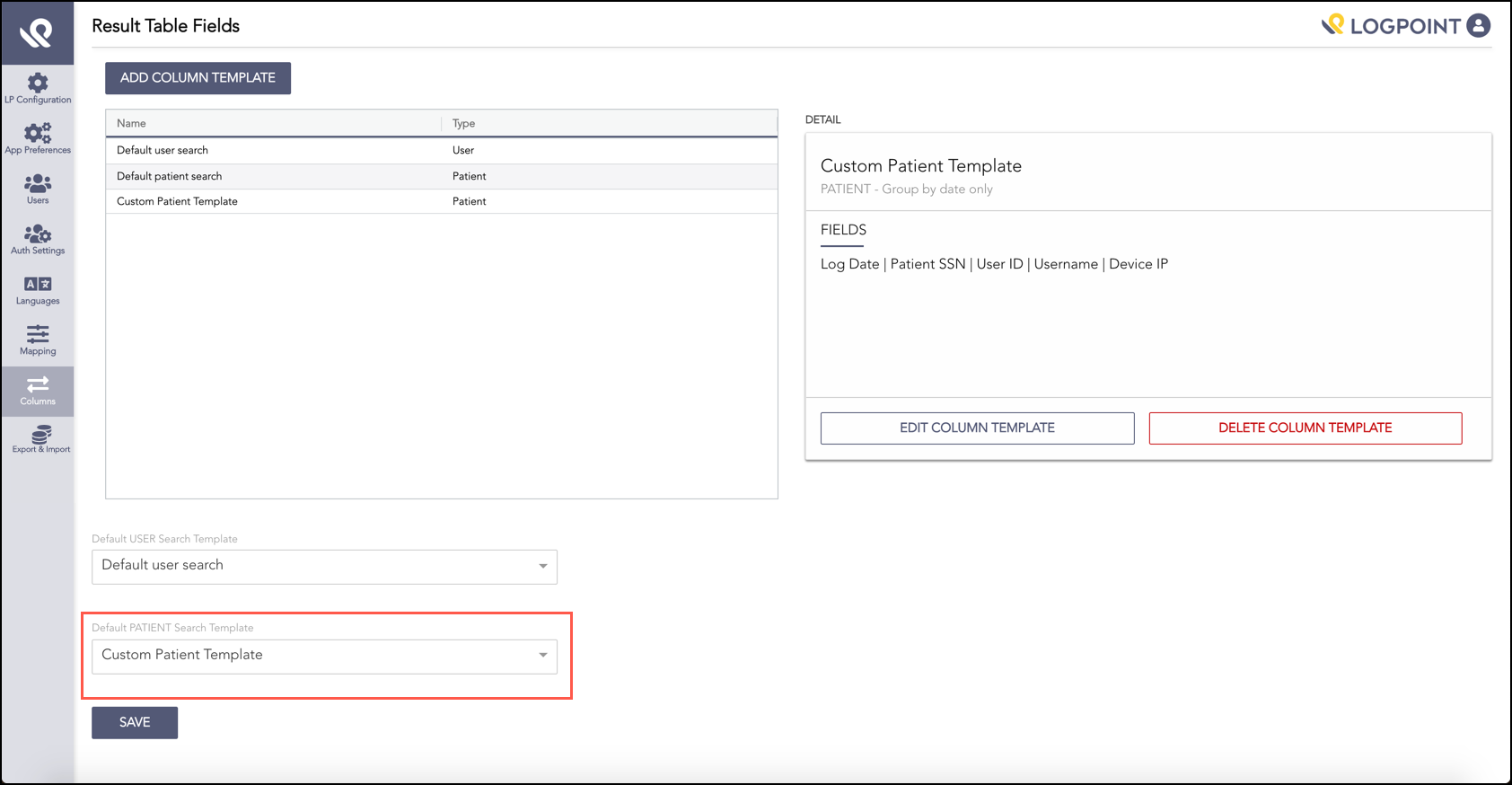
Added templates appear on the Result table fields page for edit or delete.
Map Fields in AAHC
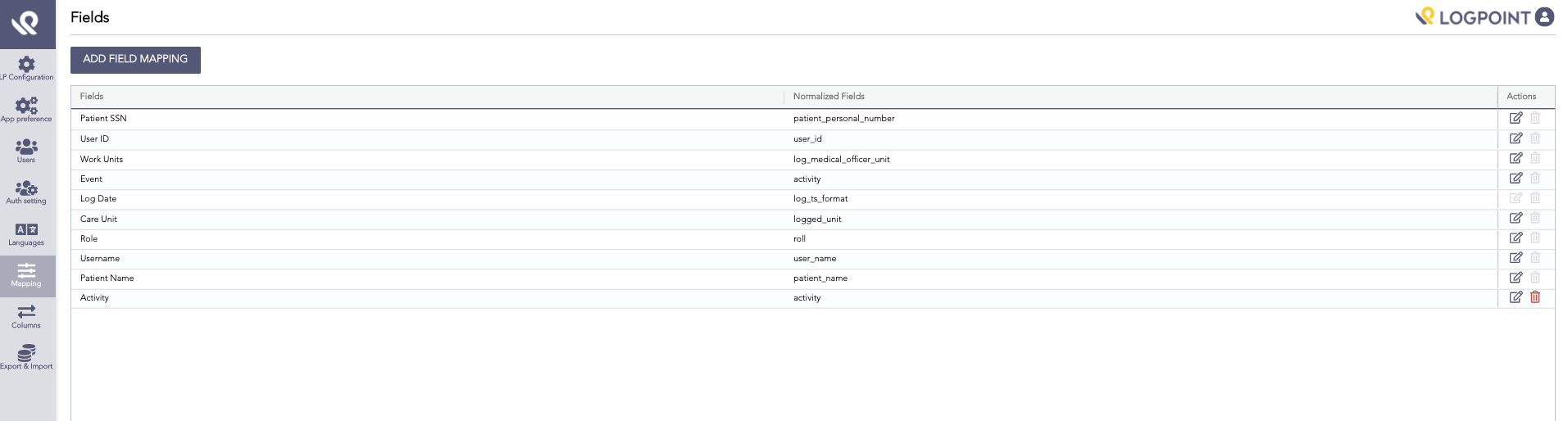
From Mapping you can map AAHC search fields to corresponding Logpoint fields.

Map existing search fields
Select Mapping from the left navigation bar.
For all default search Fields, AAHC sets default Normalized Fields.
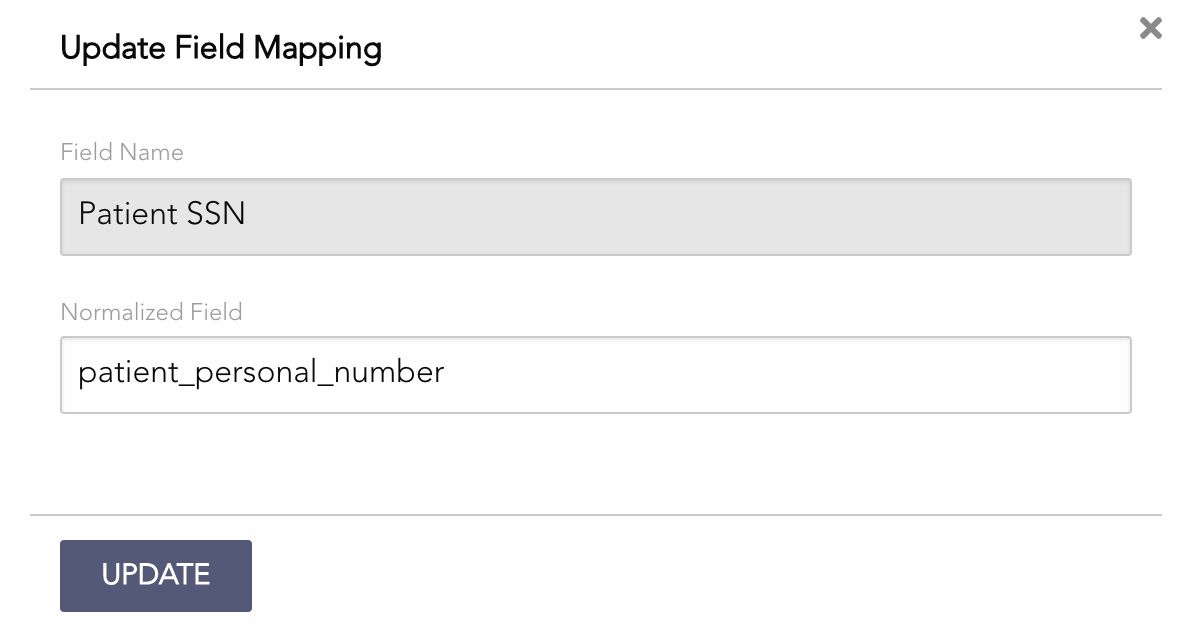
Click the Edit icon in the Actions column.

Enter the corresponding Normalized Field in Logpoint for the Field Name (default Field Name cannot be edited).
Click Update.
Create and map a custom search field
Select Mapping.
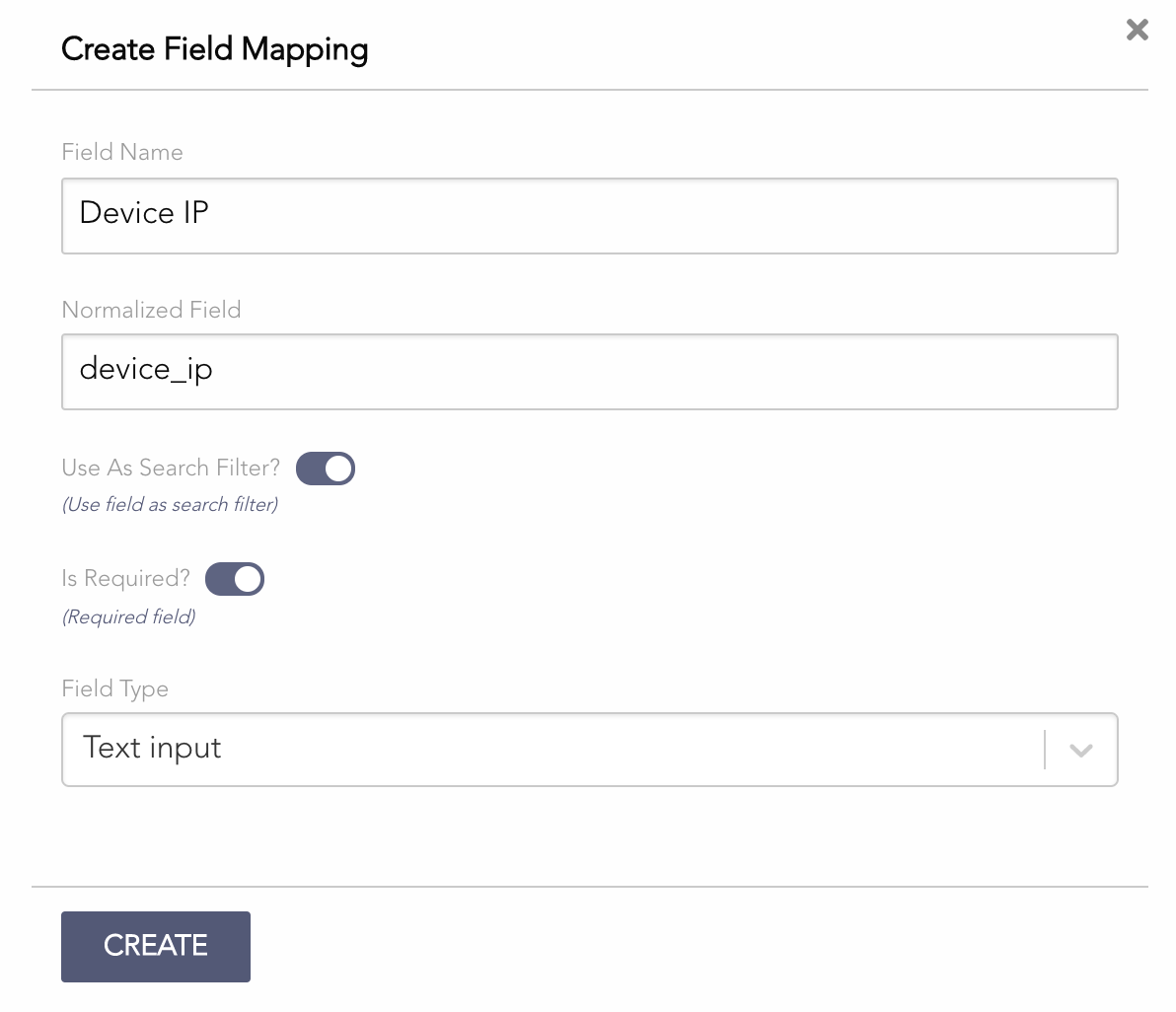
Click Add Field Mapping.

Enter a Field Name (displayed as a column in AAHC).
Enter the corresponding Normalized Field in Logpoint.
Select Use As Search Filter? to use the field as a search parameter.
Select Is Required? to make it mandatory.
Select Field Type (Text input, Number input, Date input, Select).
For Select, enter Field Options separated by semicolons (;).
Click Create.
You can use custom fields in column templates. You can edit or delete custom maps — ensure a map is not used in any column template before deletion. Default maps cannot be deleted.

Language Settings
AAHC supports English and Swedish for UI and report elements. Language elements are grouped by category.
Set up language elements
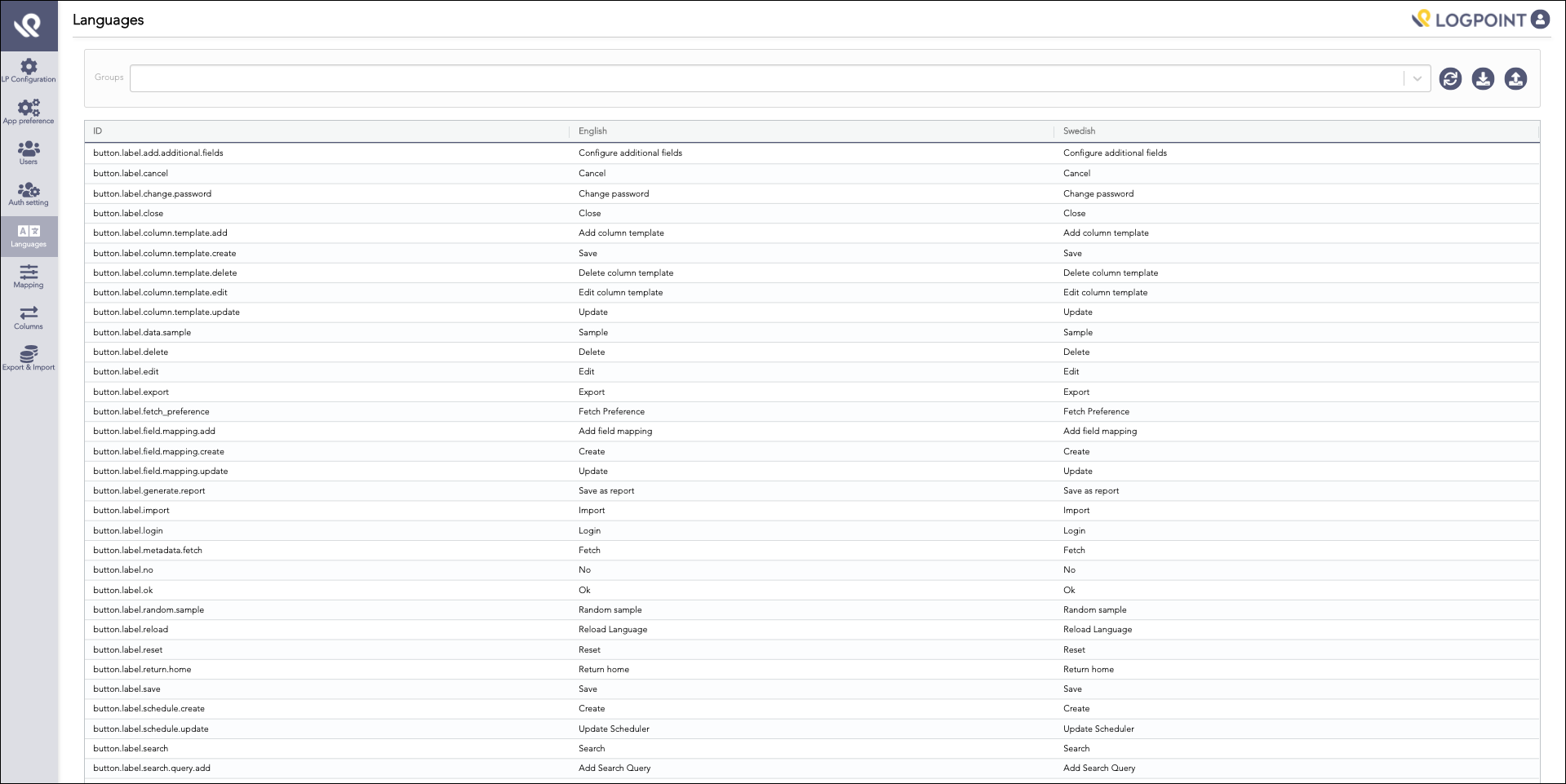
Select Languages from the left navigation bar.
The Languages page lists each element with English and Swedish translations.

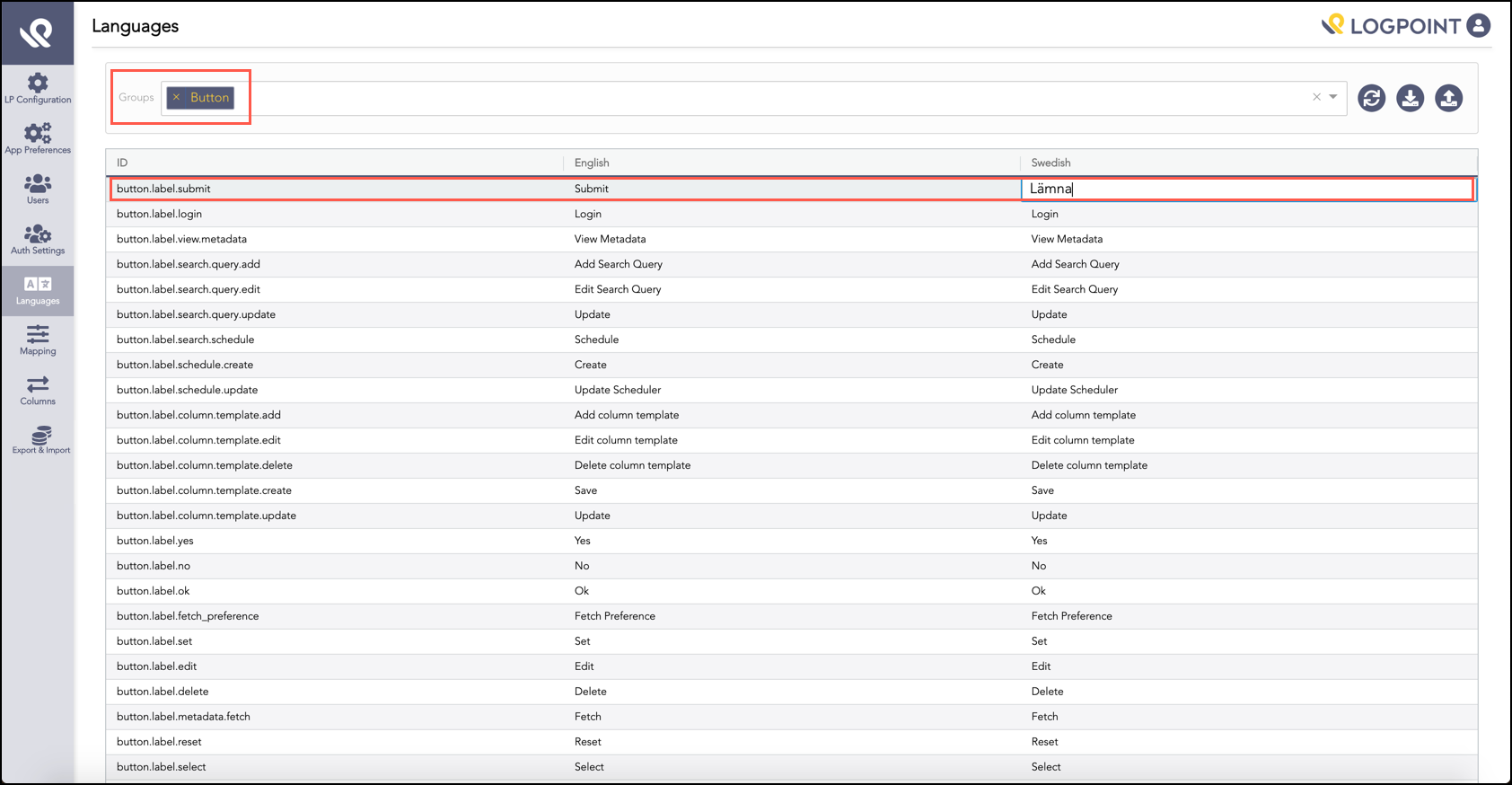
Locate the element in the table.
Select the term to change.
Change the term as required.

Notes:
Some values contain placeholders (ALL CAPS) which must not be translated. Example: report.generated.date value is "Generated at : GENERATED_DATE" — translate only the literal text and keep GENERATED_DATE unchanged.
AAHC supports Swedish NZE characters.
Click the Reload Language icon (top right) to apply changes.
Download and upload language configurations
To reuse translations across AAHC machines:
Select Languages.
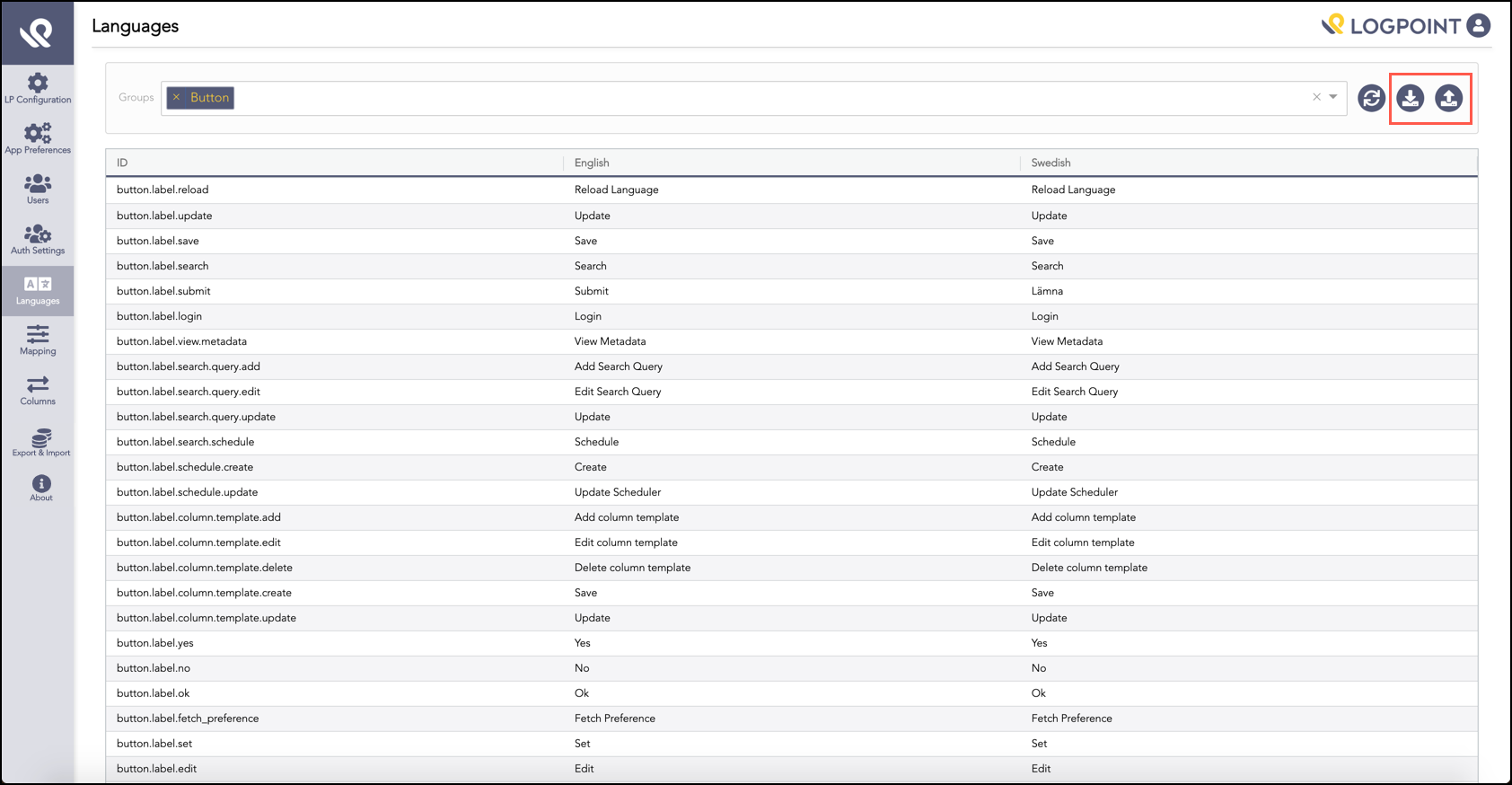
Click the Download icon (top right) — exports a CSV translation file.

On target machines, click the Upload translation icon (top right) to open Import translations.
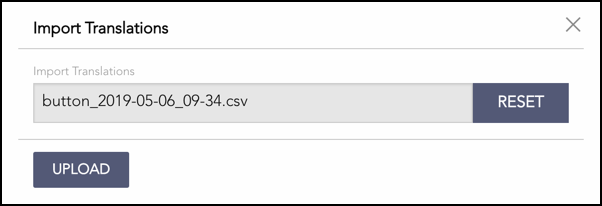
Click Select to browse for the translation file (use Reset to change the selected file).

Click Upload.
Warning: Uploading replaces all existing translations — ensure you upload the correct file.
Click the Reload Language icon to reflect changes.
Event List for AAHC
The event list is a customized list of user activities recorded by the medical journal and configured in the Logpoint server.
Add an event list to Logpoint
In Logpoint, go to Settings >> Knowledge Base >> Lists and Tables.
Click Add.
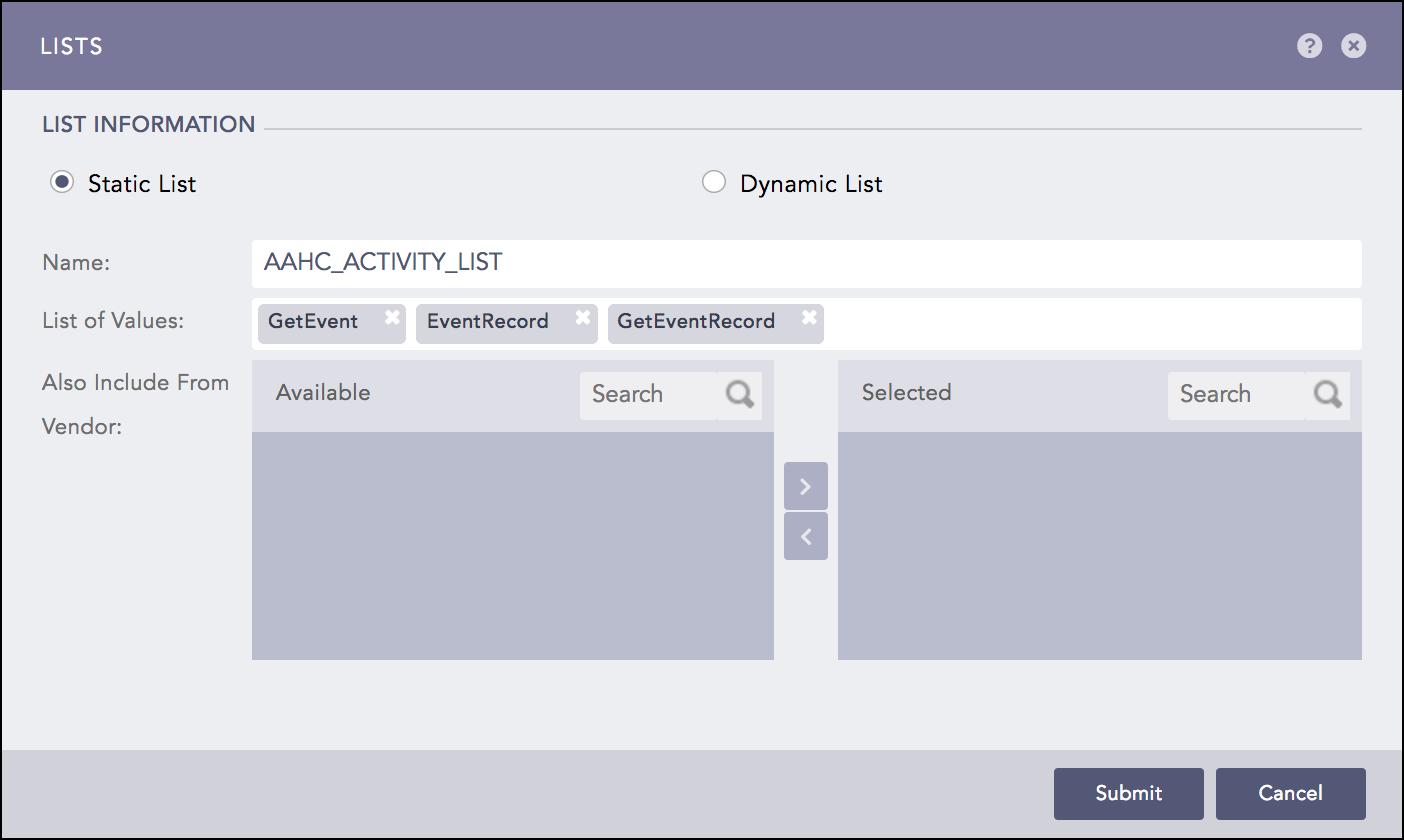
In Lists, select Static List.

Provide a Name for the list.
Provide the activities in the List of Values.
Click Submit.
Once added, go to the Filter section in the LP Configuration tab of AAHC and enter the event list name in the Event box.

Example: AAHC_ACTIVITY_LIST contains GetEvent, EventRecord, GetEventRecord. Using AAHC_ACTIVITY_LIST as filter returns logs with those activity values.
Sample JSON File for Care Providers and Care Units
Following is a sample JSON file containing care providers and their units:
Audit Trail
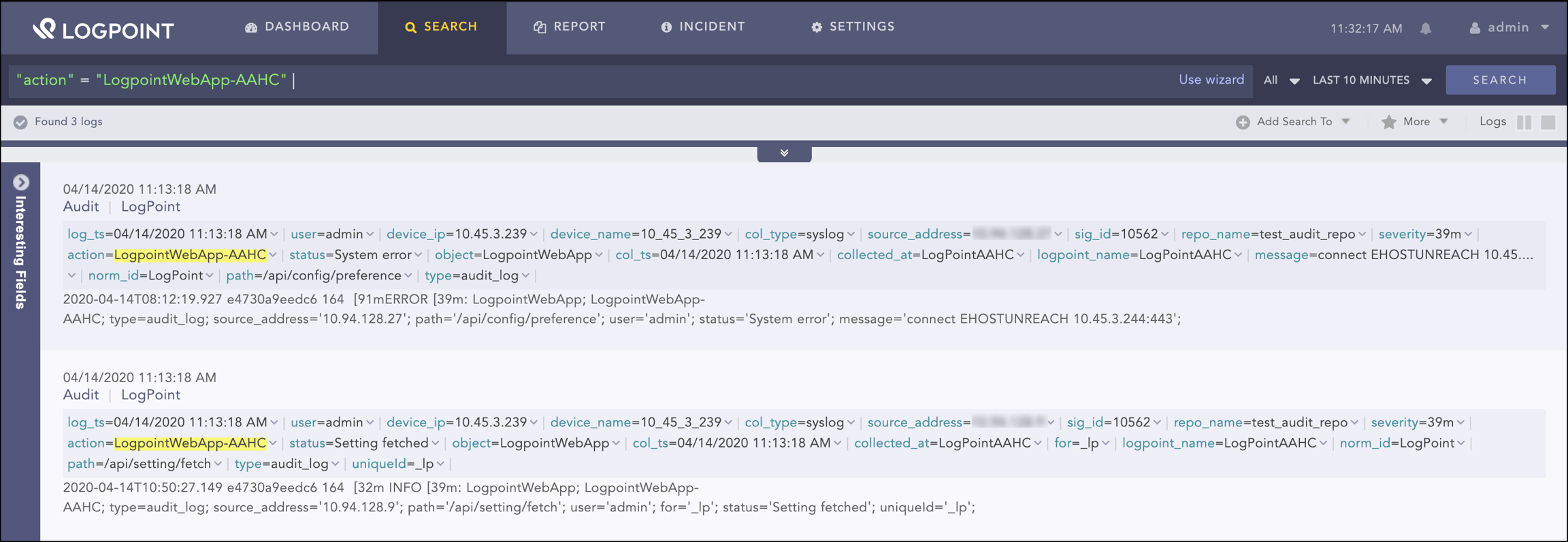
AAHC generates audit records for login attempts, configuration, and search history, and forwards audit logs to a remote Syslog server (Logpoint or other).
Add the AAHC server in Logpoint
Log into Logpoint.
Go to Settings >> Configuration >> Devices.
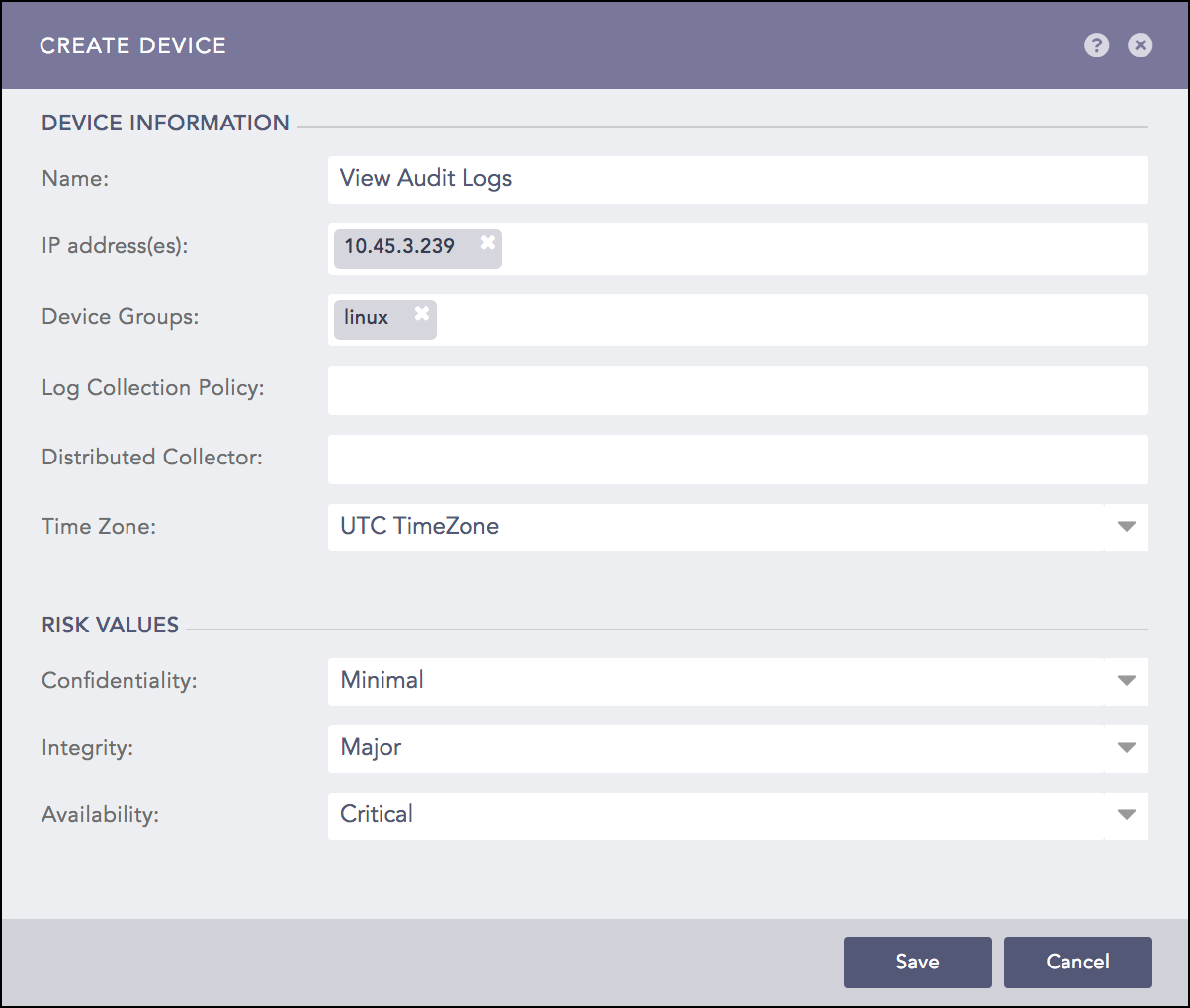
Click Add.
Enter Name for the device.
Enter the IP address(es) of the AAHC server.
Enter Device Groups, Log Collection Policy, Distributed Collector, and Time Zone.
Define risk values for Confidentiality, Integrity, and Availability.
Click Save.

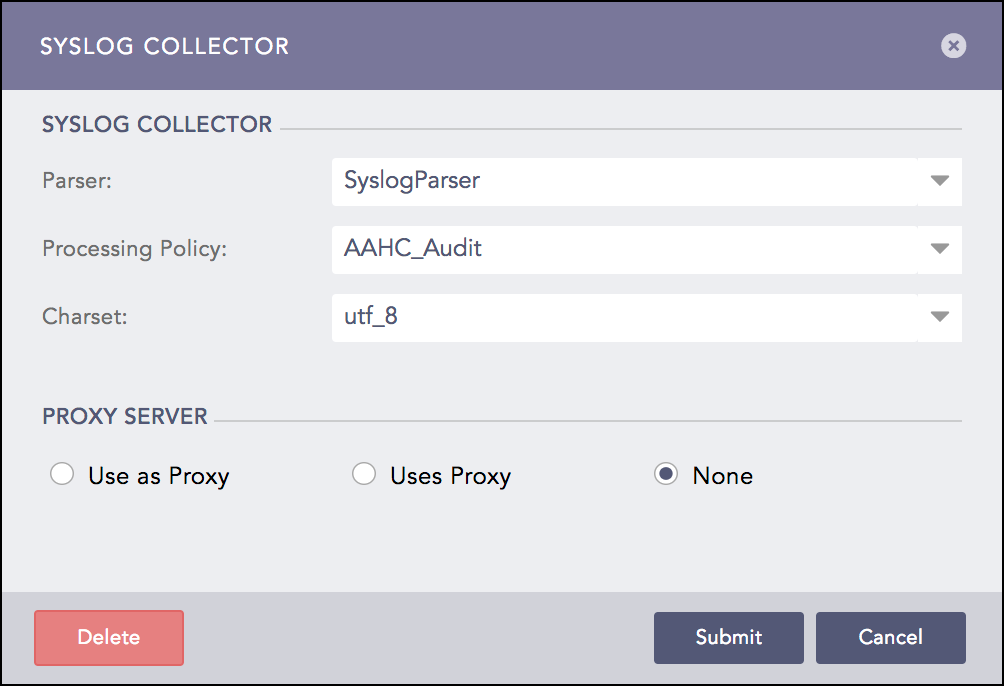
In Available Collectors Fetchers, click Syslog Collector.
Add the Syslog Collector to the device.

Make sure to apply the logpoint normalization policy to correctly normalize the audit logs.
Export and Import
From Export and Import, you can:
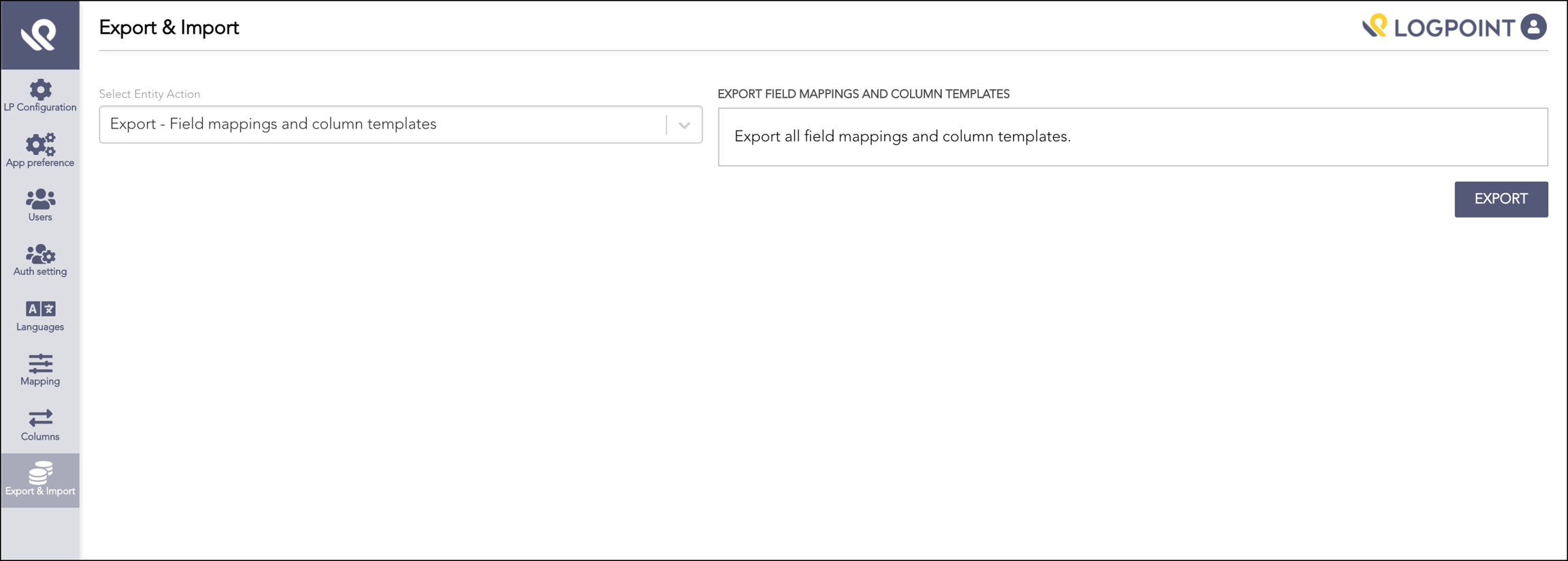
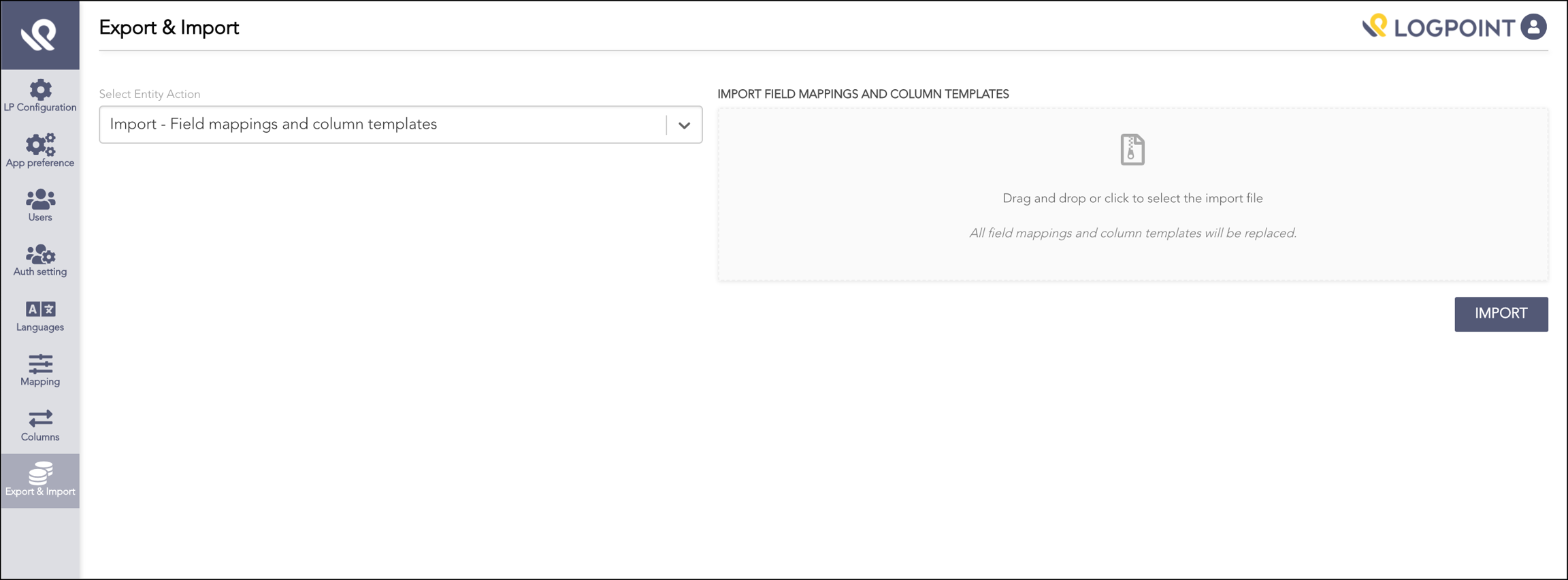
Export/import field mappings and column templates.
Export/import care providers and care units.
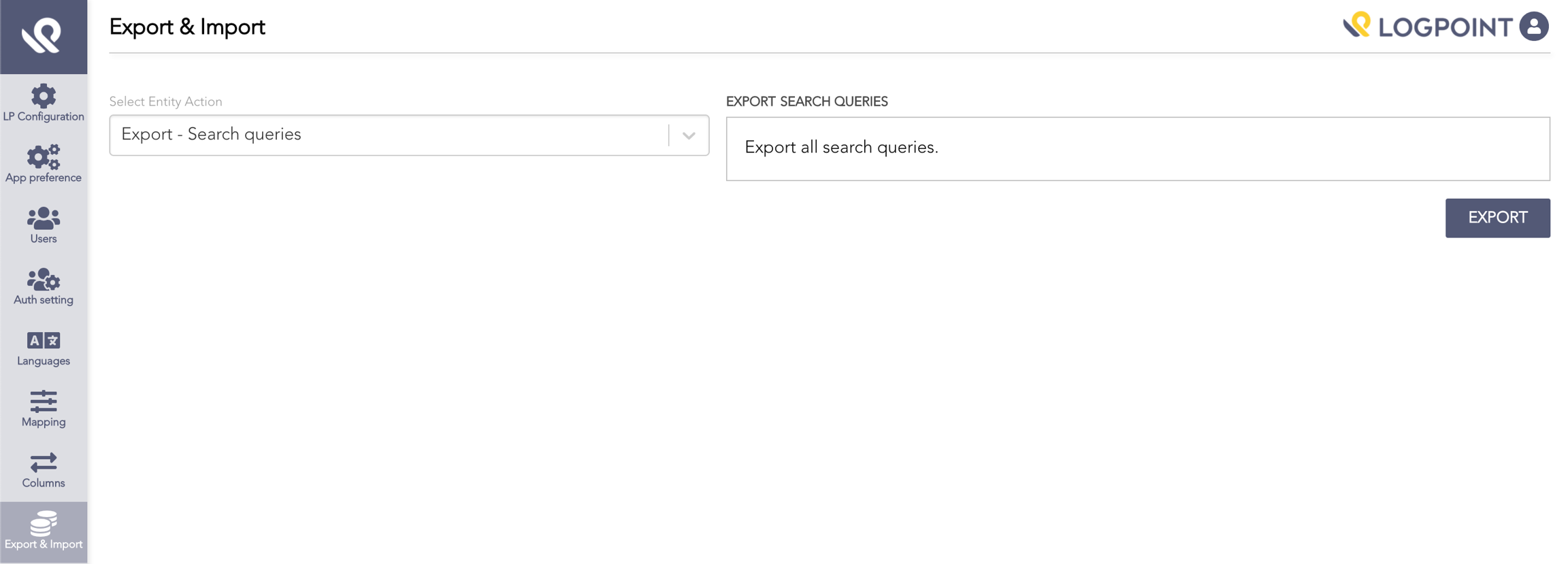
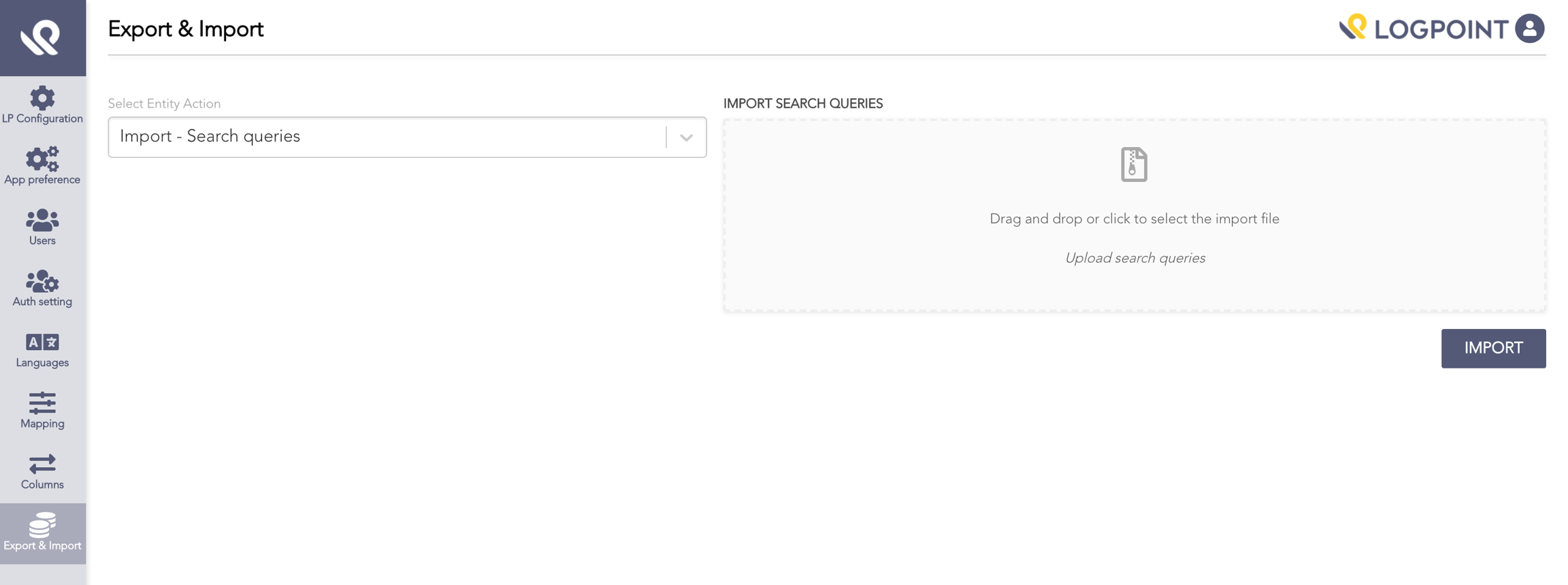
Export/import search queries.
Last updated
Was this helpful?