
After the fresh installation, one seat is available to access SOAR in a single active session by default. However, you need to add the LogPoint SOAR license for multiple concurrent access.
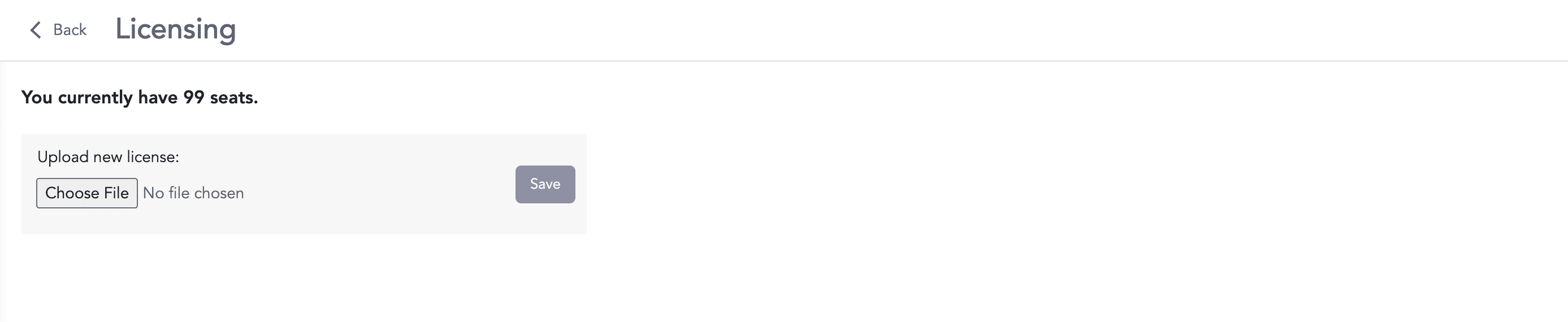
LogPoint SOAR Licensing Page
Before adding a license, contact LogPoint Sales team and provide them your Hardware Key. Go to Settings >> System Settings from the navigation bar and click LogPoint License to access the Hardware Key. The LogPoint Sales team then sends you the license key based on your requirements.
Download the License Key.
Go to Settings >> SOAR Settings from the navigation bar and click Licensing.
Click Choose File and select the downloaded License Key file.
Click Save.