
Vendors are the organizations that provides network and cyber security solutions and products. A single vendor can have multiple inter-related products. The grouping of products according to their respective vendors will help in identification of parent organization and in performing bulk operations.
Go to Settings >> SOAR Settings from the navigation bar and click Vendors to view all the vendors configured for LogPoint SOAR. From the Vendors page, you can add, configure, delete, and export vendors. You can also filter the vendors by Name.
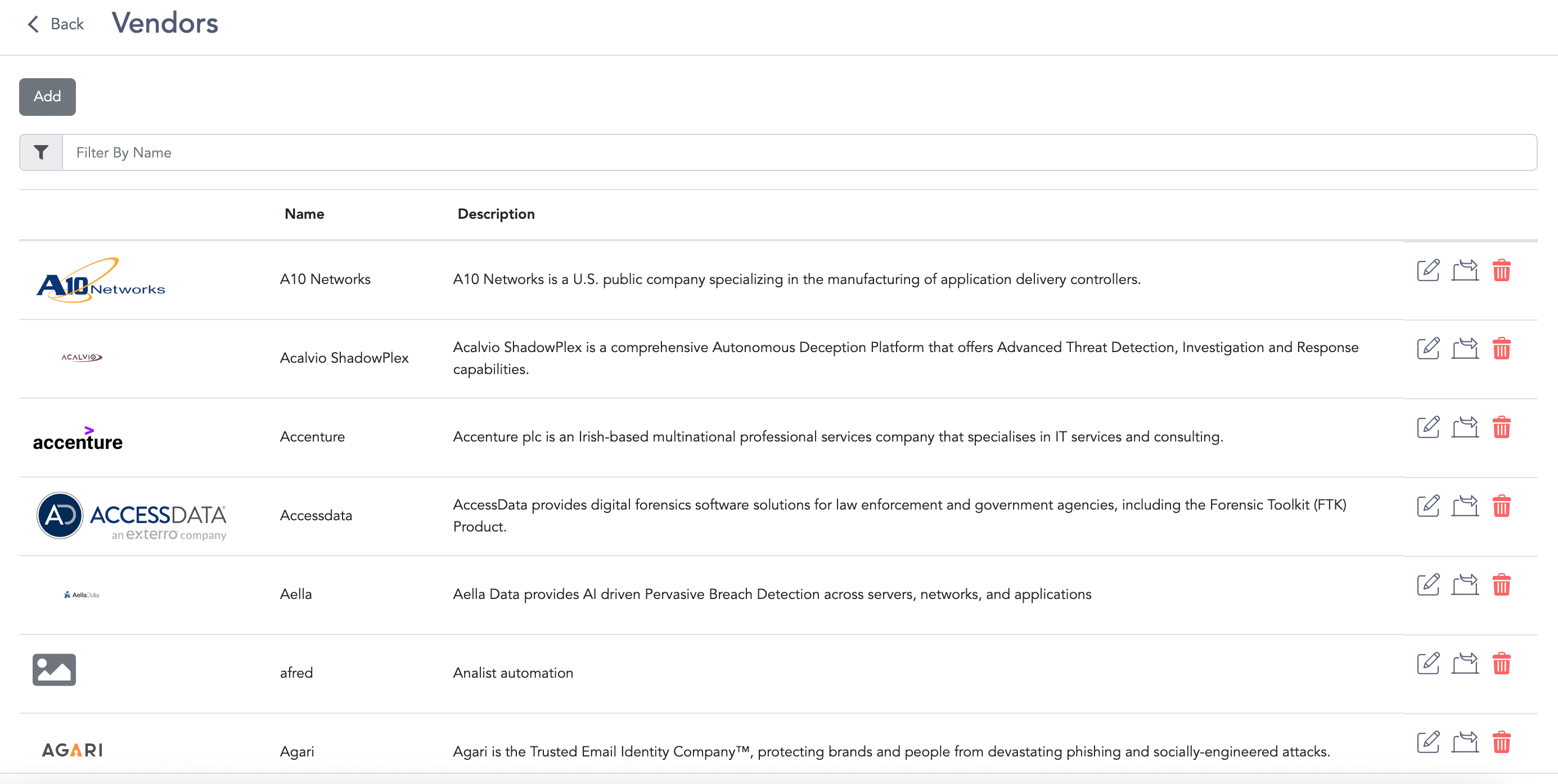
Vendors Page
Go to Settings >> SOAR Settings from the navigation bar and click Vendors.
Click Add.
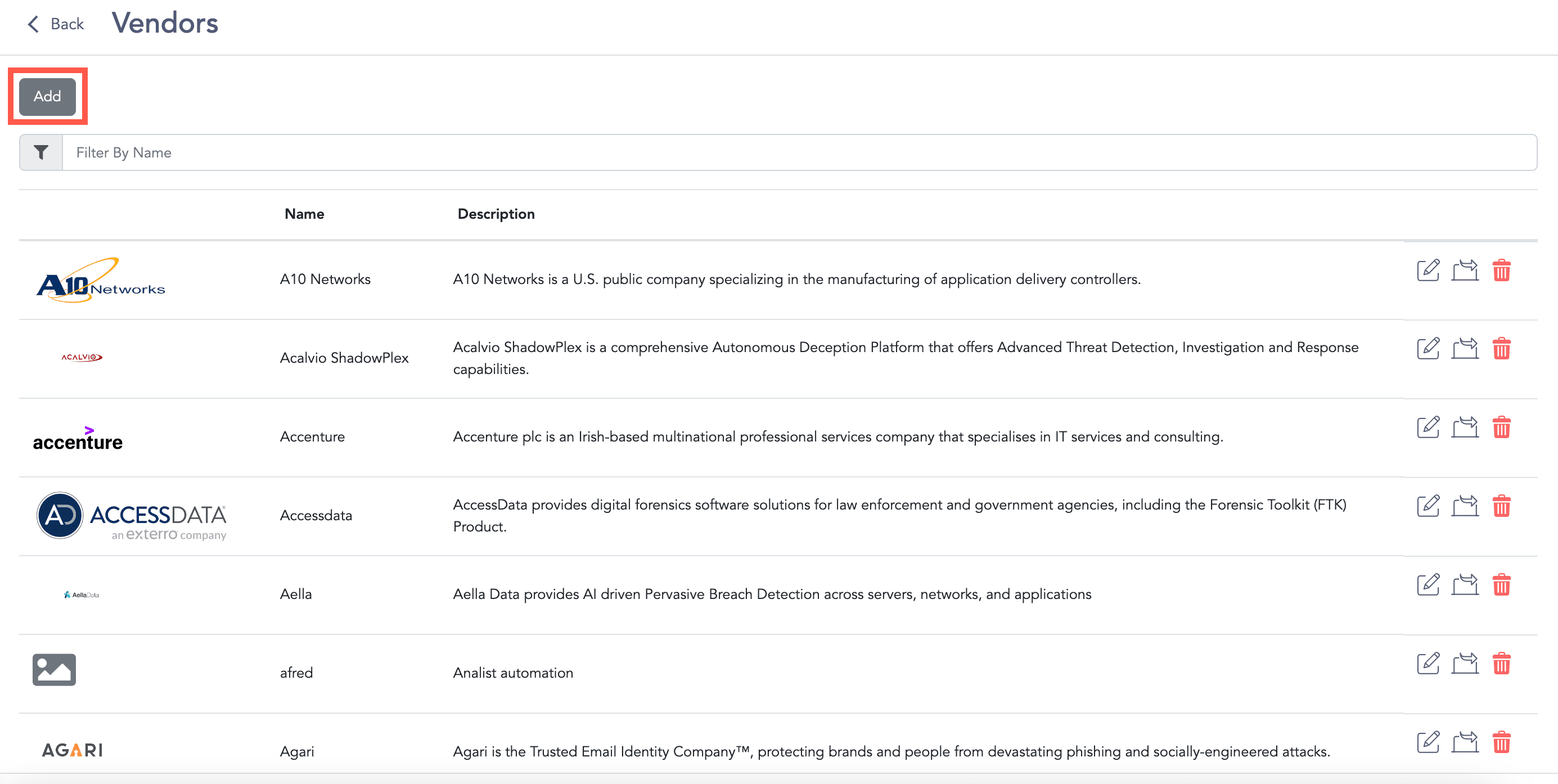
Adding a Vendor
Enter the vendor’s Name and Description.
Click Choose a file to upload a custom logo.
The logo must be in the .png or .jpeg file format and within the size limit of 1MB.
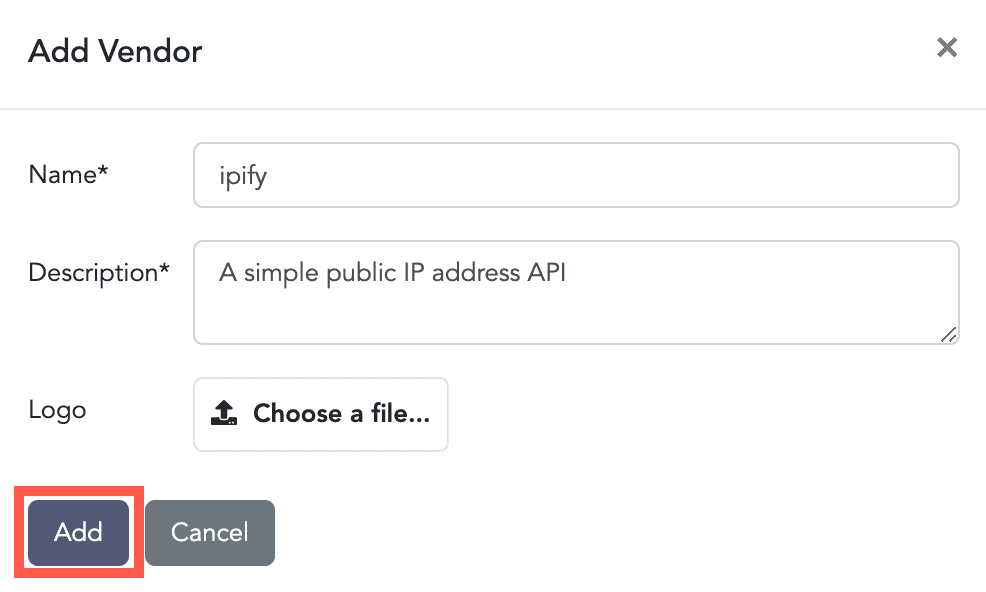
Adding a New Vendor
Click Add.
Go to Settings >> SOAR Settings from the navigation bar and click Vendors.
Click the Edit icon.
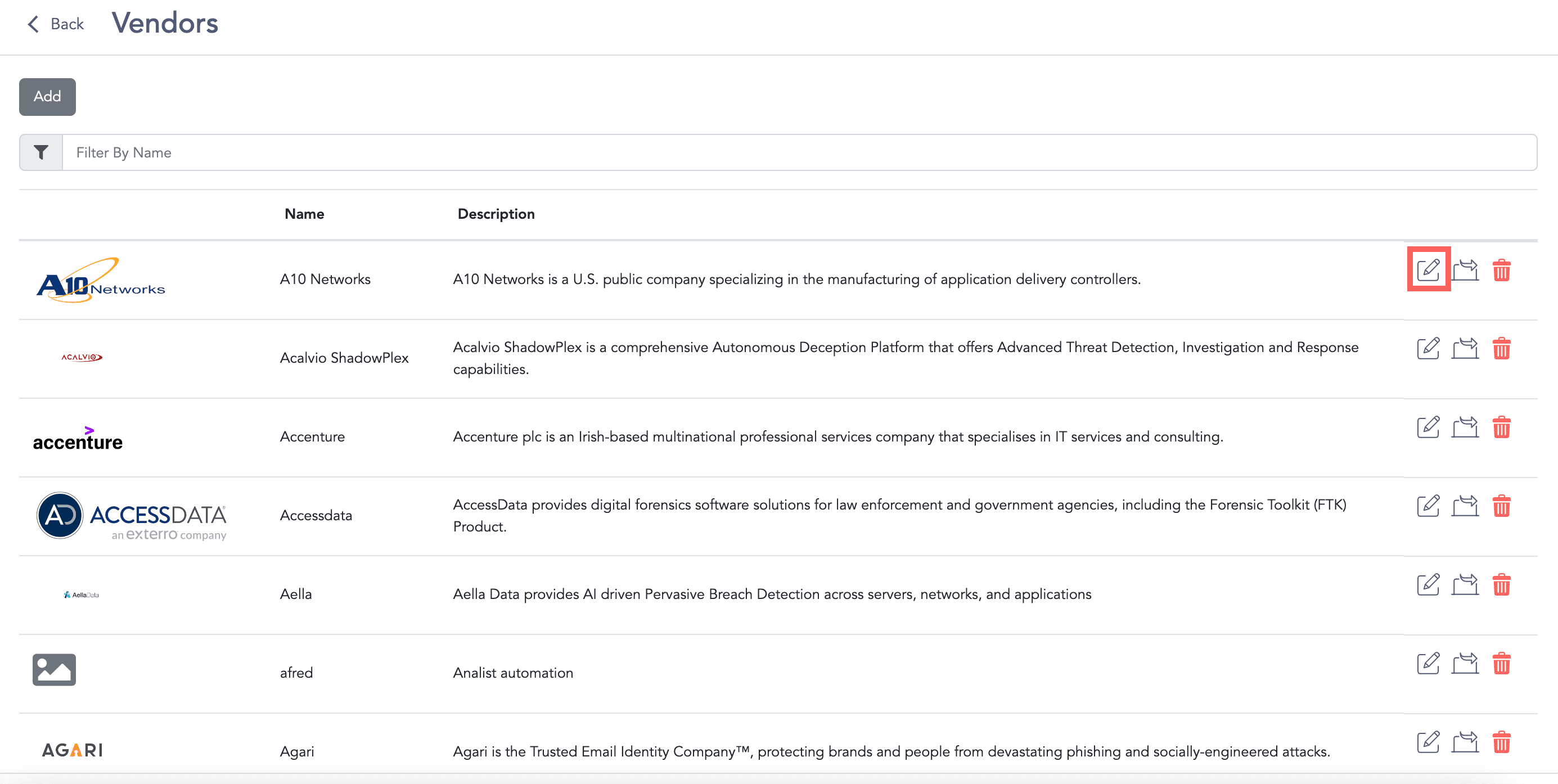
Editing a Vendor
Edit the required information.
Click Update.
Go to Settings >> SOAR Settings from the navigation bar and click Vendors.
Click the Delete icon.
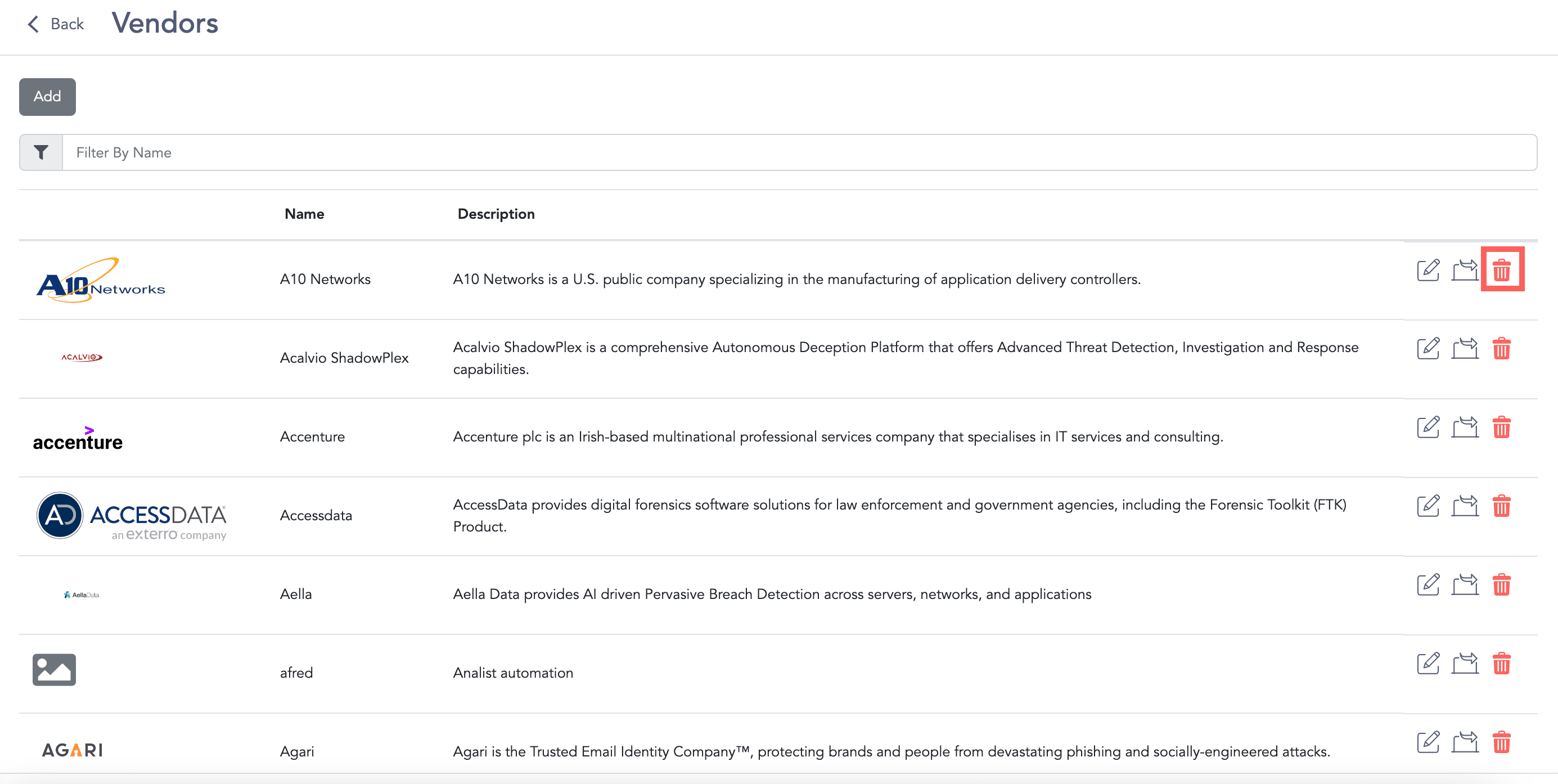
Deleting a Vendor
Click Delete.
Go to Settings >> SOAR Settings from the navigation bar and click Vendors.
Click the Export icon. The exported data is then downloaded in the .zip file format.
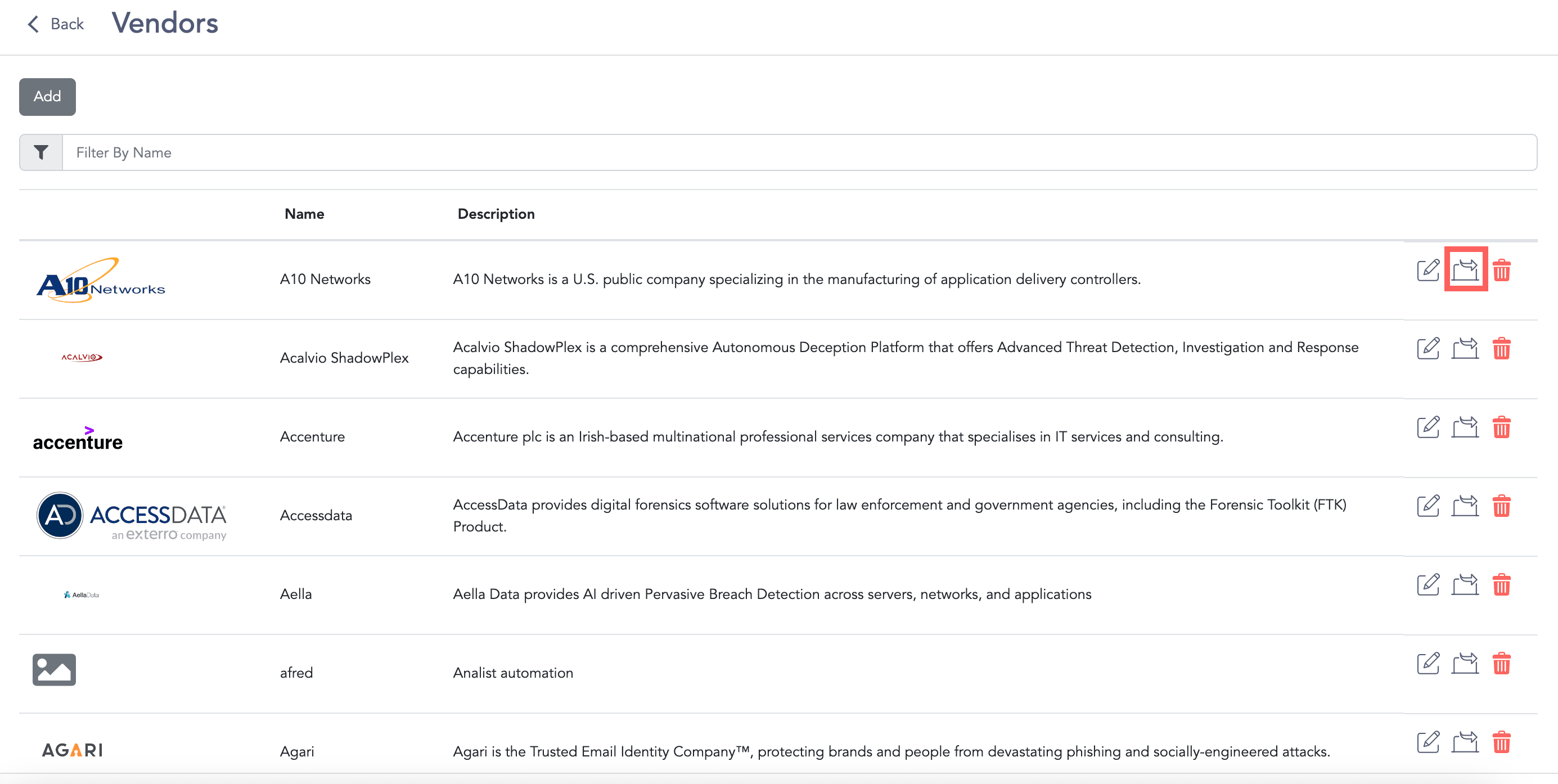
Exporting a Vendor
When exporting a vendor all the configuration associated with its products, their product instances, and actions are also exported.