
You can maintain a collection of values as a List. You can use the list to search for the incidents associated with its values. For example, if you create a list named Admin Users having the usernames as the list members, you can use the list to query incidents associated with all the usernames that are members of the Admin Users list. You can also use the list to define a trigger condition or perform bulk actions.
The list remains unchanged until you add or remove the list members.
Go to Settings >> SOAR Settings from the navigation bar and click Lists Management to view, add, edit, and delete the list configured in LogPoint SOAR.
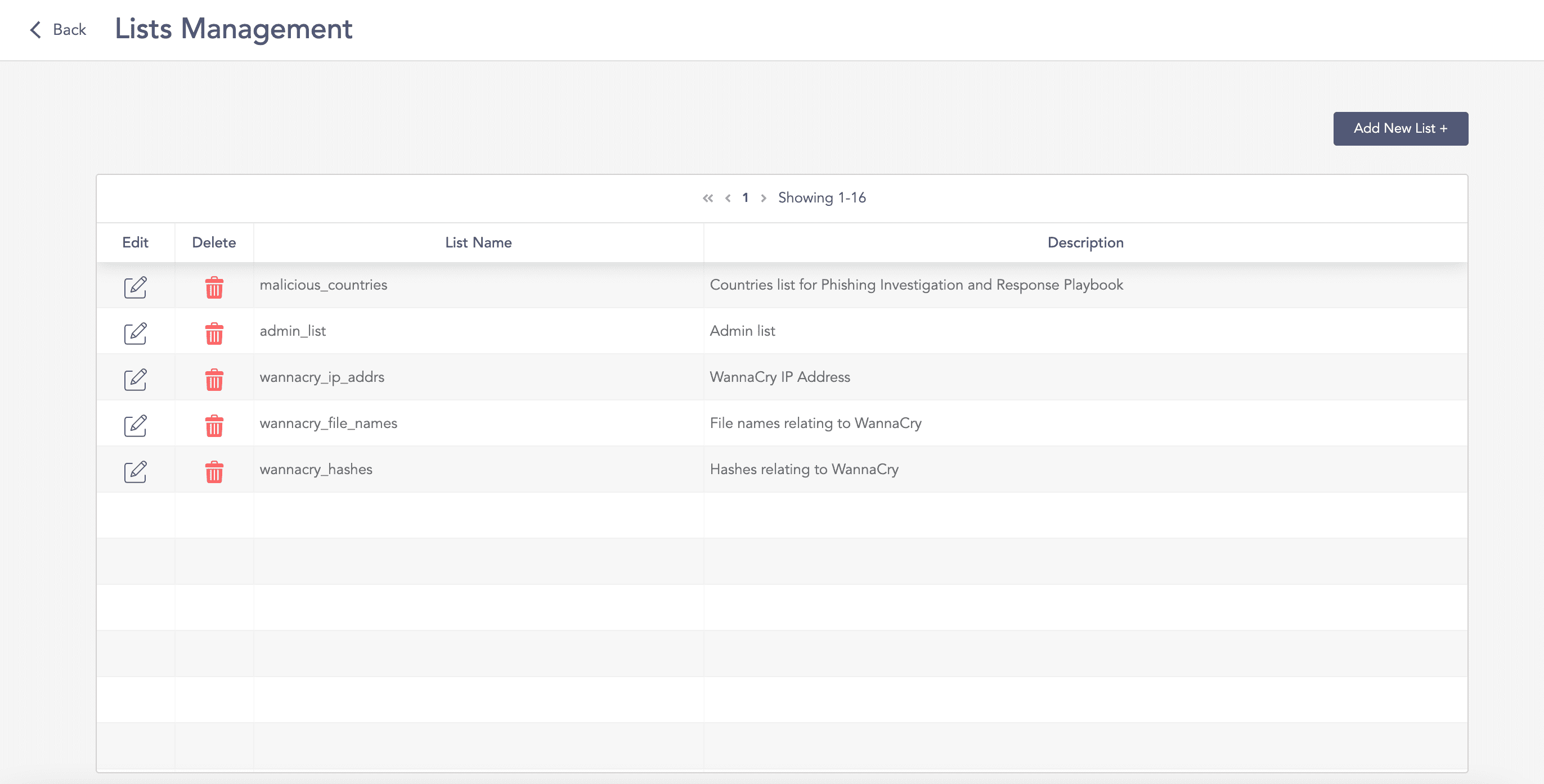
Lists Management Page
Go to Settings >> SOAR Settings from the navigation bar and click Lists Management.
Click Add New List.
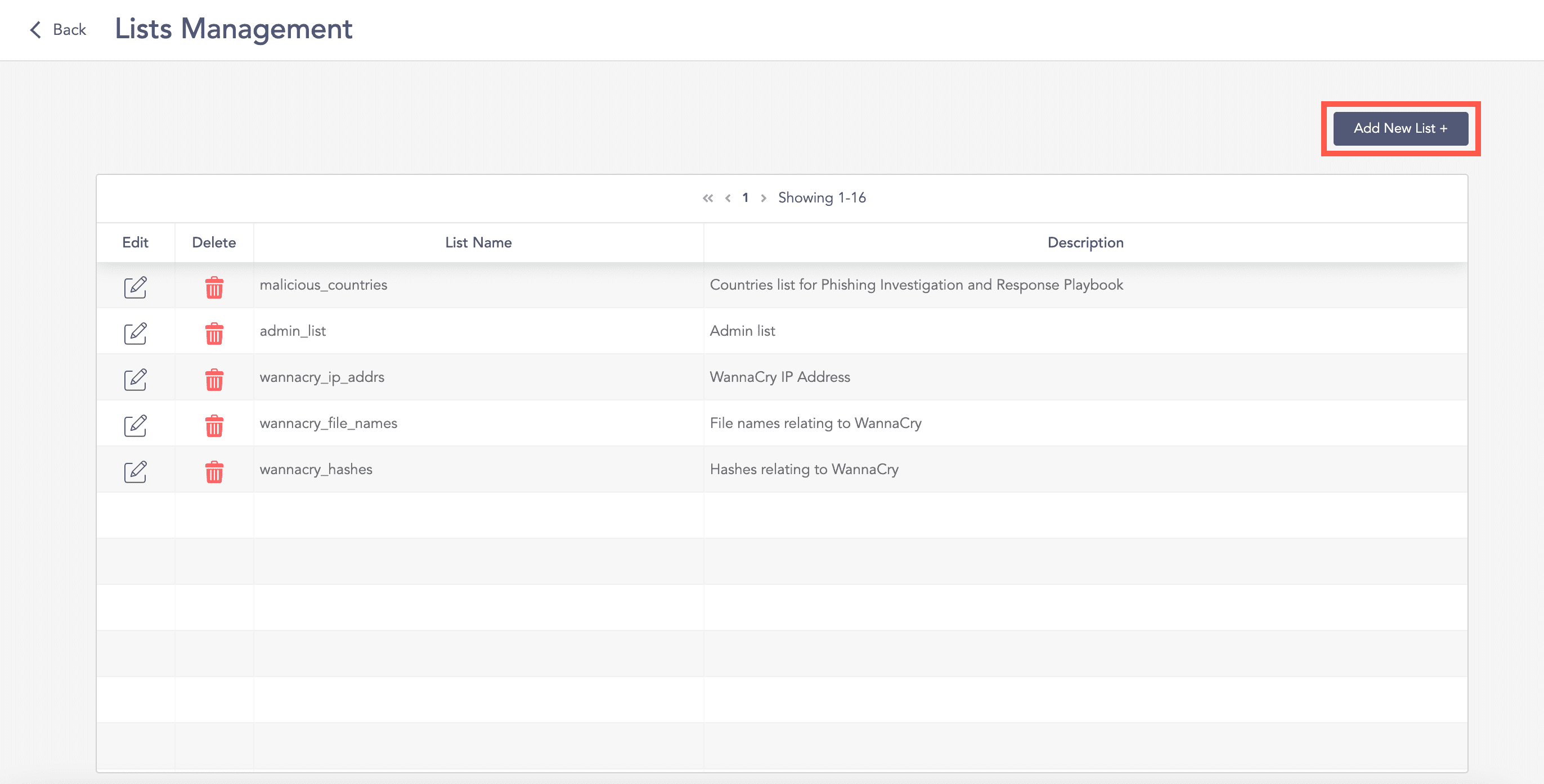
Adding a List
Enter the List’s Name and Description.
Enter the Members of the List seperated by commas.
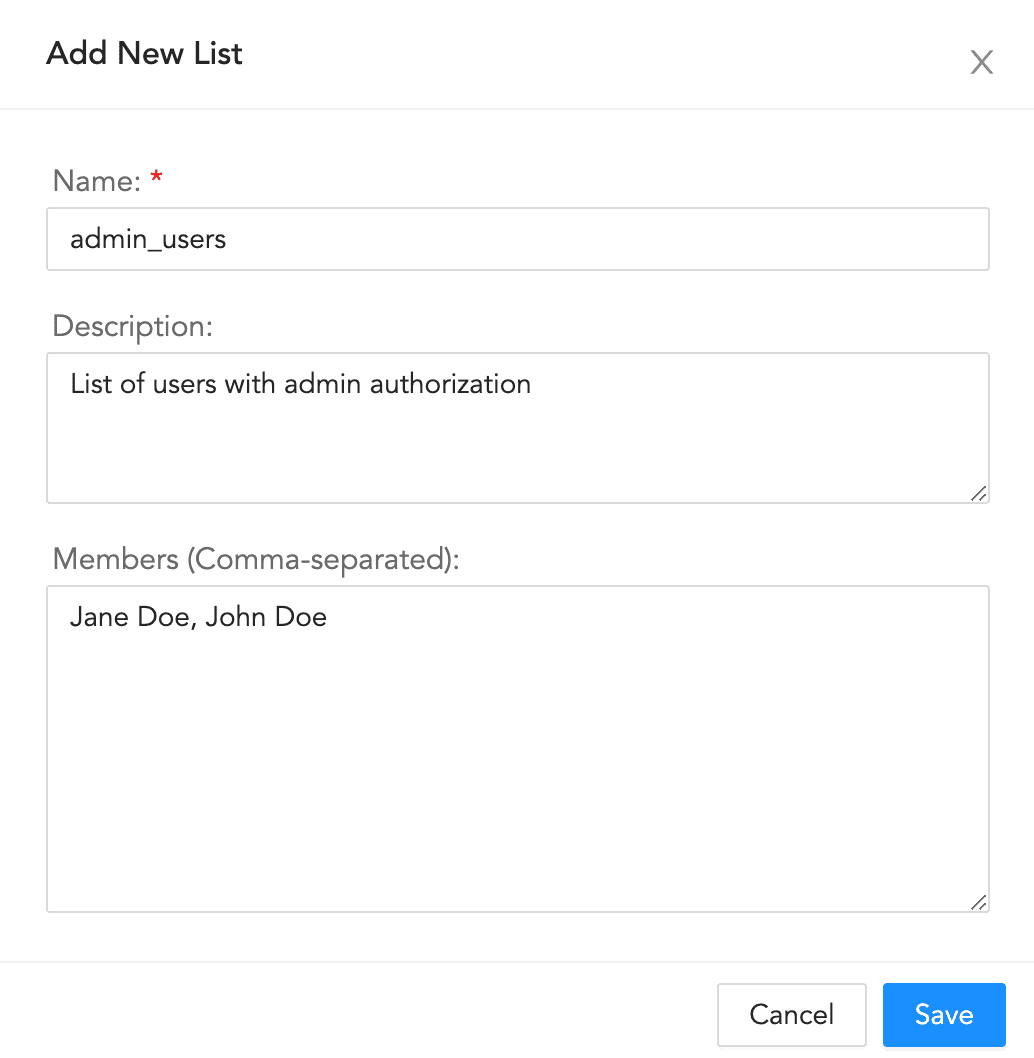
Adding a New List
Click Save.
Go to Settings >> SOAR Settings from the navigation bar and click Lists Management.
Click the Edit icon.
Edit the information.
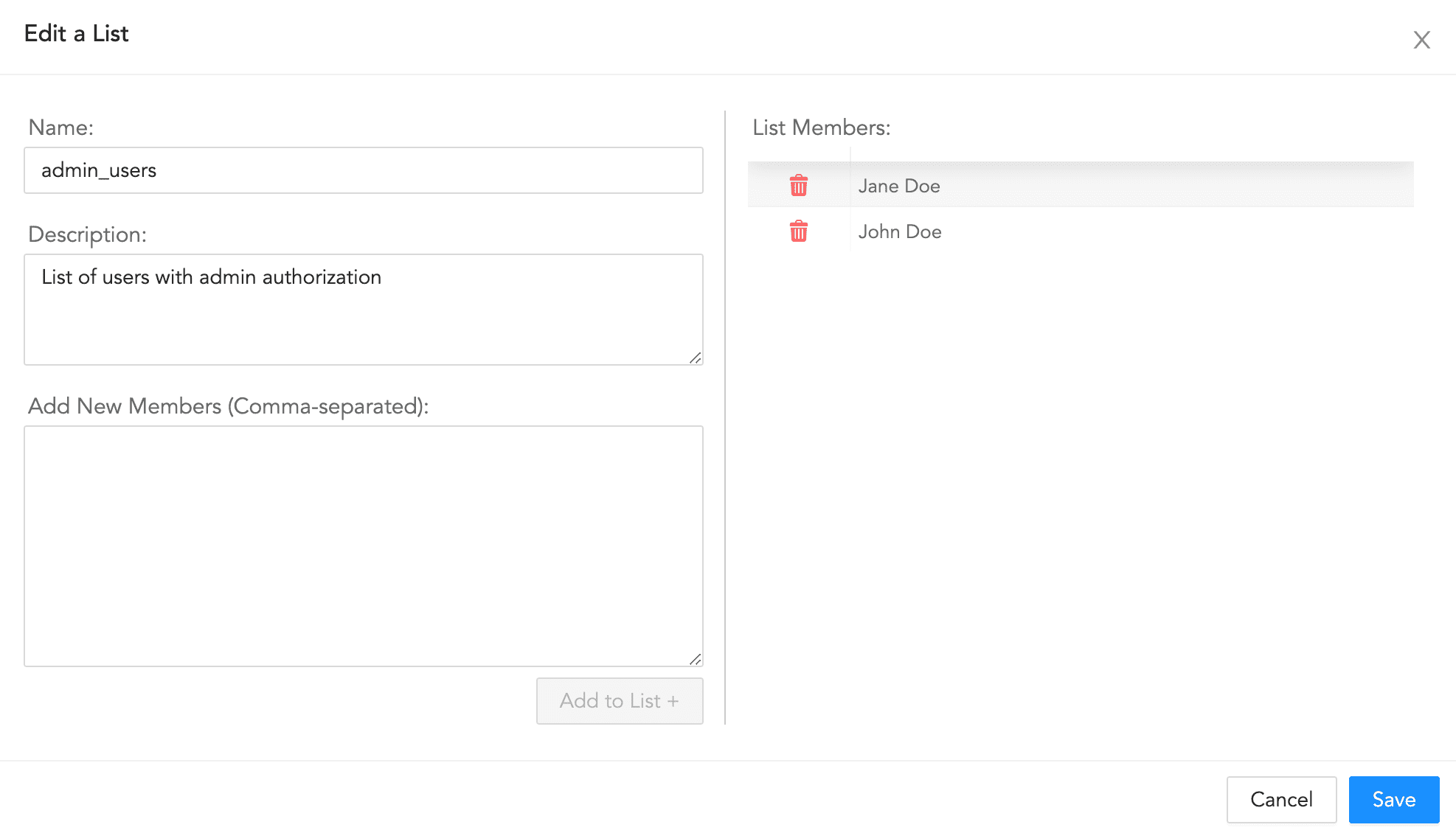
Editing a List
Click Save.
Go to Settings >> SOAR Settings from the navigation bar and click Lists Management.
Click the Delete icon.
Click Delete.