User Access Management
Before you start, change the password.
Authentication and authorization of Logpoint SIEM users is based on user roles and the permissions granted to those roles. SOAR Automation user access management works the same, but a separate license is required.
Add permissions to Permission Groups.
Assign one or more Permission Groups to a User Group.
Assign Users to User Groups.
Permission Groups
Permission Groups define and control user access within Logpoint by grouping related privileges into manageable roles. They determine what actions users can perform, such as searching data, managing alerts, configuring integrations, administering systems, or accessing specific features, based on their responsibilities. By assigning users to appropriate permission groups, administrators can enforce role-based access control (RBAC), maintain security boundaries, and ensure users have access only to the data and functionality required for their jobs. There are two default standard permission groups. You can't modify or delete them.
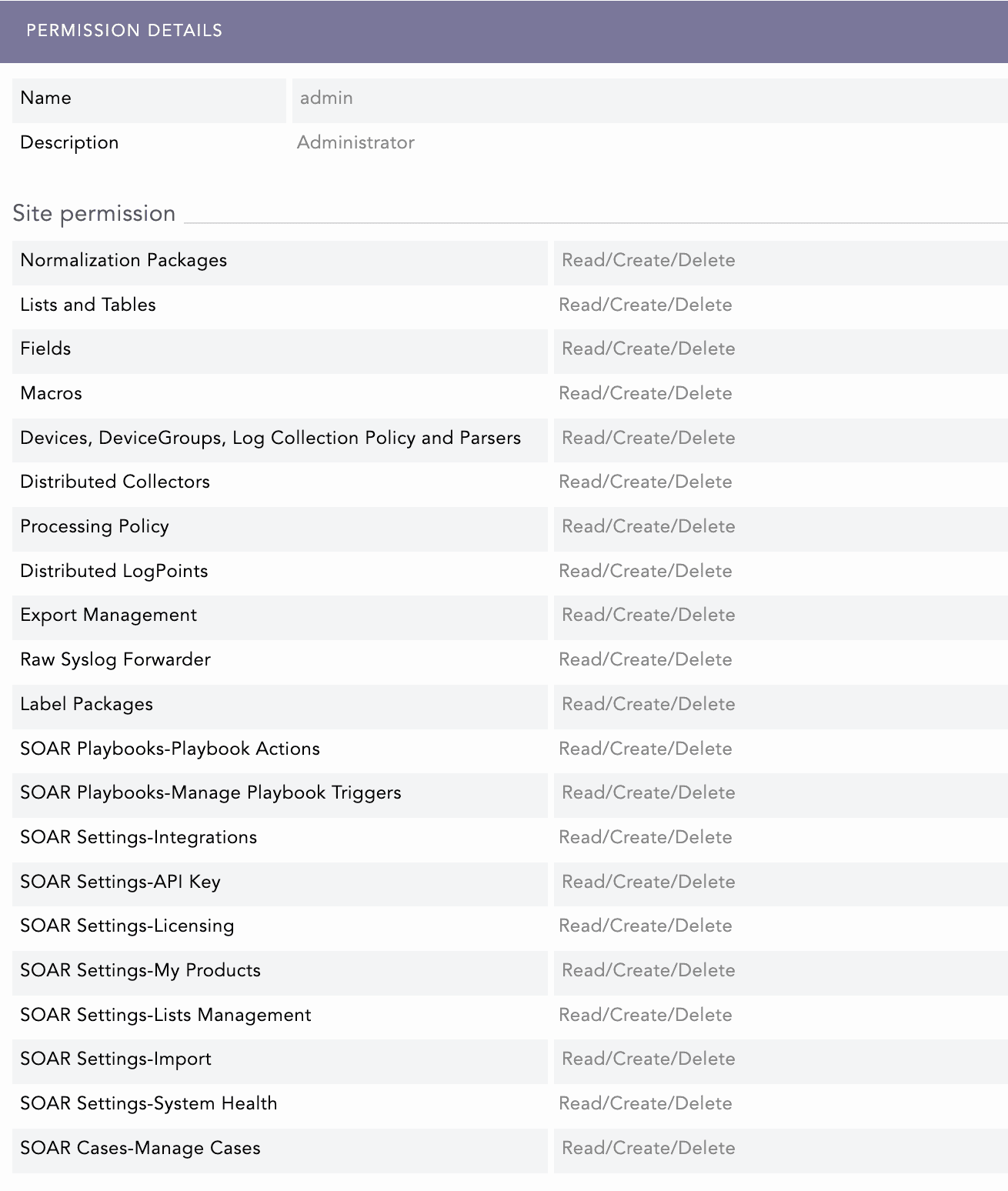
Admin Permission Group
The Admin permission group is designed for Logpoint owners, security engineers, SOC leads, and system administrators responsible for operating and maintaining the SIEM environment. Users assigned to this groupare responsible for:
Setting up and maintaining the Logpoint deployment.
Managing integrations, routing, and processing.
Controlling user access to features.
Users in the Admin permission group have comprehensive access, including read, create, and delete. It is for users or administrators who require full access rights to Logpoint for comprehensive configuration and maintenance.
Operator Permission Group
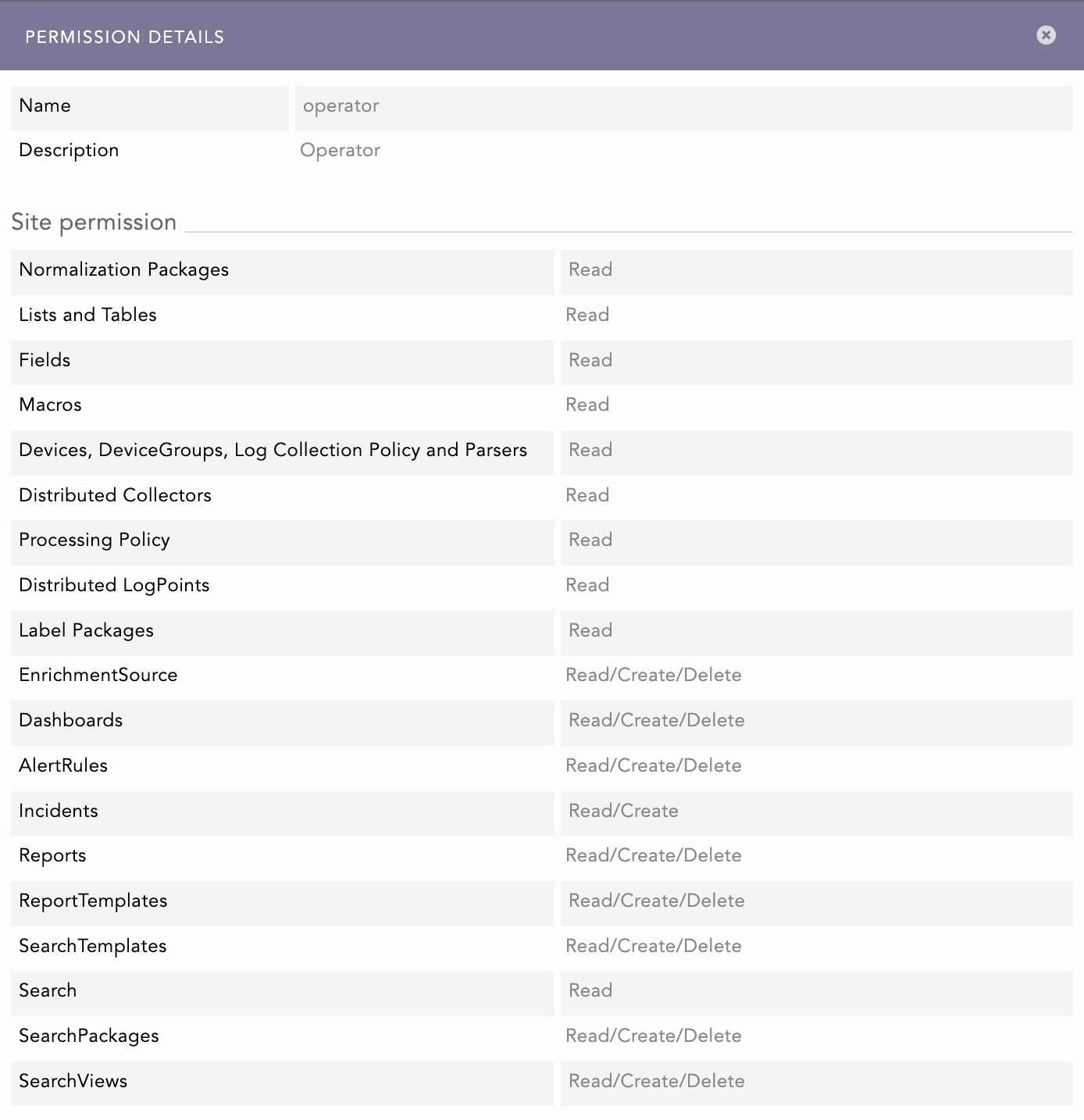
The Operator permission group is for Logpoint users who work with security data and incidents, but do not administer the platform. This group is intended for SOC analysts, Threat hunters, Incident responders, Security operations engineers, and Compliance/reporting analysts who rely on dashboards, searches, and reports. These users are responsible for monitoring, investigating, and responding to events and incidents.
Operators can monitor and investigate by viewing dashboards and widgets, running searches, and using search templates, packages, and views to investigate events. Users in the operator permission group can create and modify their own dashboards and alerts, build and maintain searches and reports, and maintain the analytics content used by the SOC. Operators have read and create permissions for Incidents, allowing them to view incidents assigned to them or their group, investigate incidents, and create new incidents from alerts or investigations.
You can also assign the user groups Incident User Groups and Data Privacy Groups.
After a user is created, they must be authenticated based on their credentials to log in and access Logpoint. Logpoint supports multiple authentication methods, including local authentication, external Identity Providers (IdPs), and Multi-Factor Authentication (MFA).
Viewing Permission Groups
In the navigation bar, click Settings>>Users.
Click Permission Groups.
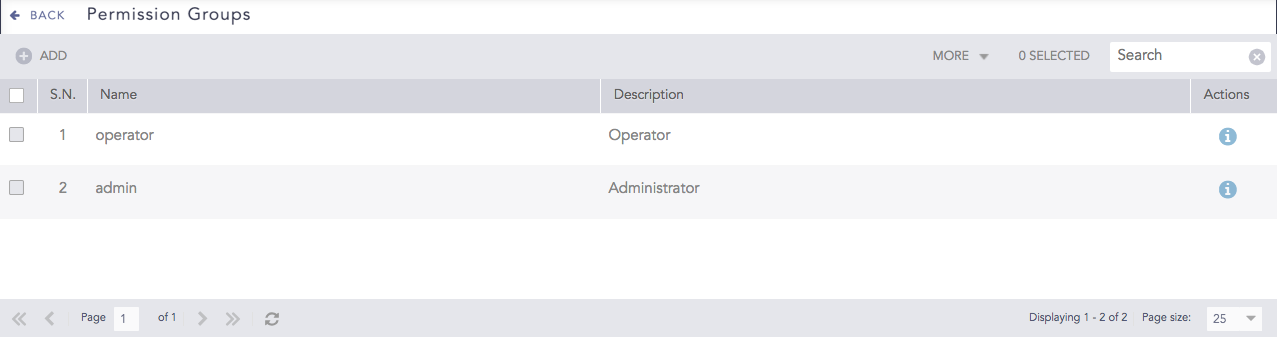
Sort the columns in ascending and descending order by clicking the arrow in the column name.

To add or remove which columns are visible, click the More dropdown, and click Columns. Deselect the columns not to display.
New Permission Groups
Permission groups streamline user management, and tailor permissions to align with organizational roles and responsibilities. According to your organization’s structure and the user’s responsibility, setup different permission groups. You can edit, delete, or create new groups.
When a new permission group is added, it is reflected in Logpoint SIEM and SOAR automation of the users.
SIEM Permissions:
Knowledge Base
Configuration
Analytics
Add a New Permission Group
Go to Settings > User Accounts from the navigation bar and click Permission Groups.
Click Add.
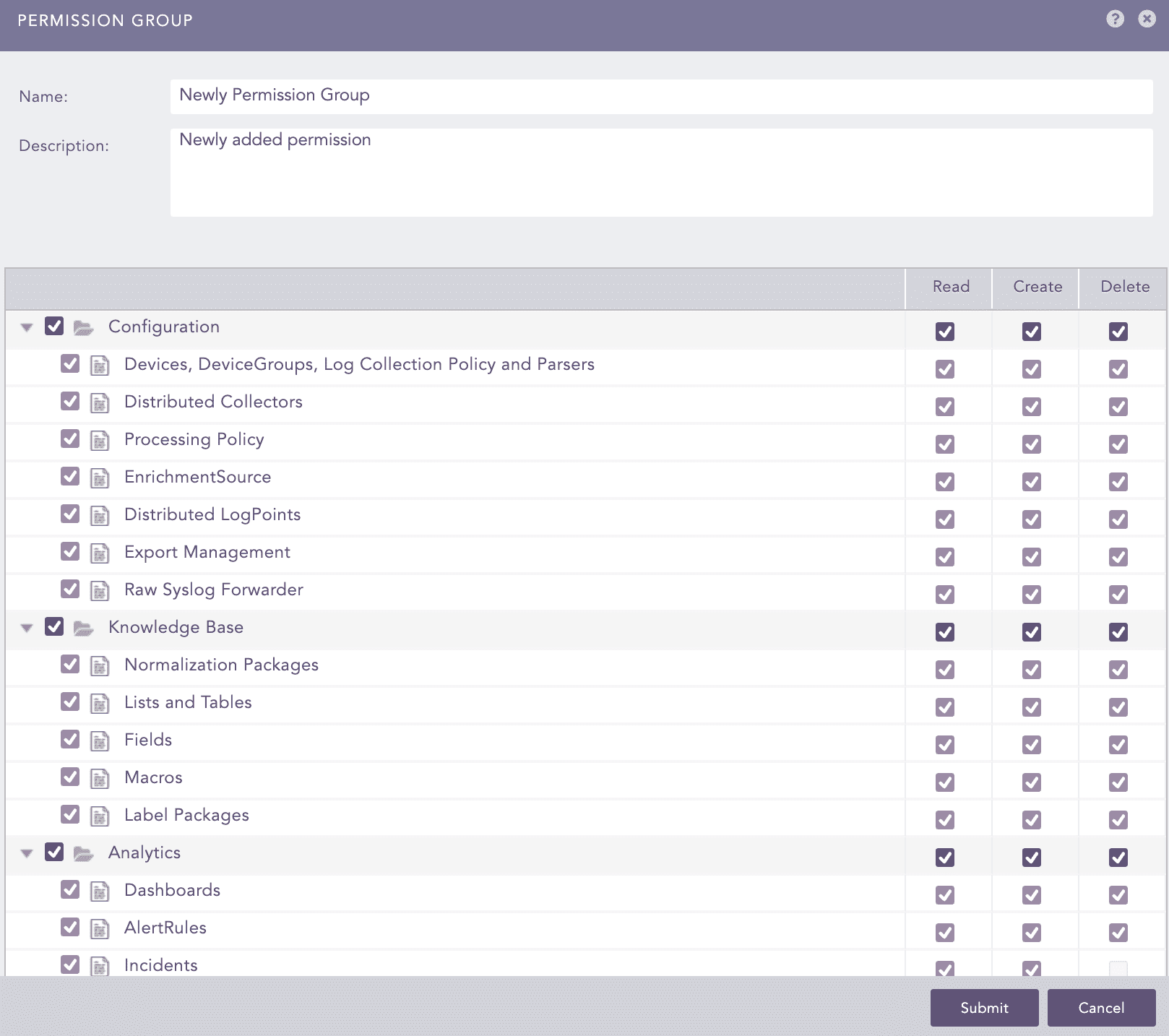
Enter a Name and a Description.
All permissions are selected by default. Under Knowledge Base, Configuration, and Parsers, deselect the permissions the users shouldn't have. You must deselect them one by one.
SOAR Automation permissions are only accessible if you have a license.
Click Submit.
Editing Permission Group
Go to Settings >> User Accounts from the navigation bar and click PermissionGroups.
Click the name of the permission group.
Remove permissions or change access rights.
Click Submit.
Delete Permission Groups
Before deleting a permission group, verify it is not in use.
Go to Settings > User Accounts from the navigation bar and click Permission Groups.
To delete:
a single permission group: select it in the list and in the Actions column, click the Delete icon.
multiple permission groups: select the permission groups, click the MORE dropdown, and click Delete Selected.
all the permission groups: click the MORE dropdown and click Delete All.
Click Yes.
SOAR Playbooks Permissions
Playbook Actions
- List playbook. - Export or Enable or Monitor playbooks.
- Clone or Add or Edit playbook. - Run playbook.
Delete playbook.
Manage Playbook Triggers
List triggers.
Add or Edit triggers.
Delete triggers.
SOAR Settings Permissions
Integrations
- Export or View Vendors. - Export or View Products. - Search before Export or View.
- Add or Edit Vendors and Products. - Add or Edit or Clone Actions.
Delete Vendors, Products and Actions.
API Key
View API Key.
Generate API Key.
N/A.
Licensing
View License
Upload License.
N/A.
My Products
Export or View Products.
Add or Edit Products.
Delete Products.
Lists Management
View List.
Add or Edit List.
Delete List.
Import
N/A.
Upload imported Settings.
N/A.
System Health
View System Health.
N/A.
N/A.
SOAR Cases Permissions
Manage Cases
Export or View Cases.
- Add or Edit or Annotate Cases. - Tag or Comment or Edit item to Cases. - Change Case Status and Change Handling Status.
Delete Label and Comment.
User Groups
Group users and grant them the same permissions. Admin users can also grant permissions to repositories and device groups to a user group.
There are three default, standard user groups. You can't modify or delete them.
Logpoint Administrator: Users have full access to all features and settings.
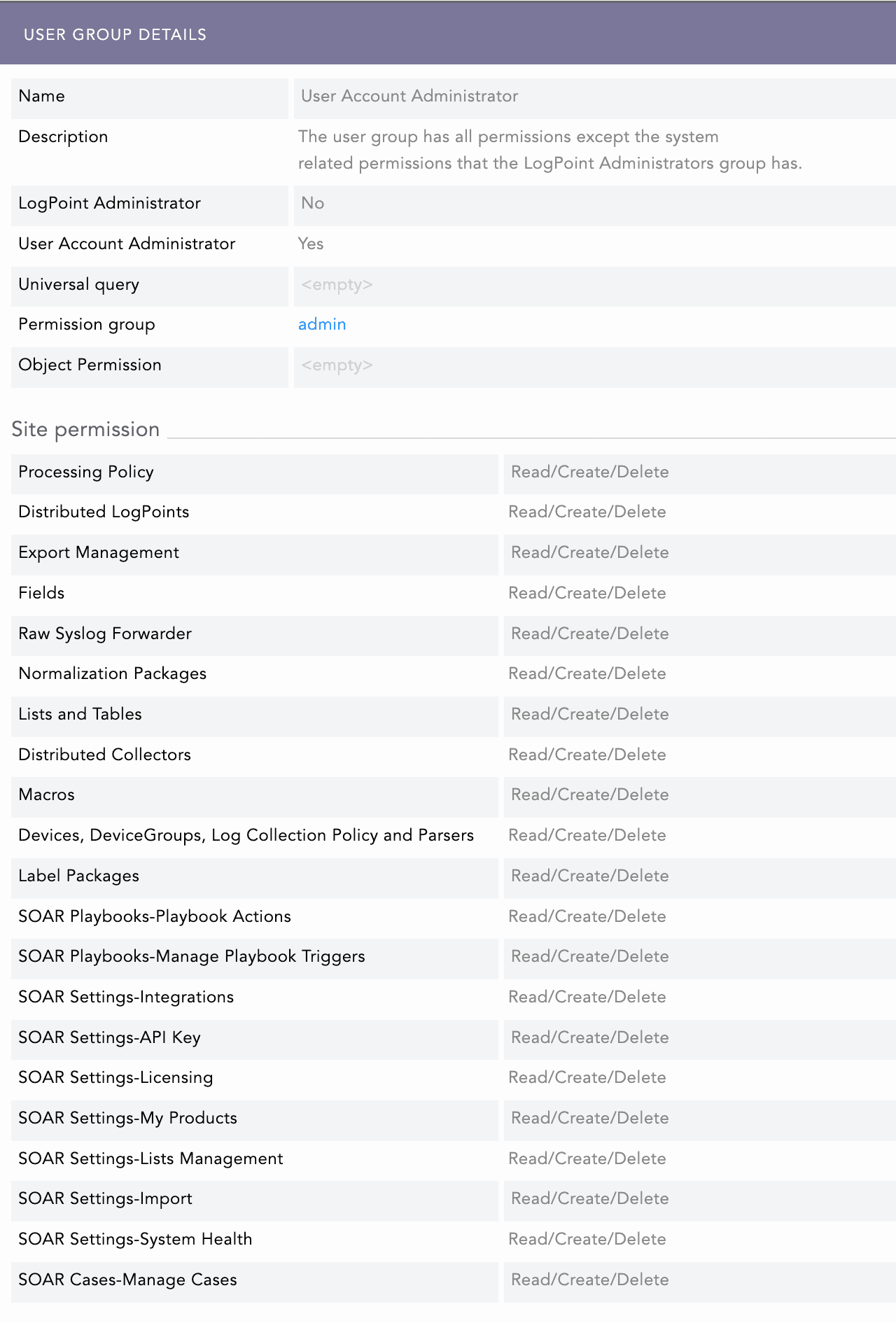
User Account Administrator: All permissions except for System Settings. This User Group cannot view the Logpoint Administrator group.
Incident User Groups: Manage incidents, including alert ownership and access to incident details. All Logpoint users can view incidents, but they can't resolve or close them. Only users who are part of the Logpoint Administrator group and the User Account Administrator group can grant access or add users to Incident User Groups.
Data Privacy User Groups
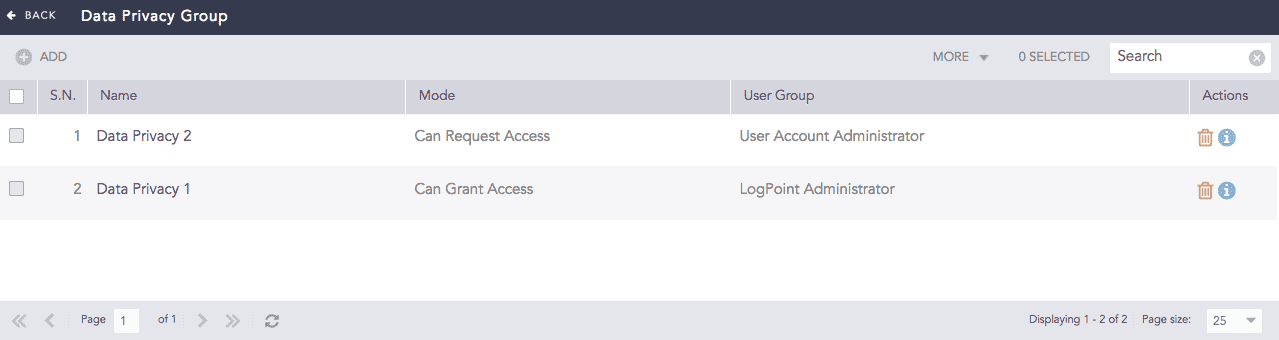
Users who are linked to a Data Privacy User Group can administer access to encrypted user data. Data Privacy encrypts specific clear-text fields so they are hidden from non-admin Logpoint users. Encrypted data can only be viewed by non-admin users by request, and then a user who is part of a Data Privacy user group can grant access to the data.
Viewing User Groups
In the navigation bar, click Settings >> Users.
Click User Groups.
Sort the columns in ascending and descending order by clicking the arrow in the column name.
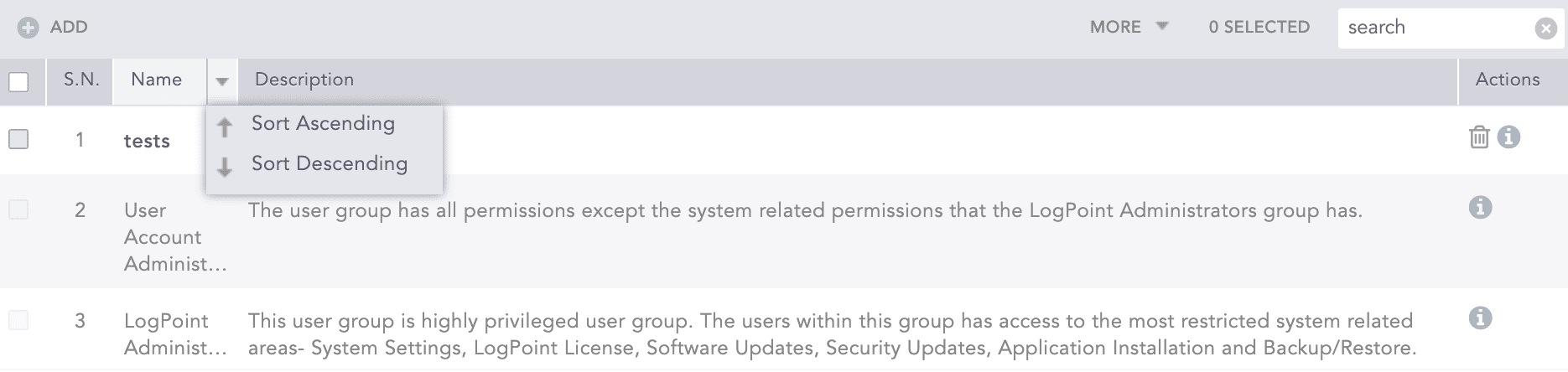
To add or remove which columns are visible, click the More dropdown, and click Columns. Deselect the columns not to display.
New User Groups
When you create a new user group, you grant the group which permissions they have. In addition, if you are an admin user, you also grant repo and device access to a user group in addition to a universal query. User groups can access all repos and devices or specific repos and devices, depending on what they are granted access to. Device groups include all devices, log sources, and IP addresses within the group.
You use a universal query to differentiate searches between user groups. For example, if a universal query is set to col_type=syslog, then only logs corresponding to col_type=syslog are in the search results for the user group assigned to that universal query.
You must set up different user groups, other than the two default ones, according to your own organization's structure, and which users should have the same access as other users. You can edit the groups you add, delete them, or create new ones. Add User Groups, then assign an Incident User Group to manage incidents.
Adding a New User Group
Go to Settings > User Accounts from the navigation bar and click User Groups.
Click Add.
Enter a Name and a Description.
Enter a Universal Query. You use a universal query to differentiate searches between user groups. For example, if a universal query is set to
col_type=syslog, then only logs correspondingto col_type=syslogare in the search results for the user group that is assigned that universal query.Select a Permission Group.
User Groups can be granted access to all Repos and Devices, or you can select specific Repos and Devices. Device Groups include all the devices, log sources, and IP addresses part of the group.
Click Object Permissions. To grant access to:
repos, device groups, devices, log sources and IP addresses in all of the Logpoint in your environment, select Full Permission.
Select All Repos for only Repo access.
Select All Devices for only Device access.
To grant access to specific Devices and Repos, click Advanced selection. Devices and Log Sources not assigned to any device group are listed under Ungrouped.
Click Confirm.
Click Save.
Click Submit.
Editing a User Group
Go to Settings > User Accounts from the navigation bar and click User Groups.
Select the user group to edit.
Change the name, query, permission group and/or the repos or devices the group has access to.
Click Submit.
Deleting User Groups
To delete a User Group, verify it is not in use.
Go to Settings > User Accounts from the navigation bar and click User Groups.
To delete:
a single user group: select it in the list and click the Delete icon from Actions.
multiple user groups: select the user groups, click the MORE dropdown, and select Delete Selected.
all the user groups: click the MORE dropdown and select Delete All.
Click Yes to confirm.
Incident User Groups
Incident management, including assigning alert ownership, is controlled by users whose user group is also linked to an Incident User Group. Only users who are part of an Incident User Group can own or manage an Alert Rule. Only users in the Logpoint Administrator and User Account Administrator user groups can grant access or add users to Incident User Groups.
Adding User Groups to an Incident User Group
Go to Settings > User Accounts from the navigation bar and click Incident User Groups.
Click Add.
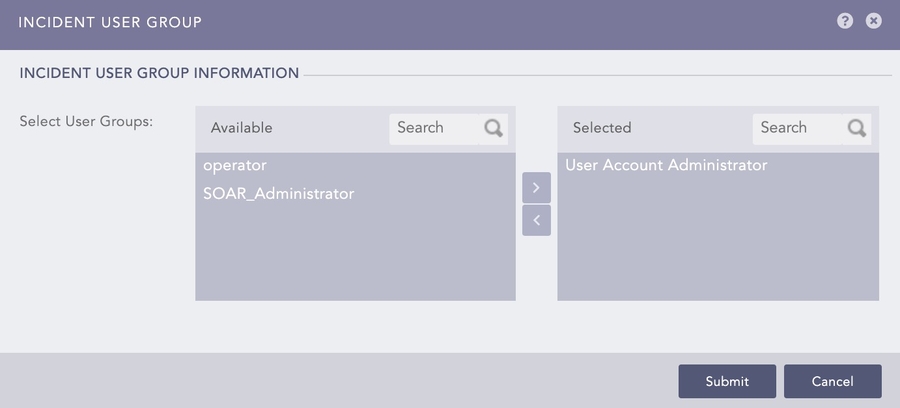
Double-click or drag and drop the user groups to select.
Click Submit.

Data Privacy
Data Privacy encrypts specific clear-text fields, hiding them from non-admin Logpoint users. Encrypted data can be viewed only by non-admin users upon request, and only a user in a Data Privacy user group can grant access.
Only admin users and user account administrators can set up Data Privacy User Groups. There are two group types:
Can Request Access — users who can send a request to view encrypted data.
Can Grant Access — users other than admin users who can grant viewing access to encrypted data.
Users in a Can Grant Access user group do not automatically have access to encrypted data. They also need to be part of a Can Request Access user group and send a request. A user cannot view decrypted data without another user's consent.
Grant access to Data Privacy User Group
Create a user group.
Add the users.
Map the user group to a Data Privacy user Group.
Mapping a User Group to Data Privacy
Go to Settings > User Accounts from the navigation bar and click Data Privacy Groups.
Click Add.
Enter a Name.
Select a User Group.
Select:
Can Request Access so users can ask to view encrypted data.
Can Grant Access so users other than admin or user account administrator users can grant access to encrypted data.
Click Submit.
Viewing Data Privacy User Groups
Go to Settings >> User Accounts from the navigation bar and click Data Privacy Groups.
To sort the columns in ascending or descending order, move your cursor to the column to sort. You will see a down arrow; click it and select Sort Ascending or Sort Descending.
To filter the columns in the UI, click the MORE dropdown, then select Columns, and select the columns to filter.
Click the Details icon in the Actions column to view user groups and their permissions, then either grant or request access.
Editing a Data Privacy User Group
Go to Settings > User Accounts from the navigation bar and click Data Privacy Groups.
Click the user group to edit.
Make your changes and click Submit.
Deleting Data Privacy User Groups
Go to Settings > User Accounts from the navigation bar and click Data Privacy Groups.
To delete:
A single user group: select them in the list and click the Delete icon in the Actions column.
Multiple user groups, select the user groups, click the More drop-down, and select Delete Selected.
All the user groups, click the More drop-down and select Delete All.
Click Yes.
Users
Users refer to individual accounts that are authorized to access Logpoint and SOAR. Each user is assigned a user group and permission group that determine their level of access, actions they can perform, and data they can view within Logpoint and SOAR. This ensures secure, role-based access control (RBAC), allowing administrators to add, edit, or deactivate user accounts to maintain compliance and operational security.
Adding a New User
Go to Settings >> User Accounts from the navigation bar and click Users.
Click Add.
Enter a Username for the user.
Enter a Password for the username.
Select a User Group. You can associate a user with multiple user groups.
Enter the user's Name and Email.
Select the user's Time Zone. Users view logs according to their time zone. For example, if a user in Denmark views logs collected in England, the logs are displayed in the Danish time zone (UTC +1). The default timezone is UTC.
Click Submit.
Editing a User
Go to Settings >> User Accounts from the navigation bar and click Users.
Click the Username of the user.
Edit their user group, email, or timezone.
Click Submit.
Deactivating Users
A deactivated user is listed in the user list, but they can't access Logpoint.
Go to Settings >> User Accounts from the navigation bar and click Users.
In PLUGIN USERS at the top left, select authentication. If you are using Logpoint, don't select anything.
To deactivate:
A single user: click the De-Activate User icon from Actions.
Multiple users: select the users, click the MORE dropdown, and click Deactivate Selected.
All users: click the MORE dropdown, then select Deactivate all.
Click Yes.
Enter your credentials and click Ok.
Activating Deactivated Users
Go to Settings >> User Accounts from the navigation bar and click Users.
In PLUGIN USERS at the top left, select which authentication you use. If you are using Logpoint, don't select anything.
To activate:
A single user: click the Activate User icon from Actions.
Multiple users: select the users, click the MORE dropdown, and click Deactivate Selected.
All users: click the MORE dropdown, then click Deactivate all.
Click Yes.
Enter your credentials and click Ok.
Deleting Users
You must deactivate a user before deleting them. Also check whether they own a shared dashboard, alert rule, report template, or search template. If they do, either:
Delete the dashboard, alert rule, report template or search template
Transfer ownership to another user. After you delete a user, use Transfer Ownership for each entity they own.
Go to Settings > User Accounts from the navigation bar and click Users.
In PLUGIN USERS at the top left, select your authentication. If you are using Logpoint, don't select anything.
Click Manage De-Activated Users.
To delete:
A single user, select them in the list, and click the Delete icon in the Actions column.
Multiple users, select the users, click the More drop-down, and select Delete Selected.
All users, click the More drop-down and select Delete All.
Click Yes.
Last updated
Was this helpful?