System Settings
Only users who are in the Logpoint Administrator user group can apply or change System Settings.
Logpoint System Settings include:
General Settings updates system-wide configurations, including hostname and administrative details.
Network Time Protocol (NTP) settings, synconizes the time between the network server and the Logpoint server.
SMTP for email notifications.
HTTPS — using the default self-signed SSL (Secure Sockets Layer) certificate to securely transfer data.
Syslog TLS — to use Syslog for log collection. Before setting up TLS, generate a custom certificate and key as listed in HTTPS.
Apply Data Privacy (optional).
Activate SOAR Automation, if you have a license.
Enrichment Propagation to perform enrichment tasks.
Multi port for Collectors to configure and manage multiple listening ports for Syslog and Netflow collectors
Backup & Restore log and configuration files.
General Settings
Configuring General Settings
Go to Settings >> System Settings from the navigation bar and click System Settings.
Select General.
Enter a unique Logpoint Name. If you have the same names in different Logpoint, you cannot configure Distributed Logpoint.
Enter a browser tab title to append to the existing tab title.
Enter or update the Server Alias. Updating it does not change the Logpoint IP Address or the DNS. The Identifier is the unique value given to each Logpoint.
Modes are for a future Logpoint Director release. Do not use.
Select the Default Login Screen for Logpoint.
Enter a Timeout (minutes) duration after which Logpoint users are logged out.
In Base Repo Path for High Availability, enter the path to store the logs for the configured repos temporarily. The default path for the repos from the remote machine is /opt/immune/storage/. If the Distributed Logpoint is disconnected, logs are saved in the highavailability folder inside the specified path (<path>/highavailability/<repo_name>). Once the connection is restored, logs are sent to the Distributed Logpoint and deleted from the highavailability folder. In the Distributed Logpoint, logs and indexes are stored in /opt/immune/storage/log, and /opt/immune/storage/indexes respectively.
In Apply Time Range On, select either Collection Timestamp (col_ts) or Log Timestamp (log_ts). The col_ts is the time when the log was collected in Logpoint, and the log_ts is the time when a device generated the log. The time conversion of log_ts occurs when a Normalization Policy is applied to the relevant Collectors/Fetchers. Either log_ts or col_ts is displayed on the top of each row of the search results in addition to the search graph, depending on what you selected. Search results have both.
Select an Over Scan Period (in minutes) and a Time Zone. The overscan period is time added to a log search. Collection and Log Timestamps are displayed in the timezone you selected according to UTC. The Time Range is applied to either the Collection Timestamp or the Log Timestamp across all Distributed Logpoints.
Select a Time Zone.
In SOAR, select Enable SOAR in Logpoint to enable incident investigation with Playbooks and Cases. Enabling or disabling SOAR may take some time, depending on available memory. The current status is displayed next to SOAR. Refresh the page once the process is complete. While SOAR is being enabled or disabled, you cannot save any changes in System Settings. SOAR is always disabled in the Logpoint Collector and Syslog Forwarder modes.
In Usage Data, Logpoint collects and analyzes anonymized usage data by default. However, it does not collect Personally Identifiable Information (PII) data. Deselect Share Usage Data to not share your usage data.
Click Save Changes.

NTP
NTP synchronizes the time of your Logpoint with a network timeserver.
Configuring NTP Settings
Go to Settings >> System Settings from the navigation bar and click System Settings.
Select NTP.
Enable NTP to ensure synced and correct time across Logpoint servers and devices for consistent log analysis.
Enter the Server address. You can add multiple server addresses by clicking the plus icon.
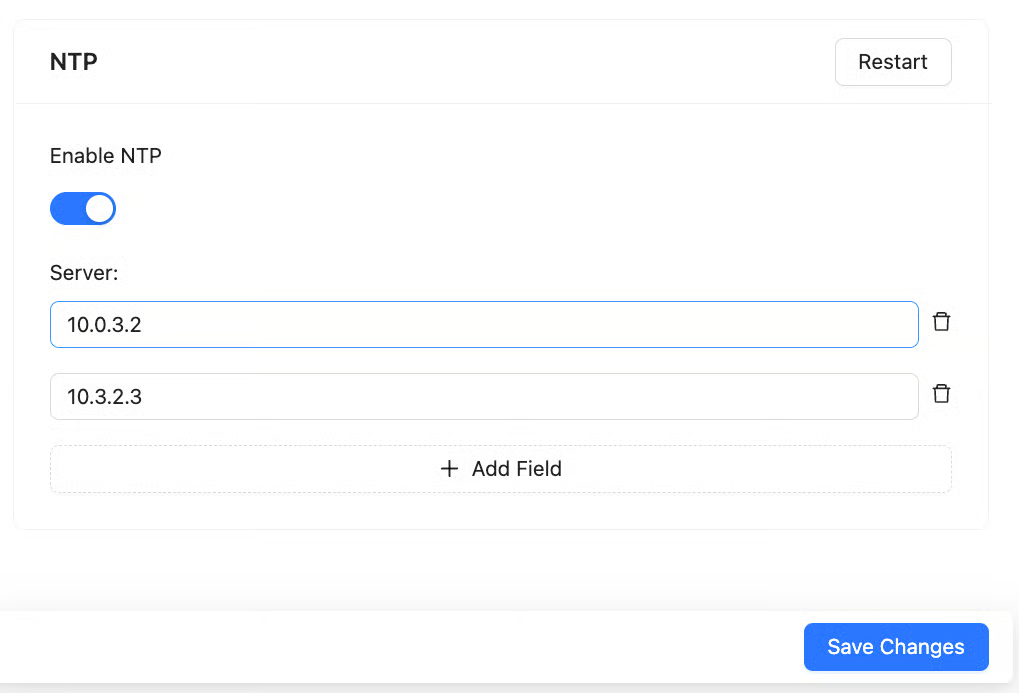
Click Save Changes.
SMTP
Use Simple Mail Transfer Protocol (SMTP) for email notifications (detections, alerts, incidents). If your mail server supports encryption, StartTLS encrypts the connection and sends emails in encrypted format. You must also configure SMTP before using the Data Privacy Module.
Configuring SMTP
Go to Settings >> System Settings from the navigation bar and click System Settings.
Select SMTP.
In Server/Port, enter the IP address and port number of your mail server.
Enter Sender Name and an Email address.
By default, Logpoint uses opportunistic TLS, which encrypts emails only if supported by your mail server. Select SSL/TLS to use enforced StartTLS to ensure secure email transmission. Emails are not sent if the connection is not encrypted.
If you are using a private mail server, click Browse and upload the certificate signed by a private CA in Certificate. To use a public CA, leave the field blank.
If you select Login Required, enter Username and Password.
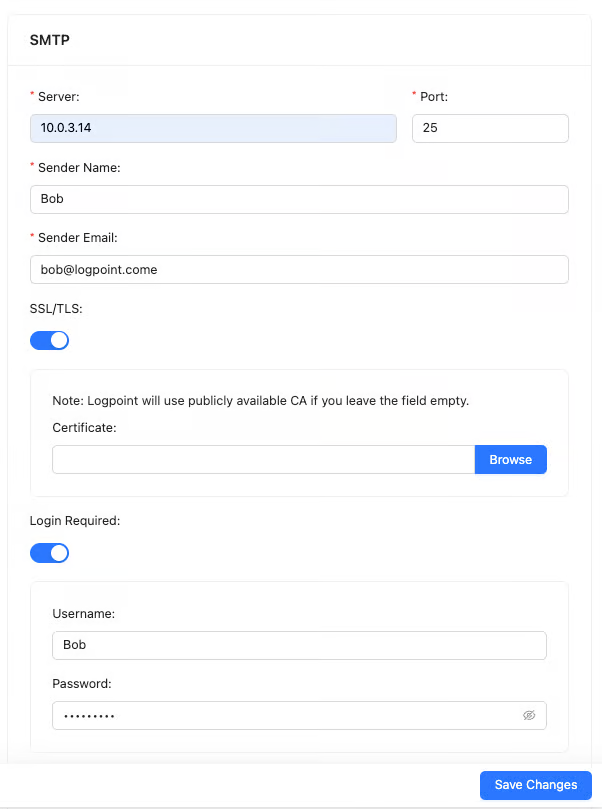
Click Save Changes.
To test SMTP:
Click Test SMTP.
Enter the Subject of the test e-mail.
Enter an Email address.
Enter a Message.
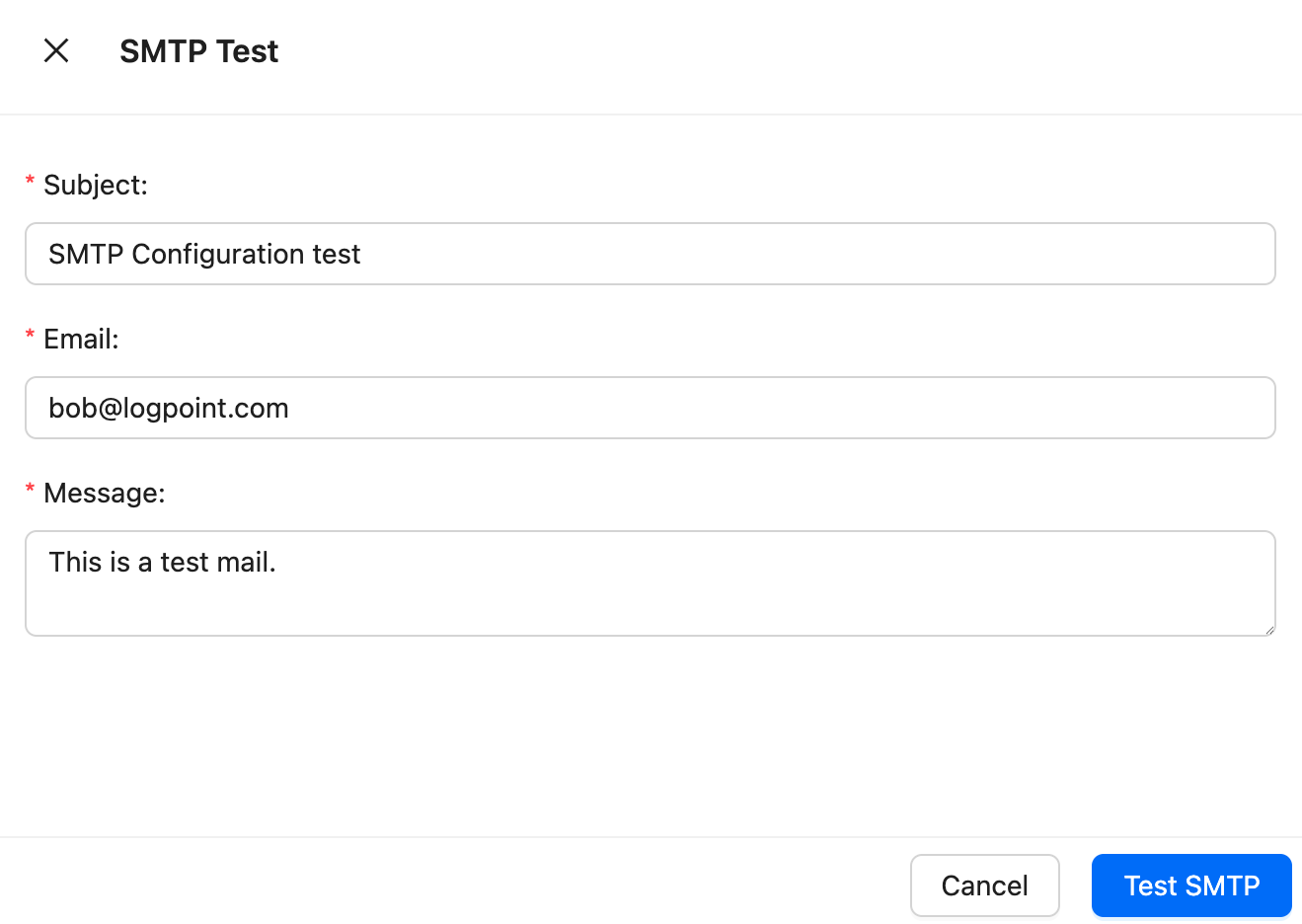
Click Test SMTP. The email is sent within 20 seconds.
HTTPS
Logpoint provides a default self-signed SSL (Secure Sockets Layer) certificate, which allows secure data transfer to and from Logpoint. You can generate and upload custom SSL certificates for your organization.
Requirements for the custom certificate:
2048 bits
.crt extension
PEM encoded x.509 standard
The private key file must have a .key extension.
To generate the private key:
To create the certificate signing request (CSR):
Self-signed or locally generated certificates will trigger browser SSL certificate errors. Use a PKI setup with a trusted Certificate Authority (CA) for certificates that browsers and applications can verify. For more about certificates, see SSL Certificate and common SSL errors: SSL certificate error.
Uploading SSL certificate for HTTPS
Go to Settings >> System Settings from the navigation bar and click System Settings.
Select HTTPS.
Click Browse to find and select the Certificate.
Click Browse to find and select the Key.
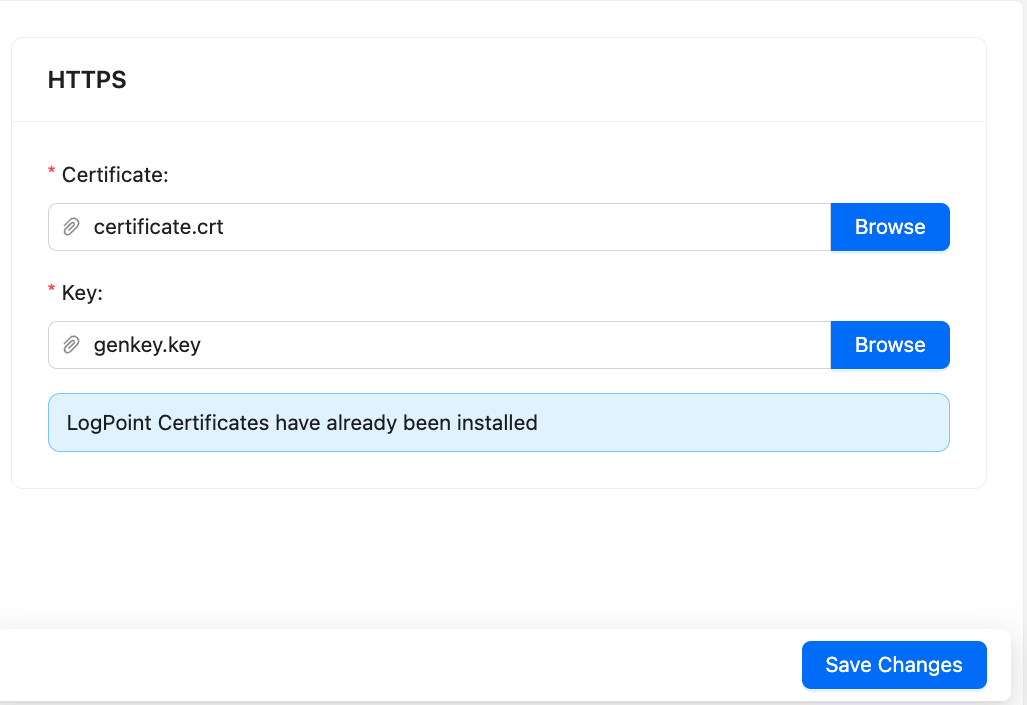
Click Save Changes.
Syslog TLS
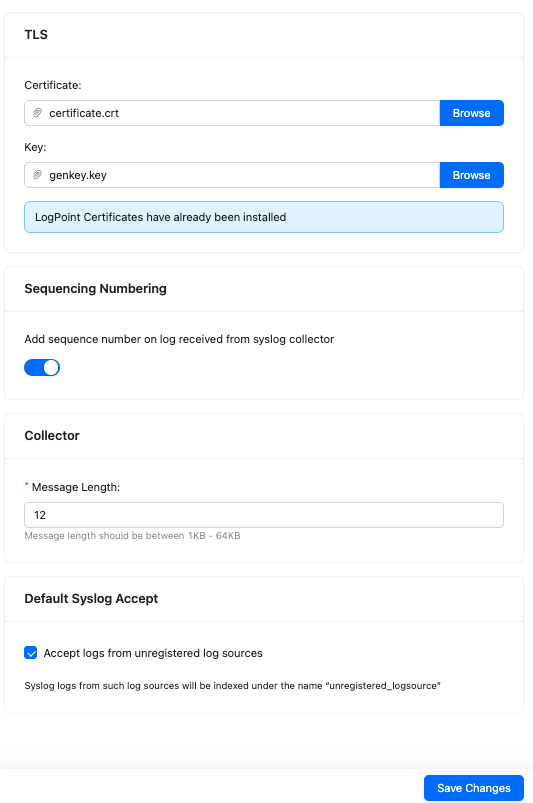
Syslog settings allow you to add a custom TLS (Transport Layer Security) certificate to enable secure log collection via Syslog. The syslog collector uses this certificate to maintain the confidentiality and authenticity of the logs transmitted on port 6514. For information on how to generate the custom certificate and key, go to HTTPS.
Upload the Syslog TLS certificate
Go to Settings >> System Settings from the navigation bar and click System Settings.
Select Syslog.
Click Browse to upload the custom TLS Certificate and Key.
Enable Add sequence numbers on log received from syslog collector to provide a sequence number to the syslogs. The number is assigned on a device per protocol basis to each log collected from the Syslog Collector.
In Message length, enter the size for Syslog messages. Syslog message contains information about the log, such as timestamp, severity, facility, and description. The maximum message size can be 64 KB, with a default size of 12 KB. Any message that exceeds the maximum size is divided into multiple events and shortened at the defined size. For example, if the message length is 40 KB, logs larger than that size are grouped into 40 KB segments.
Enable Accept logs from Unregistered Log Sources to accept unregistered logs from any syslog source. The received logs are normalized using _default_syslog normalization policy and stored in the default repo.
Click Save Changes.
Support Connection
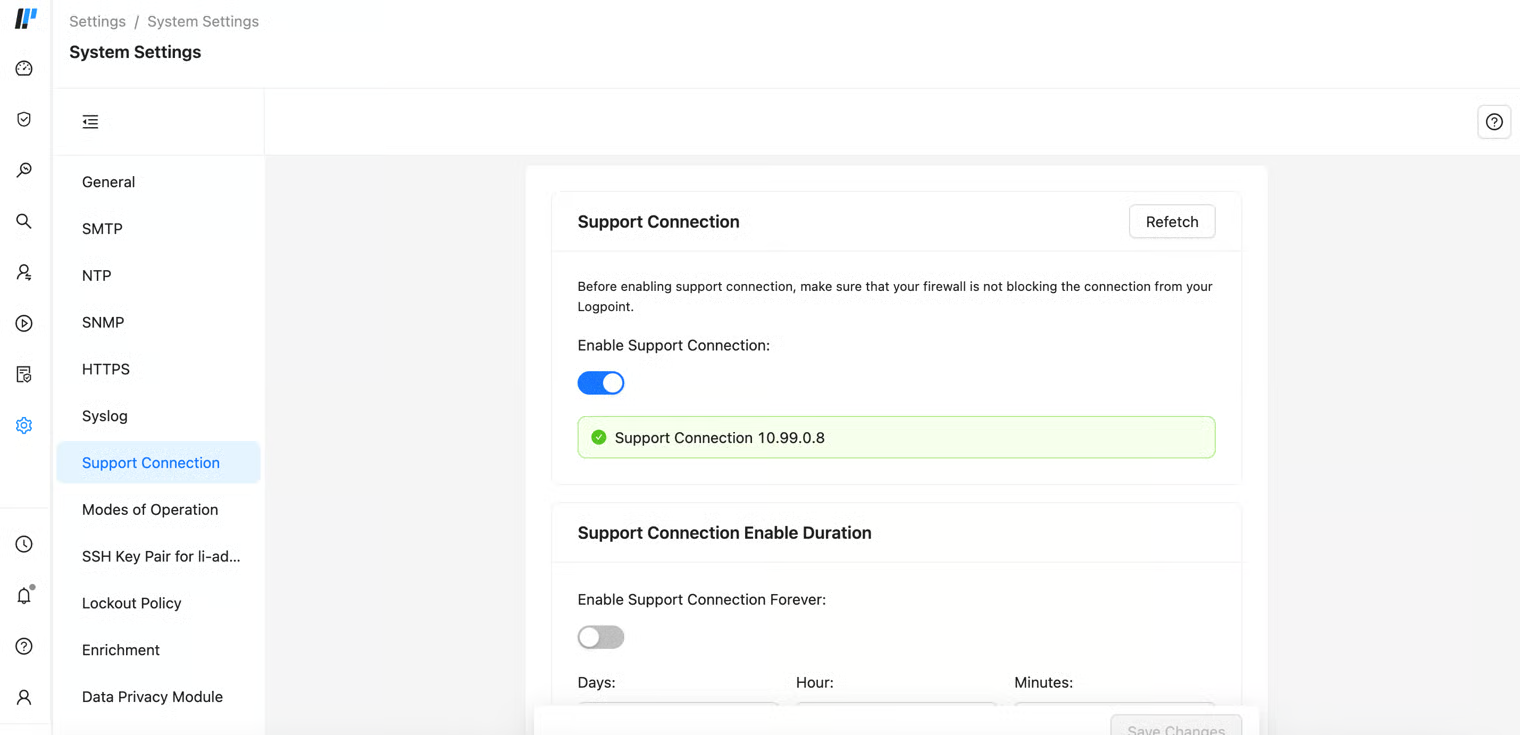
Support Connection creates an encrypted end-to-end communication channel between Logpoint and Logpoint support. It is used by Logpoint Support to understand, troubleshoot, and fix the issues on your deployment issues. For support connection using the console, run the start-support command. Then, use the ifconfig command to get the IPv4 address from the tap0 interface.
Before enabling support connection, make sure that your firewall is not blocking the connection from your Logpoint to the following:
reverse.logpoint.com
1193/UDP
customer.logpoint.com
443/TCP
Enabling Support Connection
Go to Settings >> System Settings from the navigation bar and click System Settings.
Select Support Connection.
You must turn on Enable Support Connection for Logpoint to start retrieving the support connection IP. If the Support Connection IP is unavailable, click Refetch.
Enter the retrieved support connection IP to the Logpoint Support team.
Enter the Support Connection Enable Duration. The support session expires after it exceeds the duration. Support connection never expires if you select 0:0:0 as the time duration, or Enable Support Connection Forever.
Click Save Changes.
Enrichment Propogation
Enrichment Propagation uses multiple Logpoints to perform enrichment tasks. A Logpoint machine can be either an enrichment provider or an enrichment subscriber. You must set up a Distributed Logpoint connection to configure Logpoint in the Enrichment Propagation mode.
Enrichment Provider: Collects raw data and shares it with enrichment subscribers. It keeps a list of all the IP Addresses of enrichment subscribers.
Enrichment Subscriber: Receives enrichment data from an enrichment provider to create rules for the enrichment process. It also acts as a bridge between a Logpoint Collector and an enrichment provider. For Enrichment Subscribers, Enrichment Sources in Settings >> Configuration is disabled, use the sources of an enrichment provider.
You can have any number of enrichment subscribers but only one enrichment provider. One enrichment provider can be connected to:
A single enrichment subscriber
Multiple enrichment subscribers
A single enrichment subscriber connected to a Logpoint Collector
Multiple enrichment subscribers connected to multiple Logpoint Collectors
Configuring Enrichment Propagation
When setting up Enrichment Propagation, make sure to configure an Enrichment Provider first. After setting up an Enrichment Provider, then setup the Enrichment Subscribers. When setting up an existing Logpoint instance as an Enrichment Subscriber, you need to delete all existing enrichment policies and their dependencies before configuring it as an enrichment subscriber.
While removing the UEBA_ENRICHMENT_POLICY and Threat_Intelligence enrichment policies, remove Threat Intelligence and UEBA PreConfiguration too. After removing the enrichment policies, manually install both the applications in the new enrichment subscriber.
Go to Settings >> System Settings from the navigation bar and click System Settings.
Select Enrichment.
You must select Enrichment Propagation.
Select Enrichment Provider or Enrichment Subscriber. If you select Enrichment Subscriber, choose a Subscription Source, which is the IP address of an enrichment provider from the dropdown menu.

Click Save Changes.
Enrichment Propagation Working Scenario
The following scenario depicts an enrichment process in the Enrichment Propagation mode with a configuration of 2 machines: Machine 1 and Machine 2. In the Standalone Mode, all the above tasks are performed in a single machine.
Select Enrichment Provider in Machine 1 and Enrichment Subscriber in Machine 2.
Add a CSV Enrichment Source to Machine 1 using the data from the following CSV file.

Add a normalization package containing log signatures to Machine 2.
Add a normalization policy, enrichment policy, and routing policy to Machine 2
Add a processing policy to incorporate all the policies earlier created and add it to a device.

You can now see the enriched results in the search results of the enrichment subscriber.


Drilldown Operation in the Enriched Results
Click the dropdown menu on the enriched fields to view the different actions

Enrichment Source: Displays the information of the source file the enriched field belongs to.
Participated Fields: Displays the field of a log specified in the enrichment rule to enrich the log.

In the above example, the Participated Field pid has been specified in the earlier created enrichment rule. The enrichment rule matches the value of the pid field in the log to the S.No. field in the source and enriches the log.
Multi Port
Multiport for Collectors allows you to configure and manage multiple listening ports for Syslog and Netflow collectors. Custom ports can be added for log collection after creating a device or a log source.
For Logpoint SaaS, only root users can add the custom port(s).
Default Ports
Syslog and Netflow collectors listen on default ports, which are standard network port numbers used to communicate with log sources. With Multiport support, custom ports can be defined within the range 49152–65535 to receive logs.
Once configured, Logpoint listens on all defined ports simultaneously, ensuring flexibility in how logs are ingested.
Collector
Protocol
Default Port
Description
Syslog
TCP/UDP
514
Standard port for unencrypted Syslog communication.
Syslog (SSL)
SSL
515 / 6514
Standard port for secure Syslog over TLS/SSL, ensuring encrypted log transmission. Li-admins can change the default port from 515 to 6514 or vice versa using the change-syslog-ssl-port command.
NetFlow
UDP
9001
Default port for NetFlow communication.
You can define up to ten custom ports per collector. Each port must be unique and cannot be shared with another collector.
Configuring custom port for syslog collector
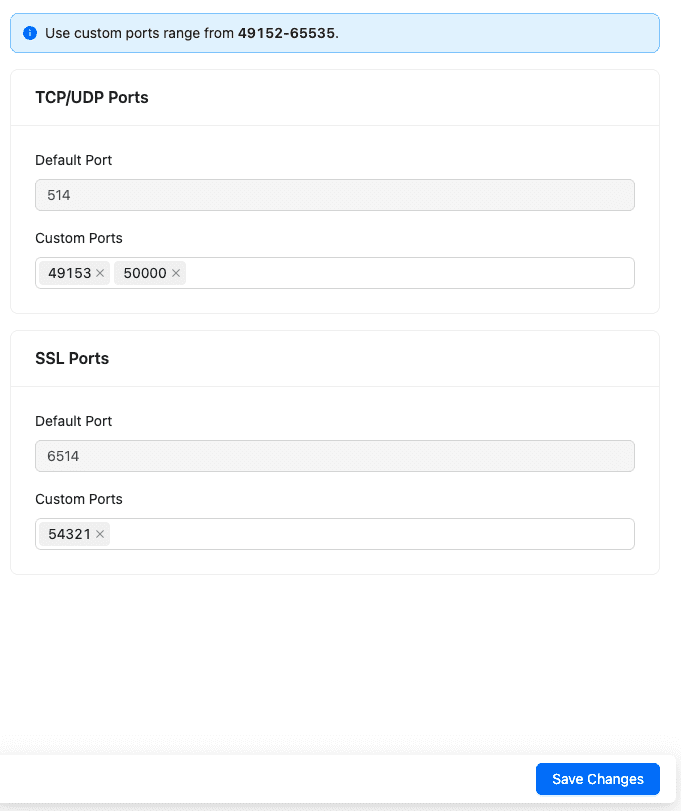
Syslog Collector enables you to collect data from sources that follow the Syslog protocol, using default ports or custom TCP/UDP or SSL ports to receive logs from devices.
Go to Settings >> System Settings from the navigation bar and click System Settings.
In Multi Port for Collectors, click Syslog.
Enter the Custom Port(s) for the TCP/UDP or SSL Ports.
Click Save Changes.
Configuring custom port for Netflow Collector
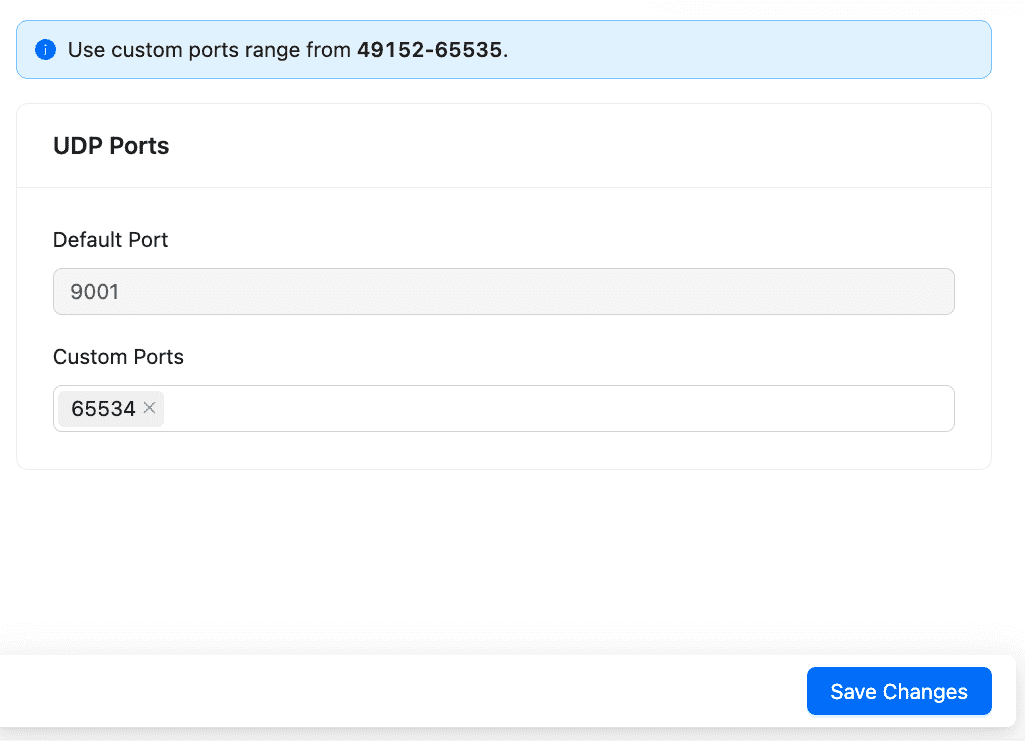
The Netflow Collector enables you to collect and analyze network traffic statistics from devices including Cisco routers and switches, using the default UDP port or custom UDP ports to receive logs.
Go to Settings >> System Settings from the navigation bar and click System Settings.
In Multi Port for Collectors, click Netflow.
Enter the Custom Port(s) for the UDP Port.
Click Save Changes.
Last updated
Was this helpful?