Export Management
Export Management allows you to export raw logs from Search results to a target storage location on a remote Logpoint. You can export raw logs from simple search queries, not aggregated queries. If you have Data Privacy applied, you can’t export raw data.
Export Management is not available in SaaS.
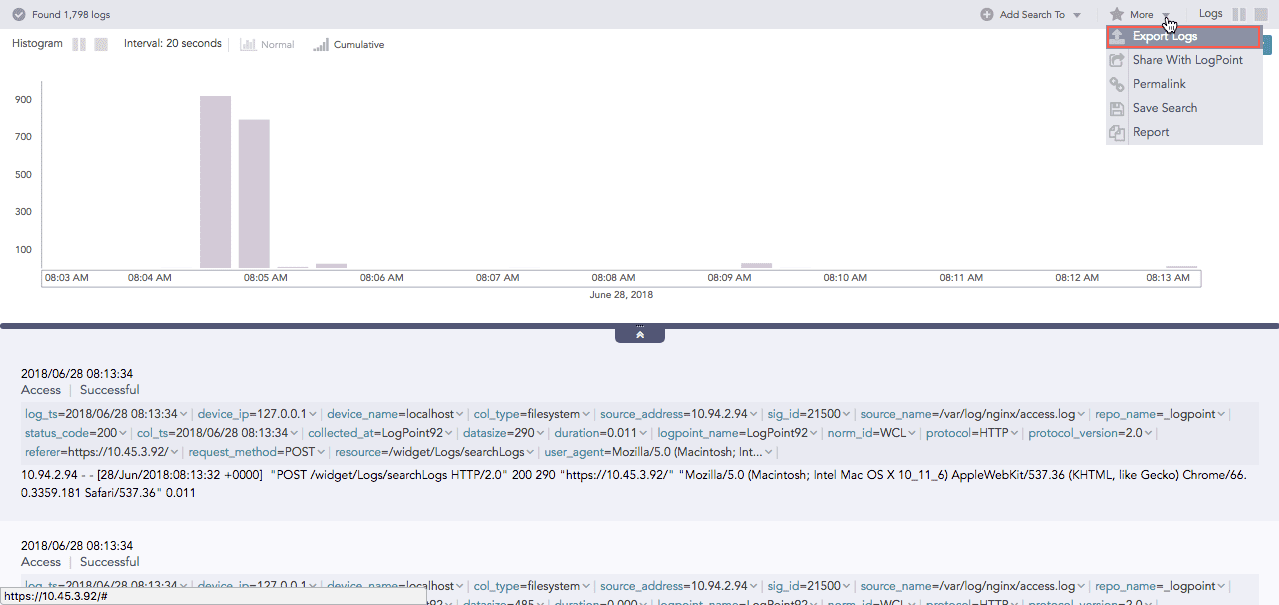
You add a target and then the targets you add are added to Search. After you use a target you can check the status of the export. You can also delete any exports. You can create a target either by using Secure Copy Protocol (SCP) or File Transfer Protocol (FTP).
If you use SCP Export, multiple lines of the same log are counted as different logs. For that reason, the number of logs in the search results may differ from the number of exported logs.
Adding a SCP Target
Go to Settings >> Configuration from the navigation bar and click Export Management.
Click ADD and select SCP.
Enter a Name.
Enter the IP address of the remote Logpoint.
Enter a Port number.
Enter the Username.
Select an Authentication protocol.
If you select:
Password, enter the authentication Password.
SSH Certificate, copy the provided key and add it to authorized keys in the remote Logpoint.
Enter the Path of the target Logpoint.
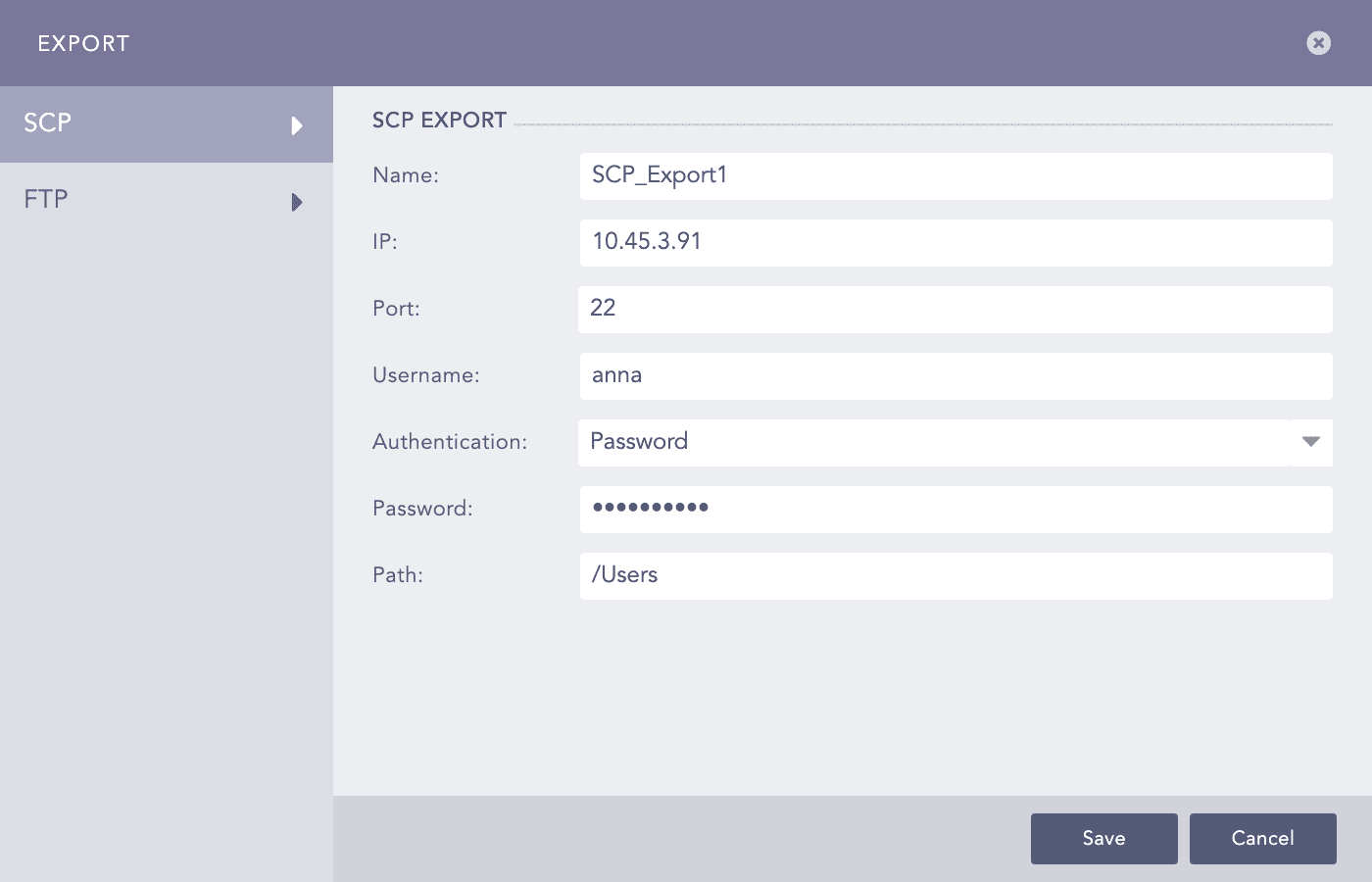
Click Save.
Adding a FTP Target
Enter a Name of the export file.
Enter the IP address of the remote Logpoint.
Enter a Port number.
Enter the Username and Password recognized by the given IP address.
Enter the Path of the target Logpoint.
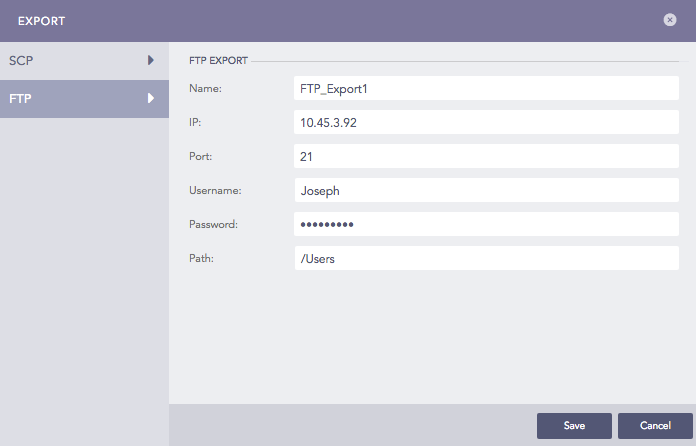
Click Save.
Select and Use a Target
In the navigation bar, click Search.
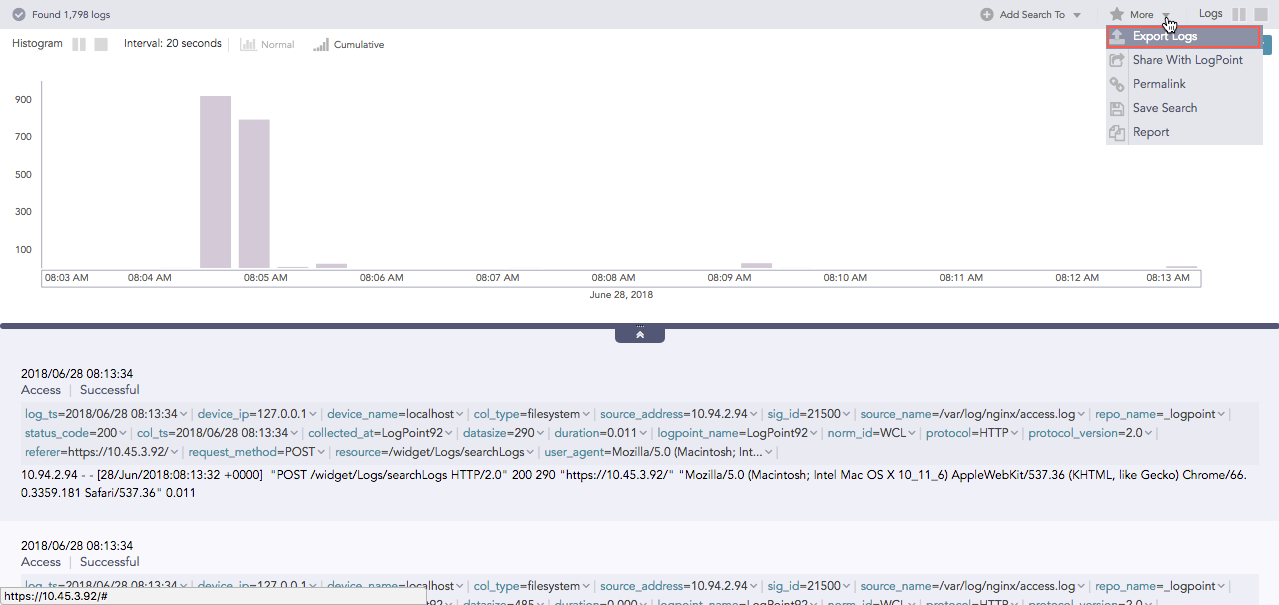
Click the More dropdown and click Export Logs >>Target.
Your targets are listed.
Job Status
Job Status displays the Name, Type, Status, and Remarks of the export log status with their Actions.

Deleting an Export
Go to Settings >> Configuration from the navigation bar and click Export Management.
Click the Delete icon under Actions.
To delete multiple exports, select the exports, click the MORE dropdown, and select Delete Selected.
To delete all the exports, click the MORE dropdown and select Delete All.
Click Yes.
Was this helpful?